
Interview Stages and Interview Procedure Flow
The Interview Stage page is used to configure the different stages of the interview process in the recruitment procedure. This allows you to create and manage various interview stages such as telephonic interviews, technical rounds, coding tests, and face-to-face interviews. These stages ensure that each candidate goes through a structured and consistent interview process, making the recruitment procedure transparent and organized.
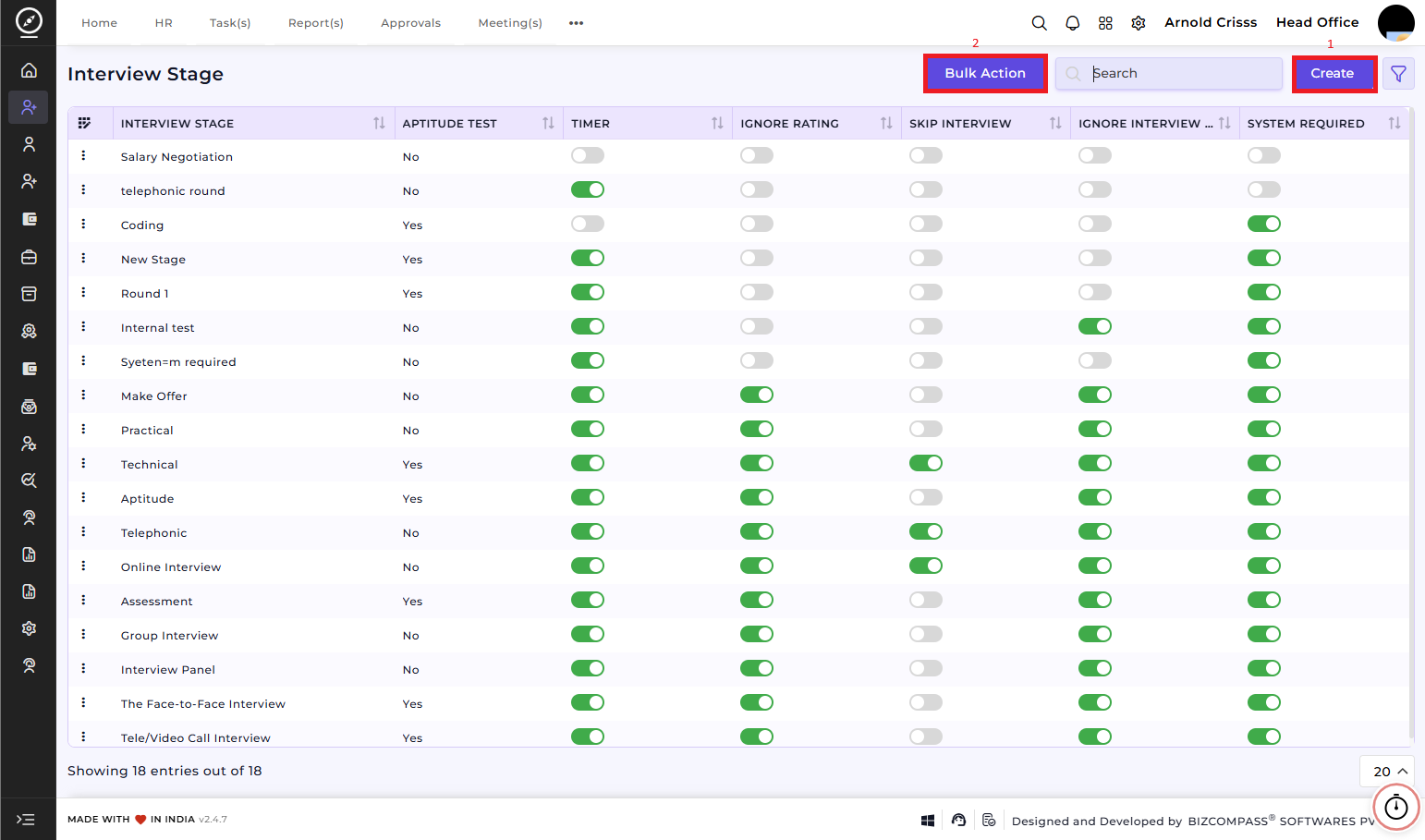
1) Create Interview Stage:
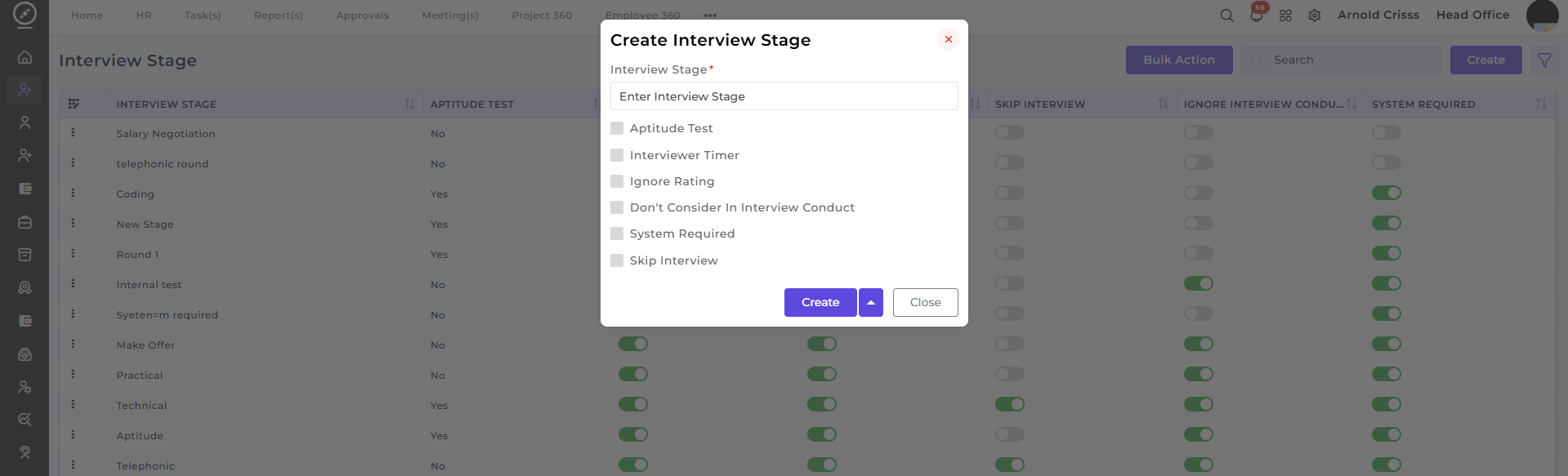
To create a new interview stage:
-
Enter the Interview Stage Name:
Specify the name of the stage. -
Add Aptitude Test:
Select Yes if the stage involves an aptitude test. This can be used for stages where candidates need to complete an online or written test. -
Interview Timer:
Choose Yes to set a timer for the interview. This is helpful for managing the duration of the interview and ensuring that each candidate is given the appropriate amount of time. -
Ignore Rating:
Enable this option if you wish to skip the rating process for this particular interview stage. This can be used when the stage does not require a rating or evaluation of the candidate. -
Don't Consider in Interview Conduct:
Enable this option if this stage should not be considered when conducting the final evaluation of the candidate. -
System Required:
Enable this if a PC is required for that stage. This option is generally enabled for aptitude or online interview stages. -
Skip Interview:
Enable this if you wish to allow candidates to skip this stage in certain cases. -
Create:
Once all the details are filled in, click the Create button to add the interview stage to the system.
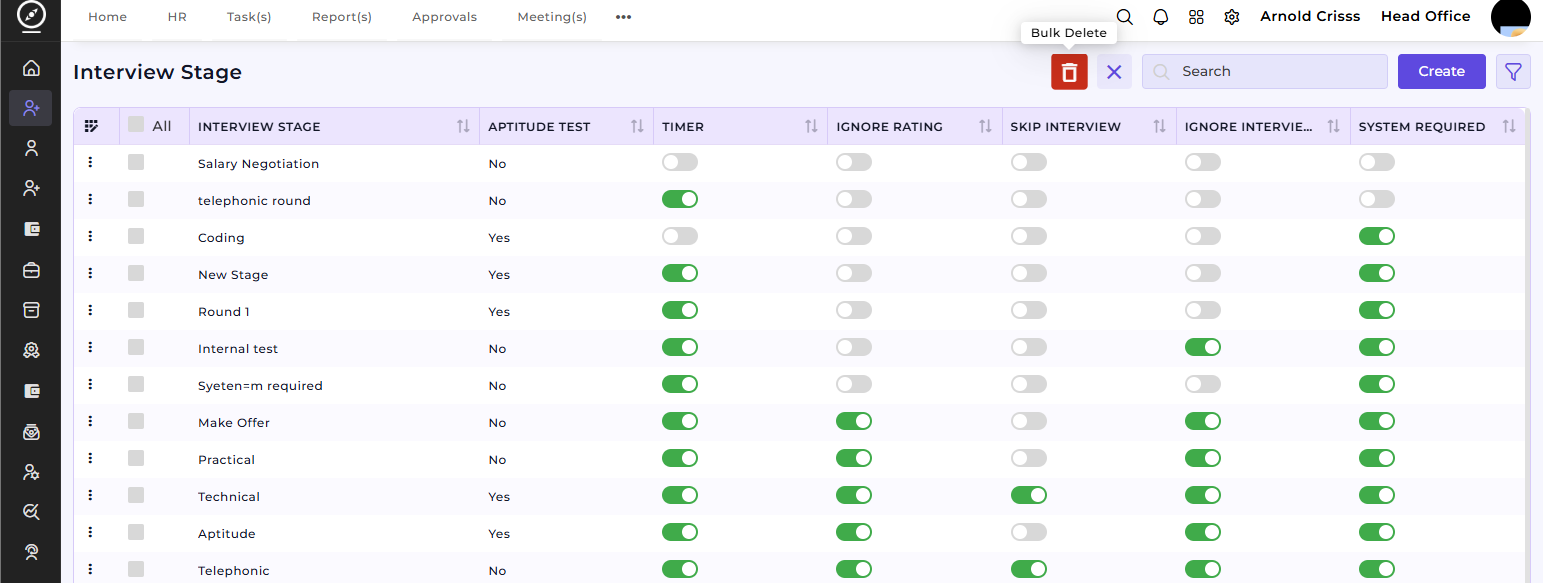
2) Bulk Action:
The Bulk Action button allows you to delete multiple interview stages at once, streamlining the management process.
Interview Procedure Flow:
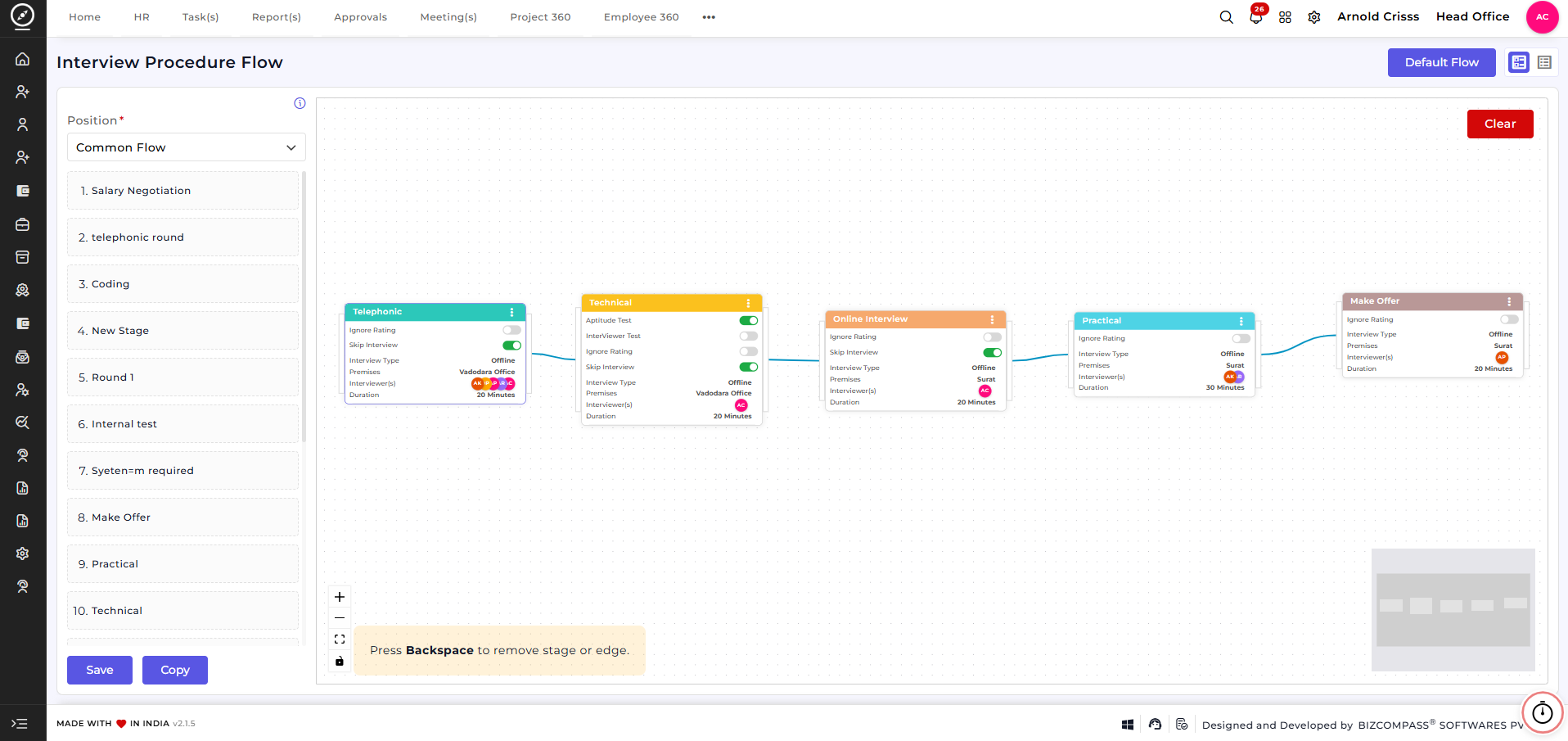
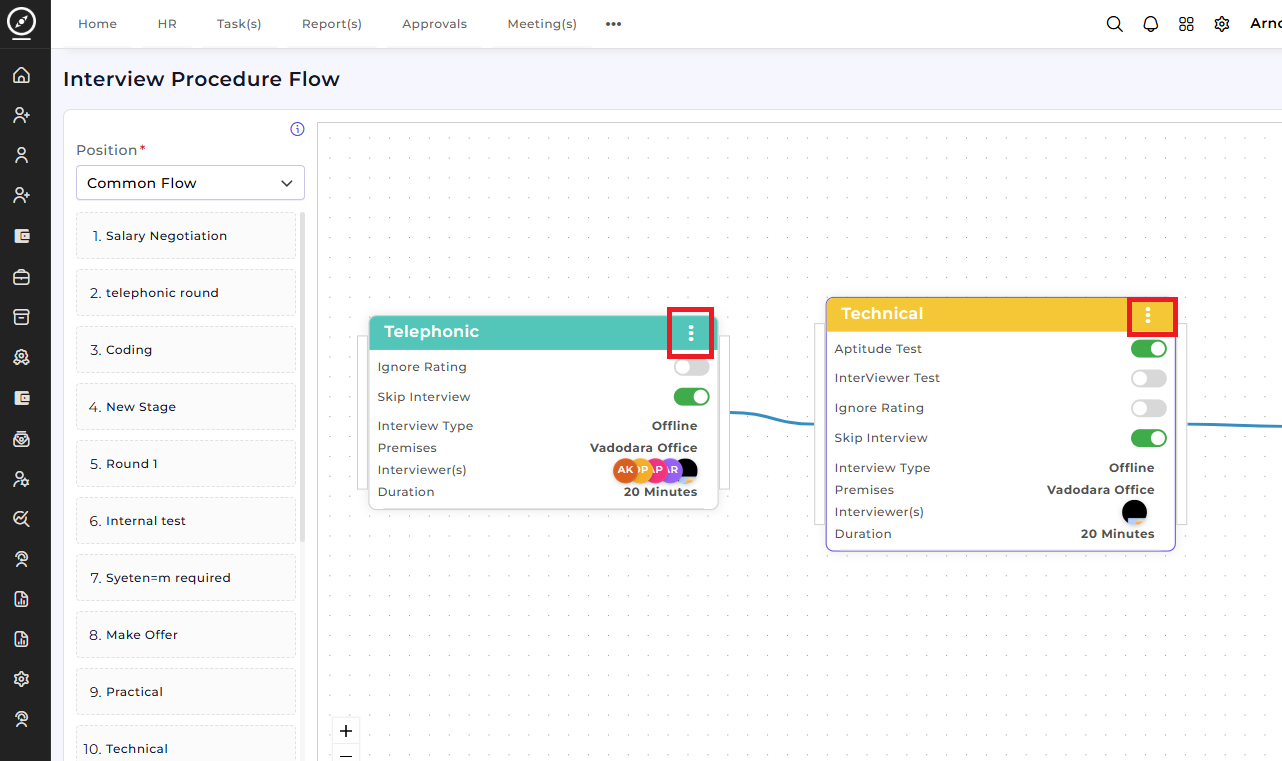
The Interview Procedure Flow feature is used to design, manage, and control the complete interview process for candidates. It allows organizations to define structured interview stages and map them in a logical sequence, ensuring a consistent and transparent hiring workflow.
This flow helps recruiters visualize and manage how a candidate progresses from one interview stage to the next.
Overview:
This screen provides a dynamic visual workflow builder where interview stages are arranged in sequence.
-
Select a Position / Flow Type (e.g., Common Flow or role-specific flow).
-
View all available interview stages on the left panel.
-
Drag and arrange stages on the canvas to define the interview order.
-
Connect stages to create a logical interview progression.
-
Use Save to store the flow or Copy to duplicate an existing flow.
-
Use Clear to reset the current flow.
The visual layout helps recruiters quickly understand and manage the entire interview process at a glance.
Interview Stages:
Interview stages represent individual steps in the hiring process. Examples include:
-
Telephonic
-
Technical
-
Online Interview
-
Practical
-
HR Round
-
Salary Negotiation
-
Make Offer
Customizing the Interview Flow:
Using the flow builder, recruiters can:
-
Add or remove interview stages
-
Rearrange stages based on hiring requirements
-
Connect stages to define candidate movement
-
Create different flows for different positions if needed
This ensures flexibility while maintaining a standardized interview structure.
Stage Configuration:
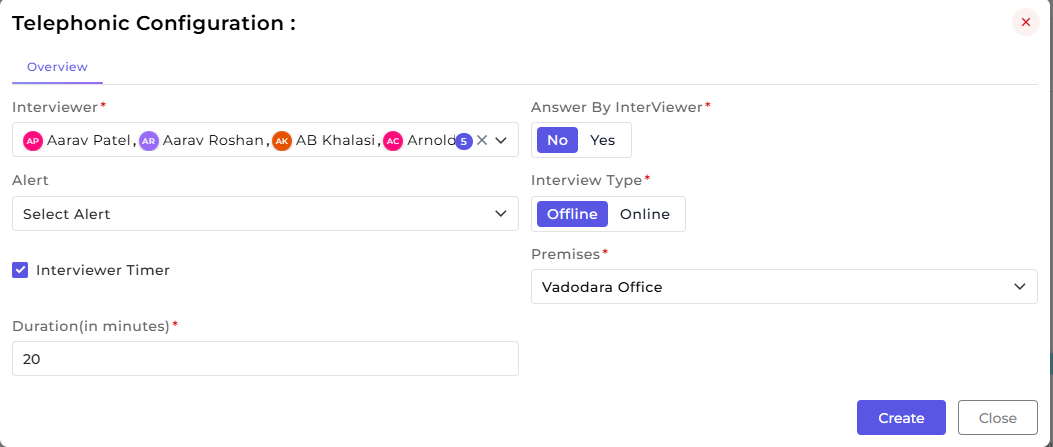
When clicked on the three dots of any stage in the Interview Procedure Flow (for example, Telephonic), a Stage Configuration screen opens. This screen is used to define detailed settings for that specific interview stage.
For example, you want to configure Technical Stage (i.e. Aptitude Test), you first need to integrate your account into a meeting medium like Google Meet or Microsoft Teams for sending meeting link by navigating to the Integration page.
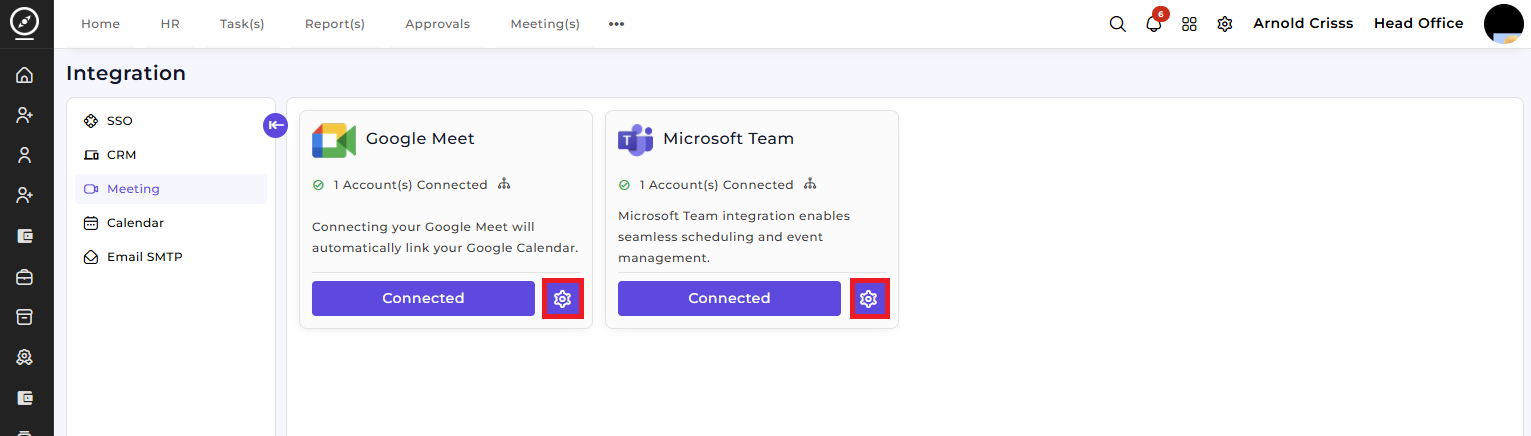
By clicking on the Settings button shown above, you can add another account into a meeting medium.
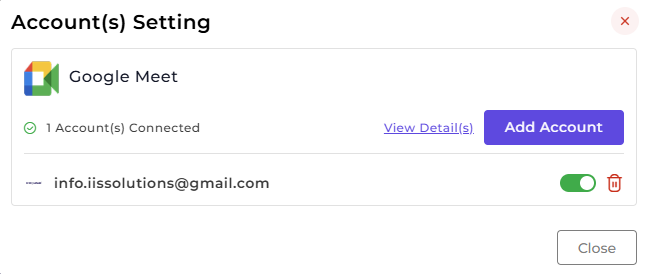
Then you can configure the Technical stage by adding Aptitude Test details.
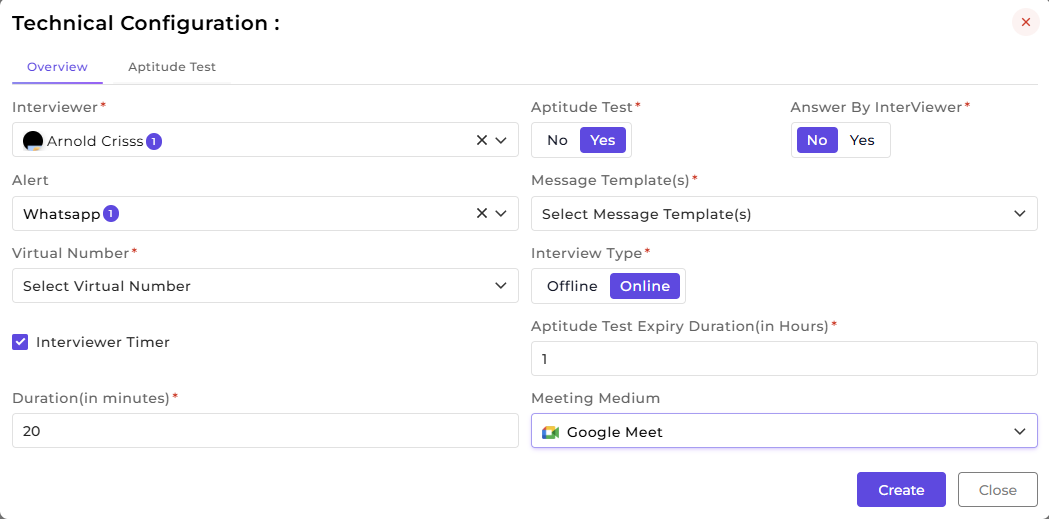
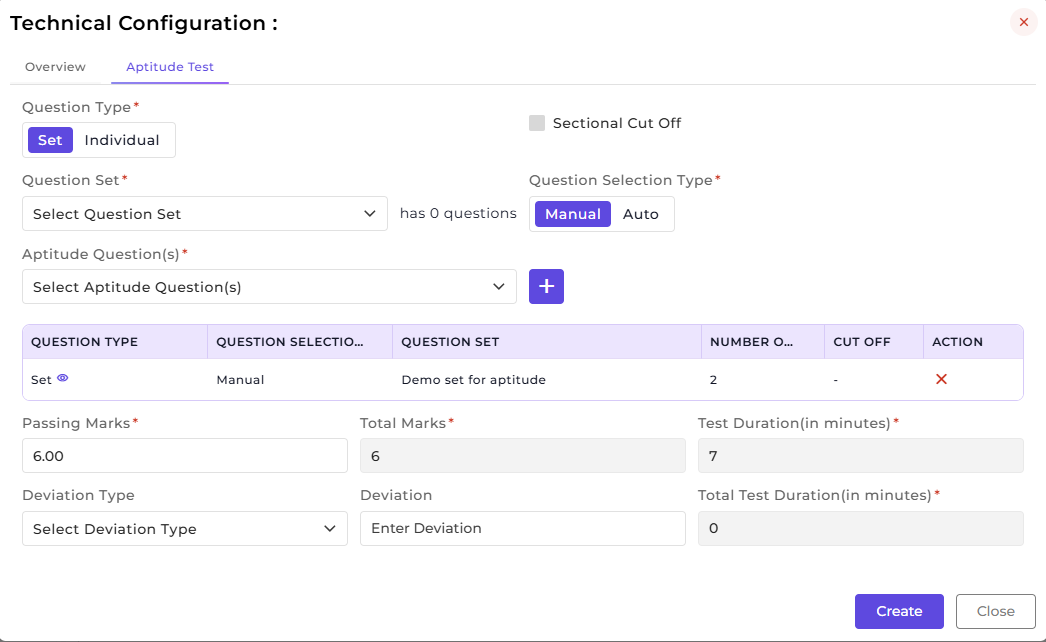
This section allows configuring all essential details for a selected interview stage.
-
Assign one or more Interviewers for the stage. Multiple interviewers can be added to ensure availability and provide backup.
-
Enable or disable Answer by Interviewer based on how the interview should be handled.
-
Select the Interview Type as Online or Offline.
-
For offline interviews, choose the appropriate Premises / Location to ensure clear logistics for both candidates and interviewers.
-
Configure Alerts to notify interviewers about scheduled interviews.
-
Enable the Interviewer Timer to track and control interview duration.
-
Define the Interview Duration (in minutes) to maintain consistent timing across candidates.
-
Click Create to save the stage configuration.
How this feature helps:
The Interview Procedure Flow ensures a structured and efficient interview process. It helps recruiters to:
• Design clear and consistent interview workflows
• Customize interview stages based on hiring needs
• Assign interviewers and define interview logistics
• Maintain transparency across all candidates
• Reduce manual coordination and scheduling errors
This ensures that the entire interview process remains organized, scalable, and aligned with recruitment goals.