
Joining Procedure Flow
The Joining Procedure Flow defines the complete onboarding journey for a candidate after selection. It provides a dynamic visual workflow builder that allows HR teams to design, configure, and manage every step involved in the employee joining process in a structured and sequential manner.
Designing Joining Procedure Flow:
Select a Position / Flow (for example, Common Flow).
-
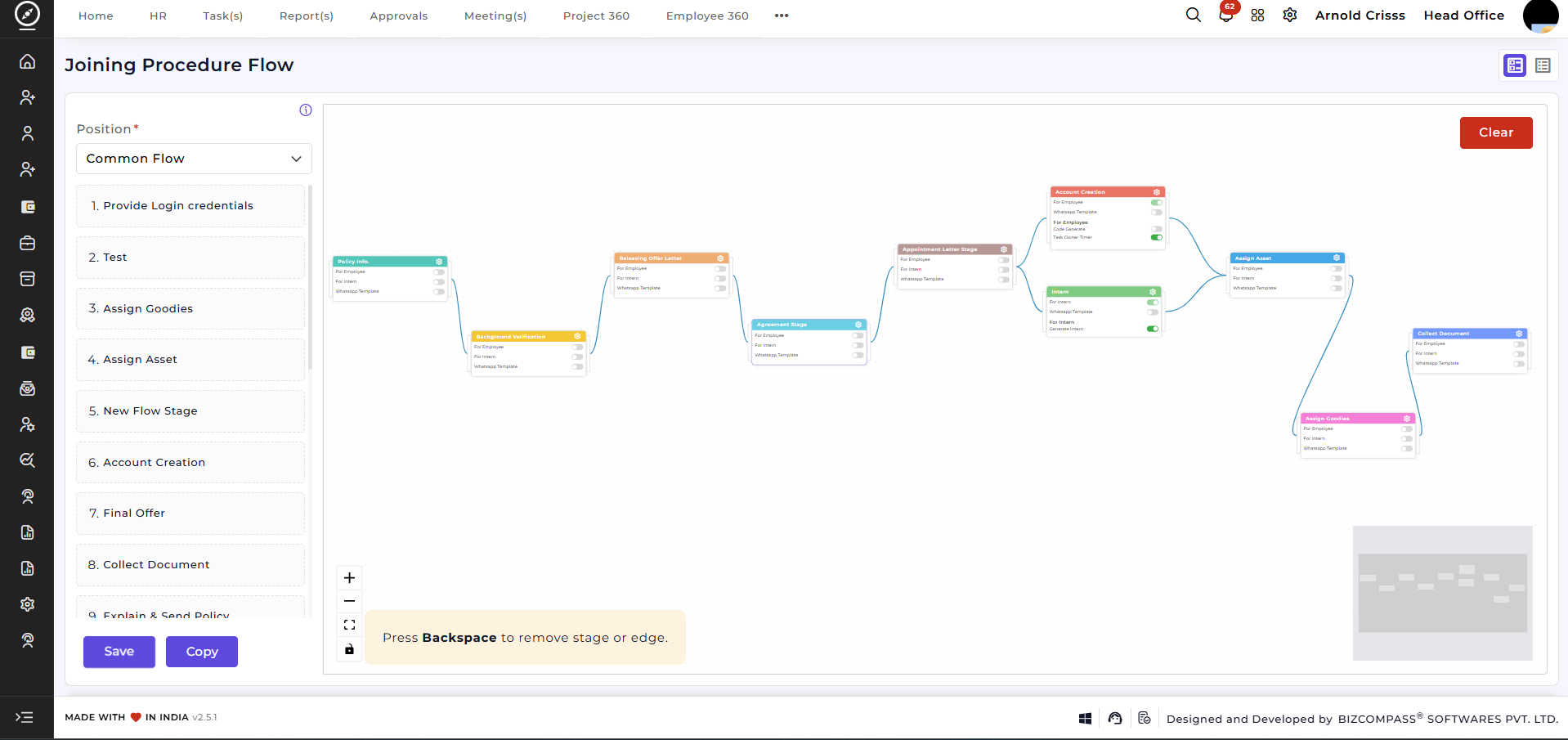
View all onboarding stages arranged visually from start to end.
-
Each stage represents a specific onboarding activity.
-
Stages are connected to clearly define the execution order.
-
Use Save, Copy, or Clear actions to manage the flow.
-
Explain & Send Policy
-
Background Verification
-
Issuing Offer / Appointment Letters
-
Account Creation
-
Assign Asset
-
Assign Goodies
-
Collect Documents
-
Final Offer Confirmation
-
Add onboarding stages to the flow
-
Connect stages to define execution order
-
Rearrange stages as required
-
Remove stages or connections easily
-
Clearly visualize the entire joining process in one screen
Enable or disable the stage separately forEmployeeandIntern.Configure stage-specific actions such asPolicy Sharingemployee,Background Verificationintern,orOfferbothLetterbyRelease.Choose whetherchecking thestageflagshouldoptions.Repeatif required.Enable
and addWhatsApp Templates(by clicking ontheeyebutton) for automated communication.Control and configureDocument Collection(by clicking on theeyebutton) based on the candidate typeEnableExplain & Send Policy(by clicking on theeyebutton) where applicable.Turn onTask Owner Timer flag if you want totrackapplytaskthecompletionstagetimeconfigurationsforyouHRmadeorinresponsibletheteams.above step to this stage.
The left panel lists all available stages, while the main canvas shows the connected onboarding workflow.
Customizable Stages:
The joining process consists of multiple configurable stages, such as:
These stages are fully customizable and can be created or managed separately, allowing organizations to adapt the onboarding flow to their internal processes without changing the workflow structure.
Visual Workflow Builder:
The visual builder allows administrators to:
This ensures transparency and clarity across all onboarding steps.
Stage Configuration:
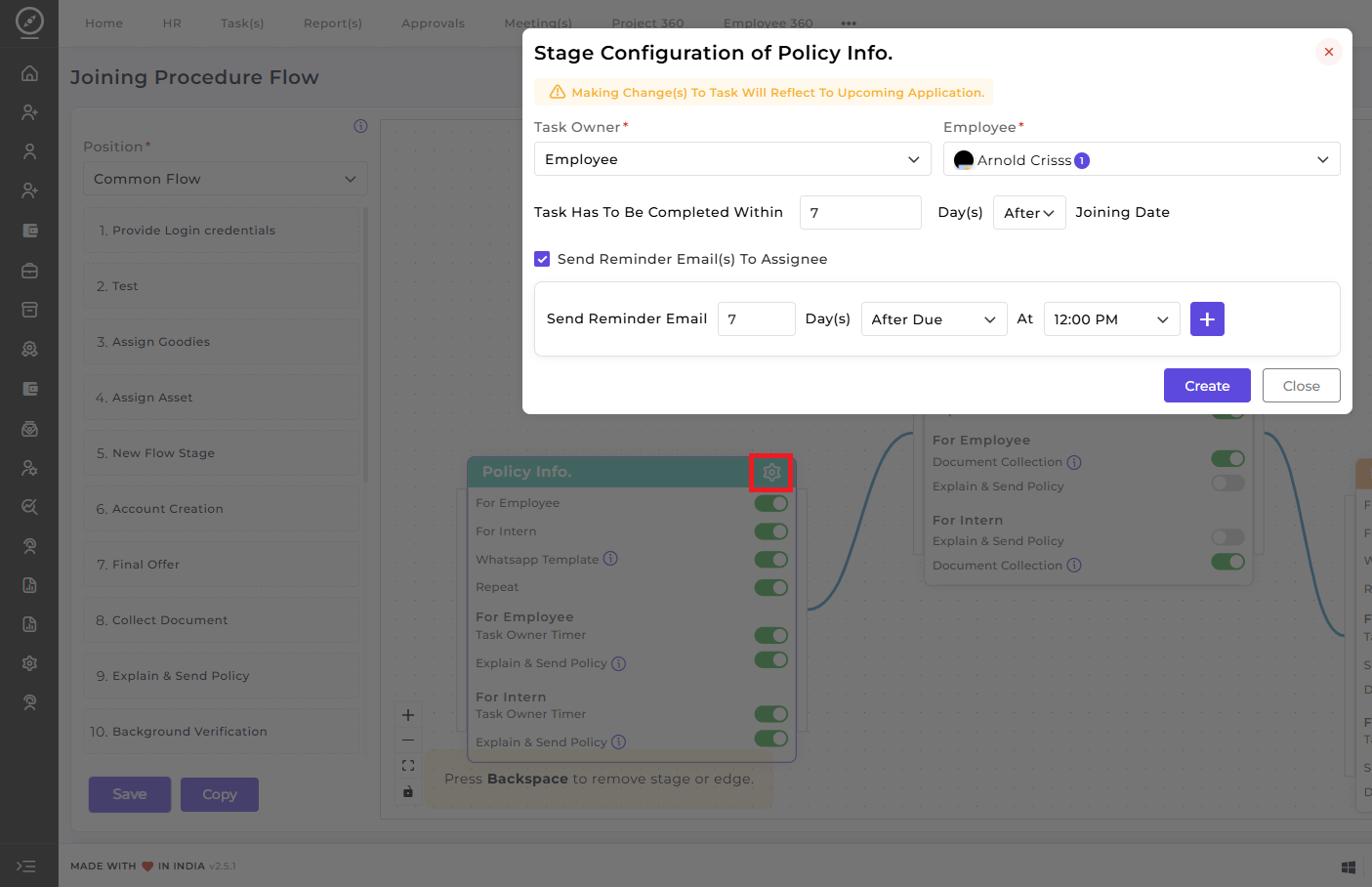
Clicking on the Settings icon of any stage openswill theopen its stage configuration panel,in where all essential details for that onboarding stage can be defined. In this configuration,which you can specify whetherthe thetask owner, employee, task completion details and setup reminder emails.
Policy Info.:
You can specify if this stage applies to an Employee, an Intern, or both.
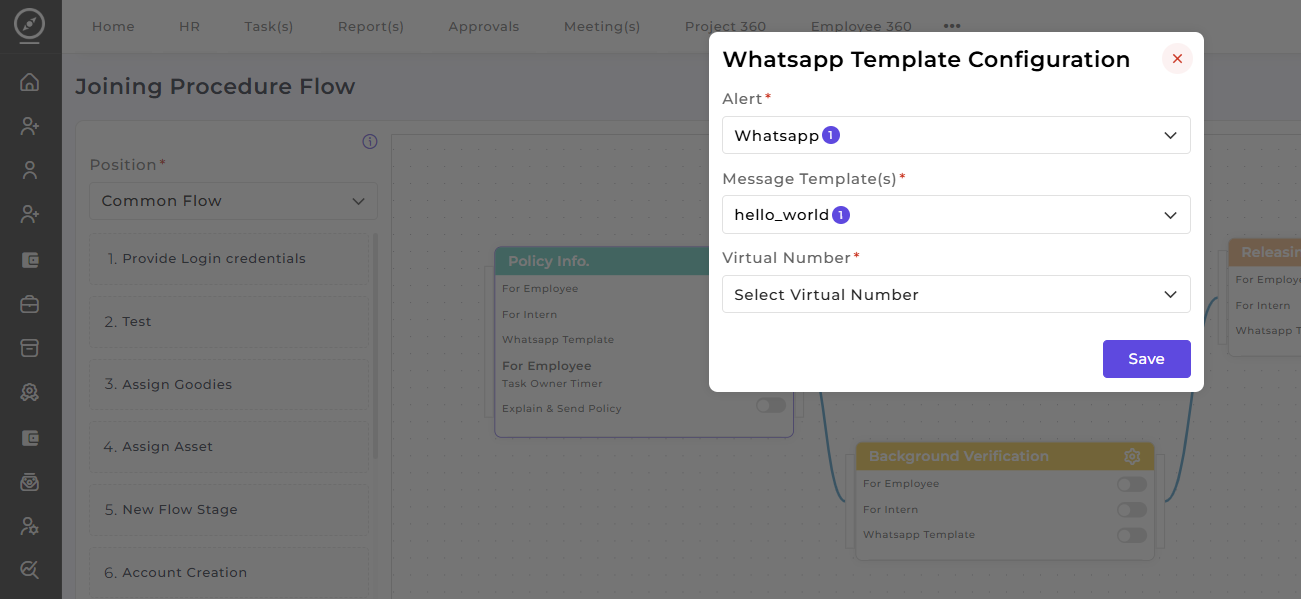
EachEnable stageand can be configured independently while remaining connected withinconfigure the overallWhatsApp joiningTemplate workflow.button if you want to send alert on WhatsApp.
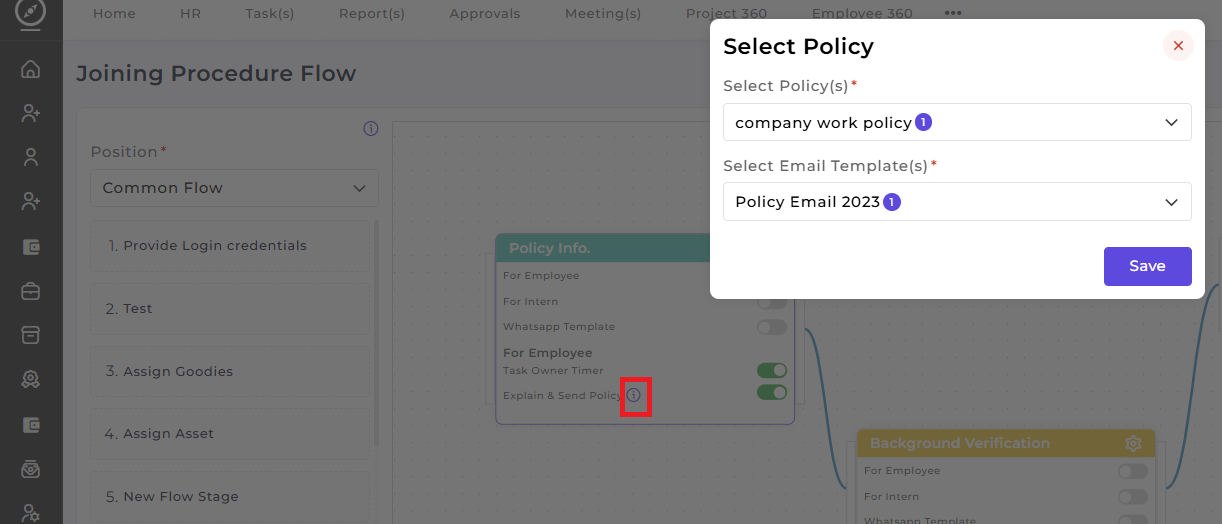
After enabling the Explain and Send Policy button, you can select the applicable policies and email templates for sending that policy to the employee/ intern.
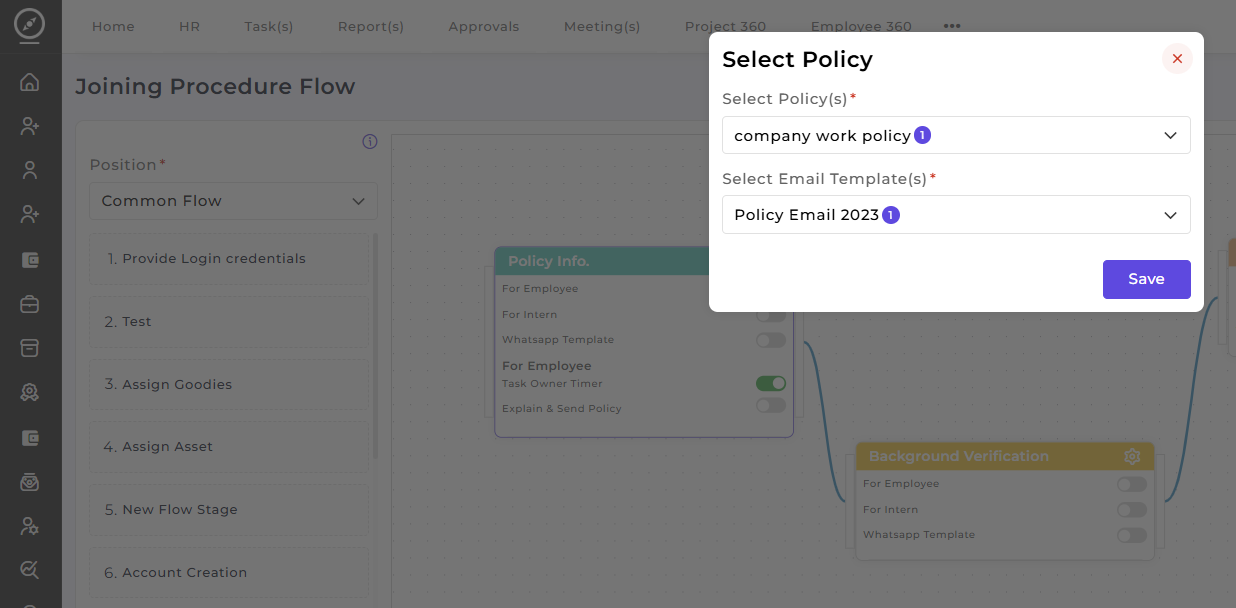
You can also edit the selected policy by clicking the eye button as shown below:
Background Verification:
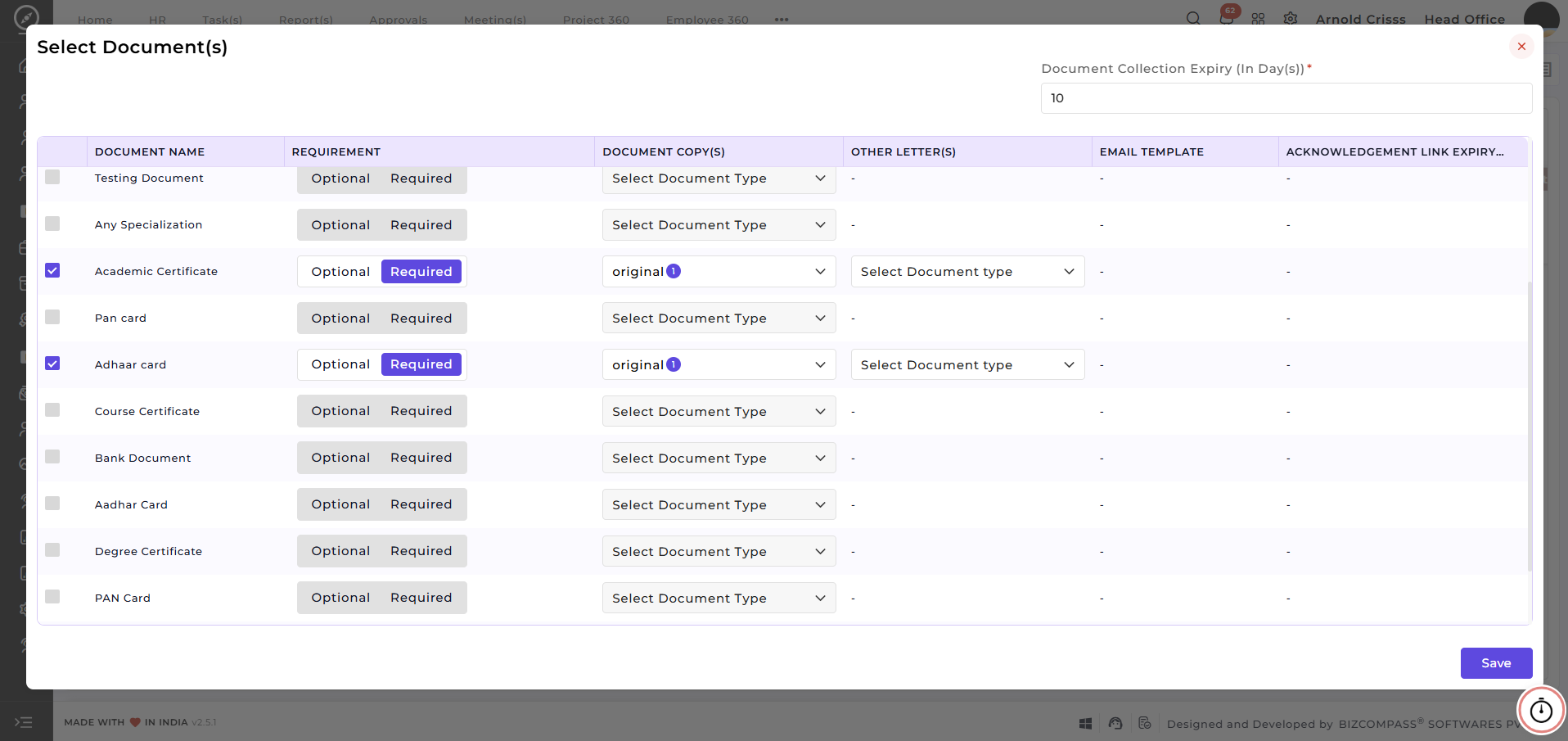
Same way, for this stage, enable the Document Collection button to select the required documents to be collected from the employee/ intern.
Same way, enable the options Send Offer Letter, Agreement Sign, and Send Appointment Letter for their respective stages to select the necessary letters.
For Account Creation and Intern stages, enable the Code Generate and Intern Generate options. Similarly, configure the remaining stages.
The stage-level configuration ensures flexibility and precision in the onboarding process. This ensures a streamlined, adaptable, and well-controlled joining process aligned with organizational requirements.