
Joining Procedure Flow
The Joining Procedure Flow defines the complete onboarding journey for a candidate after selection. It provides a dynamic visual workflow builder.
Using this flow, the organization can:
-
Send policies
-
Give joining goodies
-
Generate / acknowledge / send letters to candidates
-
Create Employee, Intern, Apprentice, Trainee, or Consultant records
-
Assign assets
-
Collect documents
-
Perform background verification
Flow Selection:
On the left-side panel, the organization can:
-
Select the Opening
-
Select the Stages
The flow can be saved and also copied for another opening.
There are two types of flow creation:
-
Create a Common Flow for all openings
-
Create a Separate Flow for each Opening, so that the opening follows its own flow instead of the common flow
If an opening is selected from the left side and no flow is visible, it means the opening is following the common flow.
If a flow is created for an opening and the organization wants it to follow the common flow again, click the Clear button available in the workspace/canvas.
Steps to Create a Flow:
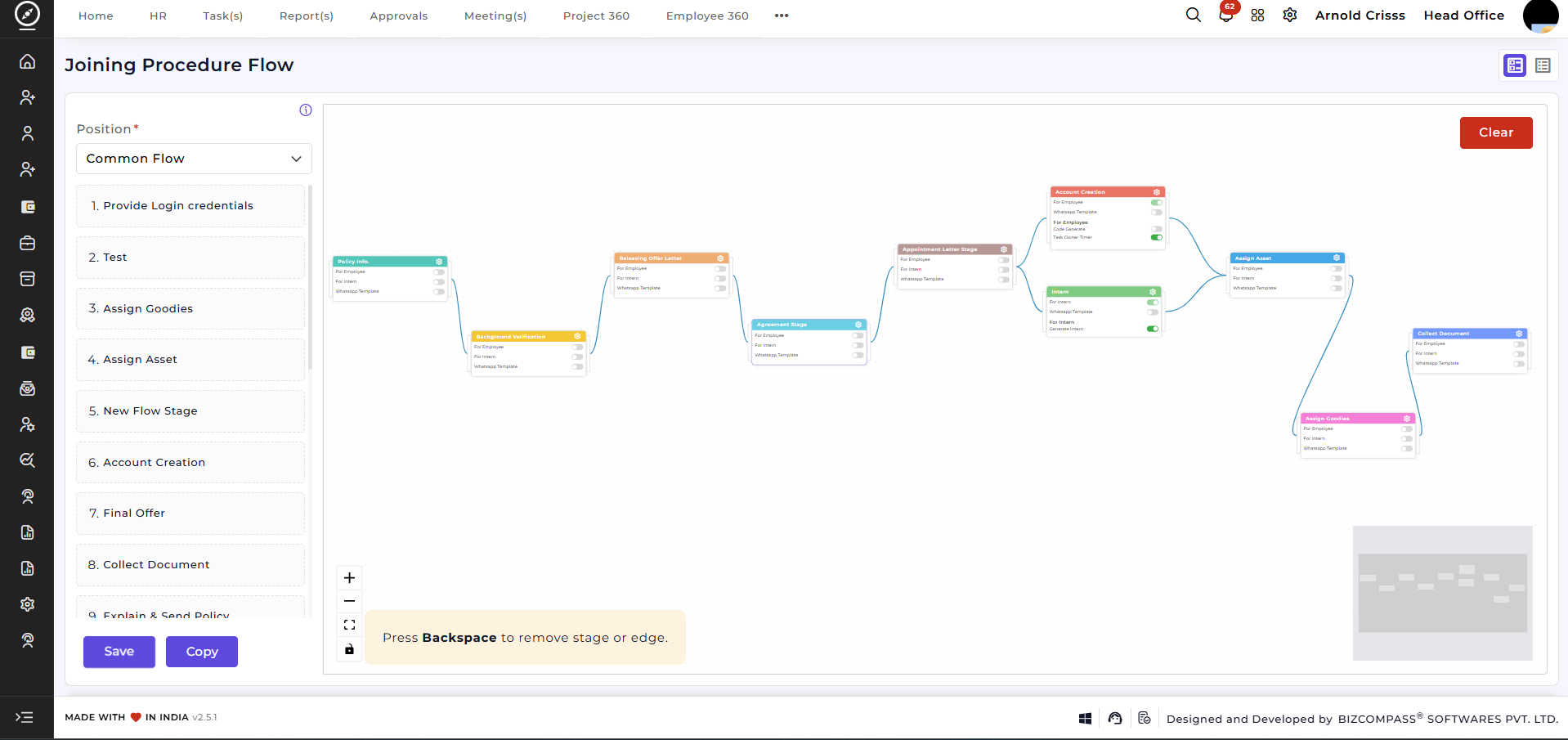
All stages created in the Joining Stage Setup will be visible here.
To perform any action in a stage:
-
That stage type must be used in the workspace/canvas
-
The required option must be enabled in that stage
Once the option is enabled in the joining stage, it can be used for Intern Flow or Employee Flow.
A single stage can be used for both Employee and Intern.
For Intern-to-Employee transition flow, select the Repeat option.
-
First, the flow will execute for the Intern
-
During conversion to Employee, only the stages with the Repeat option enabled will execute again
Stage Configuration:
Clicking on the Settings icon of any stage will open its stage configuration in which you can specify the task owner, employee, task completion details and setup reminder emails.
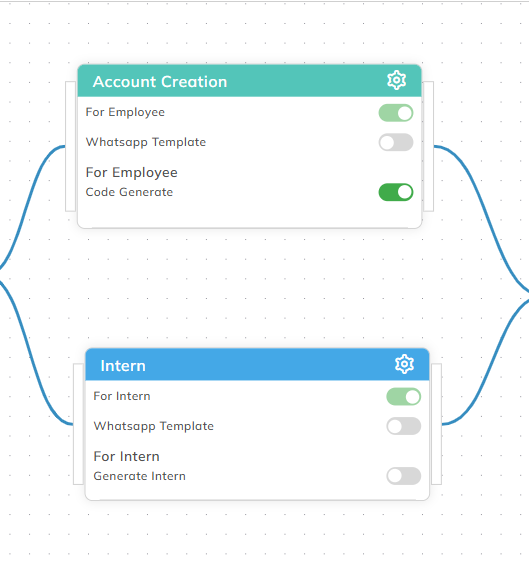
Generate Intern:
Used to create an Intern record.
Enable this option if the flow is used for Intern onboarding.
Code Generate:
Used to create an Employee record.
Enable this option if the flow is used for Employee onboarding.
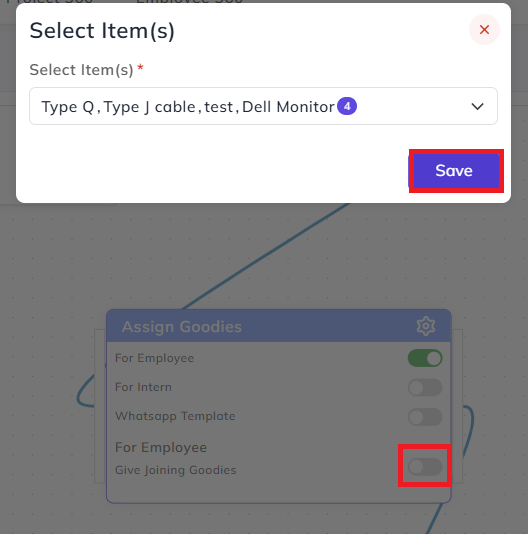
Give Joining Goodies:
Enable this option to provide joining goodies.
Only consumable items will be visible for selection.
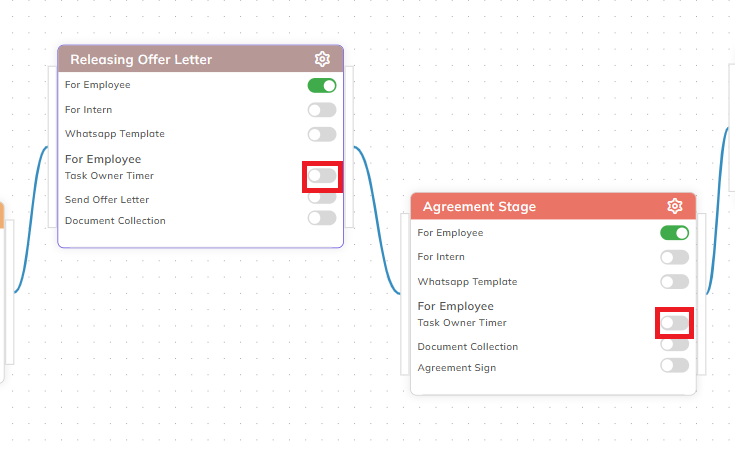
Task Owner Timer:
Enable this option if the recruiter or task owner needs to track time spent on that stage.
This can also be updated from the (🛈) Info button.
Introduction Email:
Enable this option to send an introduction email to the candidate.
-
Select the Email Template
-
Configuration can also be updated using the (🛈) Info button
Explain and Send Policy:
Enable this option to send policies via email.
Configuration includes:
-
Select the Policy
-
Select the Email Template
This can also be updated using the (🛈) Info button.
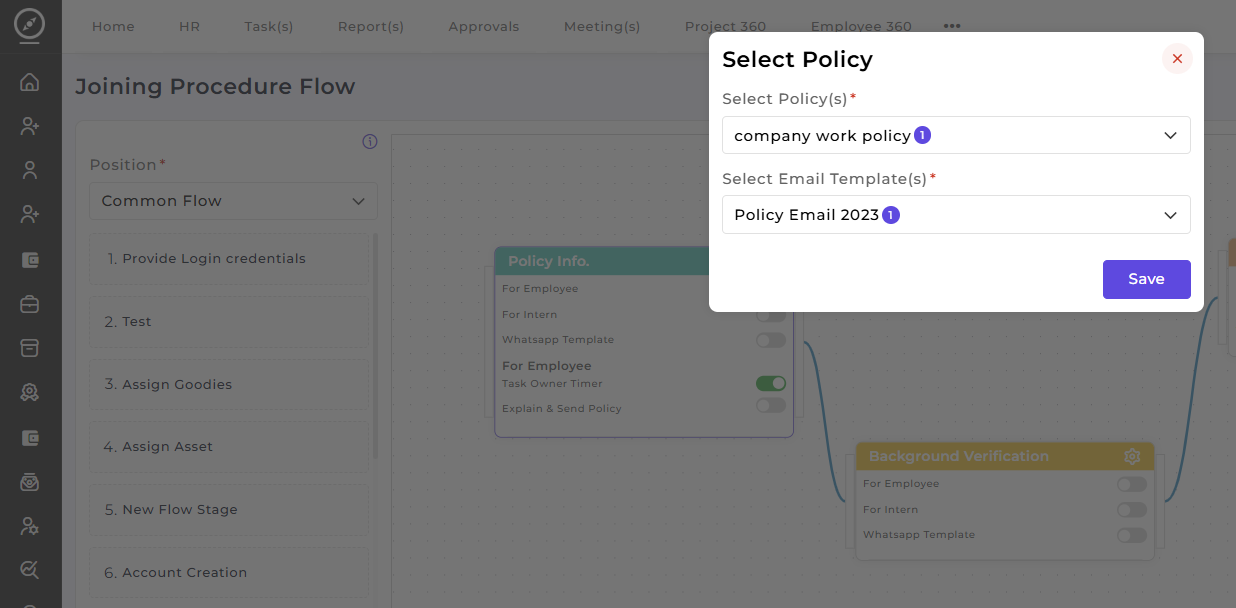
You can specify if any stage applies to employee, intern or both by checking the flag options. Enable the Task Owner Timer flag if you want to apply the stage configurations you made in the above step to this stage.
Document Collection:
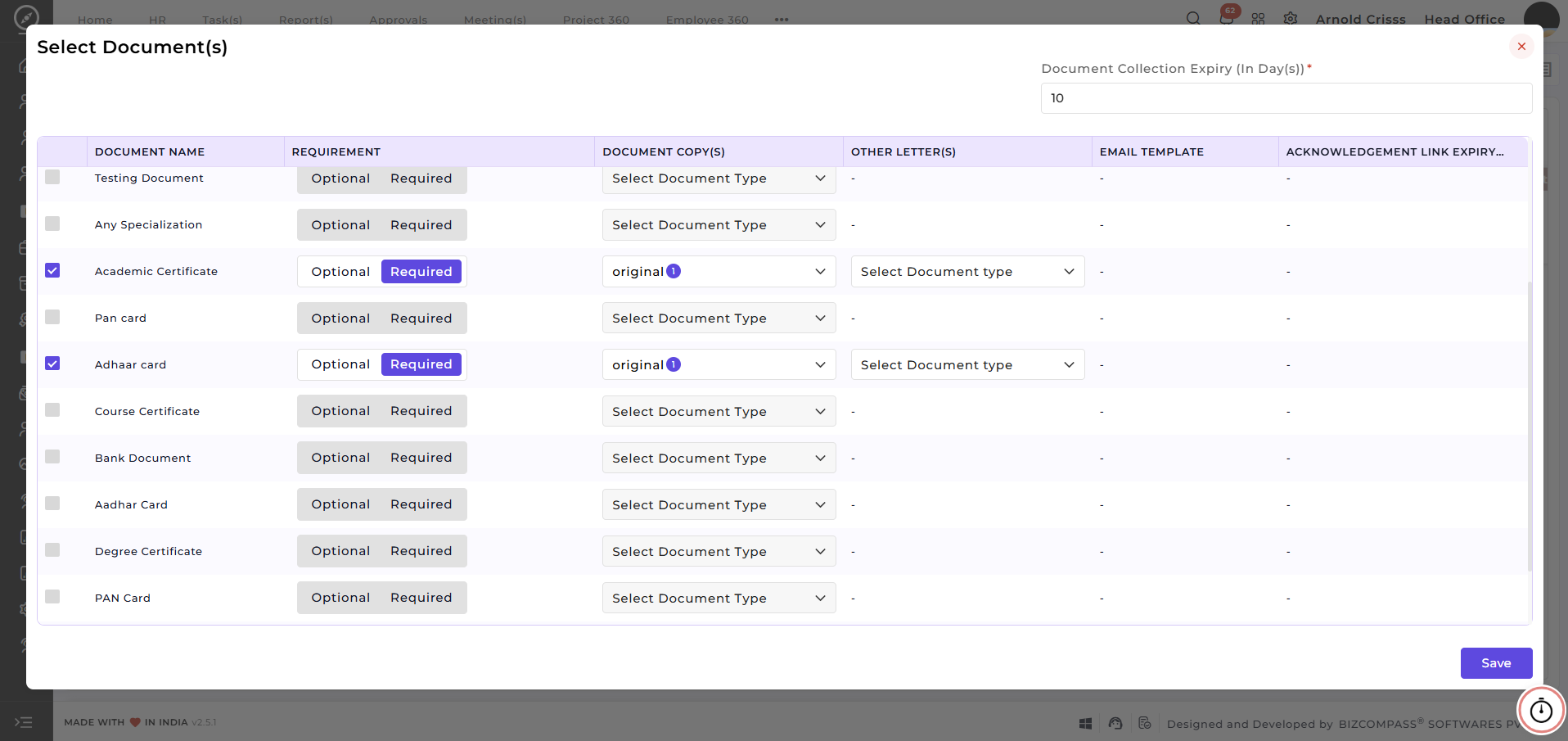
If the organization wants to collect documents, configure the following:
-
Whether the document is Required or Optional
-
Whether the document should be Original or Xerox
If the document is marked as Original:
-
Another letter can be sent using an Email Template
-
Link expiry days can be defined for agreement signing
The system also allows:
-
Sending a document collection link
-
Setting default expiry days
These options are available from the top-right side.
Agreement Sign:
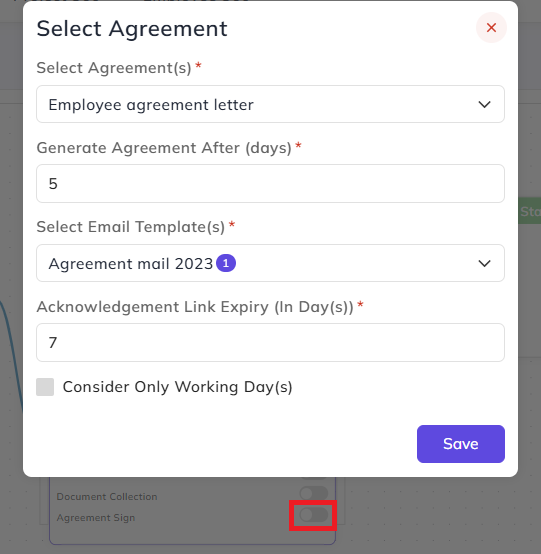
Enable this option if the organization requires an agreement signing process.
Configuration includes:
-
Select the Agreement Letter
-
Set Reminder/Event days for agreement generation
-
Option to consider only working days
-
Set Acknowledgement Link Expiry Days
-
Select the Email Template
If the Agreement Letter contains a Document Tag, and the organization wants to attach documents:
-
Select the documents that were collected during the Document Collection Stage
-
Attach them to the Agreement Letter
Letters:
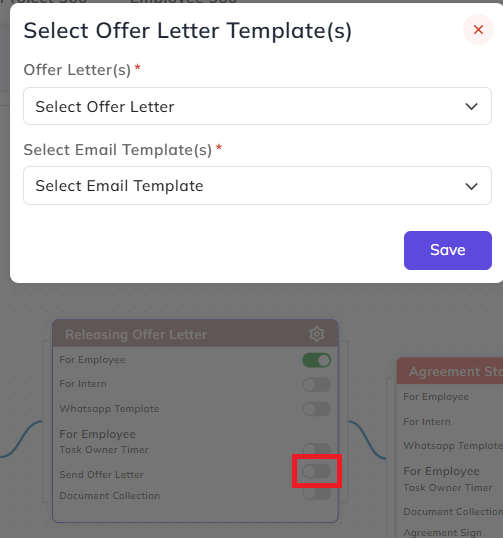
Send Offer Letter:
Used to generate and send the Offer Letter.
Configuration includes:
-
Select the Letter
-
Select the Email Template
-
Set Acknowledgement Link Expiry Days
This can also be updated from the (🛈) Info button.
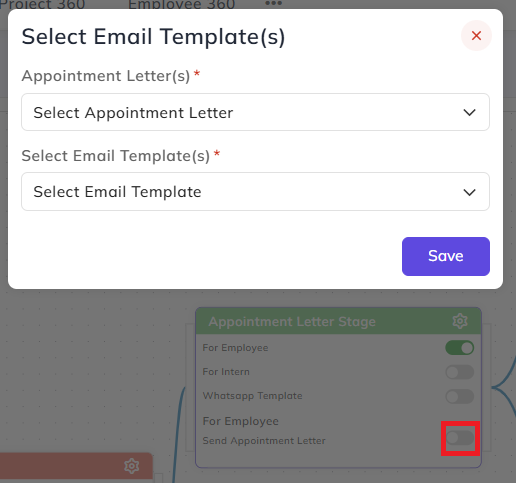
Send Appointment Letter:
Used to generate and send the Appointment Letter.
Configuration includes:
-
Select the Letter
-
Select the Email Template
-
Set Acknowledgement Link Expiry Days
This can also be updated from the (🛈) Info button.
Send Other Letter:
Used to generate and send other types of letters.
Configuration includes:
-
Select the Letter
-
Select the Email Template
This can also be updated from the (🛈) Info button.
Other Options:
Asset Allocate:
Enable this option to assign assets to the employee during the joining process.
Assign Training:
Enable this option to assign training programs.
Configuration includes:
-
Training assigned based on Department
-
Select the Number of Trainings
Survey:
Used for Background Verification.
Configuration includes:
-
Select a Form with type Background Verification
-
Set Form Submission Limit
Common Configuration (Gear Icon on Stage Card):
From the top-right Gear Icon, reminders can be configured for the Task Owner.
The Task Owner can be:
-
Candidate
-
Employee
-
User Role (Employees assigned to that role)
-
Application Assignee (Recruiter)
-
Department (Employees in that department)
-
Sub Department (Employees in that sub-department)
Reminder Configuration:
The organization can send reminders:
-
Before Joining Date
-
After Joining Date
Additional reminders can also be sent to the Assignee (Recruiter):
-
Before Due Date of the Stage
-
After Due Date of the Stage
Example:
If 10 days are given to complete the Agreement Process, reminders can be sent:
-
Before the Due Date
-
After X days, at a selected time
If the stage includes Agreement Sign, reminders can also be configured for the Candidate.
Flow Execution:
By configuring and connecting stages sequentially, the Joining Procedure Flow can be created.
Note: Changes made in the flow do not affect already created applications.
If the organization wants to run the flow based on the new configuration:
Delete all follow-ups until the Interview Stage
Select the candidate again
Run the flow again
This should be done only if required. Otherwise, it is recommended to create a new application.
During deletion of follow-ups, the system may ask whether to:
Delete Employee
Deactivate Employee
Do Not Delete Employee (if the employee record is already created)