
Joining Stages
The Joining Stage page is used to configure the different stages of the onboarding process in the recruitment process.
Previously defined stages were Interview Stages, which are used during the recruitment process for scheduling interviews, conducting interviews, or running aptitude tests for candidates.
After the interview process is completed and a candidate is selected, the onboarding process begins. During onboarding, several steps need to be completed such as creating the employee record, creating an intern profile, collecting documents, generating letters, and assigning assets or training. All these steps are configured through Joining Stages.
Each joining stage represents a specific step in the onboarding process.
For every stage, two main things must be defined:
-
Stage Name
-
Stage Type
The stage type determines what kind of activity will occur during that onboarding step.
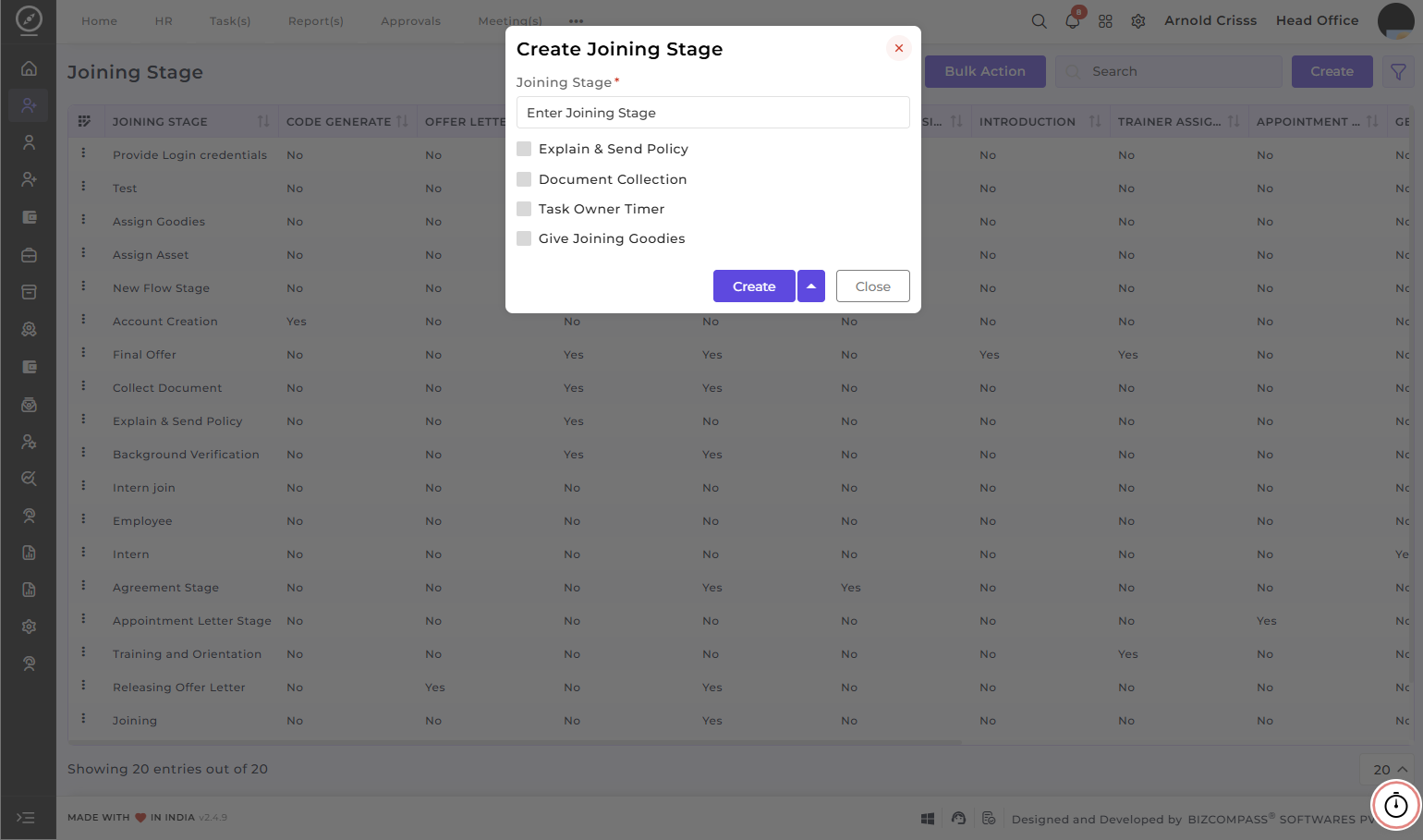
Code Generation:
- In the Account Creation stage, the system generates an employee code when the employee profile is created.
- Similarly, for interns, a stage can be configured where the system generates an intern profile.
Offer Letter:
- In the Offer Letter stage, HR can create and generate the offer letter for the selected candidate.
- Once the offer letter is generated, it can also be sent to the candidate through email directly from the system.
Explain and Send Policy:
- Organizations often have policies such as HR policies, company rules, or compliance guidelines. These policies are defined in the Policy Master.
- During onboarding, the organization can send selected policies to the candidate.
- While configuring the Joining Flow, the organization can decide which policies should be sent to the candidate at this stage.
Document Collection:
- During onboarding, the organization may need to collect various documents from the candidate.
- These documents may include identification or verification documents such as Aadhar Card, PAN Card or Any other required documents.
- At this stage, the system allows the HR team to collect and store these documents from the candidate.
Agreement Sign:
- In the Agreement stage, an agreement letter can be generated and sent to the candidate.
- The candidate can review the agreement and provide an acknowledgement.
- If the agreement requires a signature, the candidate can upload their signature. The uploaded signature can then be merged with the generated agreement document, completing the agreement process.
Introduction Email:
- In the Introduction Email stage, an introduction email is sent to the candidate.
- This email may include welcome information, company details, or onboarding instructions.
Training Assigned:
- During the Training stage, the organization can assign training programs to the candidate.
- These training programs may include Joining Training or Department-Specific Training.
- Training can be configured department-wise. When the onboarding flow reaches the training stage, the selected training programs are assigned to the candidate.
- Before assigning training, the employee profile must contain the required details such as Attendance Details, Shift Details, Basic Candidate Information, Email Address and Phone Number.
- Once these details are completed, training can be assigned successfully.
Appointment Letter:
- In the Appointment Letter stage, the appointment letter can be generated and sent to the candidate.
Survey:
- The Survey stage is generally used for background verification.
- The organization may create a background verification form using the Form Builder. This form can be used in the onboarding process so that the candidate can submit the required background information.
Task Owner Timer:
- Sometimes a specific task owner, such as an HR executive or recruiter, performs actions during a stage.
- If the organization wants the task owner to track the time spent on that stage, the Task Owner Timer option can be enabled.
- For example, during the Agreement stage, HR may be responsible for preparing and managing the agreement. If the timer is enabled, HR can run the timer while performing that task.
Assign Asset:
- During onboarding, assets such as laptops, systems, or other equipment may need to be assigned to the employee.
- For example, if the onboarding flow contains multiple stages and the final stage is the Introduction stage, the organization can assign assets during that stage.
- When the Assign Asset option is marked as Yes, the system allows assets to be allocated to the employee during that stage.
Give Joining Goodies:
- Organizations sometimes provide welcome kits or joining gifts to new employees.
These items can be defined at items where item type should be consumable.
- During the onboarding stage, the HR team can mark the stage as Yes for giving goodies. The actual distribution may be done manually, but the stage records that the goodies have been provided.
Stage Usage Rules: Certain stages can only be used once within a joining flow, including OFFEROffer LETTER, APPOINTMENT LETTER Letter, Appointment AGREEMENTLetter, Agreement SIGN,Sign, CODECode GENERATE,Generate, INTRODUCTION,TRAINERIntroduction ASSIGNED,Email, SURVEY,Training GENERATEAssigned, INTERN,OTHERSurvey, Generate LETTER,ASSIGNIntern, ASSET.Other Letters, Assign Asset.
For example, if the Offer Letter flag is marked as Yes in one stage, it cannot be selected again in another stage within the same joining flow. The same rule applies to Appointment Letter and Agreement stages. However, some stages can be used multiple times, such as Explain and Send Policy,Policy, Document Collection,Collection, Task Owner Timer,Timer, Assign Asset and Give Joining Goodies.Goodies.
If the organization wants multiple policy explanations or multiple document collection steps, additional stages can be created for them.
Multiple Letter Configuration: If the organization wants to place multiple letter-related actions in a single stage, the default configuration can be modified.
modified. To do this, the existing flags must first be unchecked, and then the required letter options can be enabled together in one stage.
Changing Default Stage Configuration:
If the organization wants to change the default stage configuration, it can be modified by unchecking the option from the default data provided by BIZCOMPASS® and then enabling it in another stage.
This allows the organization to rearrange or combine different actions within a single stage according to their onboarding requirements.
Example:
If the organization wants Agreement and Code Generation in the same stage:
1. Uncheck or disable the Agreement option from the stage where it is currently enabled.
2. Go to the stage where Code Generation is configured.
3.Enable the Agreement option in that stage.
This way, both Agreement and Code Generation can be performed within the same joining stage.
The Bulk Action button allows you to delete multiple joining stages at once, streamlining the management process.
These configurations are used when creating the Joining Flow, and that joining flow is then applied throughout the recruitment and onboarding process.