
Opening (Application, Interview, Onboarding)
Once the Opening is created and the flow has been configured, we can start the recruitment process.
We can add the candidate/application using the method described in the Candidate Entry Pages.
Opening Page:
From the Opening page, we can add a candidate directly using the ➕ button.
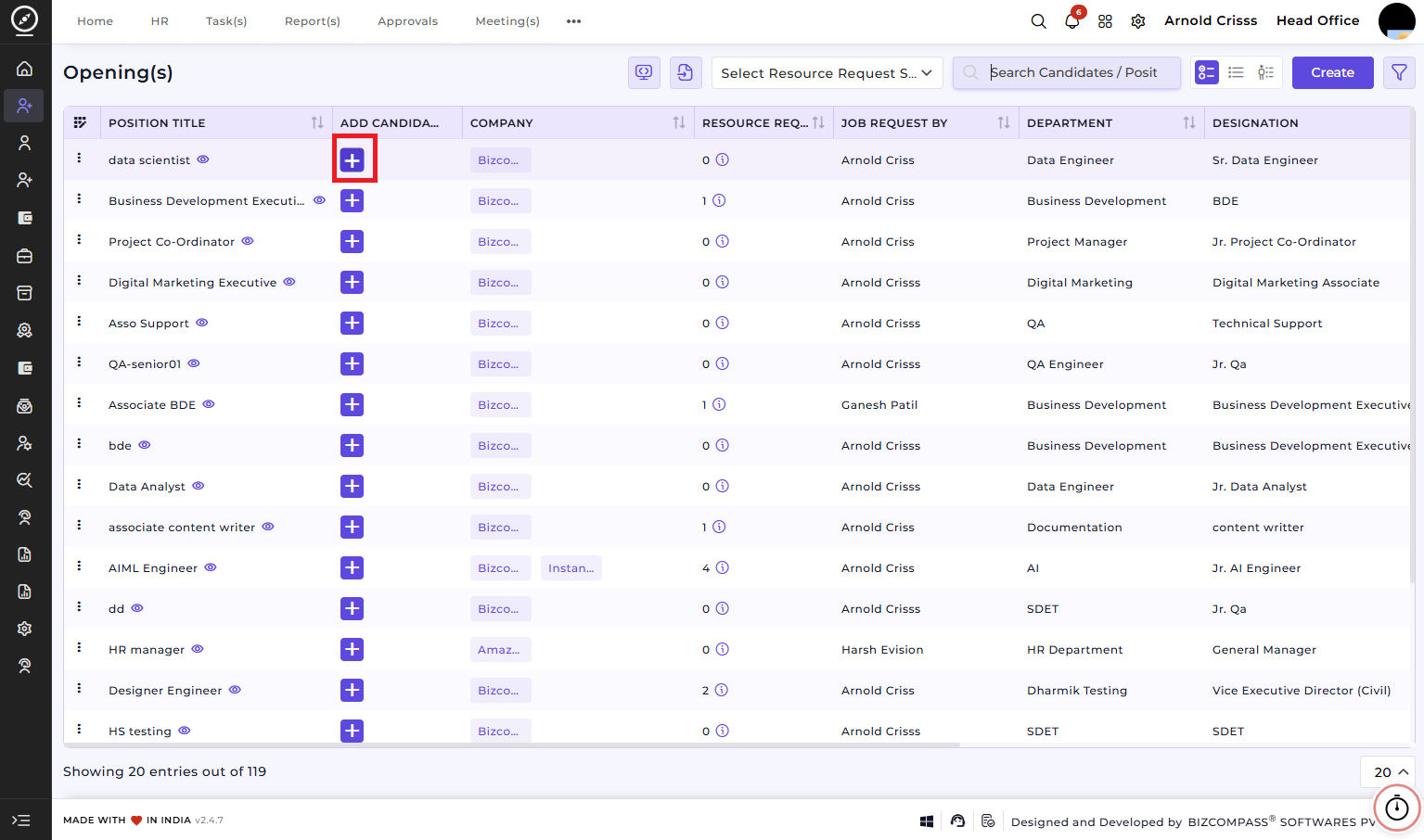
There are two ways to add a candidate: manual entry or resume attachment entry.
1) Resume Attachment Entry:
Upload the Resume (optional or mandatory based on settings). If you upload the resume, all the details of the candidate mentioned in the resume like basic details, education details, experiences and certification details will be fetched automatically.
2) Manual Entry:
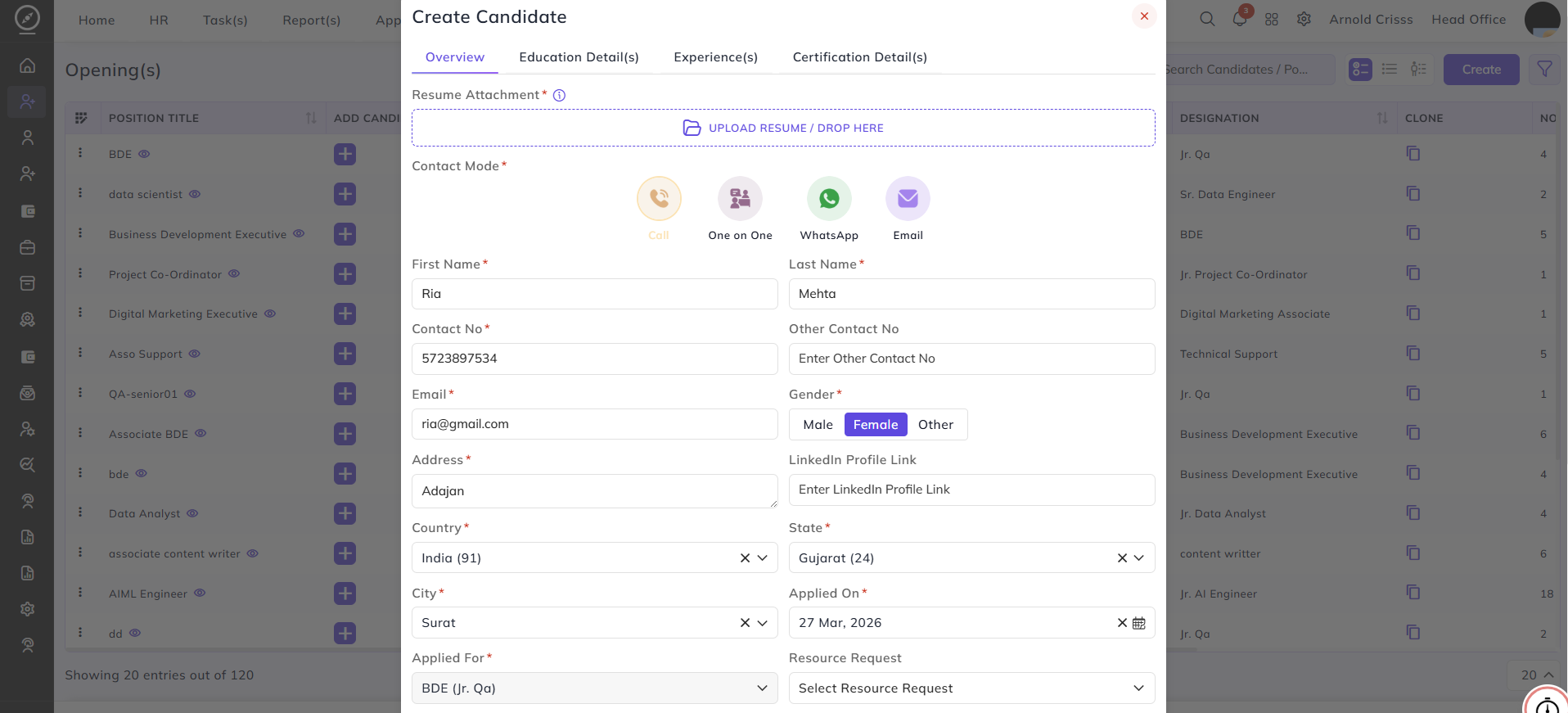
Overview
This section is used to capture the candidate’s basic and application-related information.
- Select the Contact Mode through which all the follow ups will be taken with the candidate.
-
Enter the candidate’s First Name and Last Name.
-
Provide the Contact Number, Email ID, and Address.
-
Select the Gender, Country, State, and City.
-
Enter the Applied-On date.
-
The Applied For position, Department, Sub Department, and Designation will be fetched according to the position.
-
Select the Company and Branch.
For the selected company branch, if a series is not created, it will show an error of *Series Not Available. You can create the series for that branch by clicking on the Create Series In New Tab redirect button. -
Upload a Candidate Image
andCover Attachment -
Select the Primary Source.
(JobIfPortal,theReferral,candidateWalk-in,onlyetc.)has a primary source, select Direct. Otherwise, select Has a Secondary Source and add then select or add secondary source. Add1.anyByrelevantselectingCandidatePlacementNotesDrive in the Primary Source, you'll see all your placement drive names in the Secondary Source options. You can also create a new placement drive from there.
2. By selecting Reference in the Primary Source, you'll see all the reference names (e.g., family or friend) in the Secondary Source options. You can also create a new secondary source from there.
3. By selecting Third Party in the Primary Source, you'll see all the third party agencies you configured in the Secondary Source options. You can also create a new third party agency from there.
4. By selecting Employee Reference in the Primary Source, you'll see all the employees' name list in the Secondary Source options. A new option of selecting Employee Referral Program will also appear in which you have to select the applicable referral program.
5. By selecting Website in the Primary Source, you'll see all website related sources (e.g., job portal or company website) in the Secondary Source options. You can also create a new secondary source from there..

10. Add the Screening Question(s) answers given by the candidate.
If you have checked the option of Mandatory Screening Questions while creating the Opening, then only the Screening Questions will be visible to add answers.
11. Add the Opening Question(s) answers (if configured while creating the Opening) by the candidate.
Here, the the right option (for MCQ type questions) will have a green dot before them.
12. Select the Customer Company if added while creating the Opening.
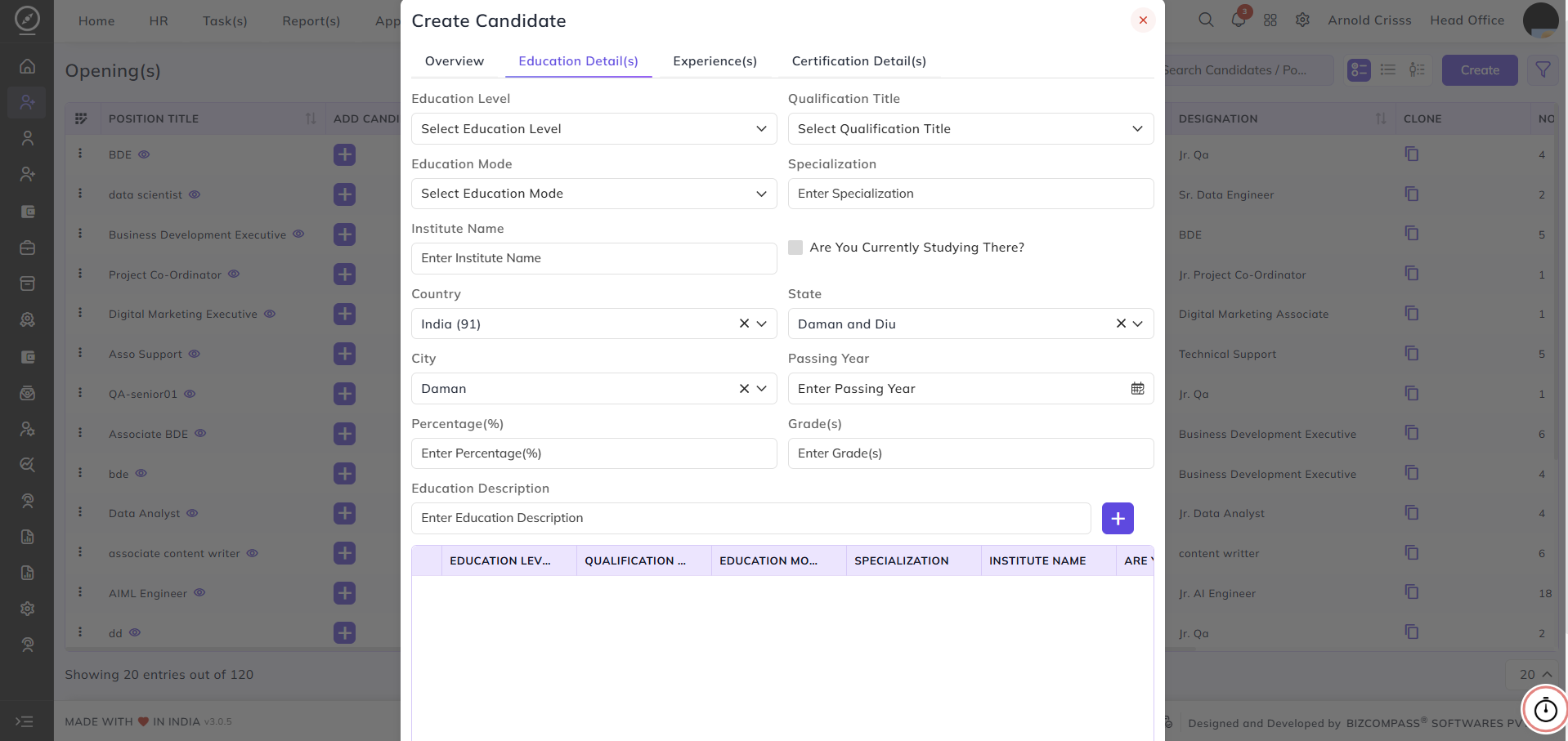
Education Detail(s)
This section is used to record the candidate’s academic background.
- Select the Education Level (e.g., Graduate, Post Graduate).
- Choose the Qualification Title.
- Select the Education Mode (Full-time, Part-time, Distance).
- Enter the Specialization.
- Check the Are You Currently Studying There? option if the candidate is still studying there.
- Provide the Institute Name, Country, State, and City.
- Enter the Passing Year, Percentage (%), and Grade(s).
- Add an Education Description if required.
- Click the Add (+) button to save the education record.
Multiple education records can be added to maintain a complete academic history.
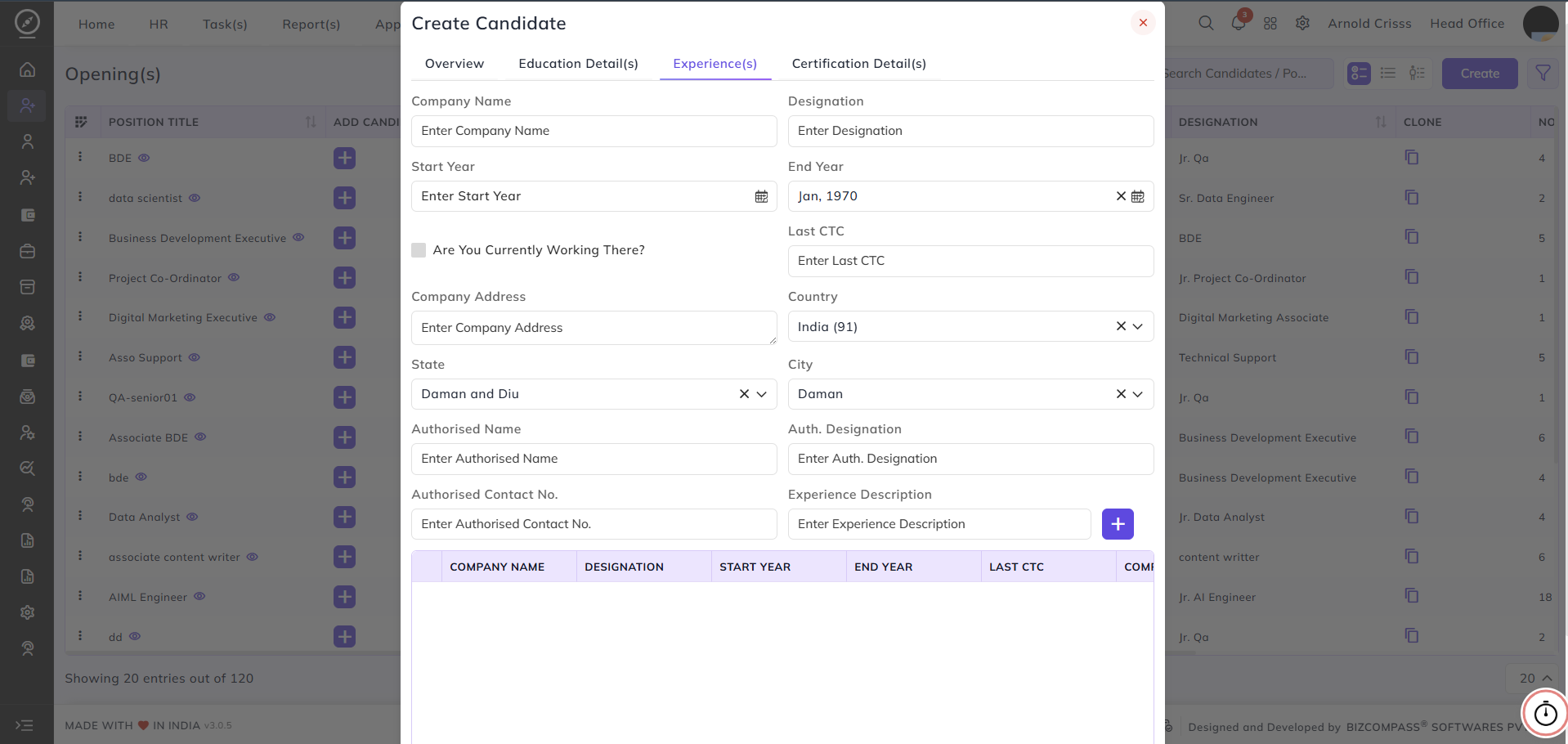
Experience(s)
This section is used to capture the candidate’s work experience details.
- Enter the Company Name and Designation.
- Select the Start Year and End Year.
Enable(The End Year option will not appear if you check the option of Are You Currently WorkingThereThere?if applicable.)- Enter the Last CTC.
- Provide the Company Address, Country, State, and City.
- Add Authorized Person Name, Designation, and Contact Number if verification is required.
- Enter the Experience Description explaining roles and responsibilities.
- Click the Add (+) button to save the experience record.
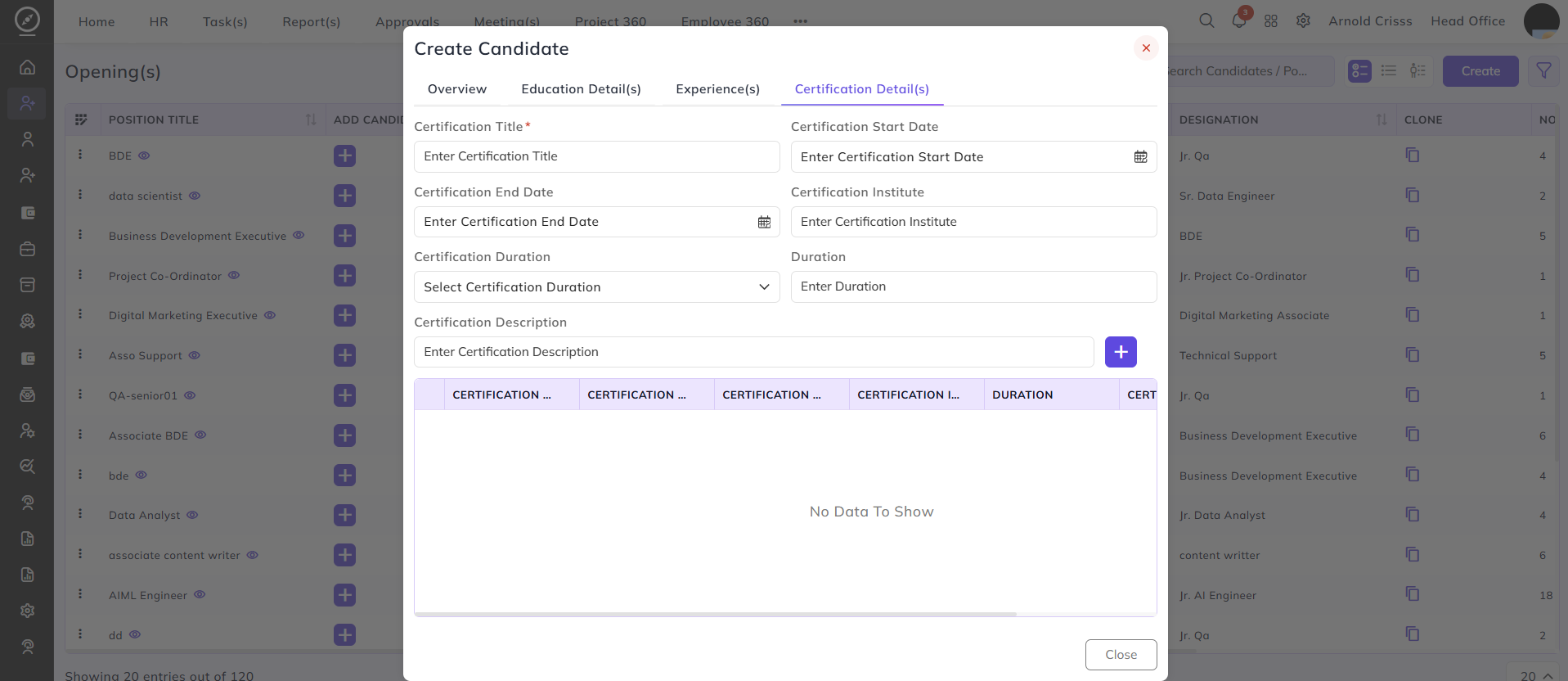
Certification Detail(s)
This section is used to add professional certifications completed by the candidate.
- Enter the Certification Title.
- Select the Certification Start Date and End Date.
- Enter the Certification Institute.
- Select the Certification Duration and enter the Duration Value.
- Add a Certification Description if needed.
- Click the Add (+) button to save the certification record.
Multiple certifications can be added to highlight the candidate’s skills and qualifications.
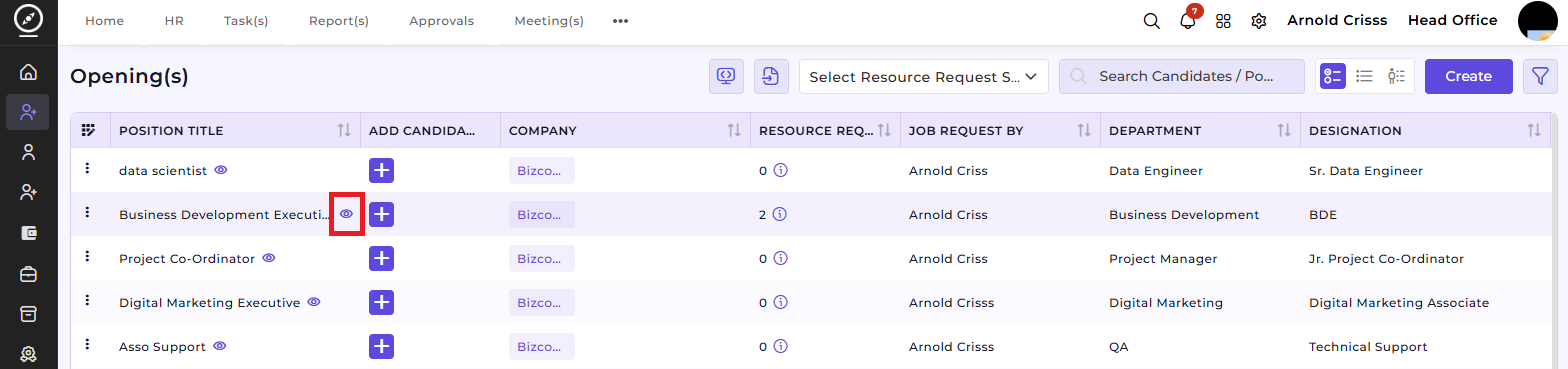
The candidate can also be added by clicking on the 👁 button next to the Position Title in the Opening page only.
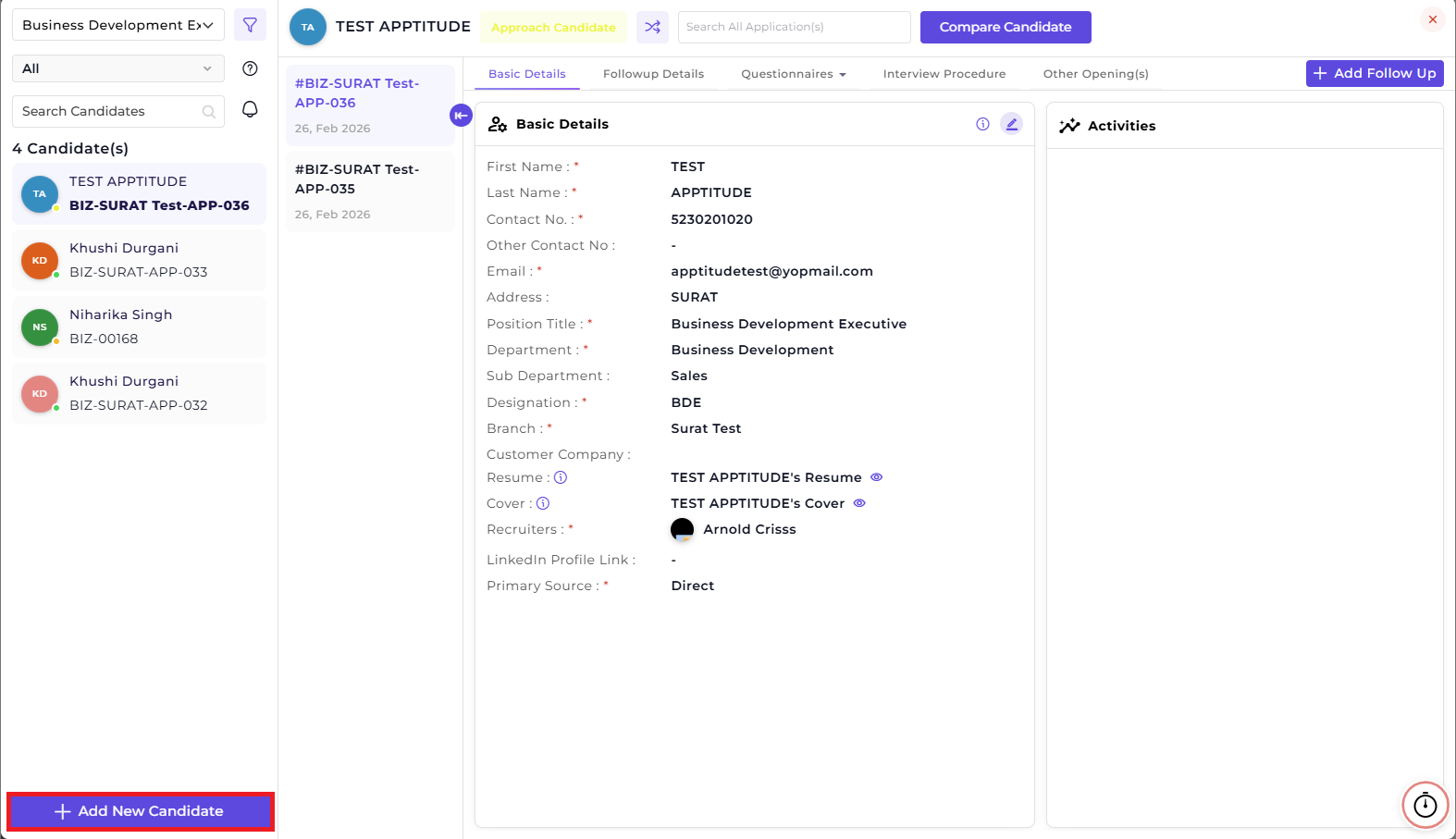
This is the main page used to add applications.