Opening (Joining Procedure)
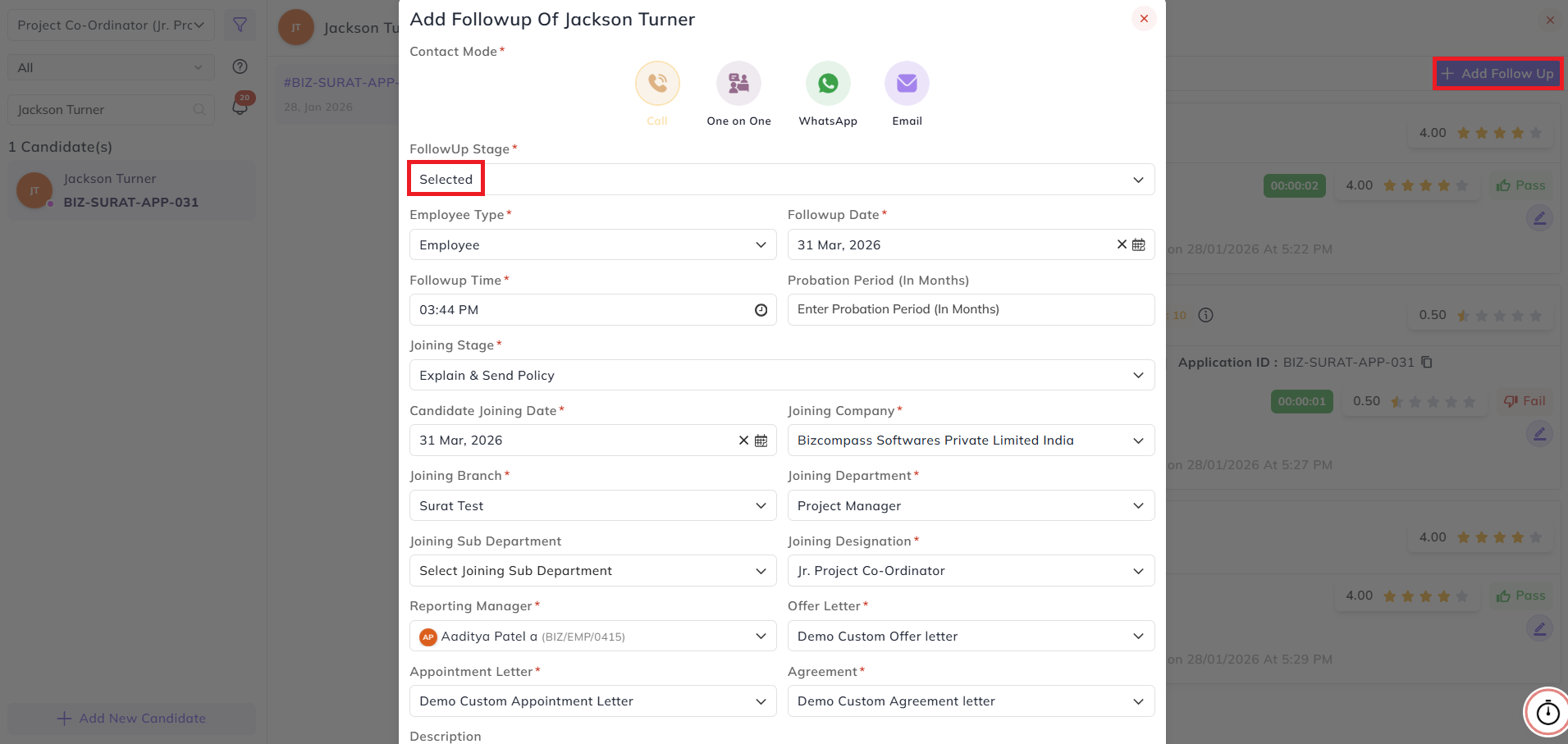
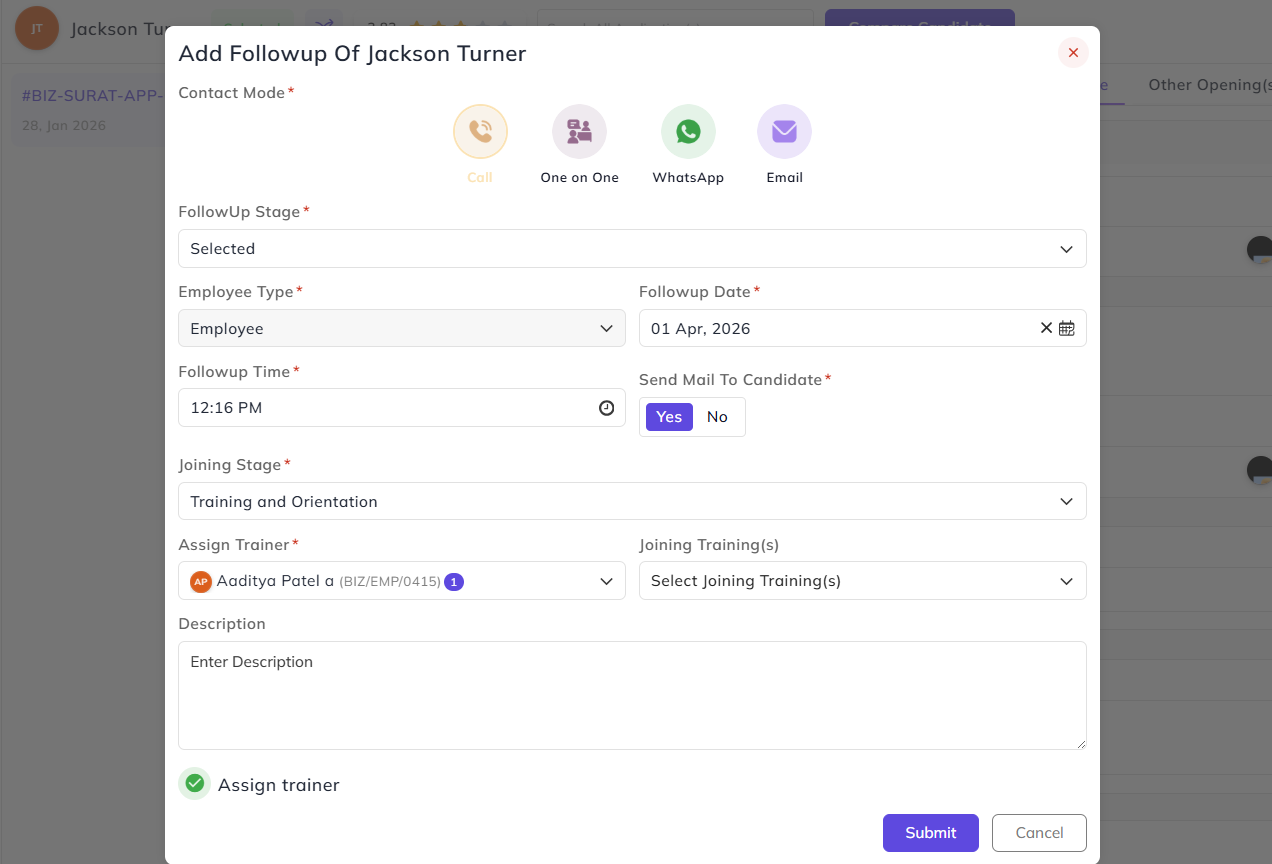
To start the joining/ onboarding procedure of a candidate, first add the follow-up/candidate status as Selected after completing the interview.
- Select Employee Type (Intern or Employee). Based on the type that type of flow will be executed.
- Add the Follow Up Date and Time.
- Select the Joining Company, Branch, Department, Sub-Department, Designation, Reporting Person, and the Letters that we will generate during the flow.
Note:Letterswill beselected by defaultwhich are configured duringtheflow.
- Add description if want to add for the follow up.
Once this status/follow-up is added the tab for the On-Boarding Procedure will be visible, from there based on the organization’s on-boarding flow created at joining procedure flow, all the stages will be visible.
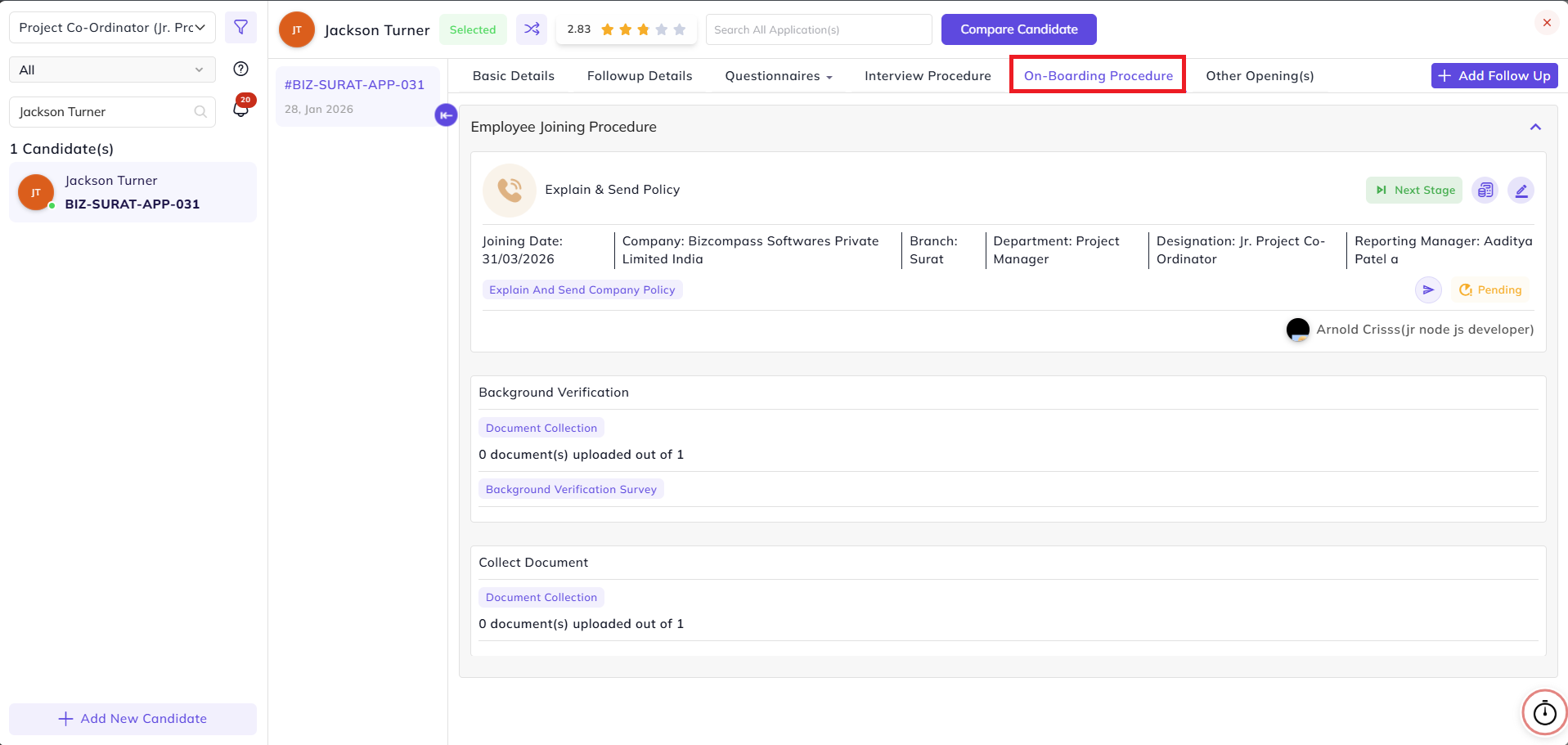
Note: For Every nth stage the configuration and process happens ate n-1 stage.
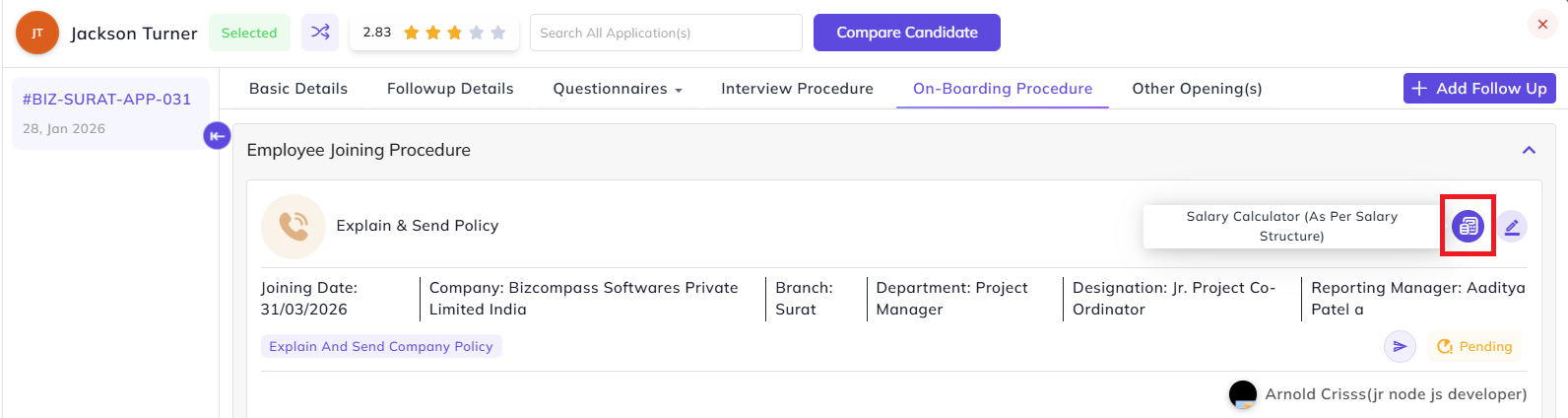
Salary Calculator:
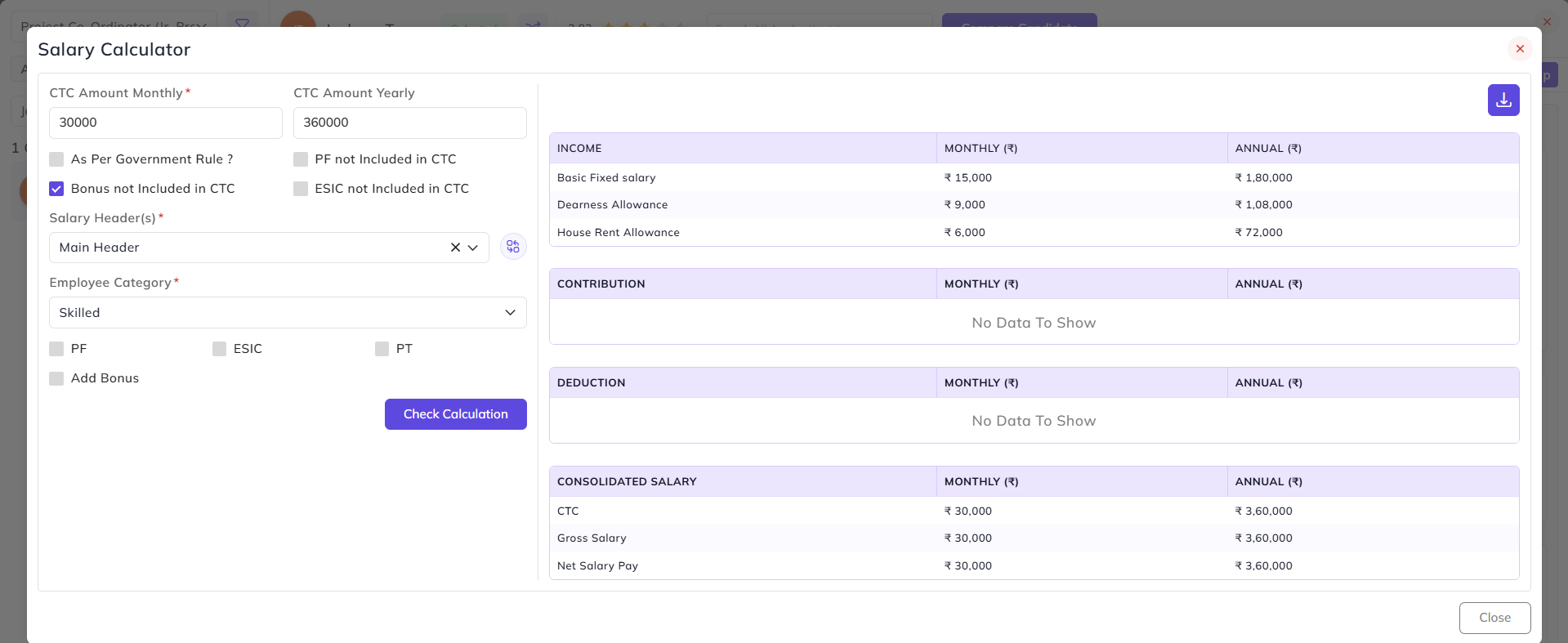
In any flow, for the first stage there will be a Salary Calculator. Using that, we can create the structure and salary breakup for the candidate and download it.
Task Owner Timer:
If the Task Owner Timer option is enabled in any of the joining stages while designing the flow, the timer will run for that particular stage for the recruiter and he/ she can track time spent on that stage.
Policy Stage:
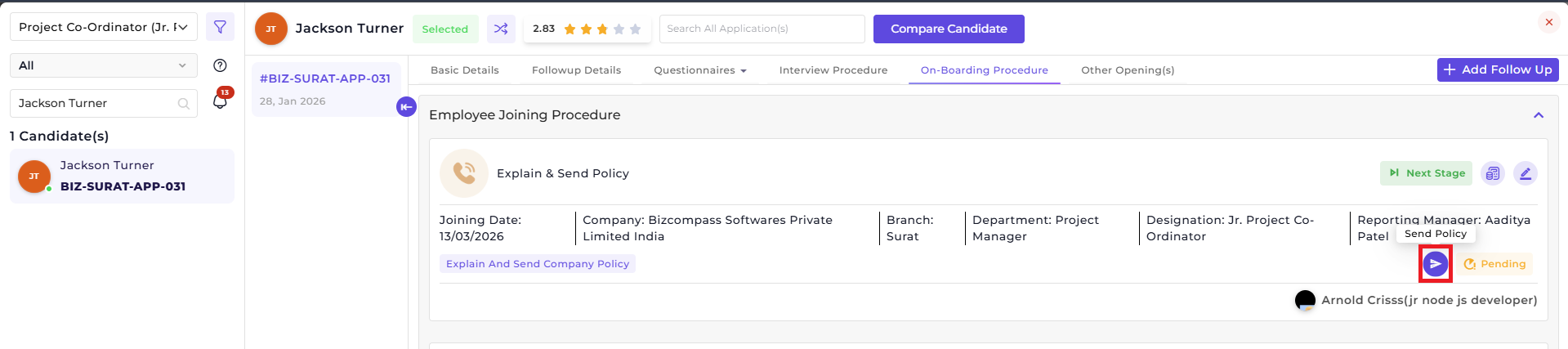
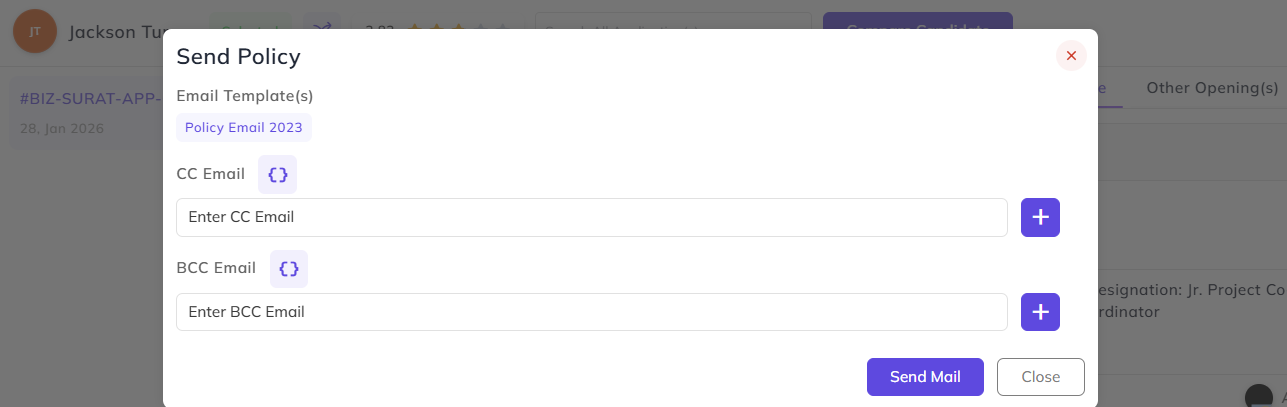
For the Policy Stage there is a button to send policy configured earlier in the joining procedure flow where we can also select the person whom we can add in CC or BCC.
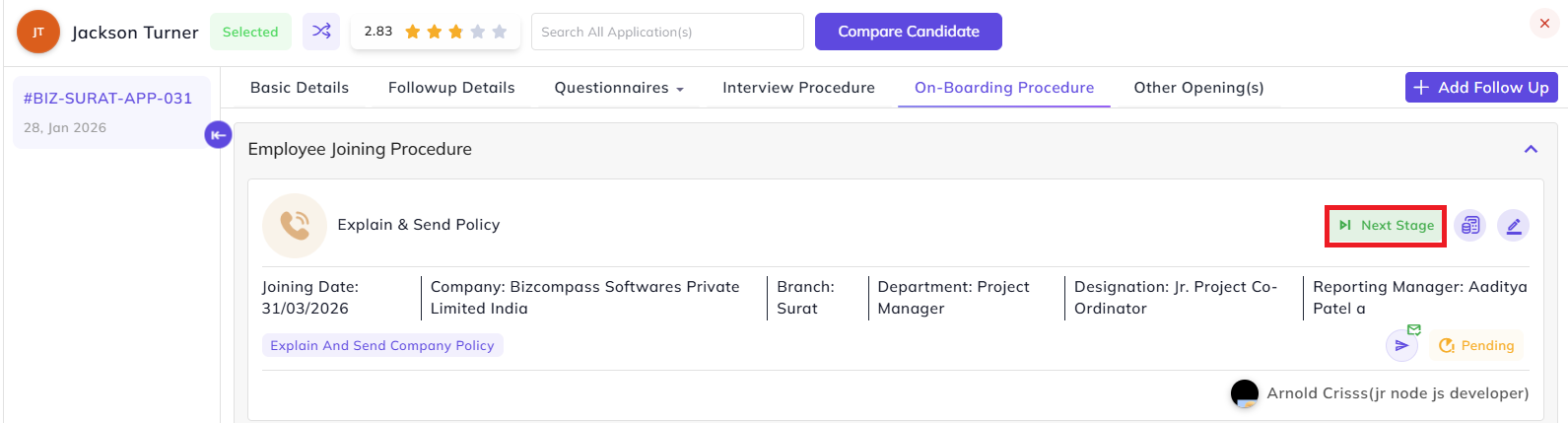
For moving on to the next stage, click on the Next Stage button after completing a stage.
Background Verification:
For this stage, click on Send Document Upload Mail button for the Background Verification stage. (This stage is done from the flow side)
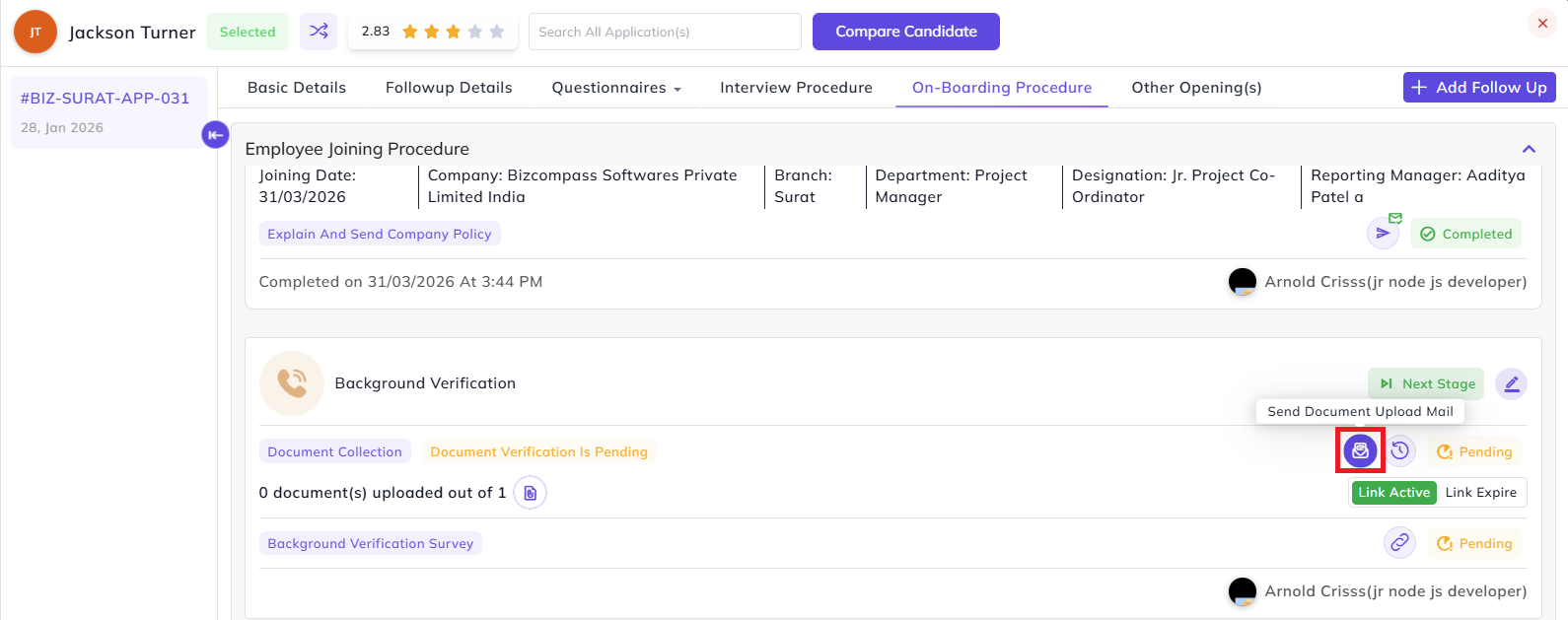
The candidate will receive the mail with the login credentials for uploading the documents. Once he/she uploads the document(s), it will be visible to the recruiter for verification.
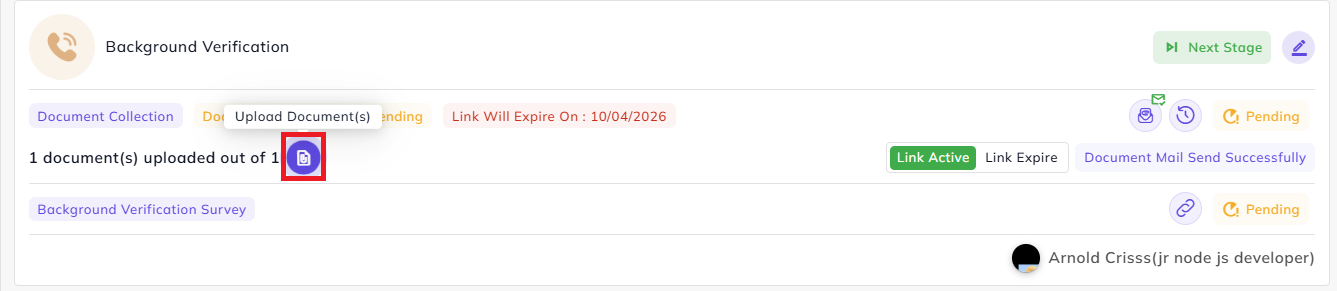
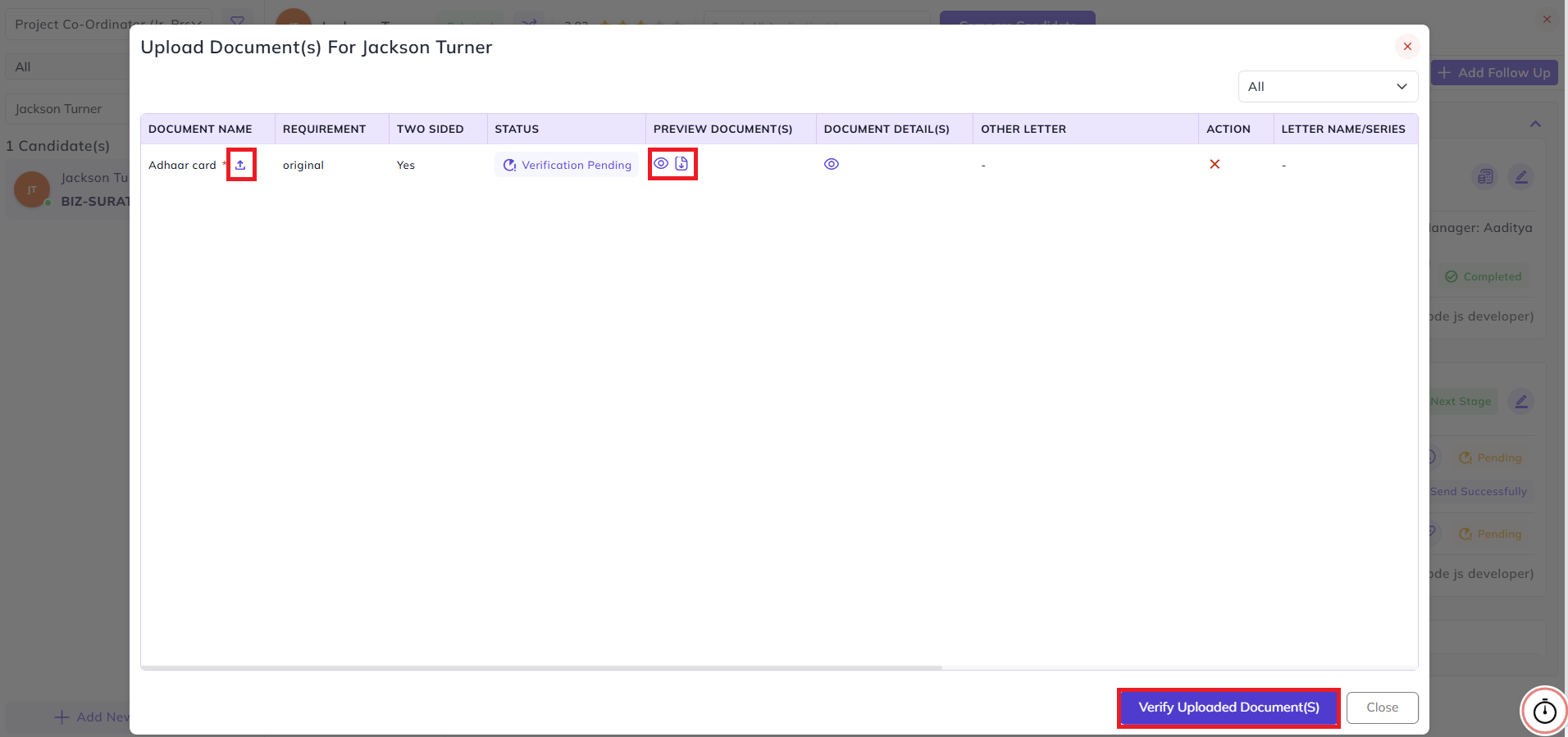
From here, you can preview and download the document, then you have to upload and verify it.
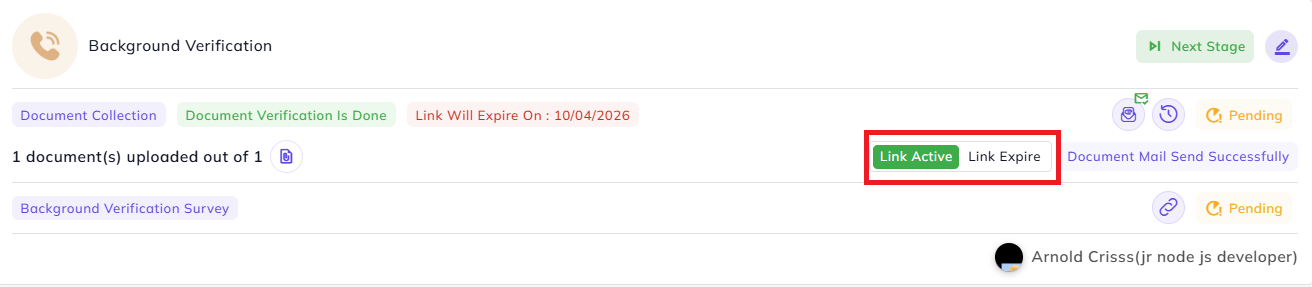
The link will automatically expire once its expiry date has passed. However, by clicking on the Link Expire button, you can manually make the link expire before the scheduled date. Moreover, you can re-active a link after it has been expired by clicking on the Link Active button.
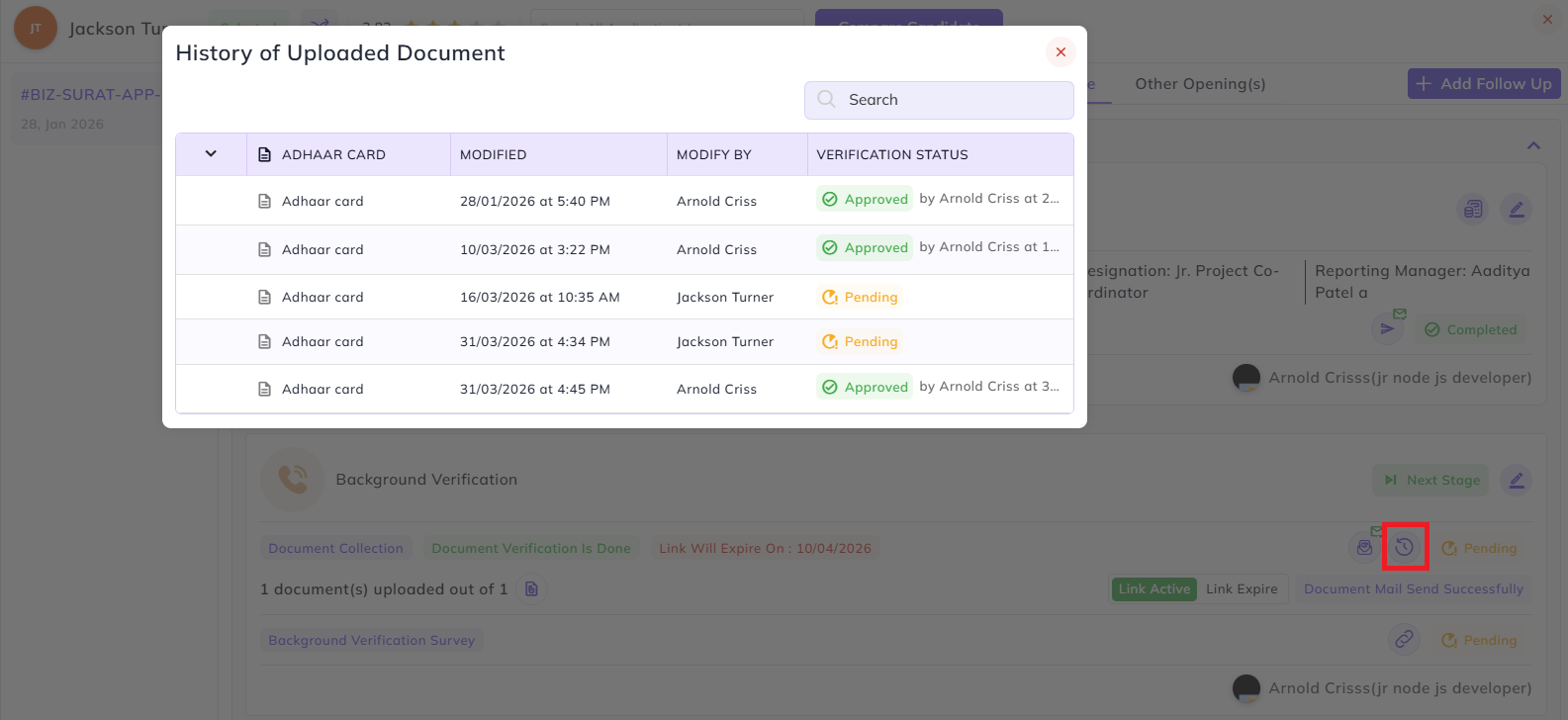
By clicking on the below showed button, you can view the history of uploaded document(s).
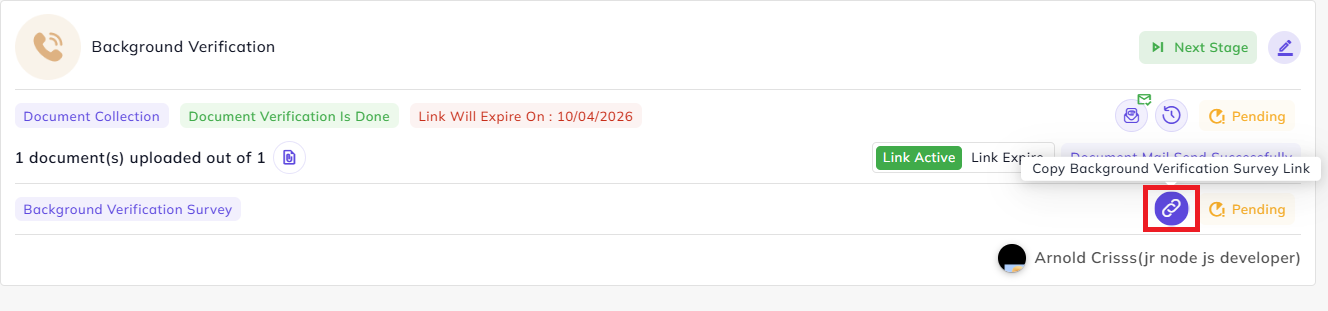
If you have selected and configured the Survey button while creating the Background Verification joining stage (or any other joining stage), you'll see the link for the selected survey form.
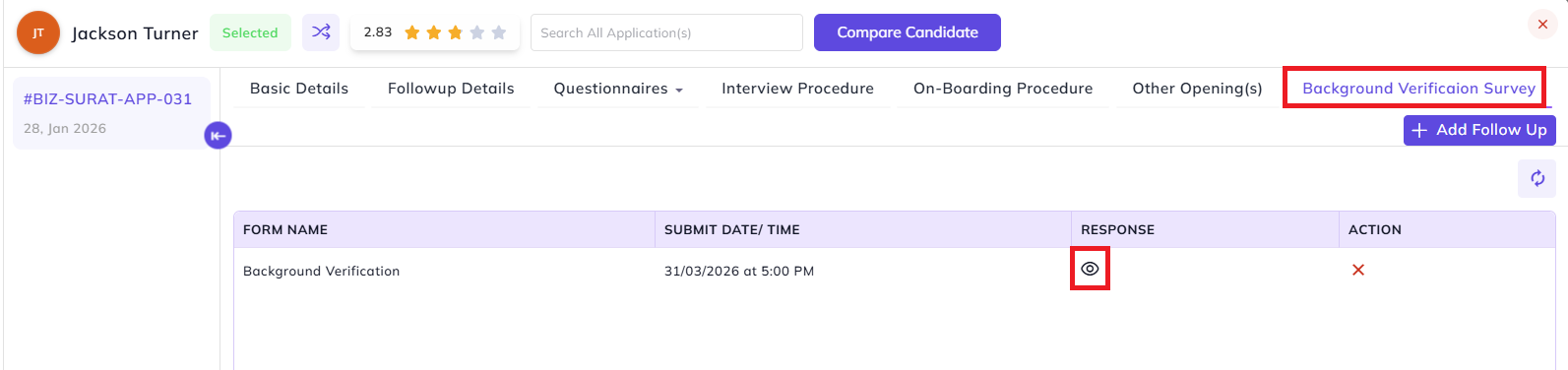
Once the form is filled and submitted, a new tab Background Verification Survey will be visible next to the Other Opening(s) tab. From here, you can view the form response.
Collect Document:
Similar to the Background Verification stage's document upload, you have to send Document Upload Mail to the candidate in this stage. The candidate will receive the mail with the login credentials through which he/ she can upload the documents.

Once the documents are uploaded from the candidate's side, you'll be able to preview, download, upload and verify it the same way as the previous stage.
Letters Stage:
Note: Letters will be selected by default which are configured during the flow.
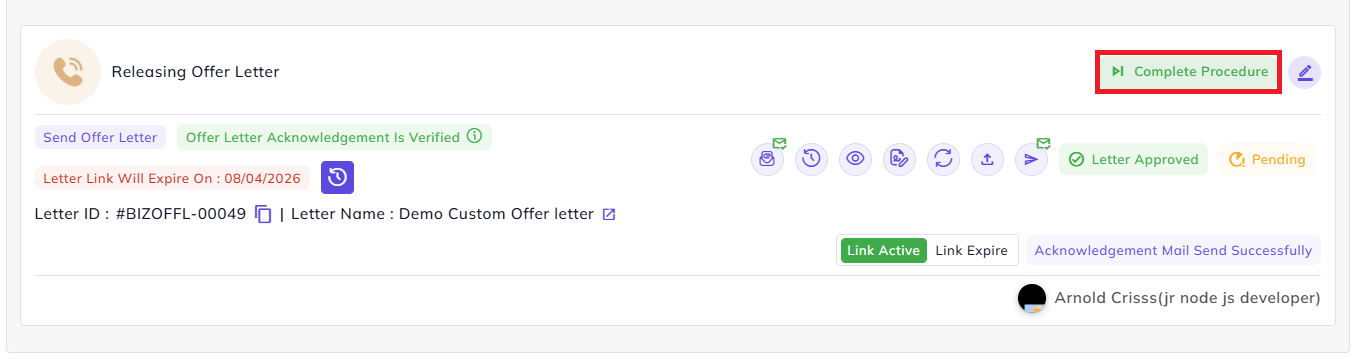
For the letter generation stages (Agreement Stage, Appointment Letter Stage, and Offer Letter Stage) there will be options to generate a letter or upload a letter.
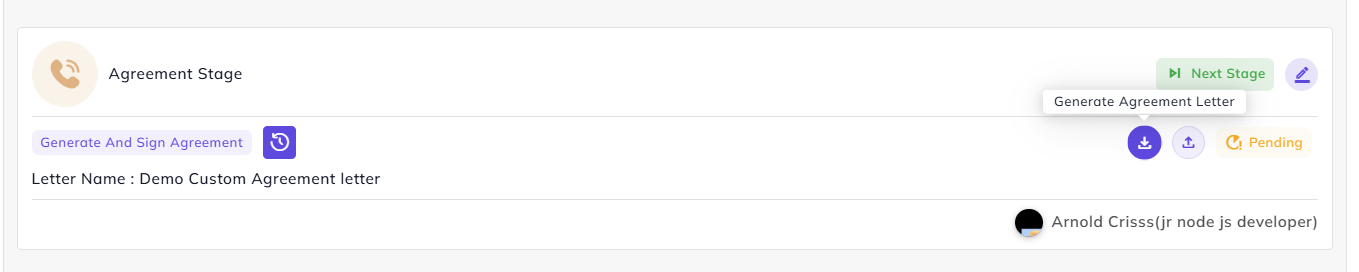
Note: Only the Agreement Letter type will have an option to collect documents too in that stage. If the button of Document Collection is selected while creating the Joining Flow, documents can be collected from the candidate in this stage.
After clicking on generate letter, the tags will be visible with the replaced or the actual values and if custom tags are present in the letter then we can also change values for those tags.
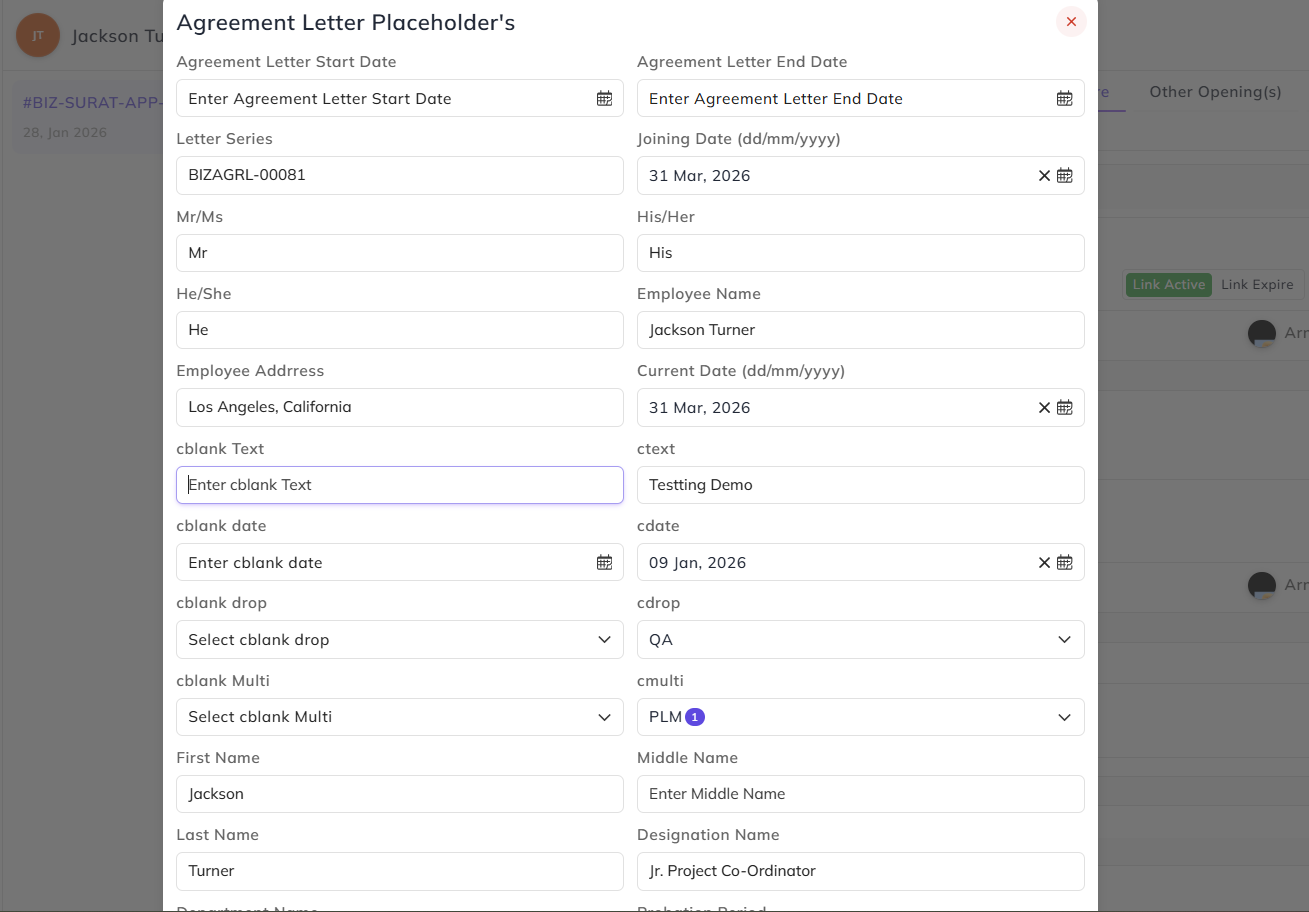
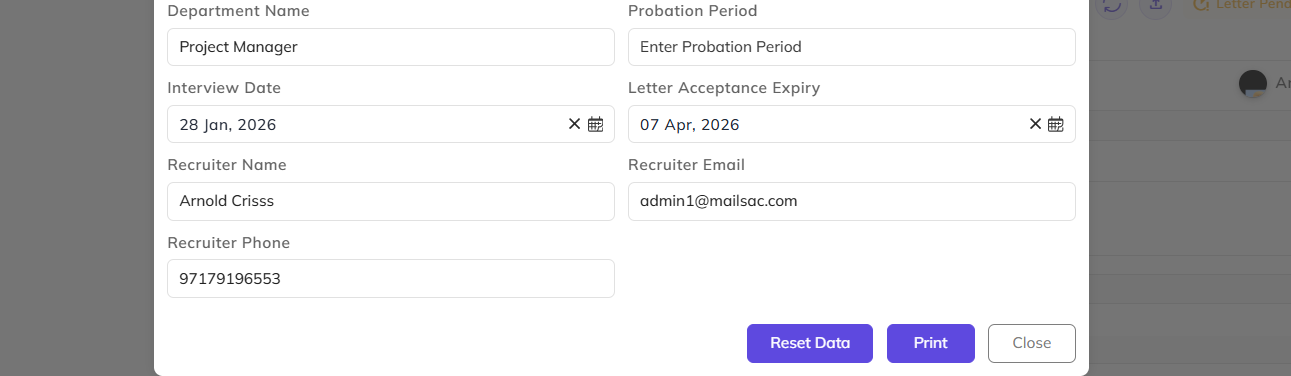
Once Letter Has generated if approval is required then it will go for the approval and the status will be visible over there
After the letter is generated, itthe Letter ID and Letter Name will be visible. The redirect button in next to the letter name will redirect to the Letter Log page where the details and status of the letter will be shown.

The letter is then sent for approval (if Approval Required box was checked while configuring it) according to the approval hierarchy created for it. Its approval status will be visible in the stage as well.

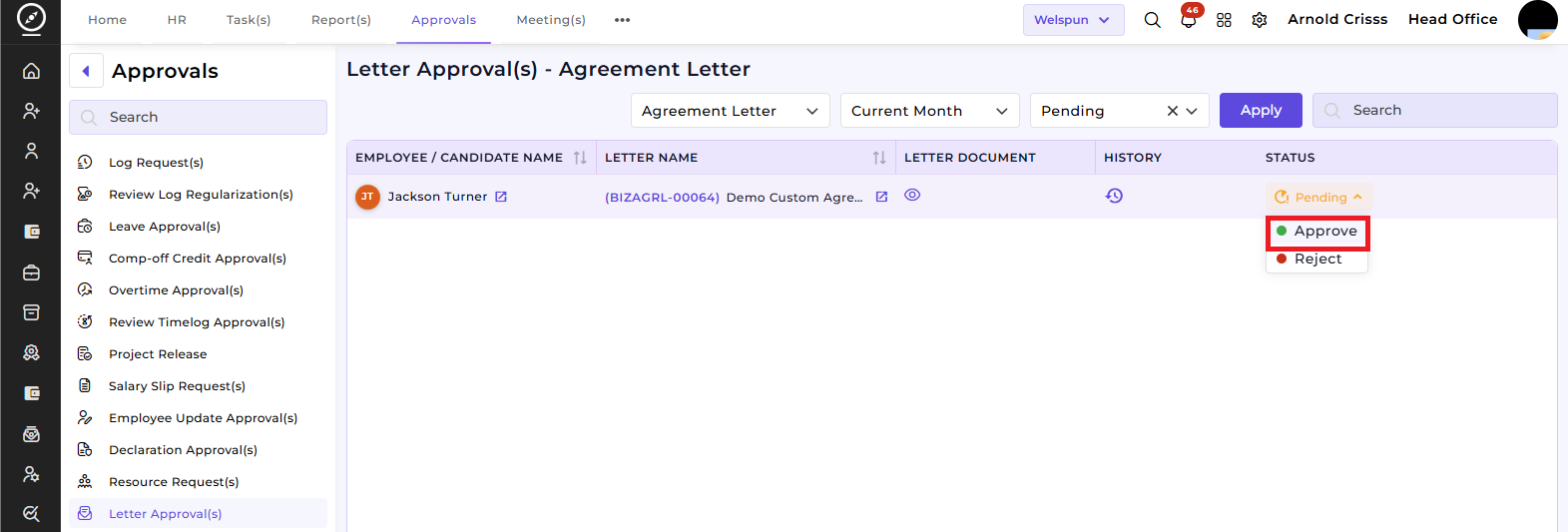
Once the respective person approves it from the Approval section, it will show the status as Letter Approved and the recruiter canhas viewto the generated letter,first download it, upload it and then he/she can send it to the candidate. The recruiter can also re-generate the letter.
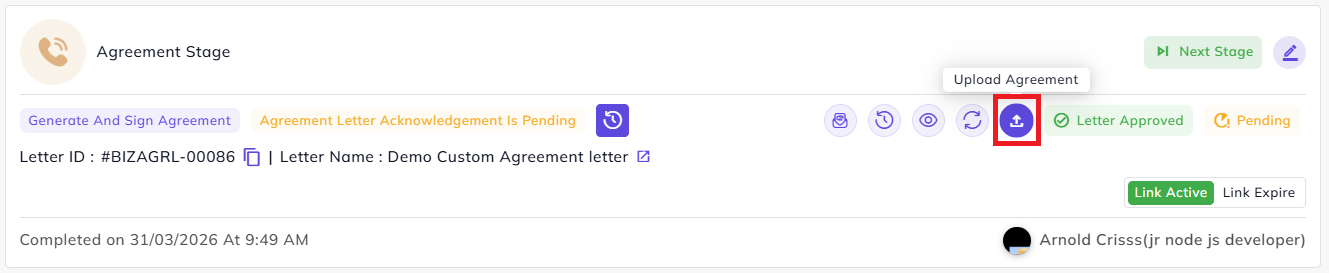
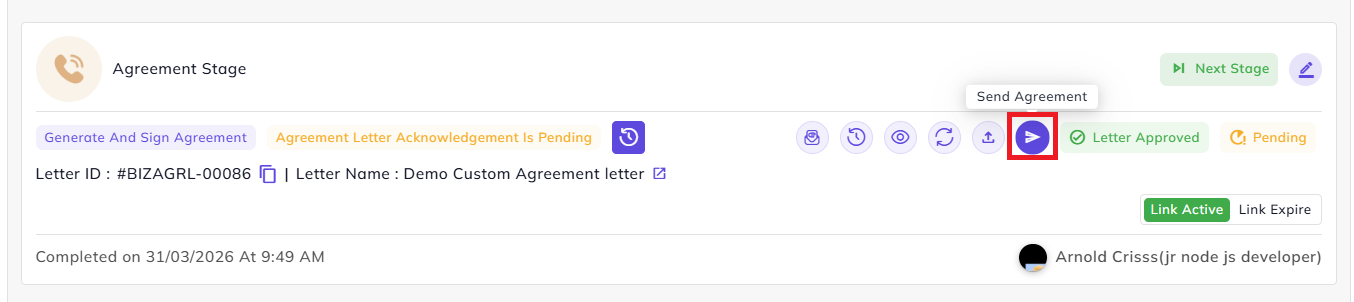
If the Send Acknowledgement Mail option was checked during the letter configuration, an option to Send Letter Acknowledgement Mail will be shown and its status (pending) will also be shown. You have to click on it to send it.
Note: The send acknowledgement mail option will be visible only after the letter is approved.
If Letter has Send Acknowledgement configuration on, then there will be an option to sendIn the acknowledgement email in whichmail, there will be credentials for adding signature either through file or they can sign it on screen/canvas. The candidate will receive the letter and below mail through which he/ she can send the acknowledgement.
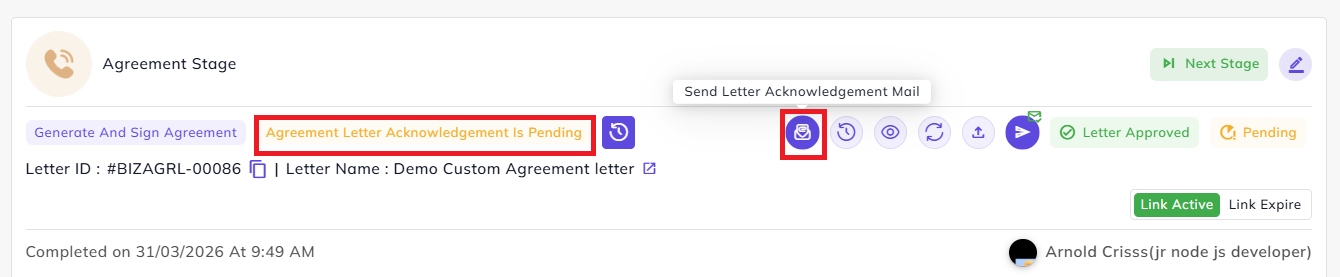
While sending the acknowledgement, there will be options to CC and BCC that email to anyone in the company. This can be selected through tags shown below.
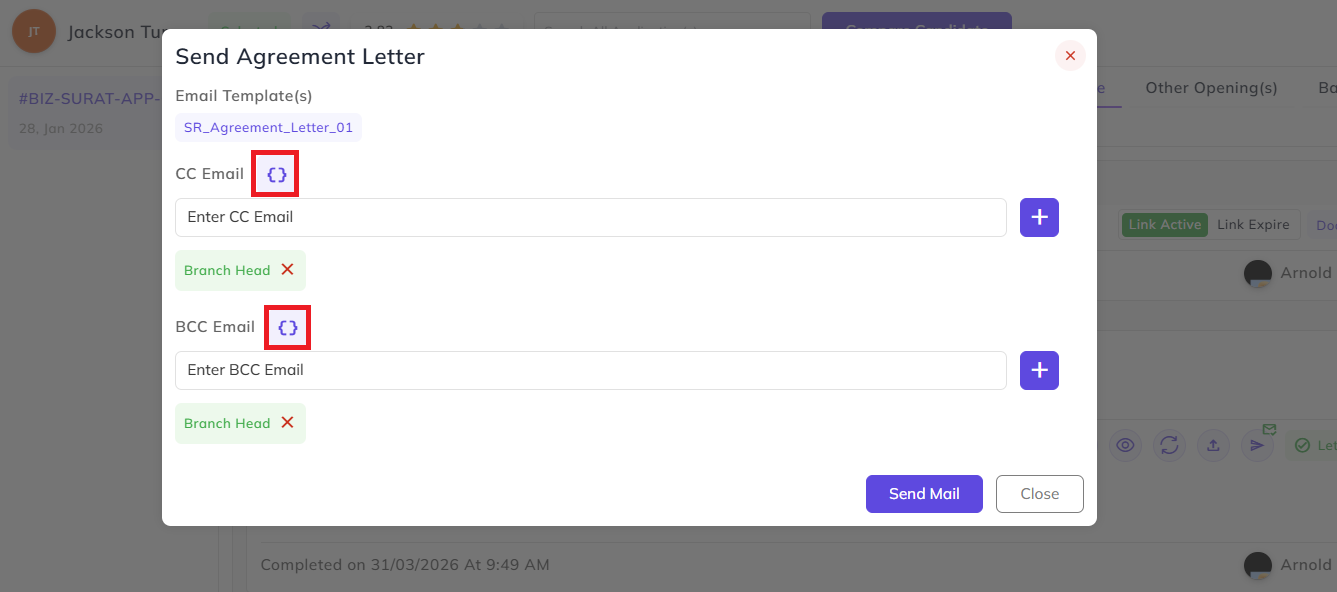
Here also, you can turn the link active or expire flexibly. Once acknowledgement from the candidate side is done, the status turns verified and the new button will be visible to attach the acknowledgement signature with document.
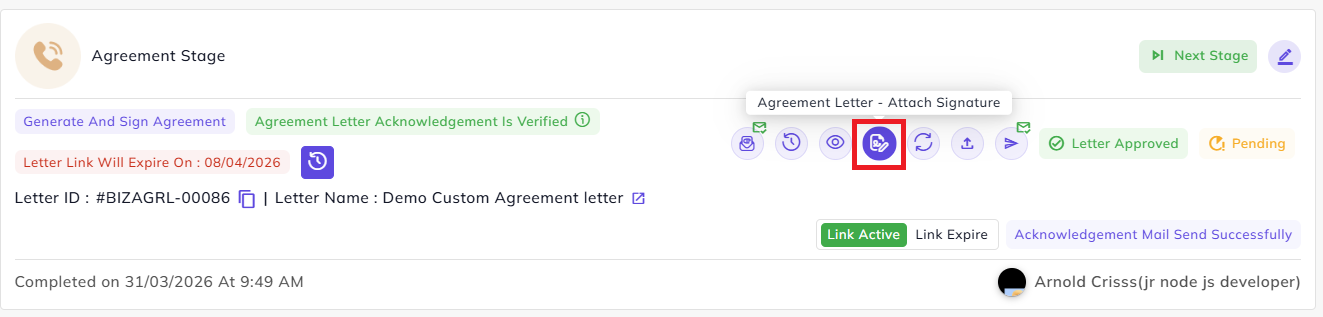
In the stage card, Letter ID and Letter Name will be visible and next to the letter name and there is a redirection button which redirects to the Letter Log page where every letter with its status will be visible.
Note: This letter process works for every letter type based on the letter configuration configured during creating the letter and during configuration of the flow.
During the letter generation (Appointment Letter Stage)and Offer Letter stages), a form to add the salary details for the structure is also visible which is also there at the first stage in the salary calculator.
In this, we can add that salary data while the letter is generated and if the letter has the salary data tags, salary table will also be visible in the generated letter.
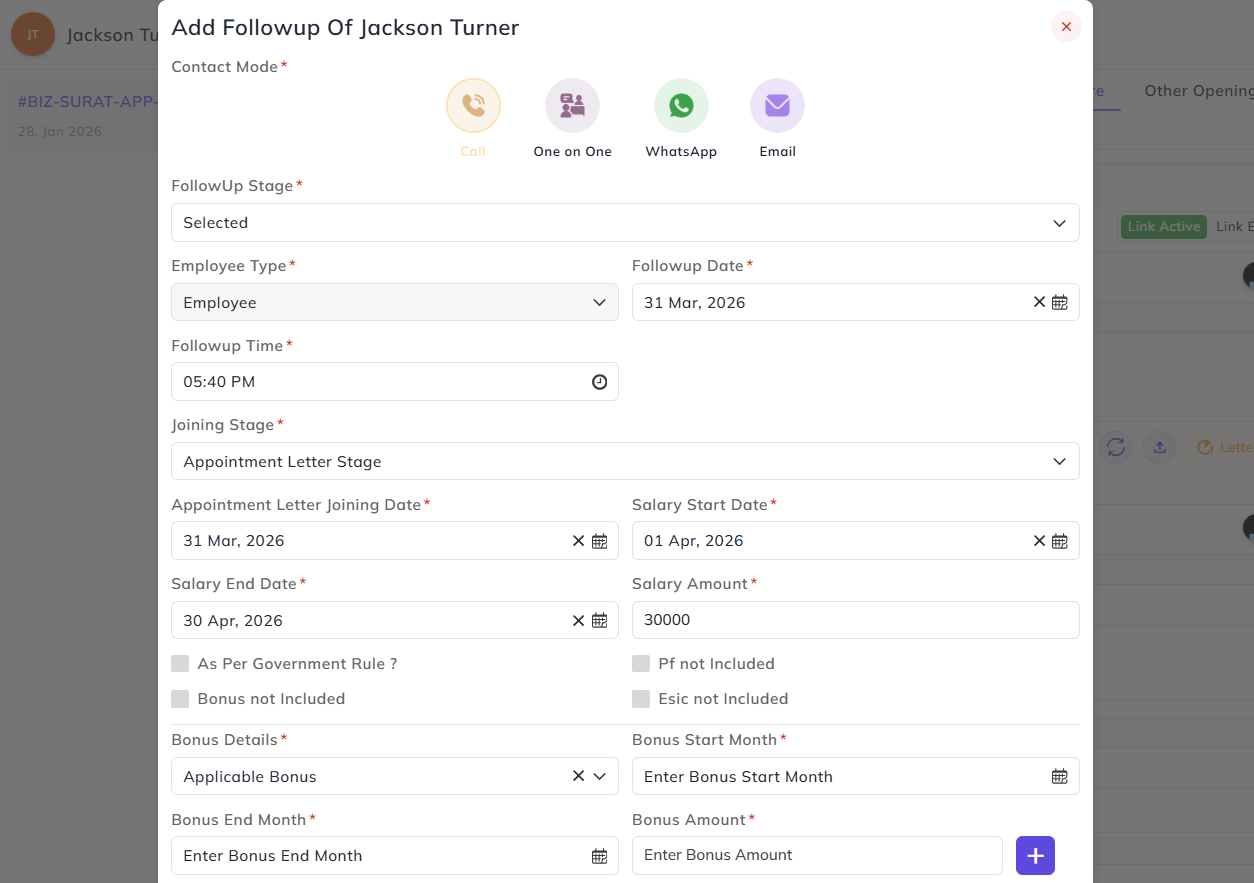
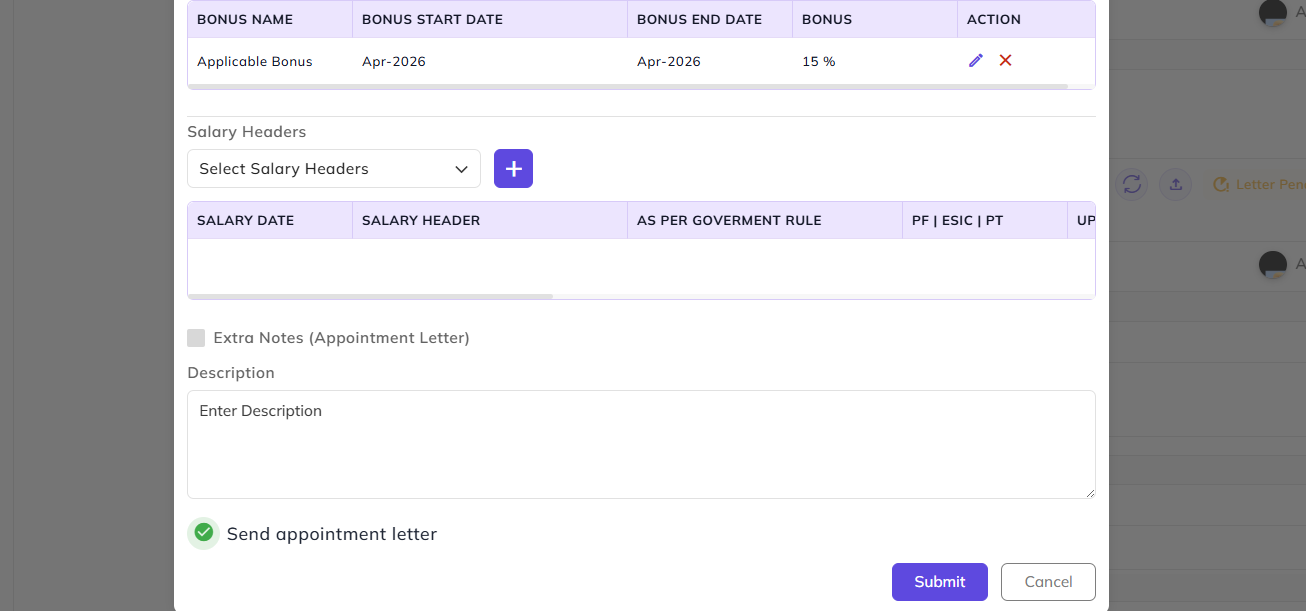
The rest of the process is same as that of the Agreement Letter stage.
Account Creation/Generate Intern:
Note: Account Creation/ Generate Intern cannot be in same stage but the functions of this stages are the same, the only difference is that whilewhen Account creationCreation is selectedselected, we cannot create an internIntern profileProfile and ifvice-versa. Generate Intern selected then we cannot create an employee profile thisThis optionsoption is visible based onat the selection typetime of adding candidate atfollow up Selected Follo-up/Candidateas Employee or Intern. status add time
InFor this stage, the recruiterconfiguration of Code Generate/ Generate Intern option must enabled in the stage of Account Creation or Intern.
- While creating an employee, we need to select the Type (Employee, Apprentice, Trainee or Consultant).
- We can
assignadduserarole,customreportemployee code or even the series number. - Then we need to
person,select the Follow Up Date andapproveFollow Up Time. - There's also an option to
person.send the account creation mail to the candidate.
- Then select the User Role, Report To Person, Approve To Person, and the Employee Default Configuration.
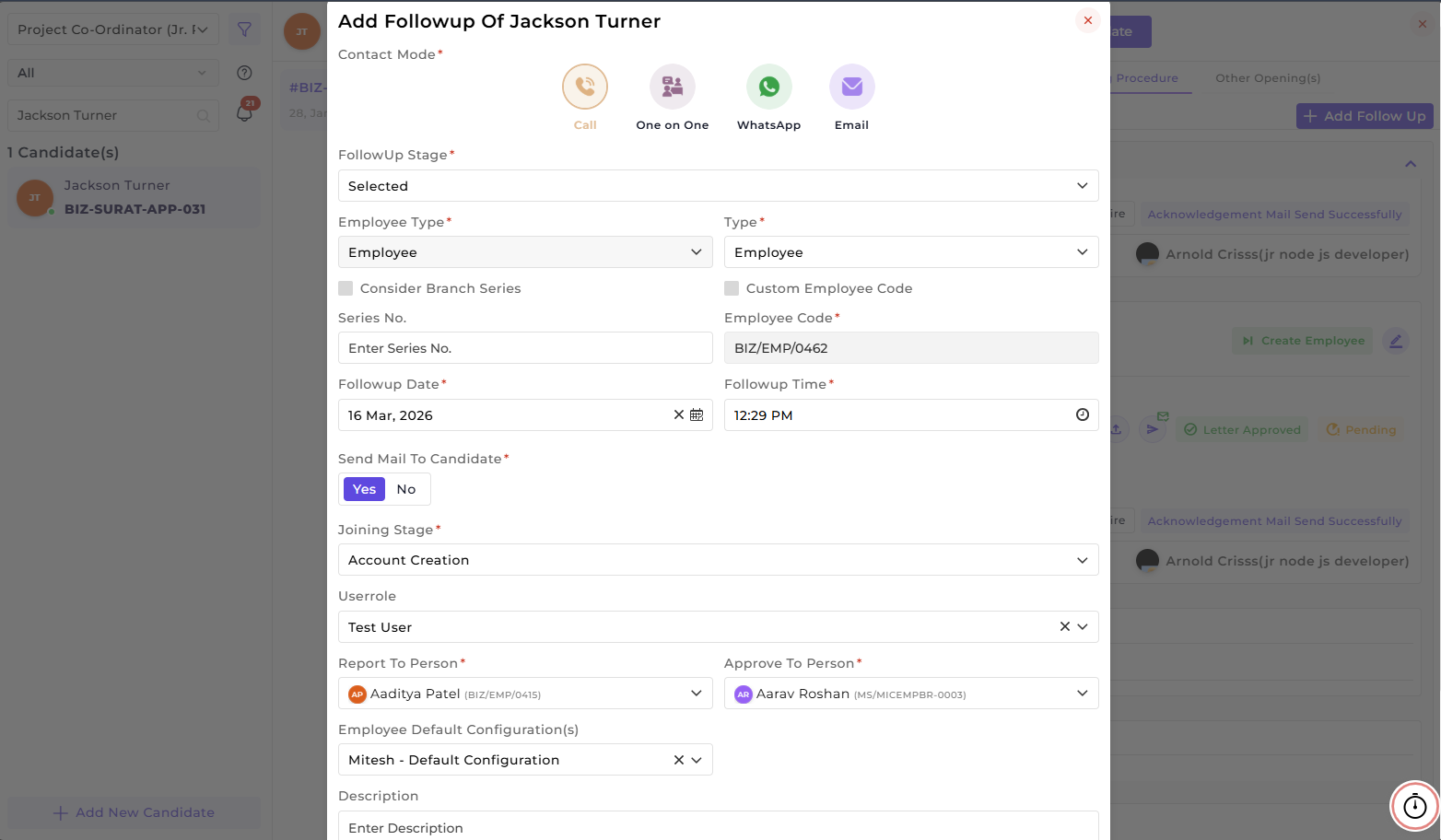
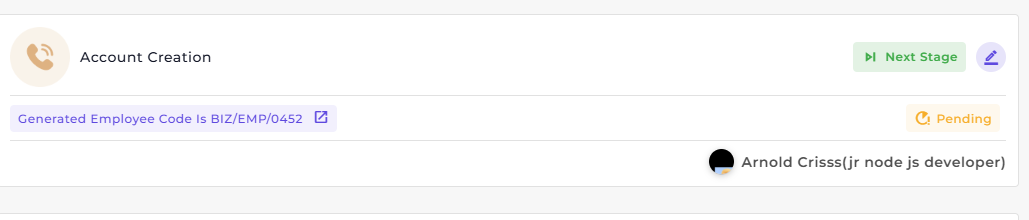
After creating it, an Employee Code will be generated for the candidate. Clicking on this will redirect to Employee 360 of that candidate.

Note:
Account Creation/Generate Intern thiscannotbe in same stage but thefunctionsof thisstagesaresame,the only difference is that while Account creation is selected wecannotcreatean intern profile and ifGenerate Intern selected then we cannot create an employee profilethis options visible based on the selection type of candidate at Selected Follo-up/Candidatestatus add timeIn this stage organization can create an accountduring the stage configuration the code generation/generate internoptionmust enabled thus inthis stage there isbutton visible of Create Employeewhile creating an employee weYou need toselectfilltheOverview,typePolicyis the candidate is Employee, Apprentice,Traineeor a ConsultantWe can add a custom employee code or even the series numberNeed to select the Userroleif want to change the reporting person then change or justaddthe approval person(Mostly HR)and if want to add some default policy for the employee’s attendance, shiftInfo., andetc.ShiftthenDatawe canselectof the employeedefaultinconfigurationthe
EmployeeAfter submitting there is employee code visibility and there is redirection360 toemployee’sAssignprofile inEmployee 360Training.
Provide JoiningAssign Goodies:
AssignFor this stage, the joiningGive Joining Goodies byoption selectingmust itbe enabled and then the selected items will be assigned to the candidate on joining.

Introduction:Assign Asset:
For this stage, the option of Assign Asset must be enabled, and then the selected assets will be assigned to the candidate on joining.
In this stage whichever template is selected will sent over the email automatically no need to send manually 
Training Assigned:
If assignAssign trainingTraining option is enabled in the flowflow, then in this stage we can assign/select the heretraining and oncethe trainer. Once the shift and everything is assignedassigned, they can start the training (This stage is done from the application side).
Once every stage is completed, click on Complete Procedure to finish the onboarding/ joining procedure.