
Opening
This feature is used to create job openings in the recruitment module. Using Openings, you can define the role, department, experience, salary, recruiter, and screening questions for hiring.
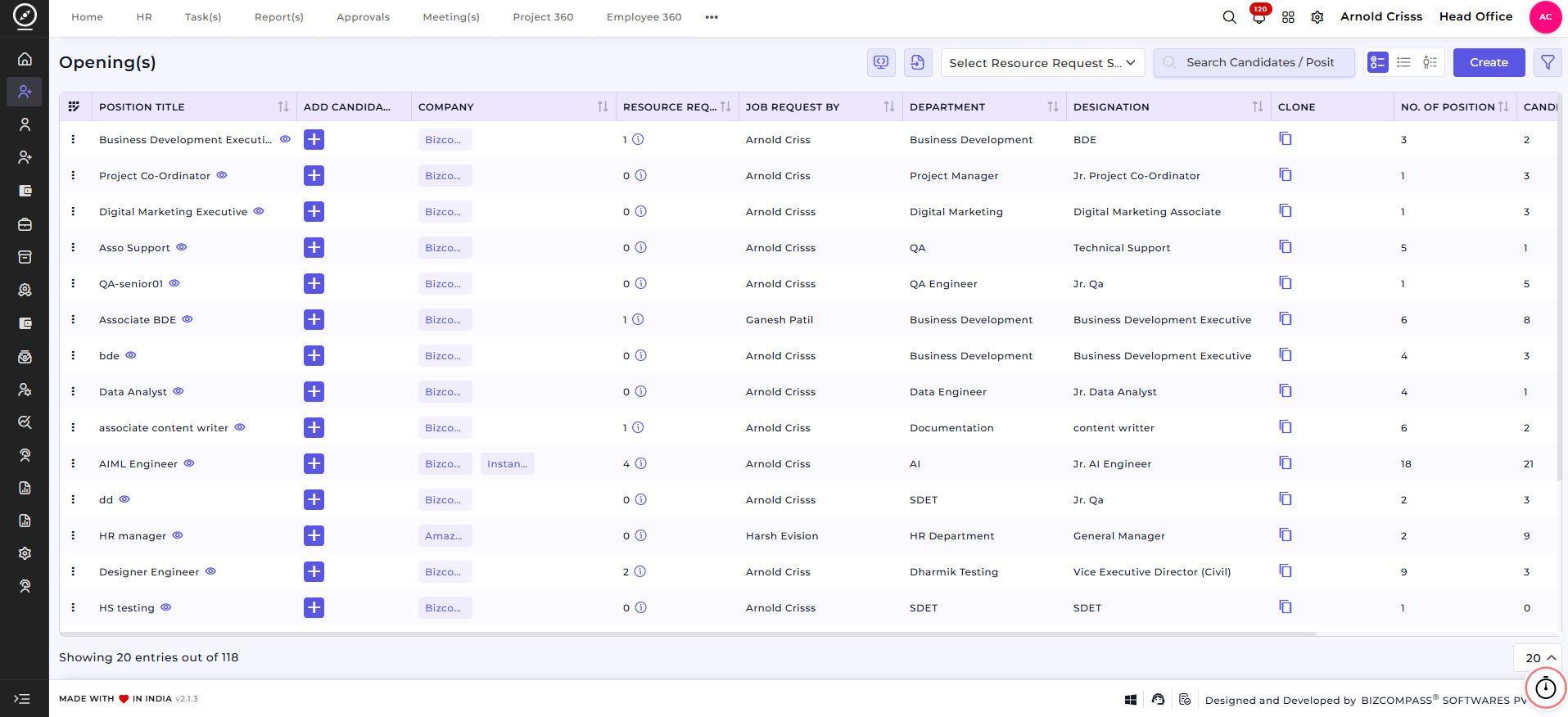
The opening is created using:
- Position Title
- Department
- Designation
- Experience Range
- Salary Details
- Company & Branch
- Recruiter
- Opening Questions
Create Opening(s)
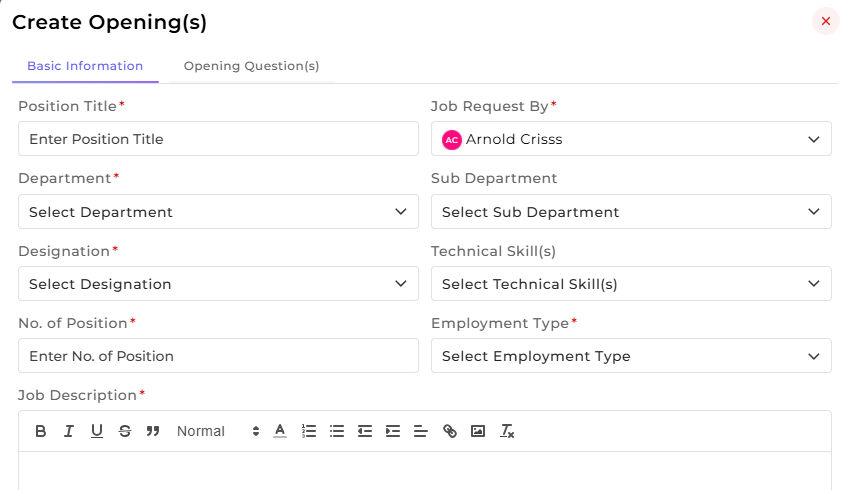
On this page, you can create a new job opening.
1. First, enter the 'Position Title'. For Example:
- Business Development Executive
- QA Engineer
- Digital Marketing Executive
2. Select 'Job Request' By (the person who requested the hiring).
3. Select the 'Department' and 'Sub Department'.
4. Select the 'Designation' for the position.
5. Select the required 'Technical Skill(s)' for the role.
6. Enter the 'Number of Positions' required.
7. Select the 'Employment Type'. For Example:
- Full-time
- Part-time
- Contract
8. Add the 'Job Description' explaining the role and responsibilities.
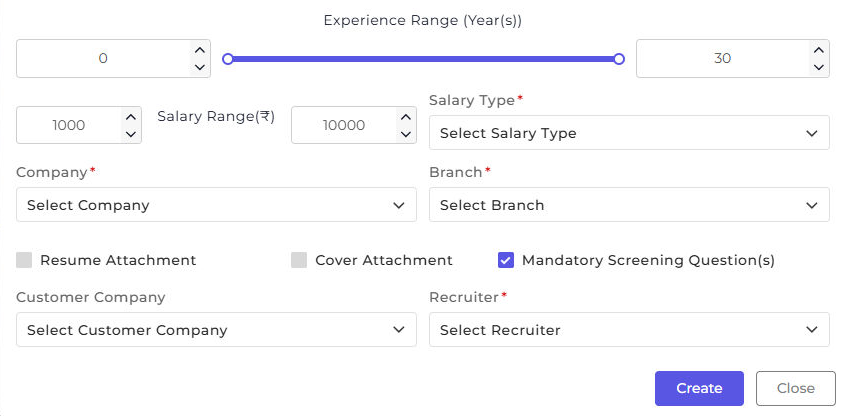
9. Set the 'Experience Range' (Years).
10. Enter the 'Salary Range' and select the 'Salary Type'.
11. Select the 'Company' and the 'Branch'.
12. Enable 'Resume Attachment' or Cover Attachment if required and Select the 'Recruiter' who will manage this opening.
13. You can also choose if the 'Screening Questions' should be mandatory or not by checking its box.
14. Click 'Create' to save the opening.
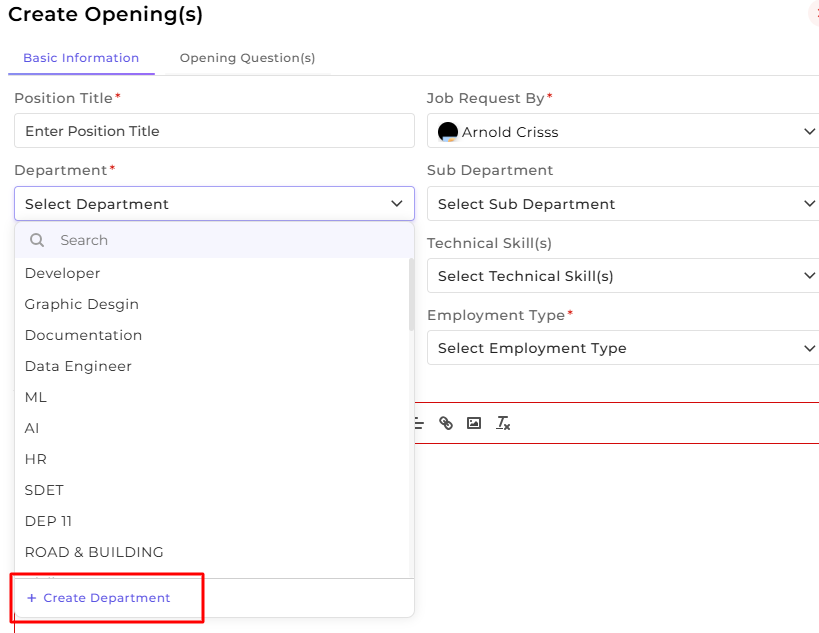
Note: You can create new Department, Sub-Department, Designation, Technical Skill(s), Company, Branch and Customer Company from here only as well as in their separate configuration pages. An example of creating new Department is shown below.
Now you can also create Opening questions. Let's see how:
Opening Question(s)
This section is used to add screening questions for the opening.
- Select the 'Question Type' : Set or Individual
2. Enable 'Sectional Cut Off' if required.
3. Select the 'Question Set' (if Set is selected).
4. Choose the 'Question Selection Type' : Manual or Auto
5. Select the 'Opening Question(s)'.
6. The 'Total Mark(s)' are calculated automatically. Then you can Enter the 'Passing Mark(s)'.
7. Click 'Create' to save the opening with questions
Additional Features Available:
-
Copy Opening(s) Link/Embedded Codes:
After creating an opening, this allows you to quickly copy the link or embed code of the opening for use on external platforms, job portals, or within your website. This can be done in two ways:
1. You can copy link/ embedded code for one particular opening by clicking on the three dot icon before the Position Title.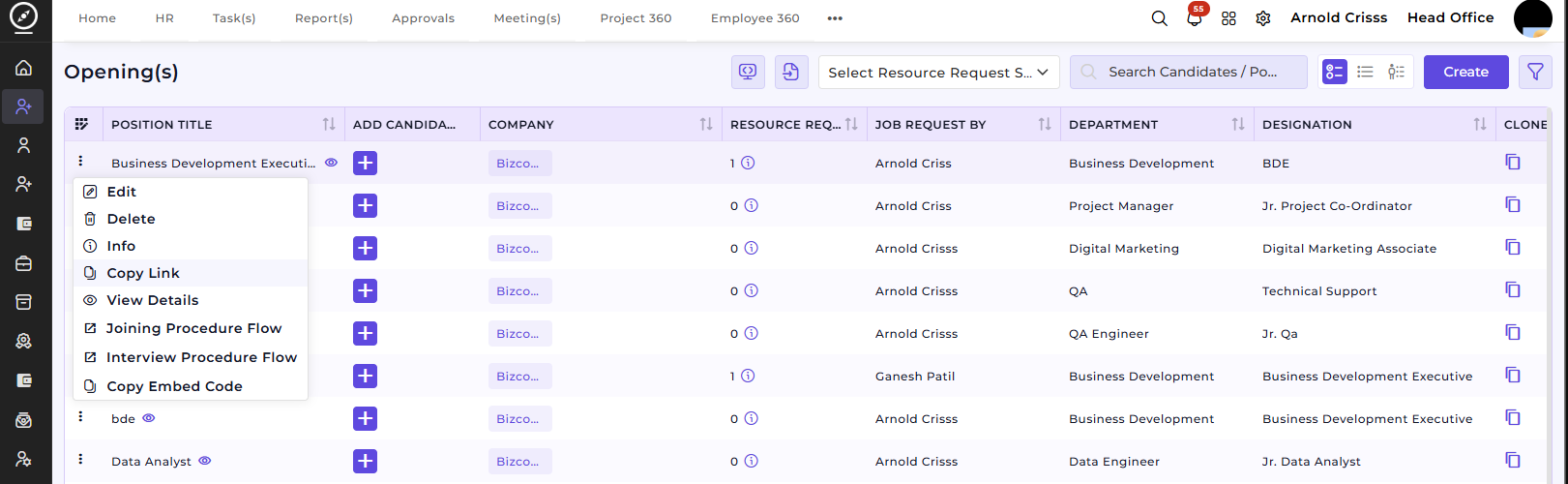
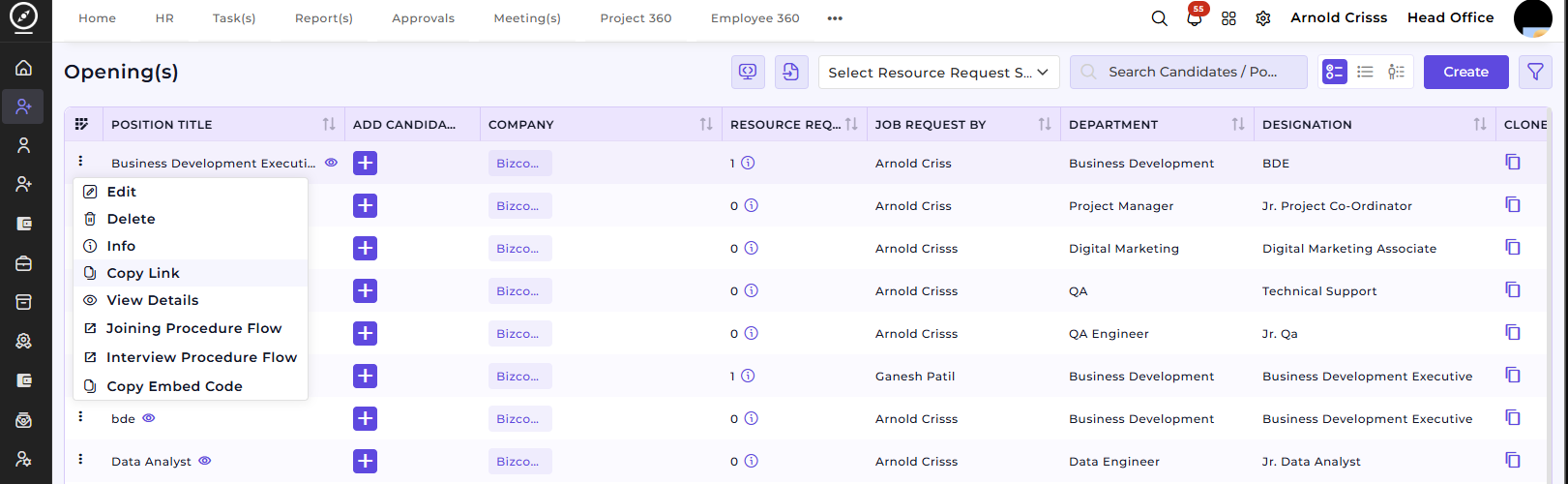
2. You can also copy the link/ embedded code in bulk for the openings. For that, click on the icon shown below:
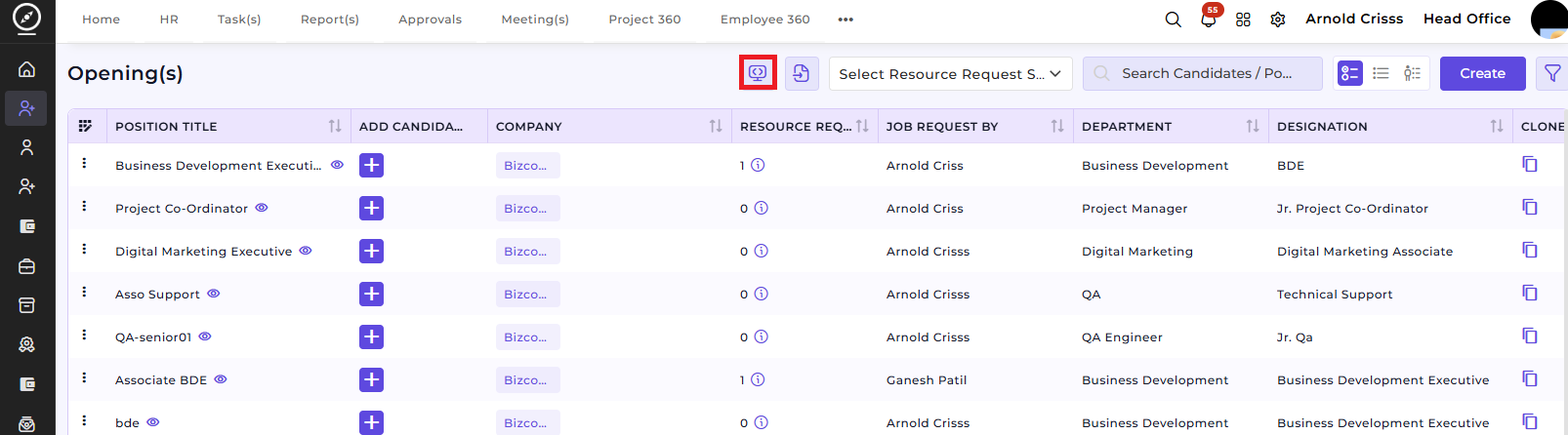
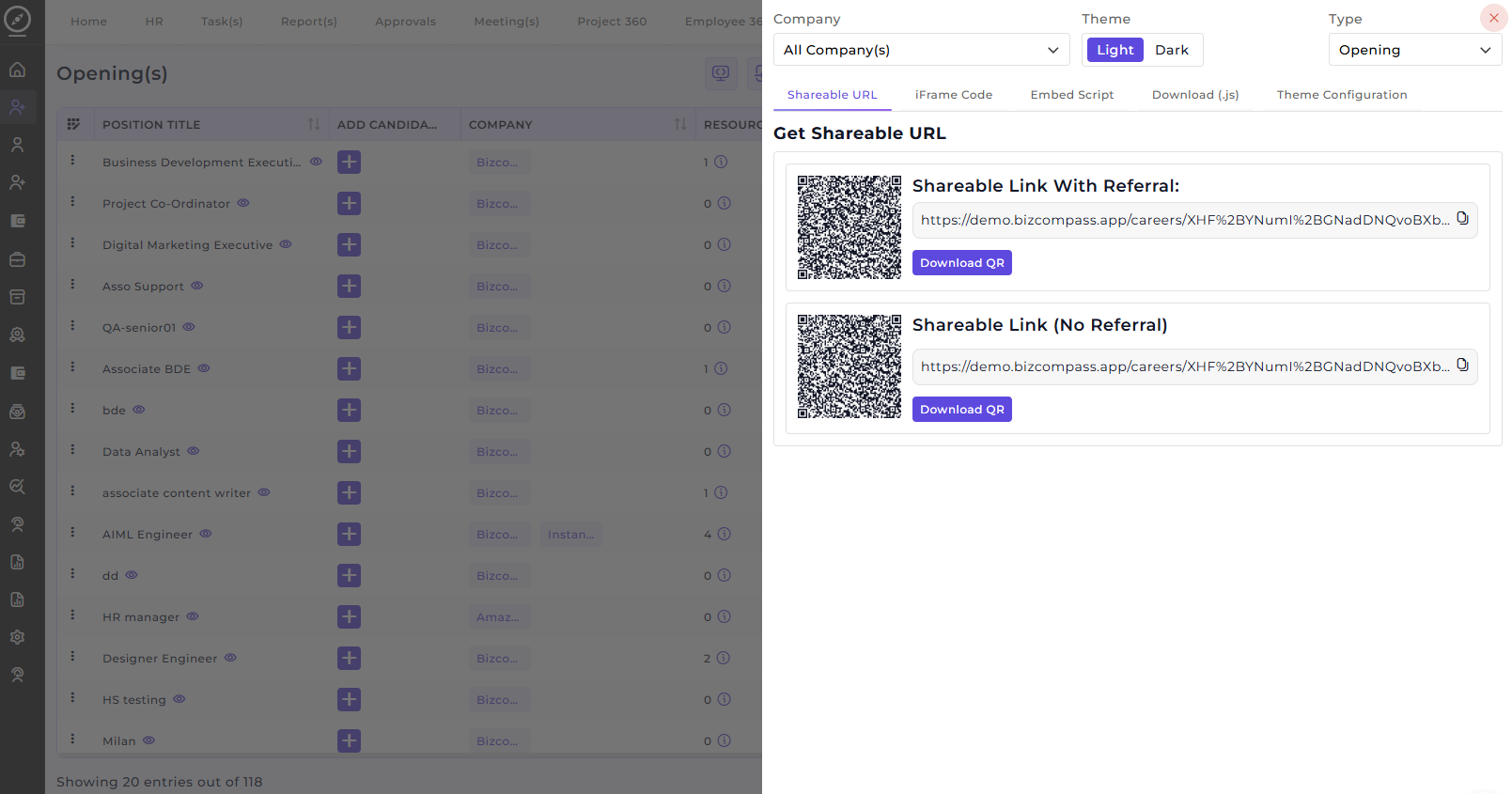
Then you can select the Company Name and Type (Opening or Resource Request) and copy the link, iFrame Code or Embedded Code as shown below.
-
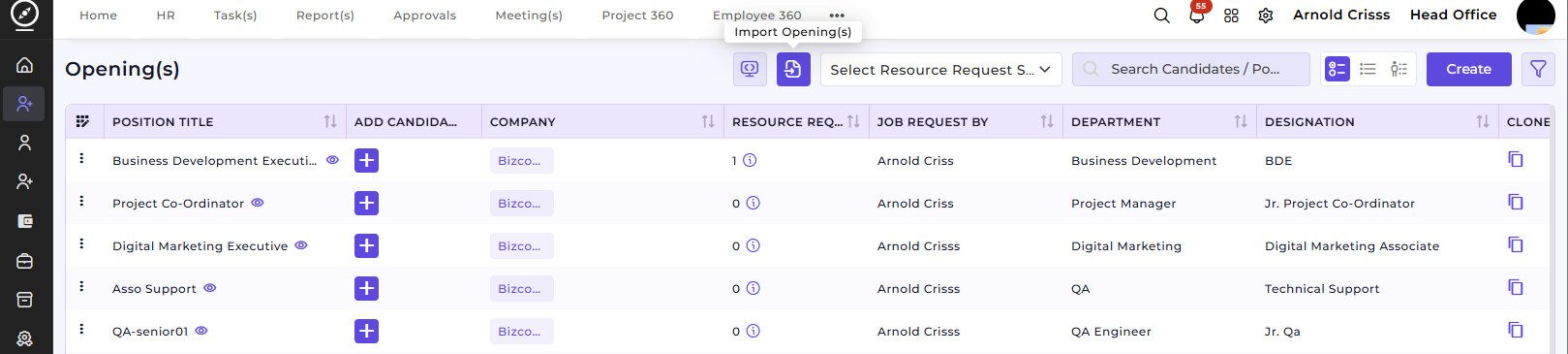
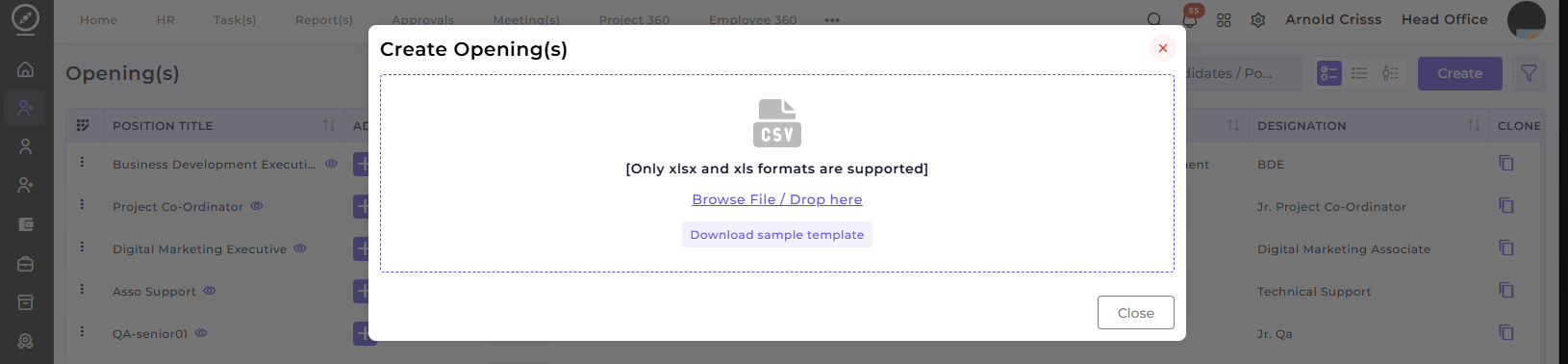
Import Openings:
If you have bulk openings to add, you can use the Import Openings feature to upload multiple job openings at once, streamlining the process for large recruitment drives.
Additional Features for Managing Openings:
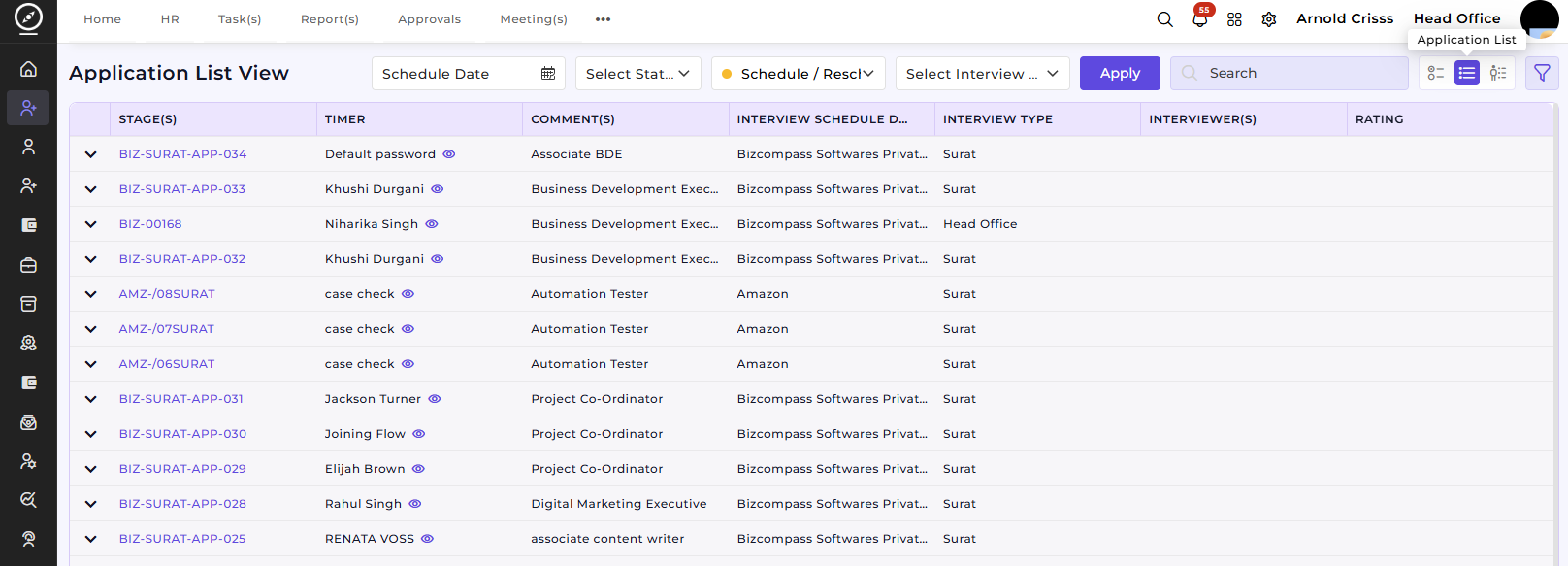
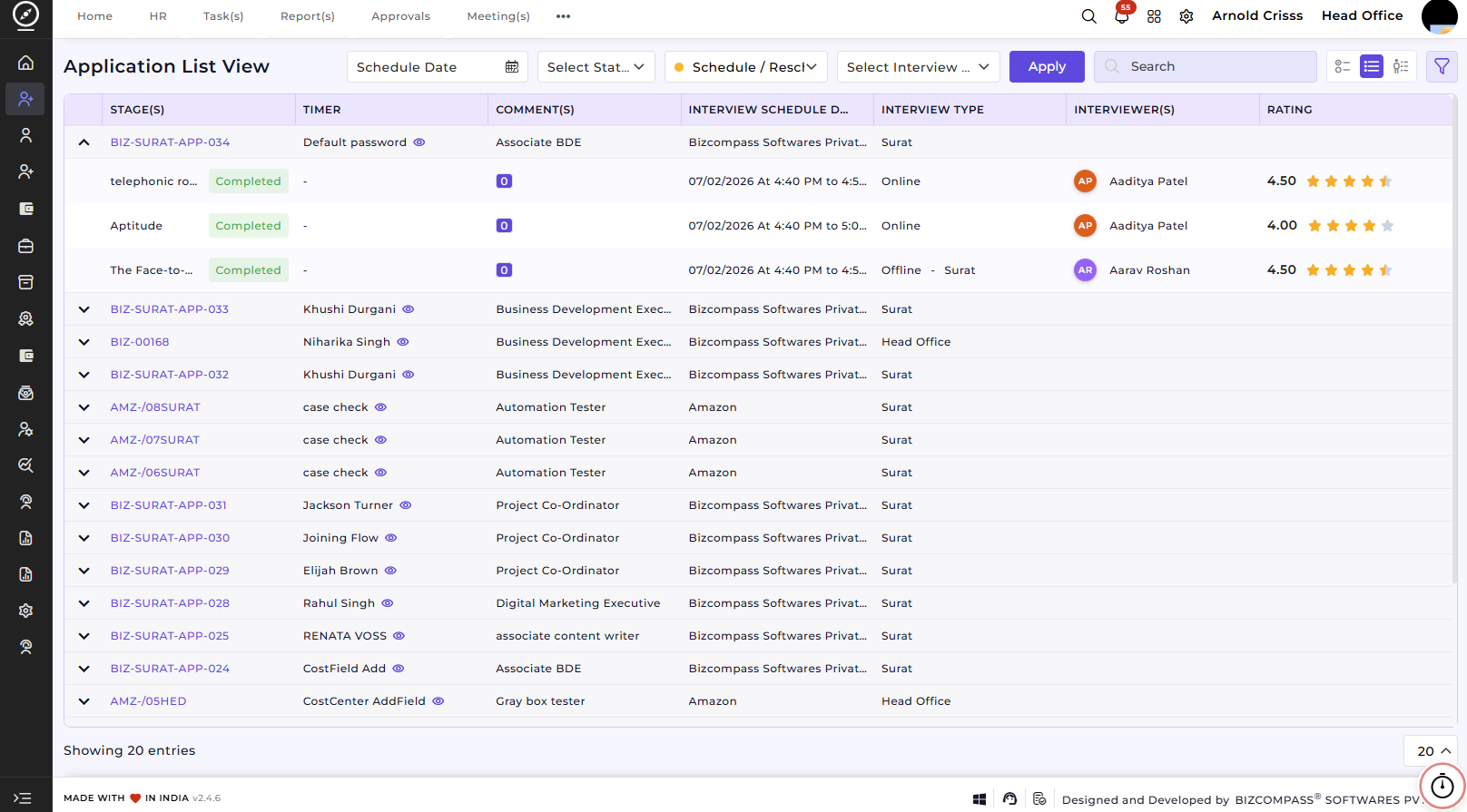
Application List View:
This section provides a list of applicants for each job opening. You can view the progress of each candidate's application by applying filters such as date, status (pending/ completed), follow-up stage (schedule/reschedule interview, joined, etc.), interview stage (aptitude, practical, etc.).
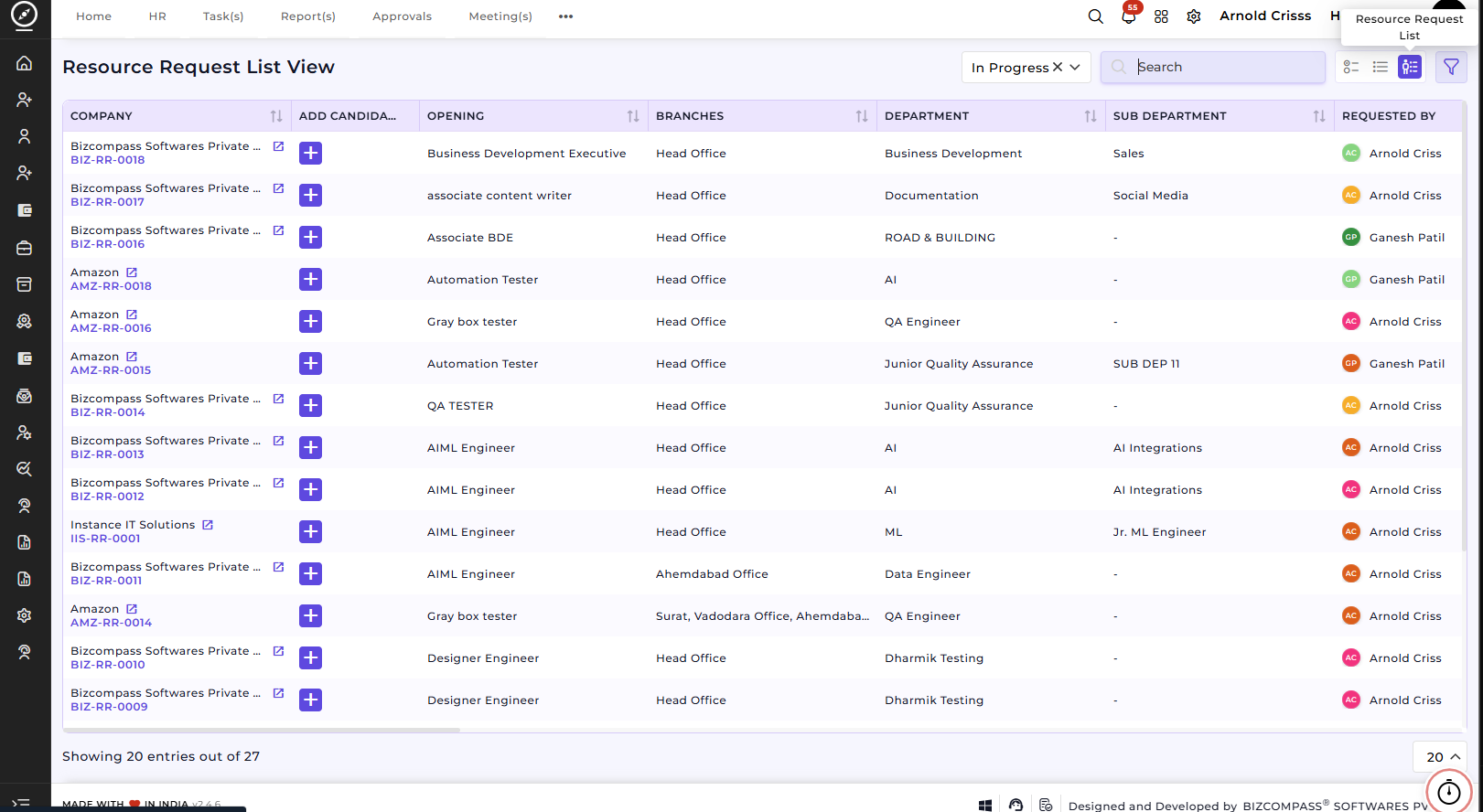
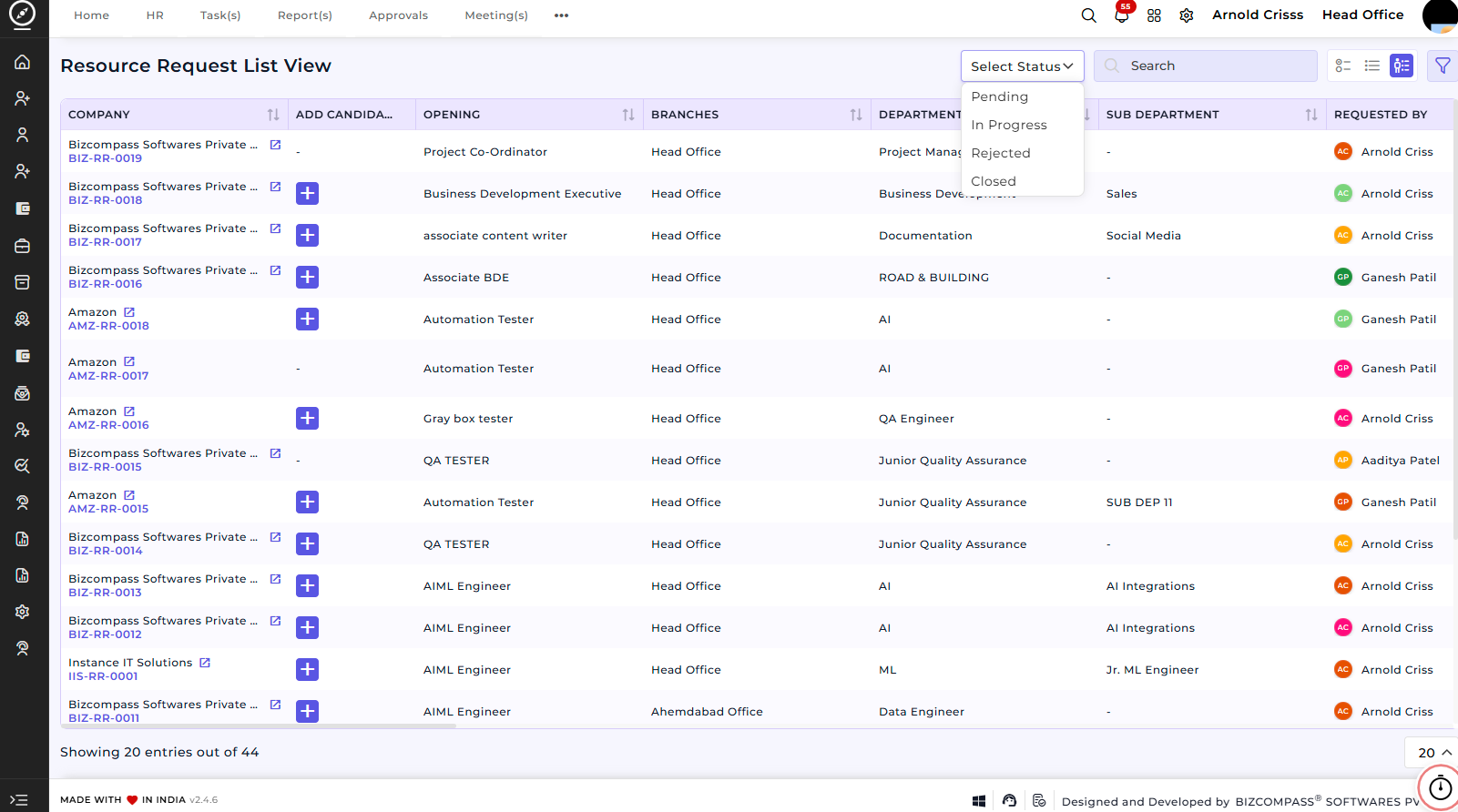
Resource Request List View:
This section allows you to view all resource requests related to job openings. It tracks the job request status (pending, in progress, etc.), the branch, department, and sub-department associated with the job opening, and it allows the recruiter to add candidates to specific positions based on the resource request.
How this feature helps
The Openings feature ensures that every job requirement is clearly defined before recruitment begins.
It reduces confusion, standardizes hiring criteria, and helps recruiters screen candidates effectively, by capturing role details, experience, salary, and screening questions.
This feature improves hiring accuracy, saves time, and ensures only suitable candidates move forward in the recruitment process.
Once an Opening is created, it becomes the reference for:
- Adding candidates
- Applying screening questions
- Tracking hiring progress
This ensures recruitment activities remain aligned with the original job requirement.