
Opening
The Opening(s) page is used to create job openings in the recruitment module.
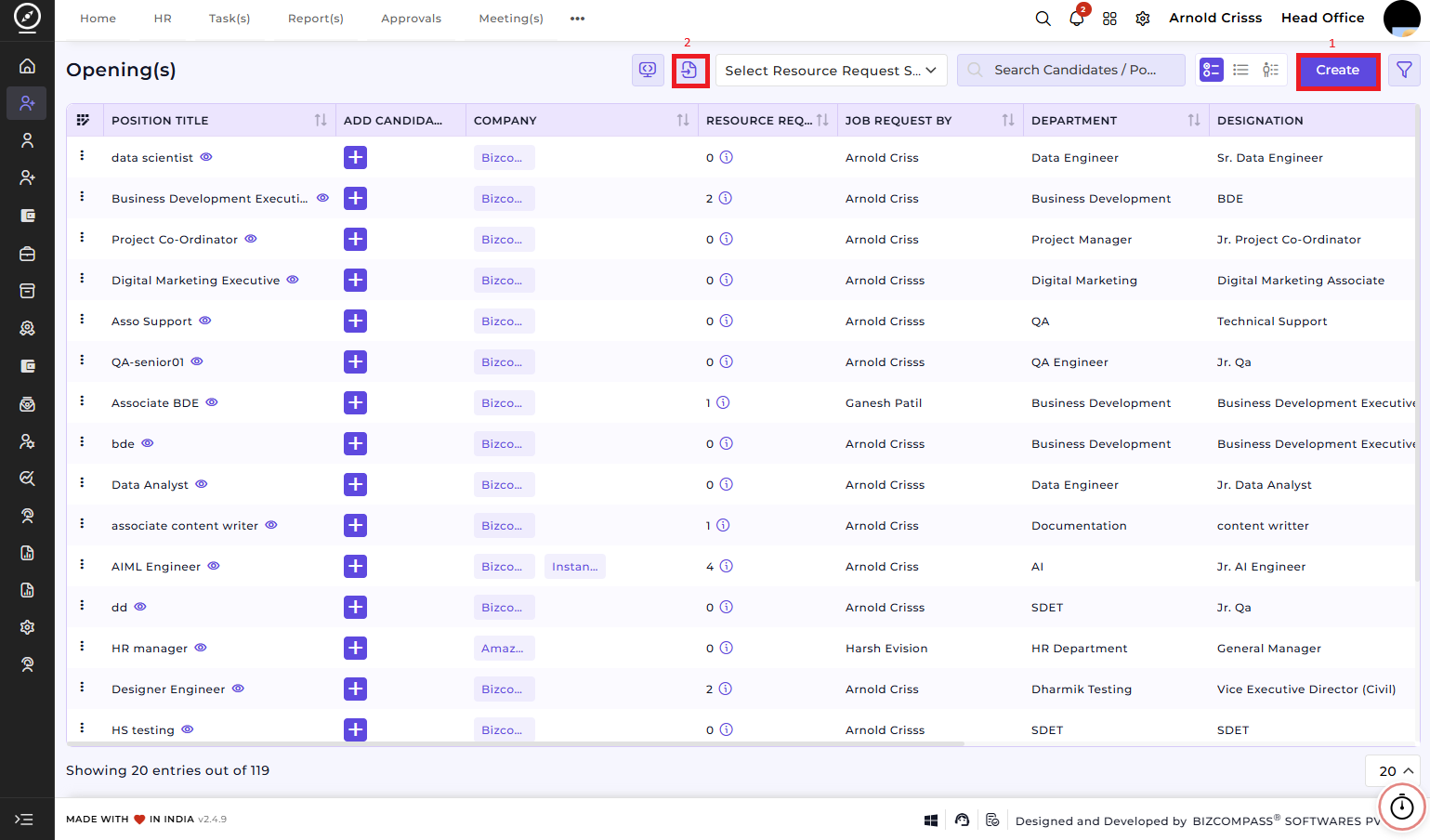
1) Create Opening(s):
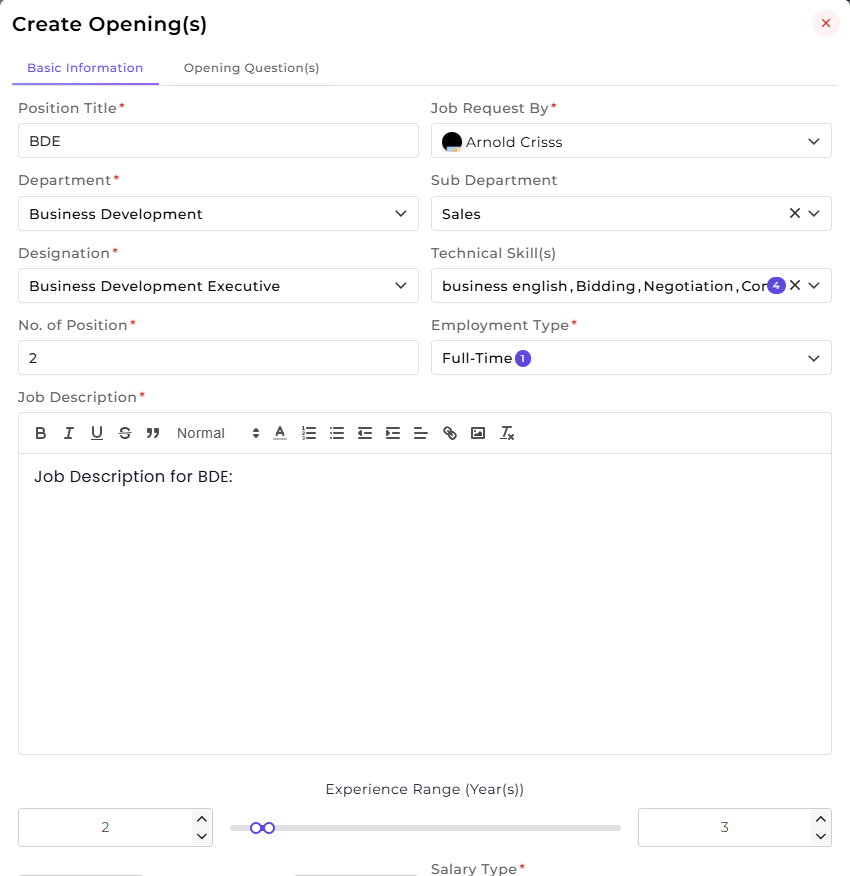
1. Enter the Position Title.
2. Select Job Request By (the person who requested the hiring).
3. Select or create the Department and Sub Department.
4. Select or create the Designation for the position.
5. Select or create the required Technical Skill(s) for the role.
6. Enter the Number of Positions required.
7. Select or create the Employment Type.
8. Add the Job Description explaining the role and responsibilities.
9. Set the Experience Range (Years).
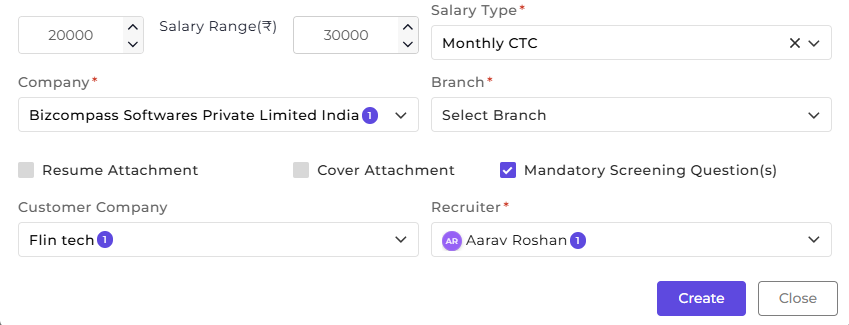
10. Enter the Salary Range and select the Salary Type.
11. Select the Company and the Branch.
12. Enable Resume Attachment or Cover Attachment if required and select the Recruiter who will manage this opening.
13. You can also choose if the pre-defined Screening Questions should be mandatory or not by checking its box.
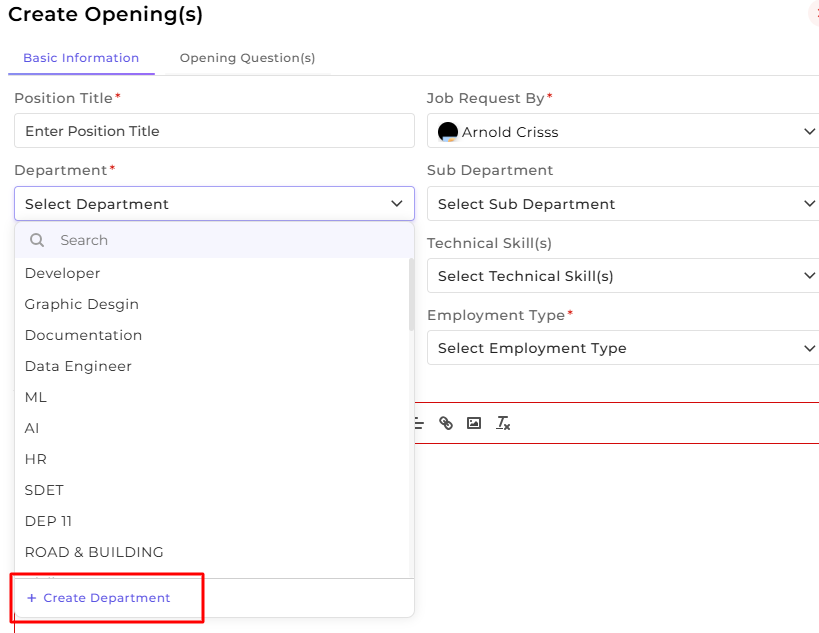
Note: You can create new Department, Sub-Department, Designation, Technical Skill(s), Employment Type, Company, Branch and Customer Company from here only as well as in their separate configuration pages (if you have access to them). An example of creating new Department while creating an opening is shown below.
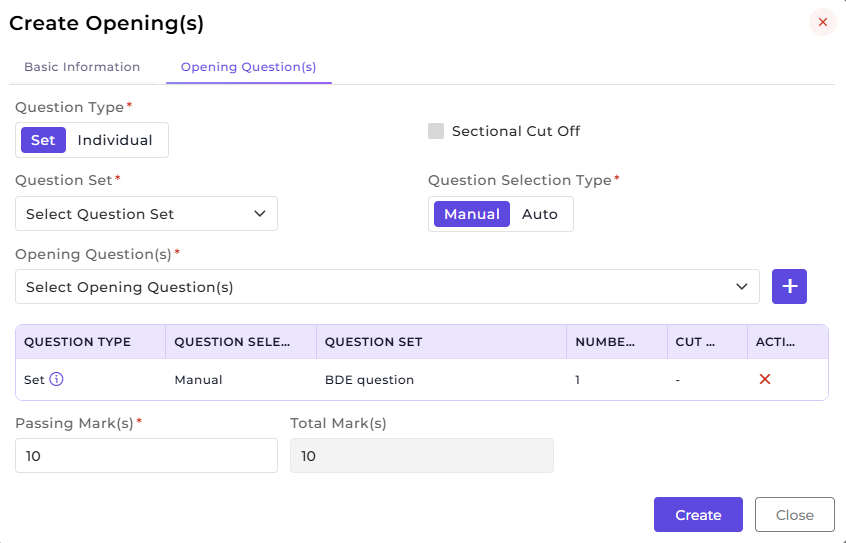
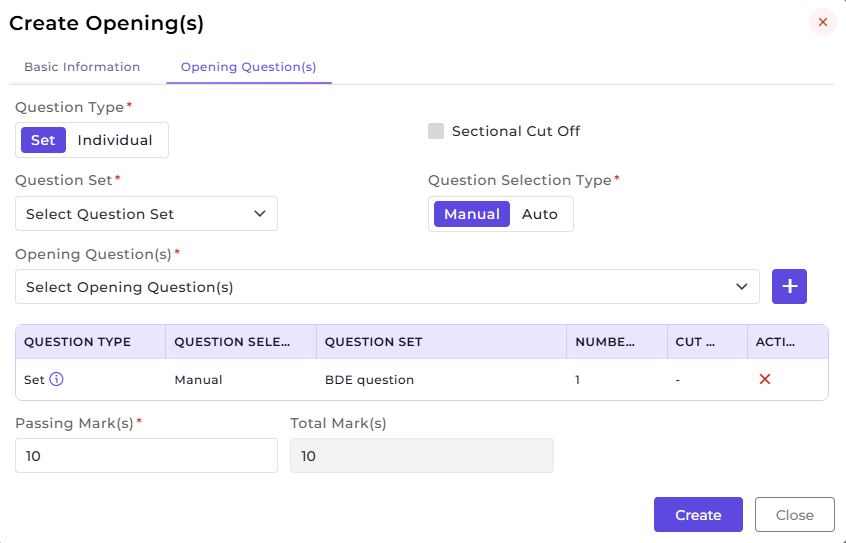
Adding Opening Questions:
1. Select the Question Type (Set or Individual).
2. Enable Sectional Cut Off if required (if Set is selected).
3. Select the Question Set (if Set is selected) or Opening Questions (if Individual is selected).
4. Choose the Question Selection Type : Manual or Auto (if Set is selected).
5. Select the Opening Question(s).
6. The Total Mark(s) are calculated automatically (if Manual is selected). Then, enter the Passing Mark(s).
7. Click Create to save the opening with questions.
2) Import Openings:
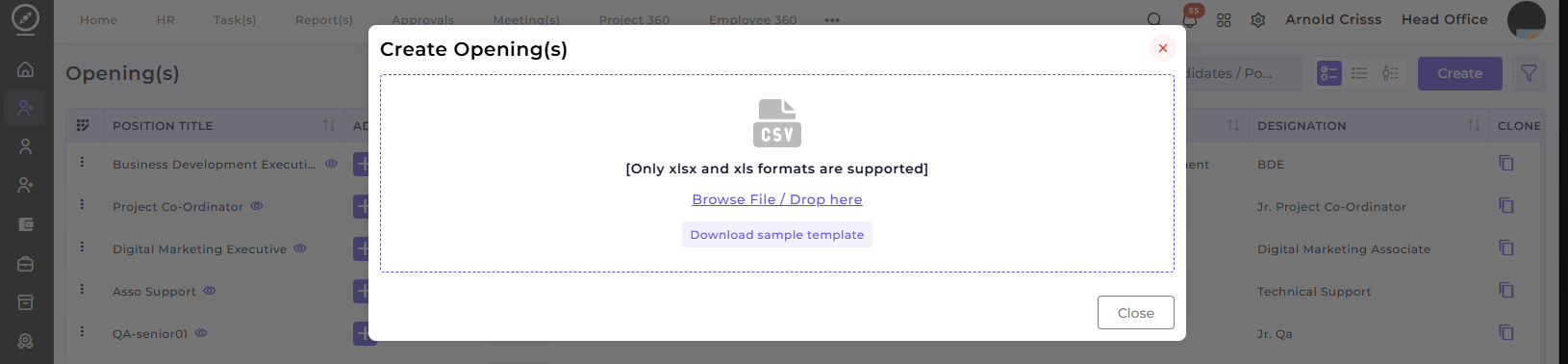
If you have bulk openings to add, you can use the Import Openings feature to upload multiple job openings at once, streamlining the process for large recruitment drives. You can also download a sample opening template from here.
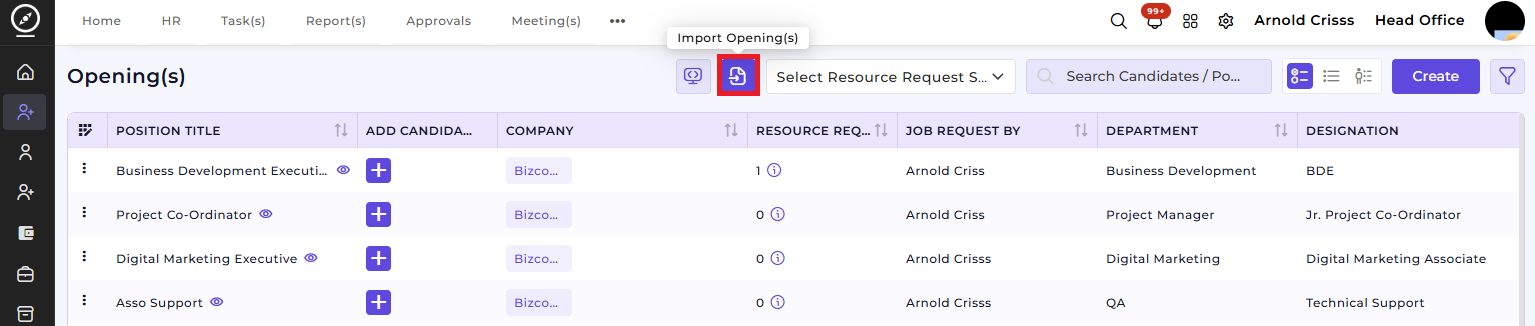
These openings can be used to raise a Resource Request in the future. With the Application List View and Resource Request List View sections in the same page as Opening(s), it makes it easier to track and manage all candidates and their applications.