
Opening
The Opening(s) page is used to create job openings in the recruitment module.
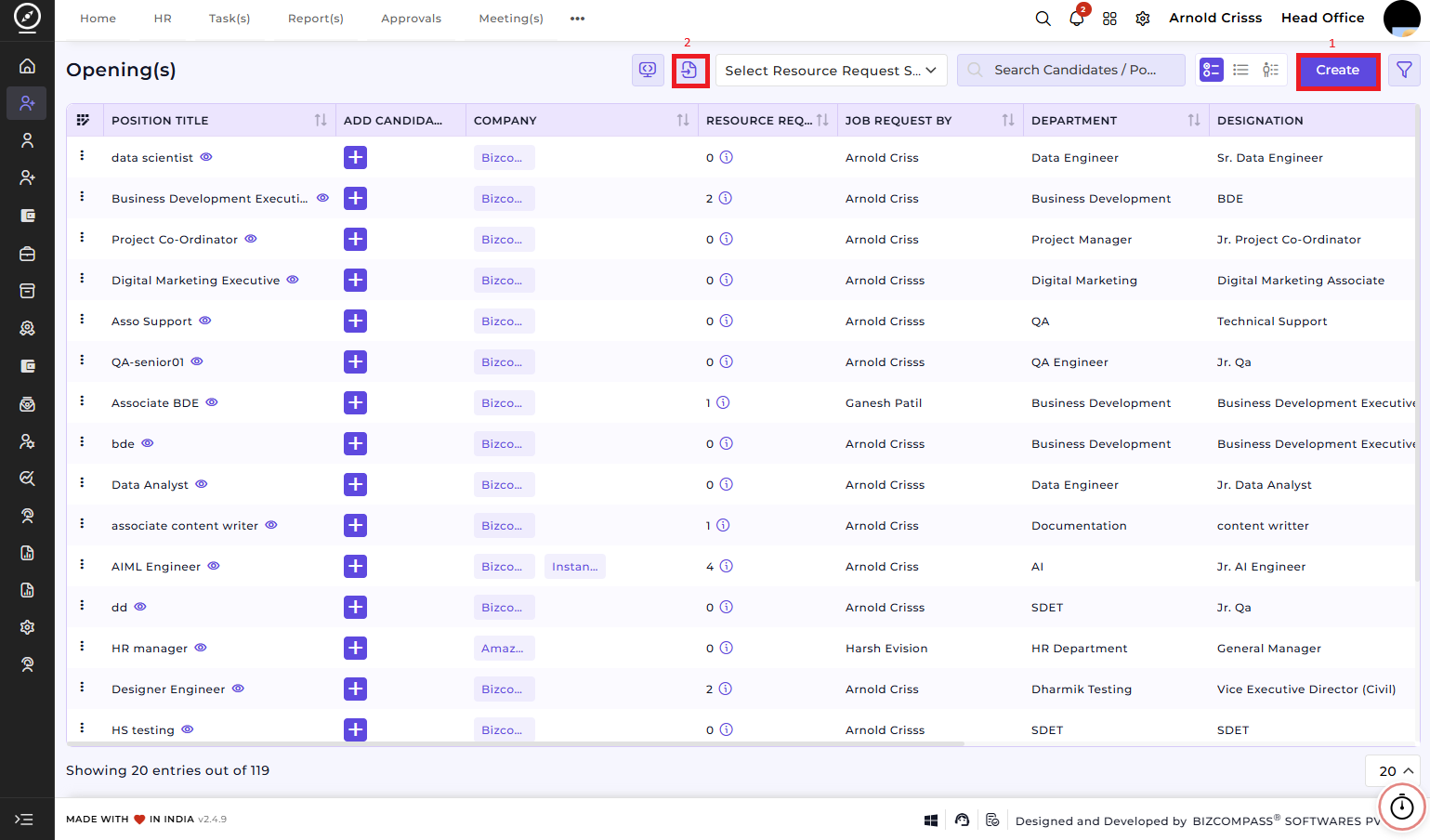
1) Create Opening(s):
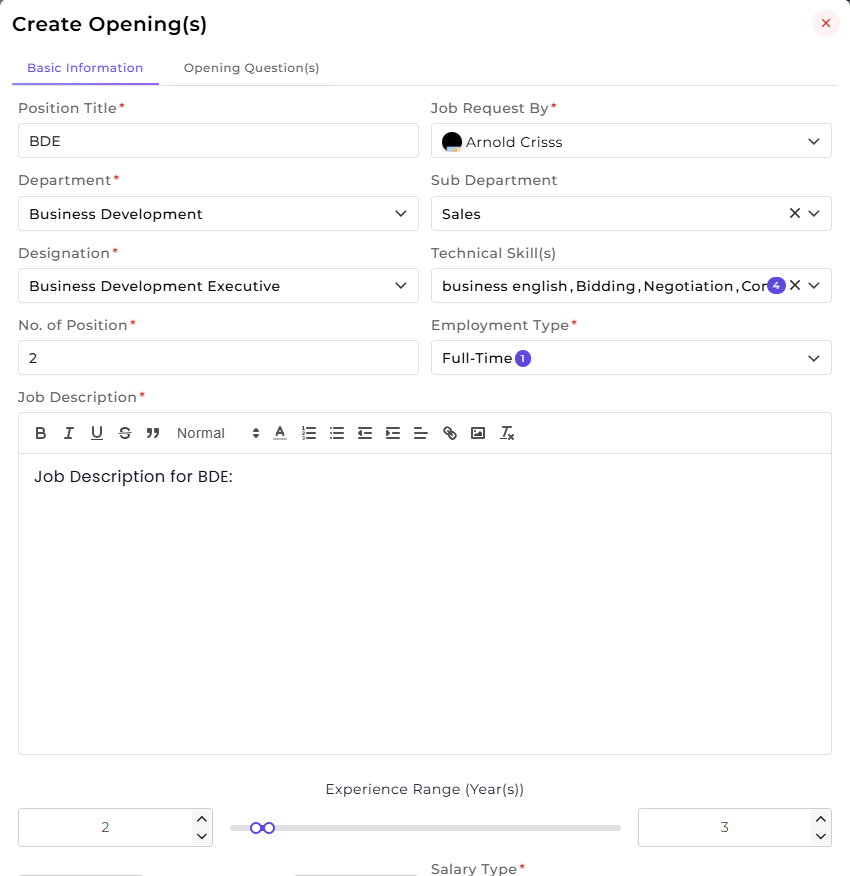
1. Enter the Position Title.
2. Select Job Request By (the person who requested the hiring).
3. Select or create the Department and Sub Department.
4. Select or create the Designation for the position.
5. Select or create the required Technical Skill(s) for the role.
6. Enter the Number of Positions required.
7. Select or create the Employment Type.
8. Add the Job Description explaining the role and responsibilities.
9. Set the Experience Range (Years).
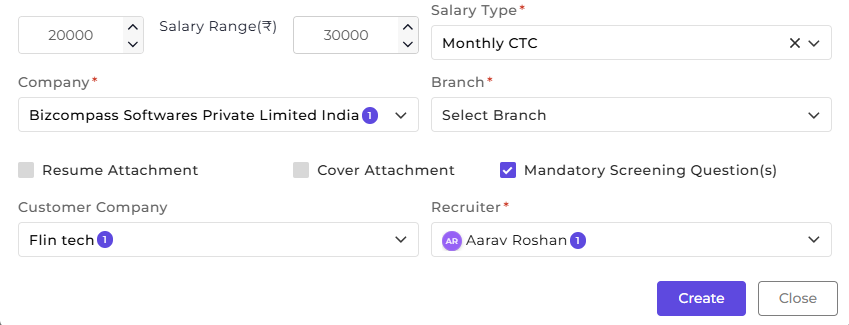
10. Enter the Salary Range and select the Salary Type.
11. Select the Company and the Branch.
12. Enable Resume Attachment or Cover Attachment if required and select the Recruiter who will manage this opening.
13. You can also choose if the pre-defined Screening Questions should be mandatory or not by checking its box.
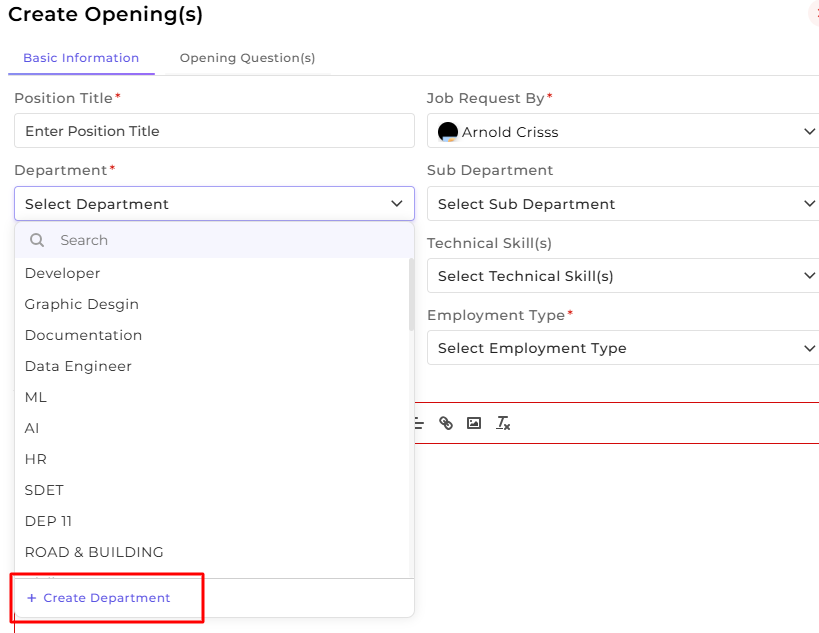
Note: You can create new Department, Sub-Department, Designation, Technical Skill(s), Employment Type, Company, Branch and Customer Company from here only as well as in their separate configuration pages (if you have access to them). An example of creating new Department while creating an opening is shown below.
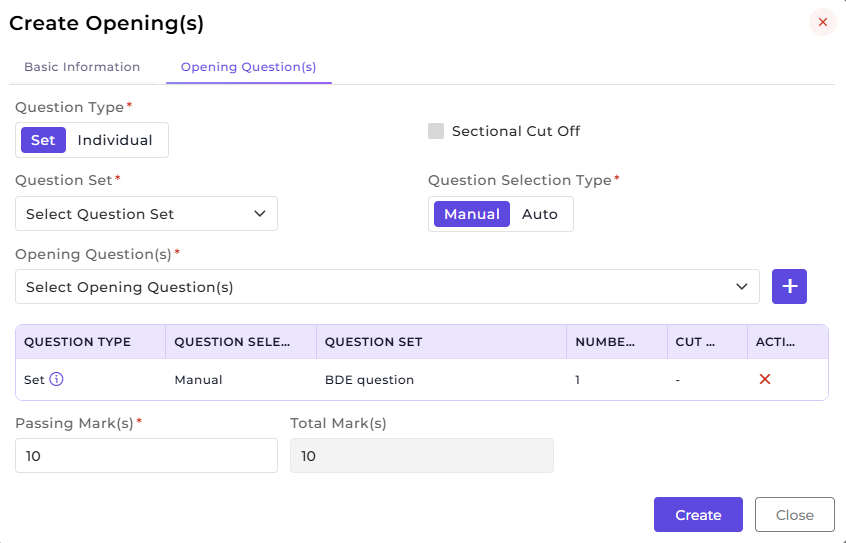
Adding Opening Questions:
1. Select the Question Type (Set or Individual).
2. Enable Sectional Cut Off if required (if Set is selected).
3. Select the Question Set (if Set is selected) or Opening Questions (if Individual is selected).
4. Choose the Question Selection Type : Manual or Auto (if Set is selected).
5. Select the Opening Question(s).
6. The Total Mark(s) are calculated automatically (if Manual is selected). Then, enter the Passing Mark(s).
7. Click Create to save the opening with questions.
2) Import Openings:
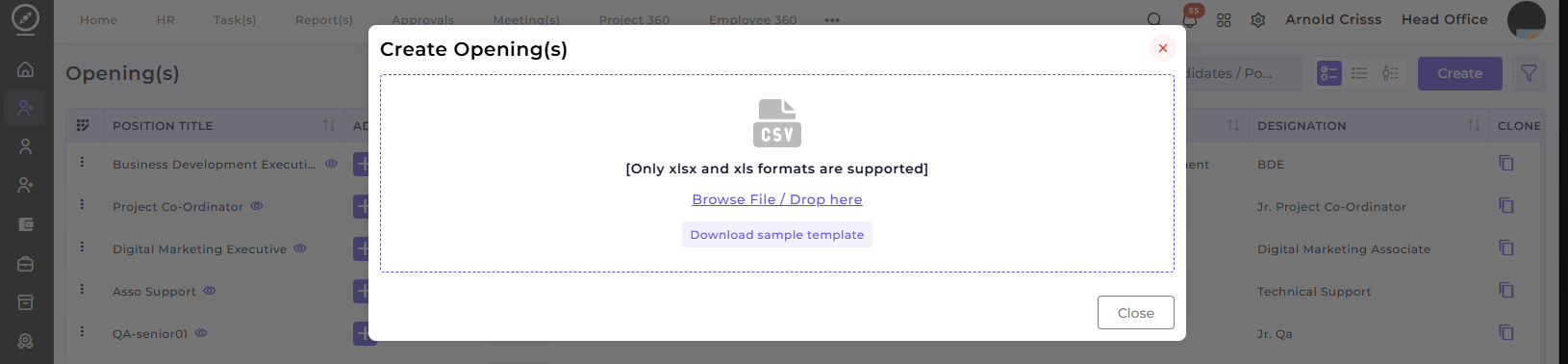
If you have bulk openings to add, you can use the Import Openings feature to upload multiple job openings at once, streamlining the process for large recruitment drives. You can also download a sample opening template from here.
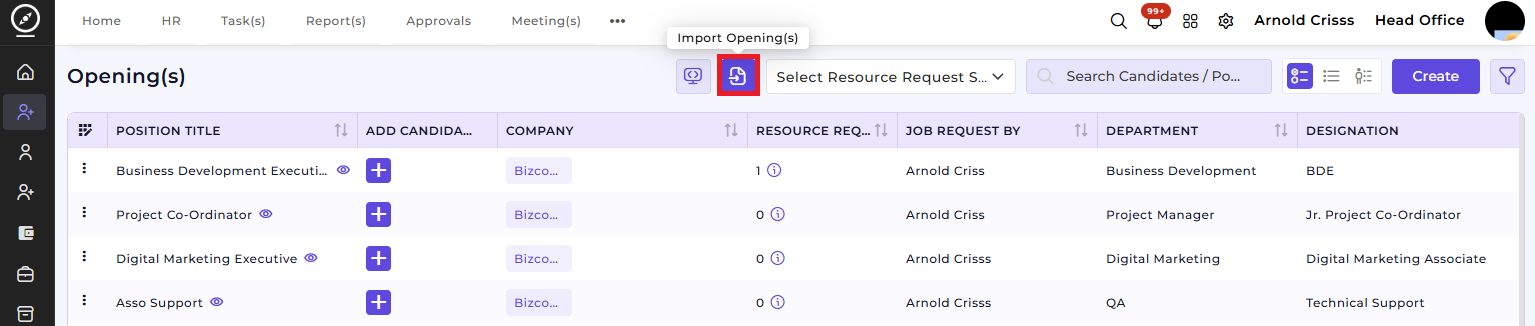
These openings can be used to raise a Resource Request in the future. With the Application List View and Resource Request List View sections in the same page as Opening(s), it makes it easier to track and manage all candidates and their applications.
=======================================================================================
Opening
The Opening page is used to create job openings in the organization. It defines the positions, number of vacancies, and recruitment requirements for which the organization wants to run the recruitment process.
After creating an opening/position:
-
Recruiters can add candidate applications
-
Recruiters can reach out to candidates
-
Employees can generate resource requests for these openings
-
The organization can manage the placement process for these positions
Creating an Opening
To create an opening, the following details must be provided:
Position Name
Enter the position name for which recruitment is required.
Examples:
-
Assistant Manager
-
Associate Developer
-
Senior Manager
Requested By
Select the person who has requested the opening.
Department
Select the department for which the opening is created.
Example:
For Associate Developer, the department is usually Engineering or Development.
Sub Department
Select the Sub Department if required, based on the selected department.
Designation
Select the designation related to the position.
Example:
For an Associate Developer opening, the designation will usually correspond to the Associate Developer role.
Technical Skills
Select the technical skills required for the opening.
Example:
For a developer role, the required skills may include:
-
Specific programming languages
-
Debugging skills
-
Development frameworks
These skills define the minimum technical requirements for candidates.
Total Positions
Enter the total number of vacancies available for the position.
Employment Type
Select the employment type.
Example:
-
Full Time
-
Part Time
Job Description
Enter the job description.
This description will be displayed on the public job posting page for candidates.
Experience Range
Define the required experience range.
The range can be selected using a draggable slider.
Salary Range
Enter the salary range for the position.
Select the salary type, such as:
-
CTC
-
Monthly CTC
-
Yearly CTC
Company and Branch
Select the company for which the recruitment process is running.
Then select the branch where the position is available.
Resume Attachment
Enable Resume Attachment if the organization wants candidates to upload their resume while applying.
Cover Letter Attachment
Enable Cover Letter Attachment if the organization requires candidates to submit a cover letter.
Screening Questions
Enable this option if screening questions are mandatory for candidates.
Screening questions are default questions provided by Bizcompass.
Customer Company
If the recruitment process is being conducted for a customer company, select the customer company here.
Recruiter
Select the recruiter responsible for this opening.
Only employees whose employee role includes the Recruitment option will appear in the recruiter list.
Opening Question Configuration
Questions created in the Question Answer Master and arranged into Question Sets can be selected here for the opening.
Question Set Or Question Selection
The organization can select entire question sets or individual questions depending on the recruitment requirement.
Selecting Question Sets
Select the question set from the list created in the Question Set page.
After selecting the set, the organization can define a section cutoff if required.
Question Selection Methods
Two methods are available for selecting questions from a set.
Manual Selection
In Manual Selection, the organization can manually choose specific questions from the selected set.
Auto Selection
In Auto Selection, the organization can:
Define the number of questions to be selected automatically
The system selects questions from the total questions available in the set
Managing Questions in a Set
Each question set contains an Info button (🛈) next to the word Set in the table.
Using this option, the organization can configure the questions inside the set.
Opening Question Sets
For Opening Question Sets, the Info option allows the organization to:
Select or deselect questions
Mark whether a question is required
Update the passing points if applicable
Interview Question Sets
For Interview Question Sets, the Info option allows the organization to:
Select or deselect questions
Update the time required to answer each question
Modify the passing points if available
Aptitude Test Question Sets
For Aptitude Test Question Sets, the Info option allows the organization to:
Select or deselect questions
Define the time to answer each question
Update passing points if applicable
Duplicate Questions
If two different question sets are selected, and a question appears in both sets, the system shows a warning icon (⚠) next to that question.
This helps identify duplicate questions across sets.
Passing Marks and Deviation
Below the question table, there are fields to configure:
Deviation
Total Passing Marks
Deviation Type
Deviation defines extra time allowed during the test.
Two types are available:
Fixed Deviation
A fixed number of extra minutes is added to the total test time.
Percentage-Based Deviation
Extra time is calculated as a percentage of the total time of all selected questions and question sets.
Passing Marks
If the Question Selection Type is Manual, the organization can define the total passing marks required to clear the test.
This determines whether the candidate has successfully passed the opening screening stage.