
Questions and Question Set
The Question Master Pagepage is used to definecreate and manage the questions that will be used induring the recruitment process,process. particularlyThese inquestions can be added while creating an Opening, during an Interview Stage, or as part of an Aptitude Test.
This page allows you to adddefine multipledifferent types of questions likesuch as Opening Questions, Interview Questions, and Aptitude Questions, tohelping ensure that candidates are thoroughly evaluated duringeffectively at each stage of the hiring process.
You can also add these questions to a Question Set for easier access.
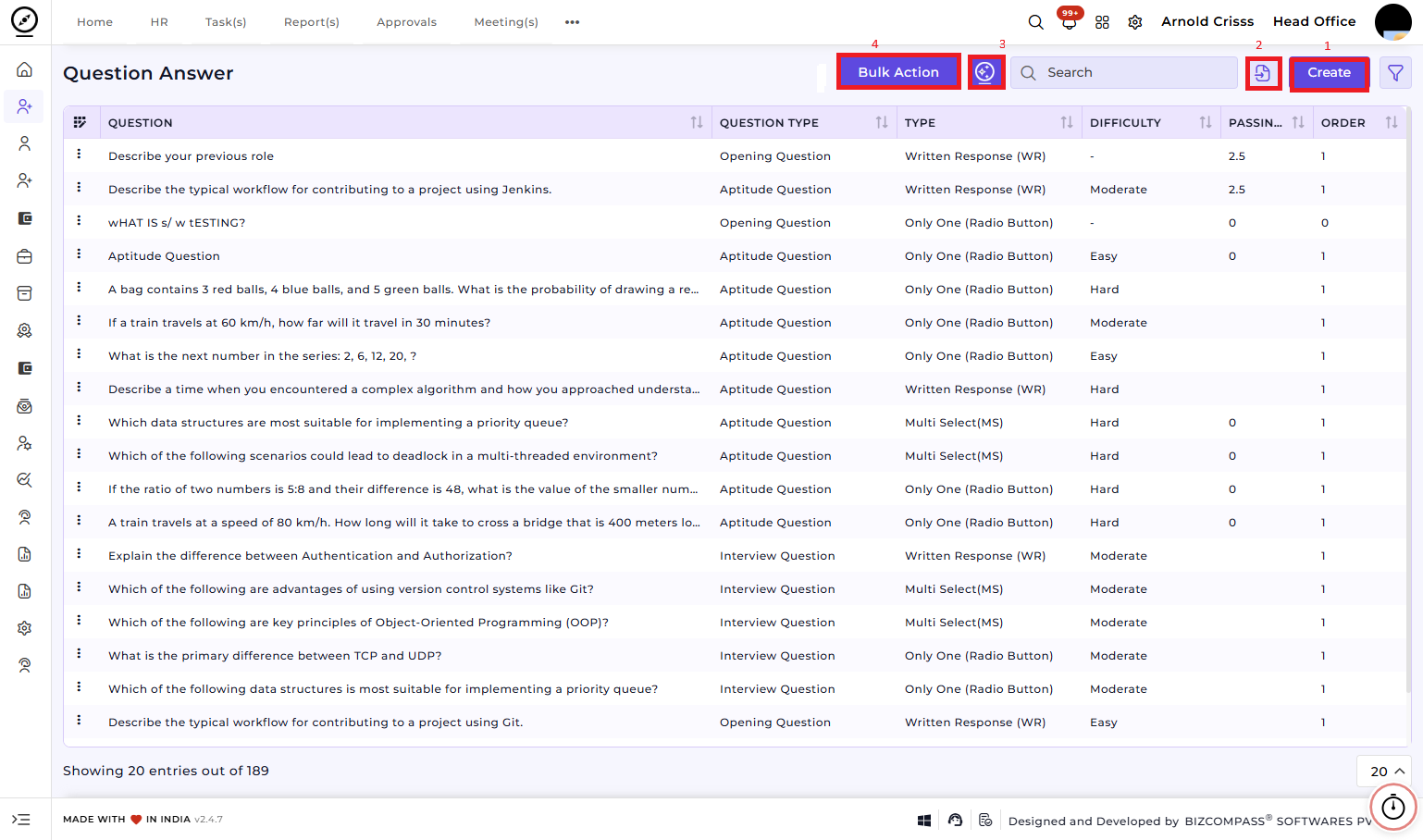
1) Create Opening Question(s):
This section is used to create Opening Questions that will be associated with job openings. These questions are designed to screen candidates before they proceed to the interview stage.
-
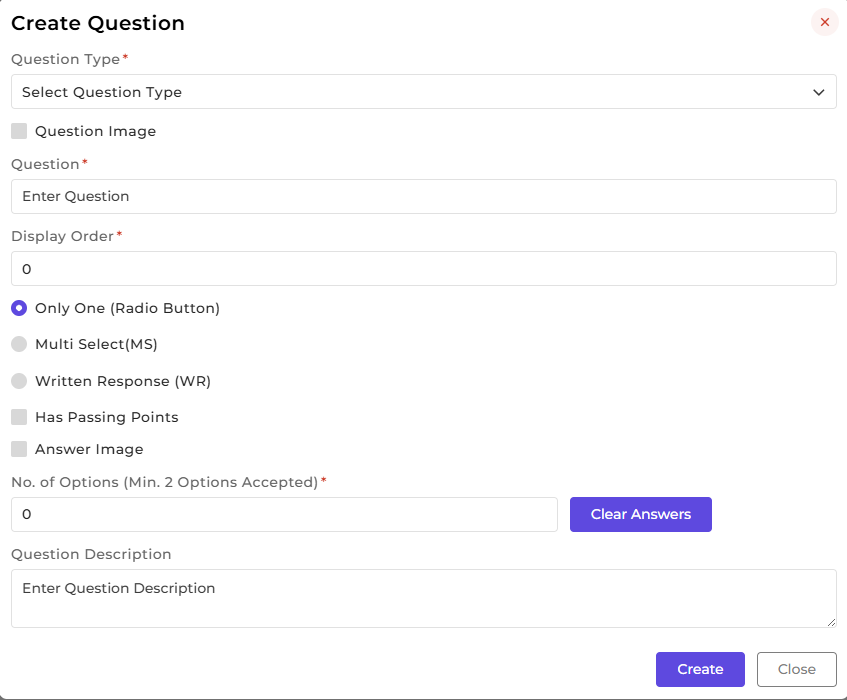
Select Question Type:
Choose the type of question to beadded. You can select from three types of questions:added:-
Opening Question (Used for initial screening of candidates)
-
Interview Question (Used during the interview
process)process) -
Aptitude Question (Used
toduringevaluatetheaaptitudecandidate’s problem-solving abilities)test)
-
-
Enter the Question:
Type the question you want to ask the candidate. - Display Order:
Specify the order of the question to be used in the opening. -
Select the Question Difficulty: (for Interview or Aptitude Questions)
question
Define the difficulty level of thequestion:- (easy,
- moderate
or
Easyhard). - Time
to Answer (in min):
(for Aptitude Questions)Moderate
Set the - time
forHardthe
- moderate
-
Select Question Type:
Choose whether the question will be:-
Written Response (WR): For questions that require a written response.
-
Only One (Radio Button): For questions where the candidate selects one option from a list.
-
Multi Select (MS): For questions where the candidate can select multiple options.
-
-
Passing
MarksPoints:
Set the passing marks for the question if required.This is used to evaluate the candidate’s performance during screening. - Make
OrderQuestion Required: (only for Opening Questions)SpecifyEnable this option to make theorderquestionofmandatorytheforquestioncandidates tobeanswerusedwhileinapplying for the opening. - Answer Image:
Enable this option if you want to add the answer or answer option(s) in image form instead of text form.
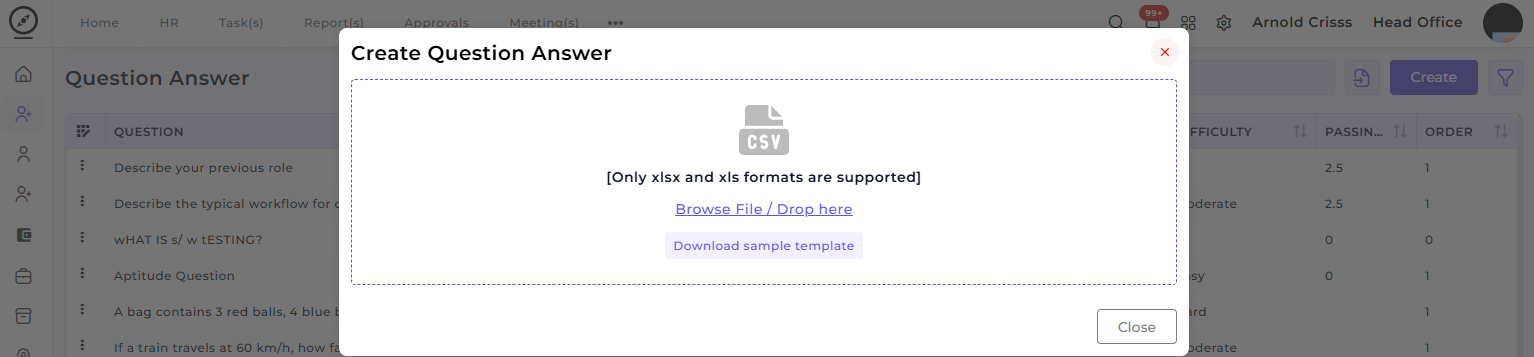
2) Import Question(s):
You can import the questions in .xlsx or .xls formats from here. Moreover, you can download the Sample Template for questions.
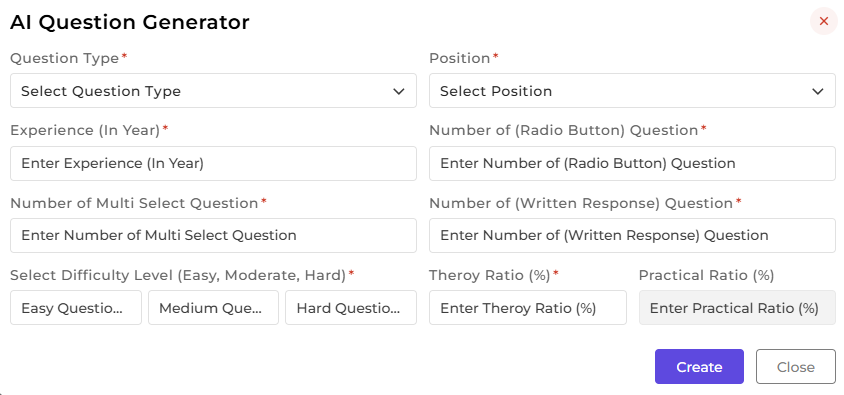
3) AI Question Generator:
The AI Question Generator can automatically generate relevant questions based on question type, position, experience level, and other parameters. This tool helps you save time by providing question suggestions that align with the job opening’s requirements.

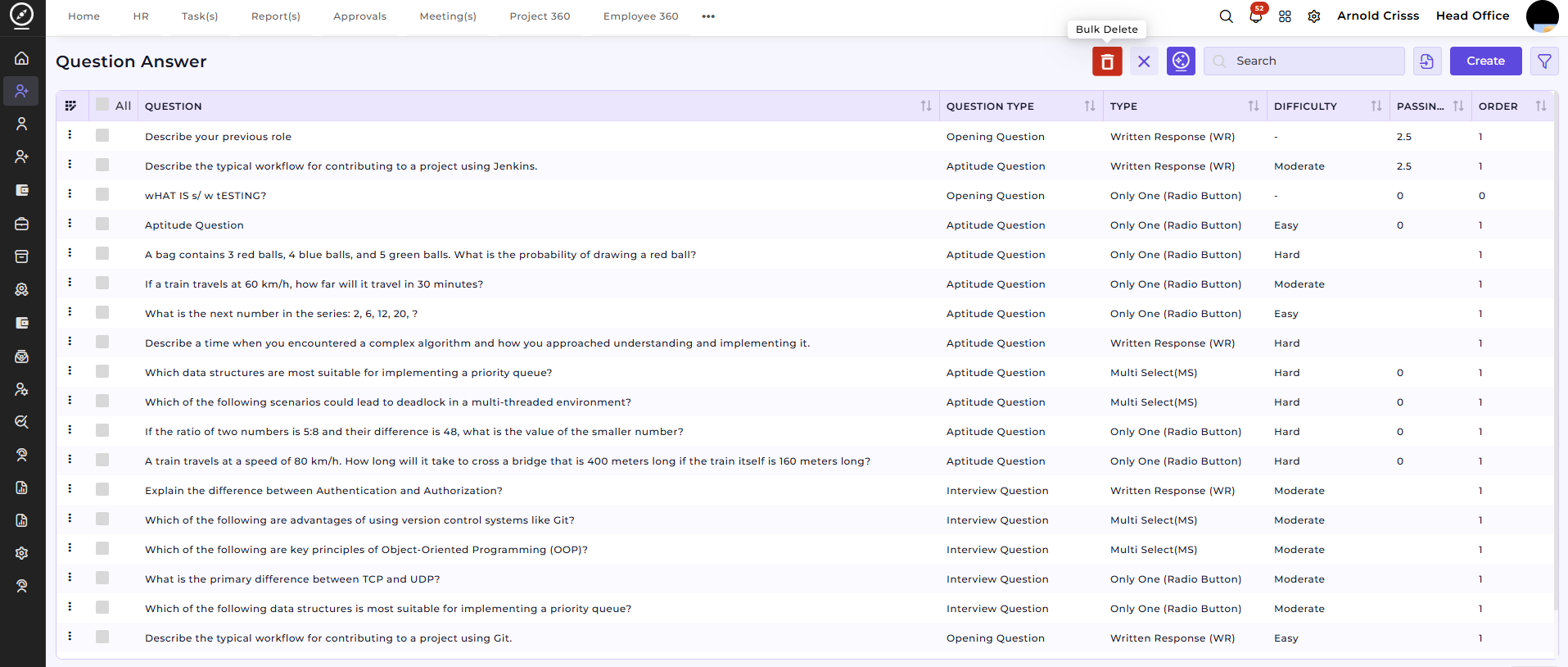
4) Bulk Action Feature:Action:
With the Bulk Action feature, you can delete multiple questions at once, streamlining the process of managing and maintaining the question bank for openings. If you have unnecessary or duplicate questions, simply select them and delete in bulk to keep the question list clean and relevant.
Question Set:
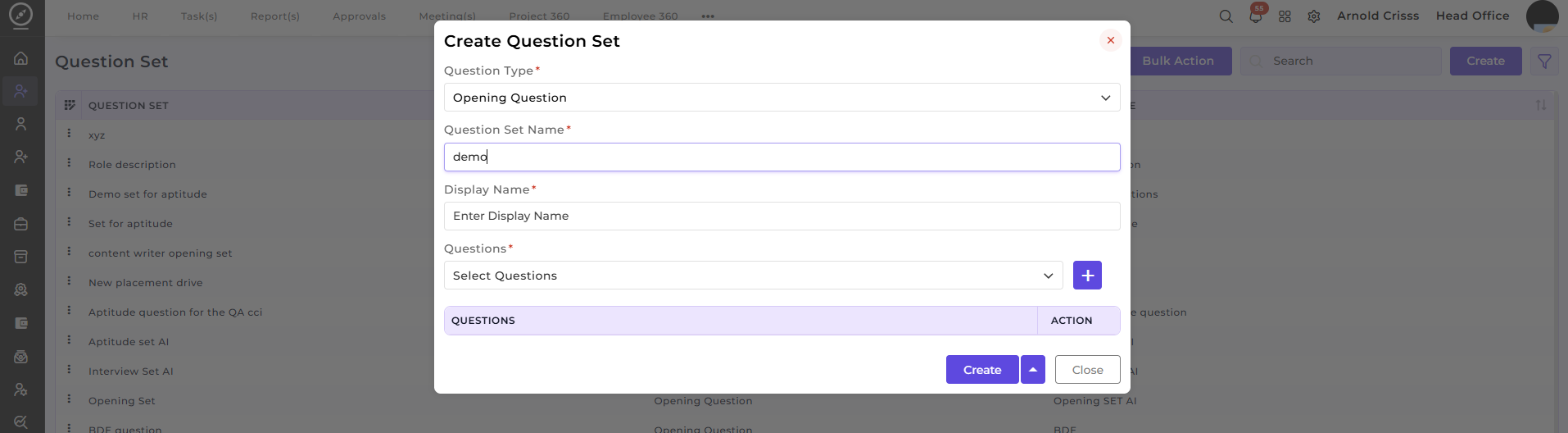
Now, you can add these questions tofrom the Question Set pagepage, foryou easiercan access.create a Question Set and add the above created questions to it.
How This Feature Helps:
The Question Master and Question Set pages ensures that the process of creating and managing opening questions is organized and efficient. By allowing you to define and categorize different types of questions (Opening, Interview, Aptitude), recruiters can standardize their candidate evaluations and ensure a fair and consistent screening process.
It helps HR teams to:
Create and manage questions that align with job requirements.UseAI Question Generatorto automatically generate relevant questions.Track and organize questions for each opening type (Opening Questions, Interview Questions, Aptitude Questions).Streamline the recruitment process by deleting unwanted questions in bulk.
Once a question is created, it can be linked to:
Job openings for candidate screening.Interview evaluations to assess candidate suitability.