Questions and Question Set
The Question Master page is used to create questions like Opening Questions, Interview Questions, and Aptitude Questions that will be used during the recruitment process.
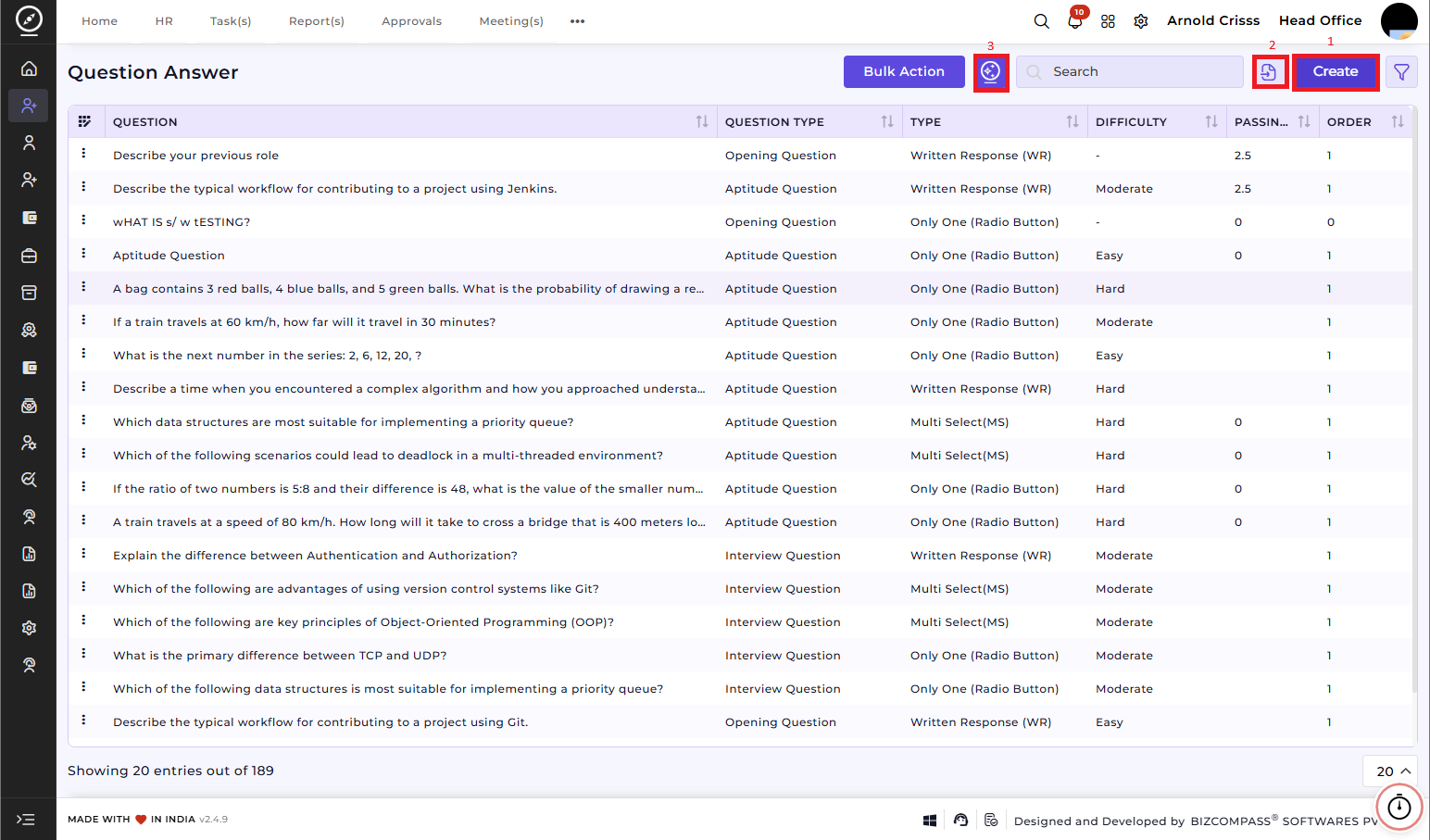
1) Create Question(s):
-
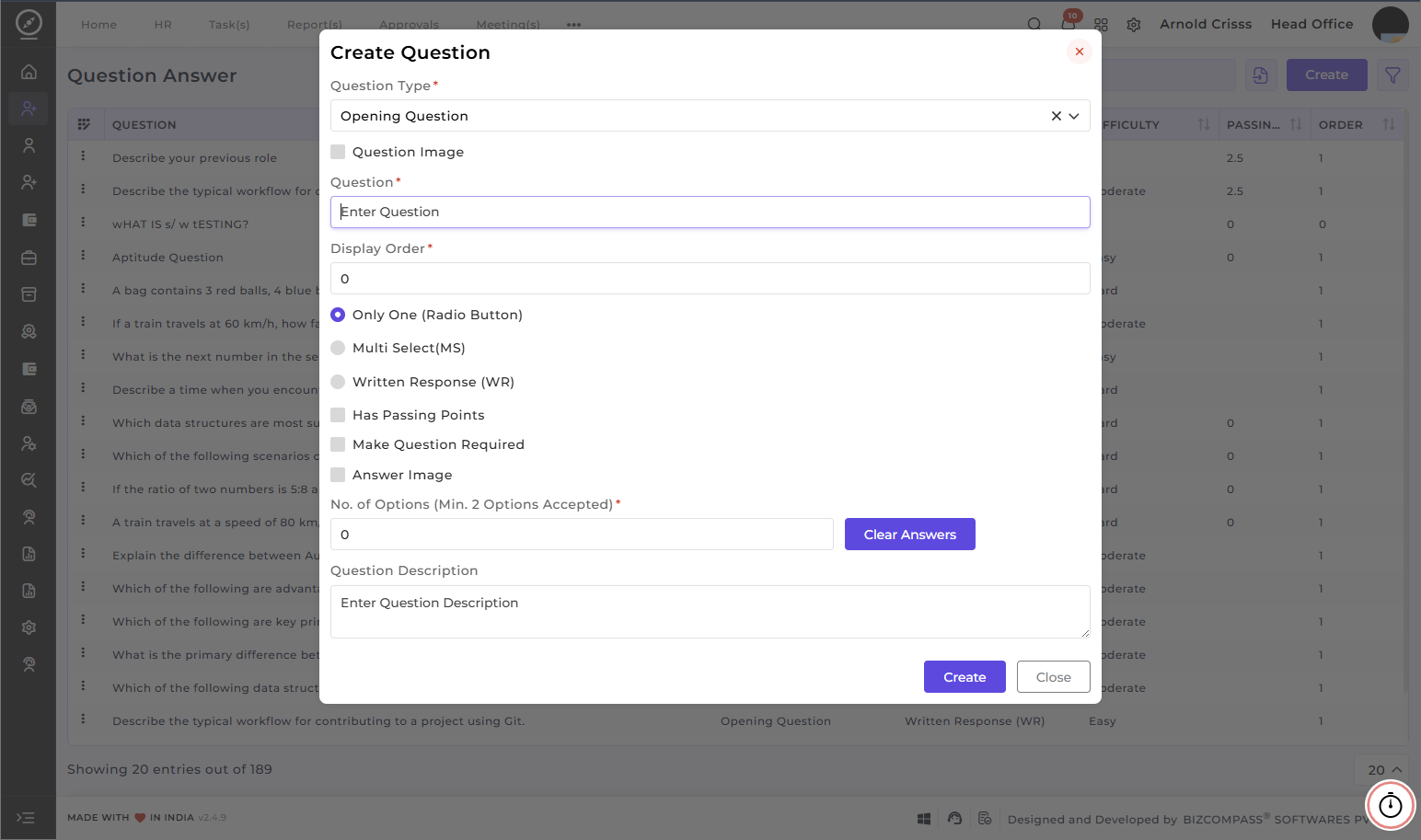
Choose the Question Type to be added (Opening Question, Interview Question or Aptitude Question)
- Enable the Question Image option if you want to add the question in image form instead of text form.
-
Type the Question you want to ask the candidate.
- Specify the Display Order of the question.
-
Define the Difficulty Level of the question (easy, moderate or hard).
- Set the Time for the candidate to answer an aptitude question.
-
Choose whether the question will be:
-
Written Response (WR)
-
Only One (Radio Button)
-
Multi Select (MS)
-
-
Set the Passing Marks for the question if required.
- Enable the Make Question Required option to make the question mandatory for candidates to answer while applying for the opening.
- Enable the Answer Image option if you want to add the answer or answer option(s) in image form instead of text form.
2) Import Question(s):
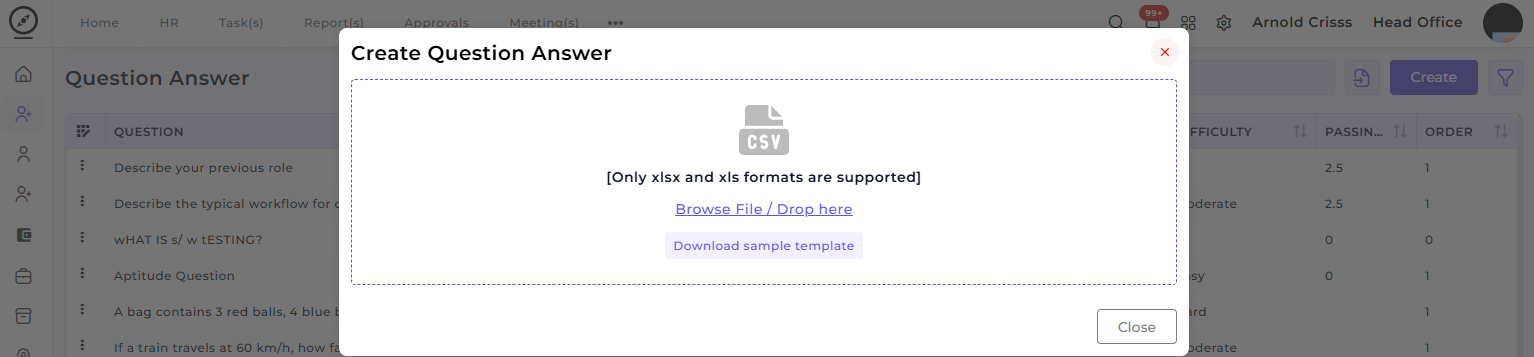
You can import the questions in .xlsx or .xls formats from here. Moreover, you can download the Sample Template for questions.
3) AI Question Generator:
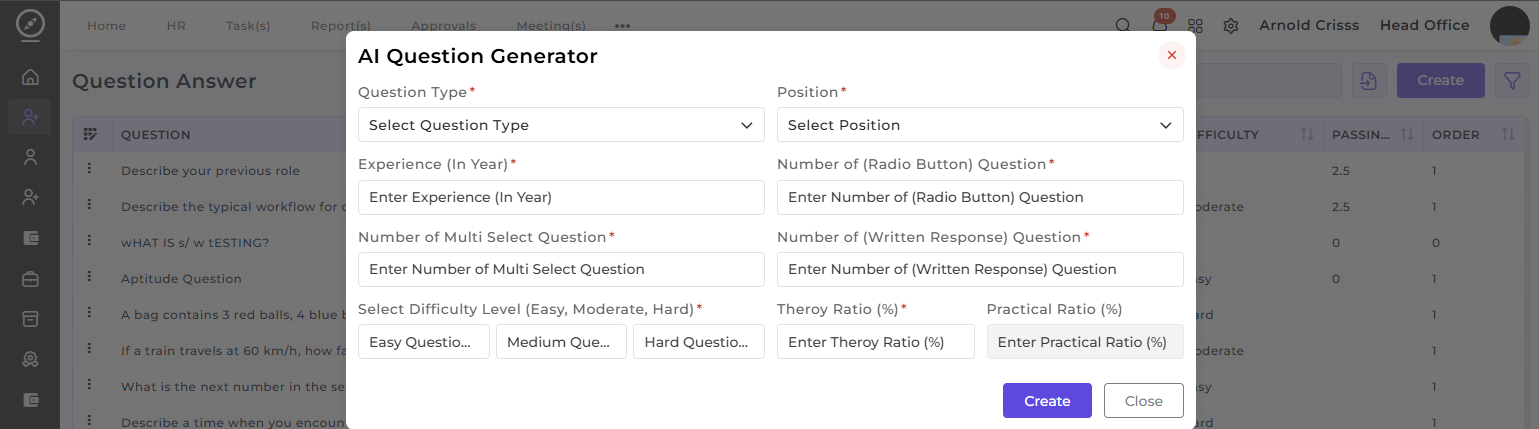
The AI Question Generator can automatically generate relevant questions based on question type, position, experience level, and other parameters. This tool helps you save time by providing question suggestions that align with the job opening’s requirements.
With the Bulk Action feature, you can delete multiple questions at once, streamlining the process of managing and maintaining the question bank for openings.
Question Set:
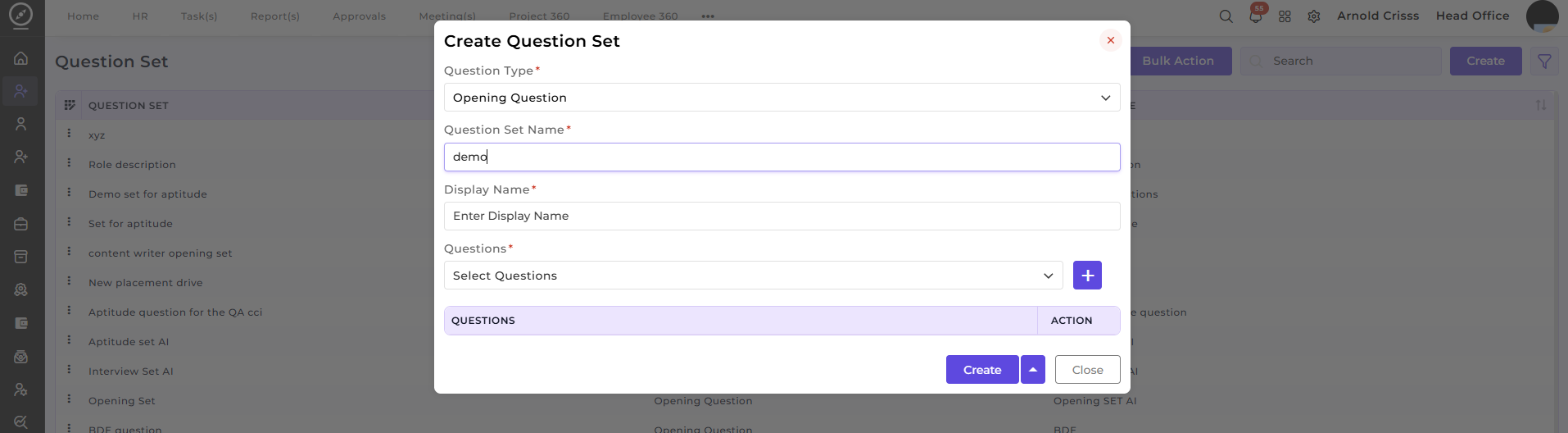
Now, from the Question Set page, you can create a Question Set and add the above created questions to it for easier access.