
Resource Requests
The Resource RequestRequests page is used to create a resource request. It means a department user, manager, or any authorized person can create a request for hiring.
Based on this request, the recruiter can add candidates, and once candidates are selected, the resource request will be fulfilled. A higher number of resources can also be requested within a single request.
Note: The Opening must be created first for the position before creating a resource request. Also, create the series for the resource request.
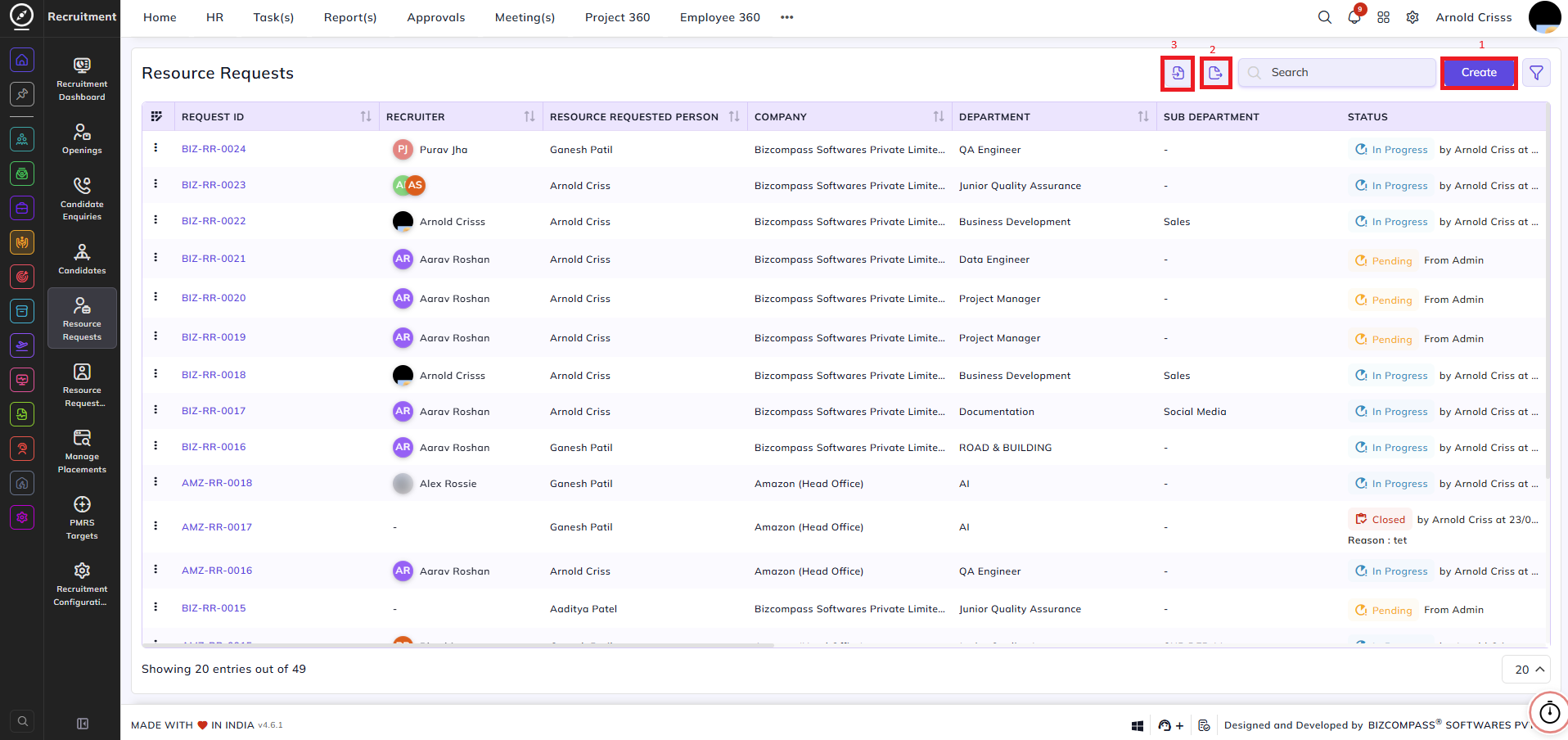
1) Create Resource Request:Requests:
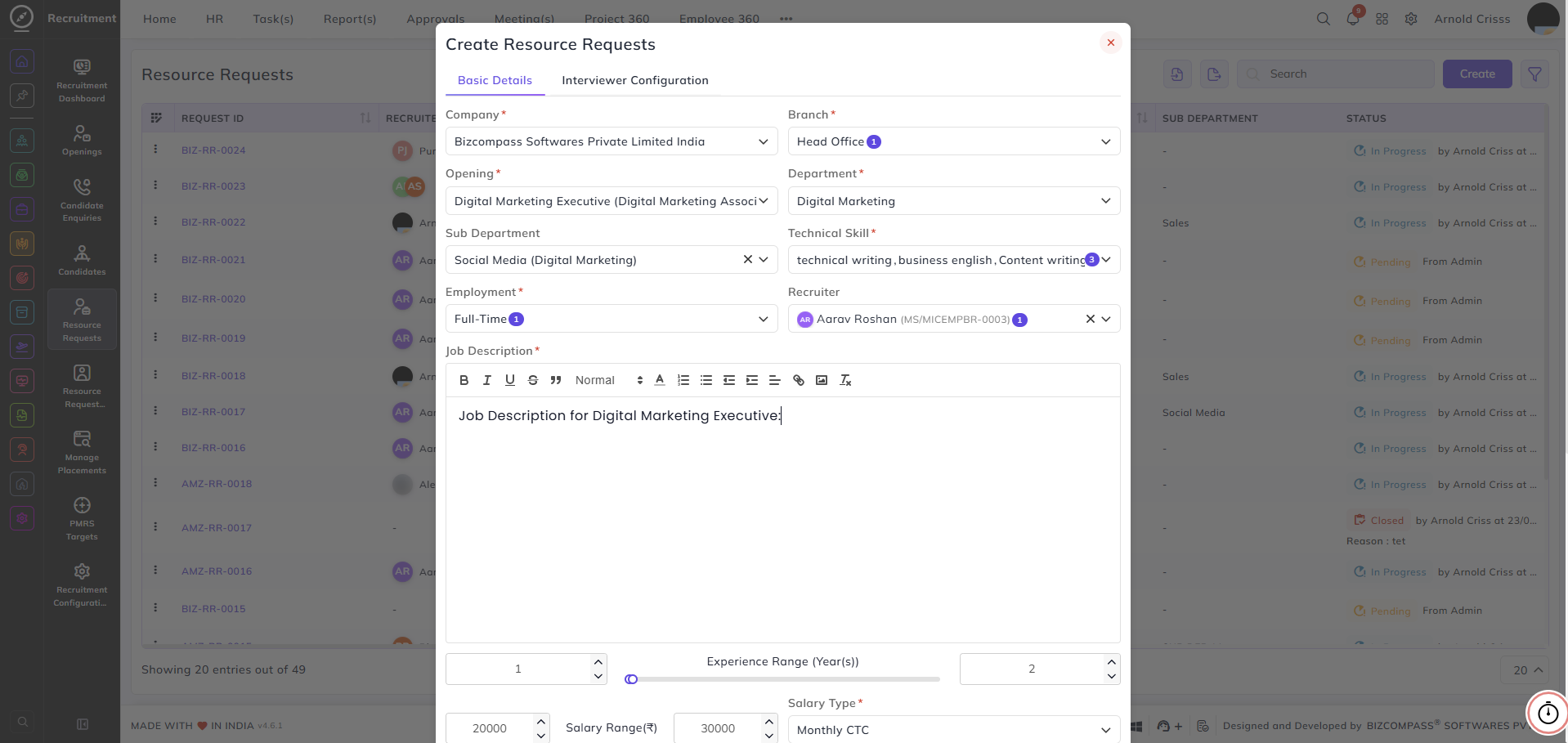
- Select the Company and Branch for which the requirement is raised. Based on this, the opening will be visible, and resources can be requested for that opening.
-
On selecting the Opening, the following fields will be auto-filled:
-
Department
-
Sub Department
-
Technical Skill
-
Employment Type
-
Recruiter
-
Job Description
-
Experience
-
Salary Range
-
-
If the requester wants to update or add data manually, they can modify these fields.
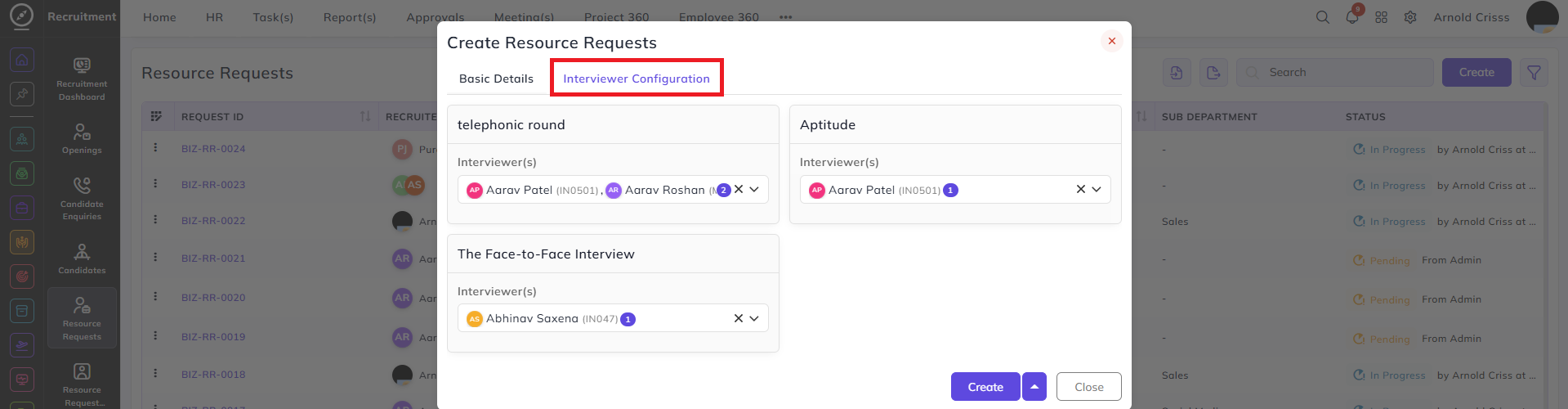
- Once you choose the Opening, a new section Interview Configuration will also appear next to the Basic Details section. That section will show default interviewer(s) configuration for a common flow or a pre-set configuration. You can edit that configuration from here as well as while designing the Interview Procedure Flow for that Opening.
- Select or create the relevant Department and Sub-Department.
- Define the required Technical Skill for the role.
- Select the Employment Type (such as Full-time, Contract, or Intern).
- Assign a Recruiter responsible for handling the request.
- Add a detailed Job Description using the rich text editor.
- Define the Experience Range (in years) using the slider to set minimum and maximum experience.
- Specify the Salary Range and select the applicable Salary Type.
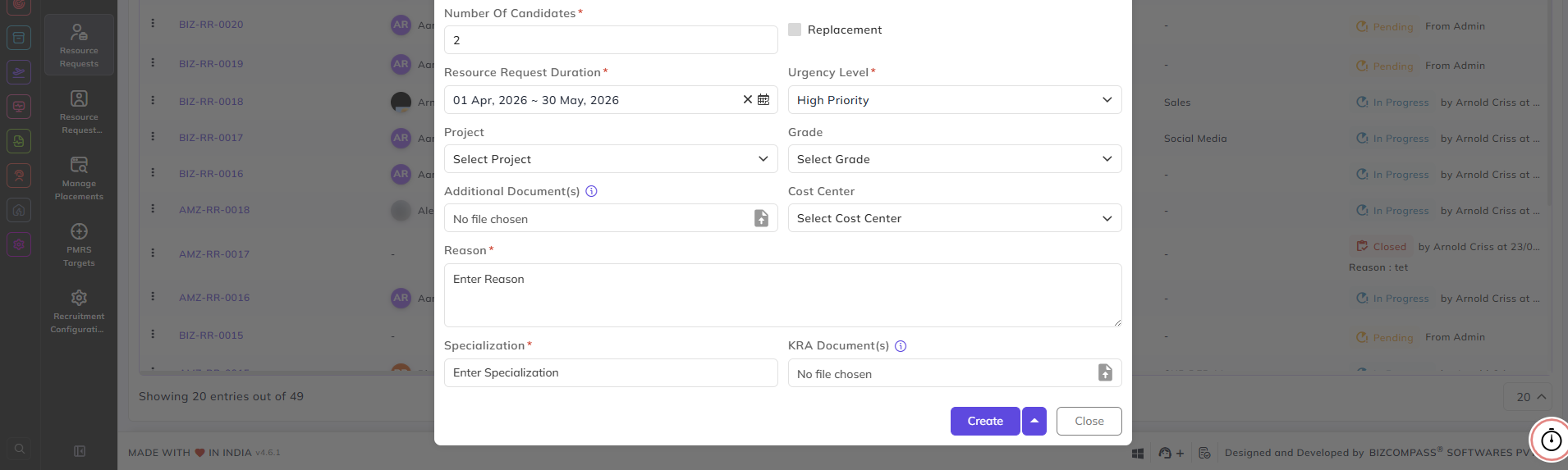
Additional hiring details can also be captured:
-
Enter the Number of Candidates required.
-
Mark the request as Replacement, if applicable.
-
Define the Resource Request Duration.
-
Select the Urgency Level to indicate hiring priority.
-
Associate the request with a Project, if required.
-
Select or create the appropriate Grade and Cost Center. (Both of these can be configured from their separate pages named Pay Grade and Cost Center by authorized person.)
-
Upload any Additional Documents or KRA Documents.
-
Specify the required Specialization and provide a clear Reason for raising the request.
2) Export Data:
By clicking on the Export Data button, an excel sheet of all the Resource Requests will be downloaded.
3) Import Resource Requests:
By clicking on the Import Resource Requests button, you can import the data in the form of .xlsx or .xls. You can also download a Sample Template for Resource Request.

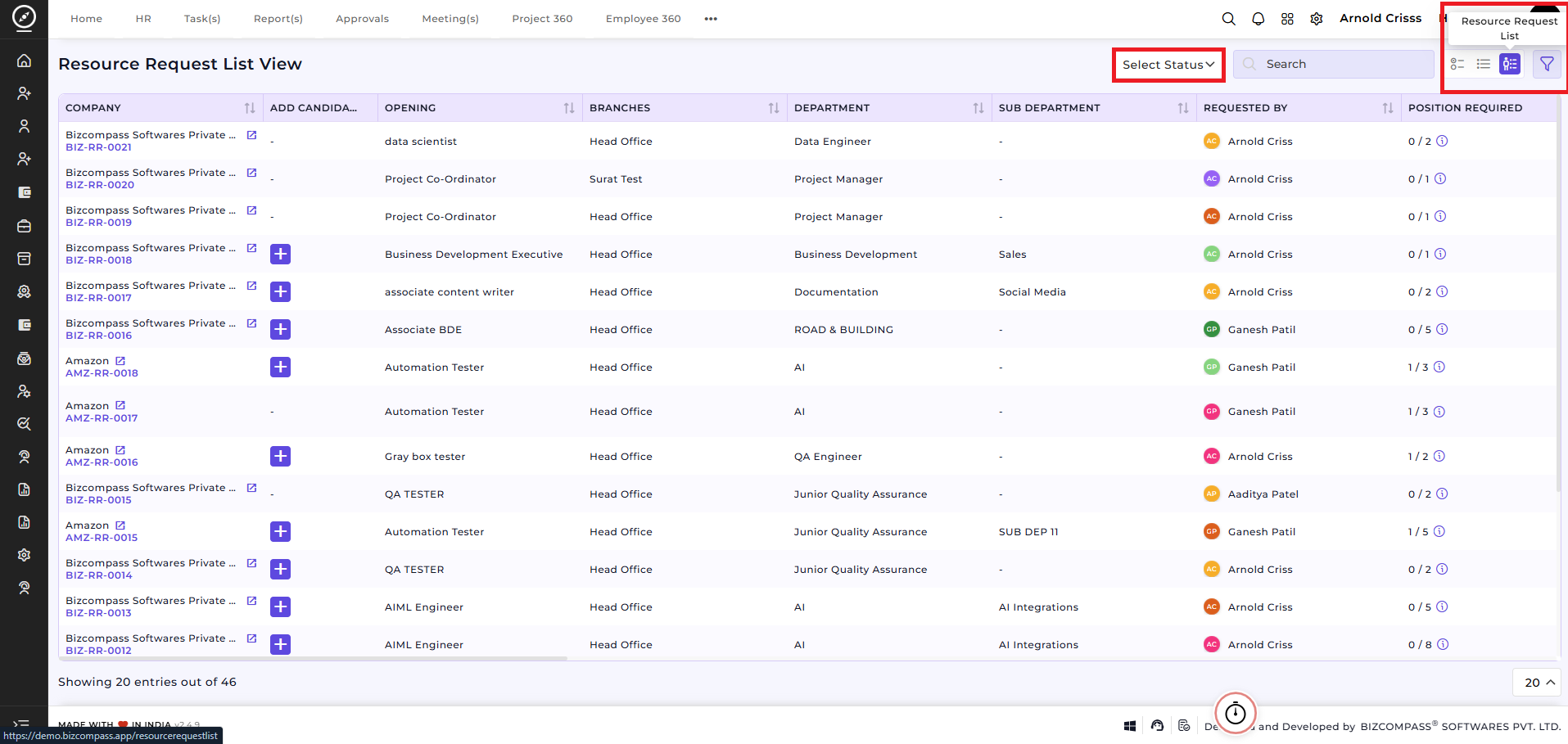
Resource Request List View:After a resource request is created, it can be seen in the Resource Request List View section on the Opening page. From there, you can add candidates for an opening. You can also filter the requests view by selecting their status (Pending, In-Progress, Rejected, Closed).
Filter By Resource Request Status in the Opening page:
You can also filter the Opening(s)Openings List view by selecting the Resource Request Status (All, Pending, or In Progress).
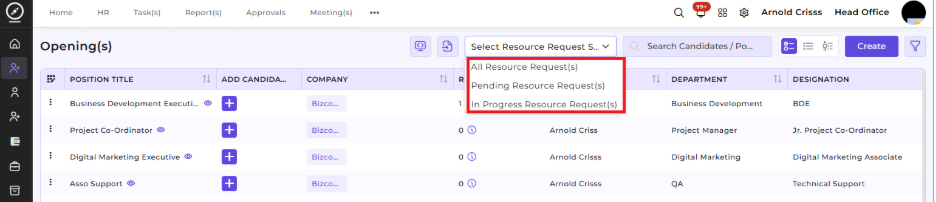
This feature is only used if your company follows a resource request flow. If not, you can directly add a candidate in a specific job opening instead of requesting for a resource prior.
After Creating the Resource Request:
- After the resource request is created, it will go for approval.
- Once the request is approved, the recruiter can add candidates to the request.
Note: Only selected candidates will be counted/considered for fulfillment of the resource request.
- If all required candidates are selected under the resource request, the request will close automatically.
- The request will also close automatically if the duration ends.