
Resource Request
The Resource Request featurepage is used to formally raise and manage hiring requirements within the organization. It allows recruiters and managers to define job needs, candidate expectations, and approval-related details in a structured manner.
Overview:
This sectionpage displaysallows to create a resource request and display all existing resource requests with key details such as:
Request
ID,IDRecruiterResource Requested PersonCompanyDepartmentPosition NameDuration of RequestNo. ofRecruiter, PositionRequiredName, Urgencyetc.LevelAfter Approval(a resource request is created, it is linked to the Opening(s)- page
fromStatuswhere
Usersyou can search,start filter,the andrecruitment track requests, and create new requests as required.
process.
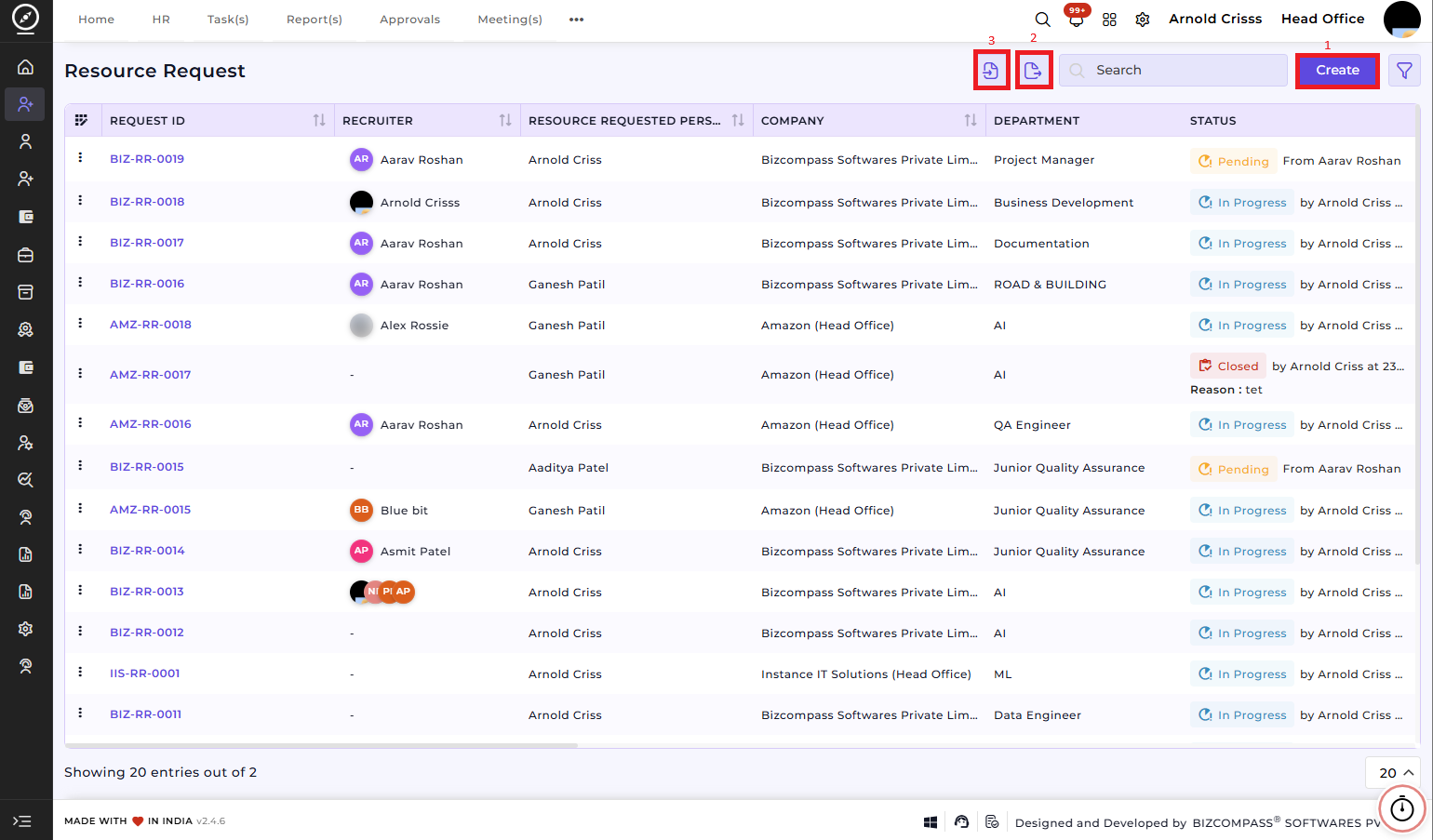
1) Create Resource Request:
Clicking on Create opens the Create Resource Request form, where all essential hiring details can be configured.
This form allows users to define organizational details, role requirements, and hiring expectations in one place.
Select the Company and Branch for which the requirement is raised.
- Once
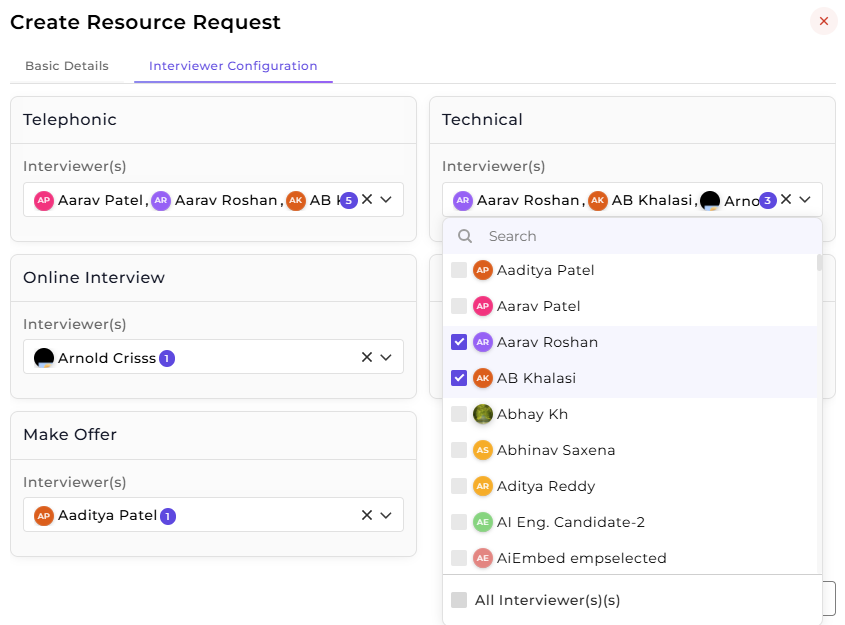
Chooseyou choose theOpeningOpening,/aPositionnew section Interview Configuration will appear next to the Basic Details section. That section will show default interviewer(s) configuration for a common flow of recruitment. You can edit that configuration from here as well as while designing the Interview Procedure Flowalongforwiththat Opening. - Select or create the relevant Department and Sub-Department.
Define the required Technical Skill for the role.
Select the Employment Type (such as Full-time, Contract, or Intern).
Assign a Recruiter responsible for handling the request.
The job and candidate requirements can then be configured:
Add a detailed Job Description using the rich text editor.
Define the Experience Range (in years) using the slider to set minimum and maximum experience.
Specify the Salary Range and select the applicable Salary Type.
Additional hiring details can also be captured:
-
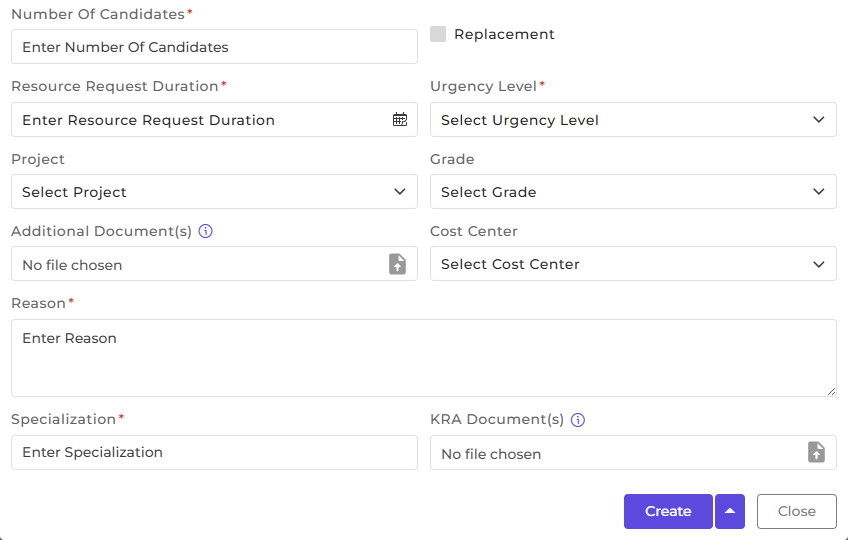
Enter the Number of Candidates required.
-
Mark the request as Replacement, if applicable.
-
Define the Resource Request Duration.
-
Select the Urgency Level to indicate hiring priority.
-
Associate the request with a Project, if required.
-
Select the appropriate Grade and Cost Center .
-
Upload any Additional Documents or KRA Documents.
-
Specify the required Specialization and provide a clear Reason for raising the request.
Once all details are filled in, click Create to submit the resource request or Close to exit without saving.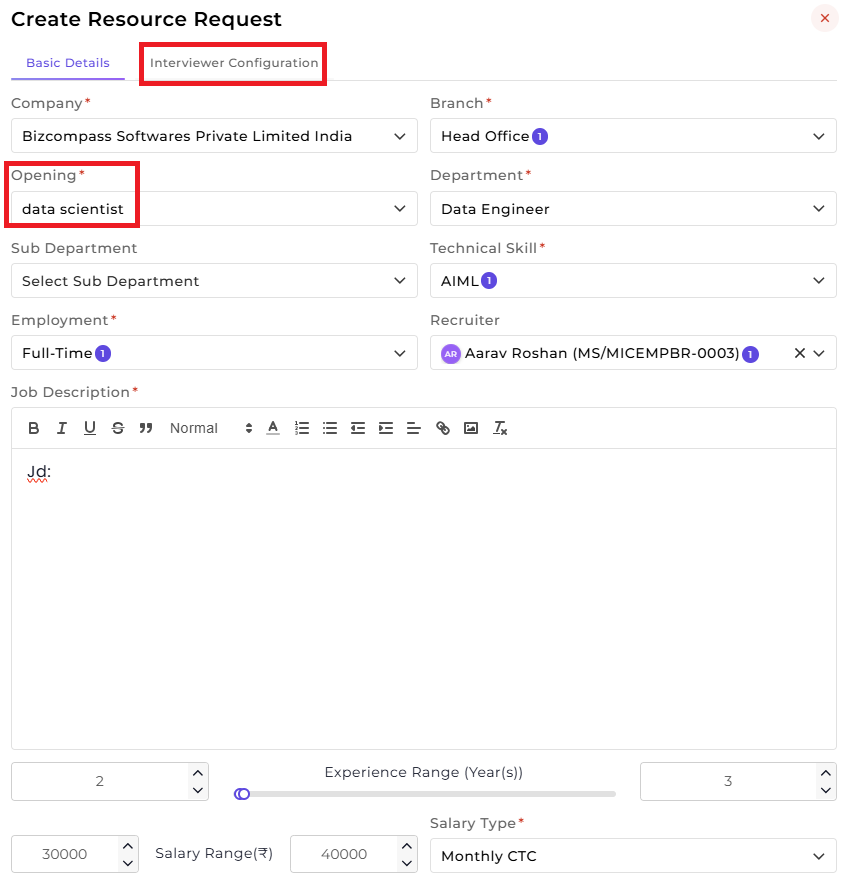
How this feature helps:
The Resource Request feature ensures a structured and transparent hiring process.
It helps teams to:
This ensures that recruitment activities remain organized, scalable, and aligned with business needs.