
Support Ticket Stages
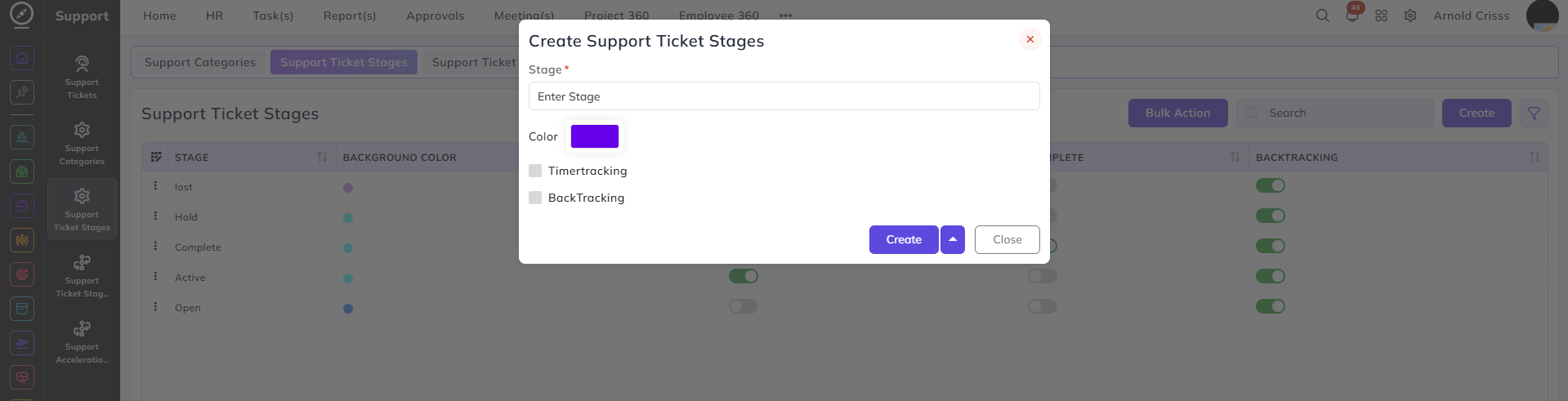
From this page, you can create stages that define the progress flow of support tickets.
Stage:
Enter a name to identify this stage — for example, Open, Active, Hold, or Complete.
Color:
Select a background color to visually distinguish this stage in the support ticket list.
Timer Tracking:
When enabled, the person in the escalation can run the timer while resolving the ticket.
Back Tracking:
When enabled, all stages that come after this stage in the support flow can be moved back to this stage.
Complete:
When enabled, any support ticket moved to this stage will be marked as completed. It can only be enabled for one stage. If it's enabled for a stage, it won't be shown while creating or editing any other stages.
The Timer Tracking, Back Tracking and Complete flags can be edited after creating the support ticket stage as well.
Note: The Complete flag can't be disabled for a stage if there are active tickets under that stage.
The Bulk Action feature is used to delete multiple support ticket stages at once, streamlining the management process.