
Support Ticket
From this page, you can create support tickets internally for your organization for various categories like general, assets, stationary, etc.
Create Support Ticket:
- Select the Category (General, Stationary, Asset, etc.)
Note: If you select a category for which the Show Assets flag is enabled, a field of all assets allocated to you will appear. You can choose one from it and raise support ticket for it.
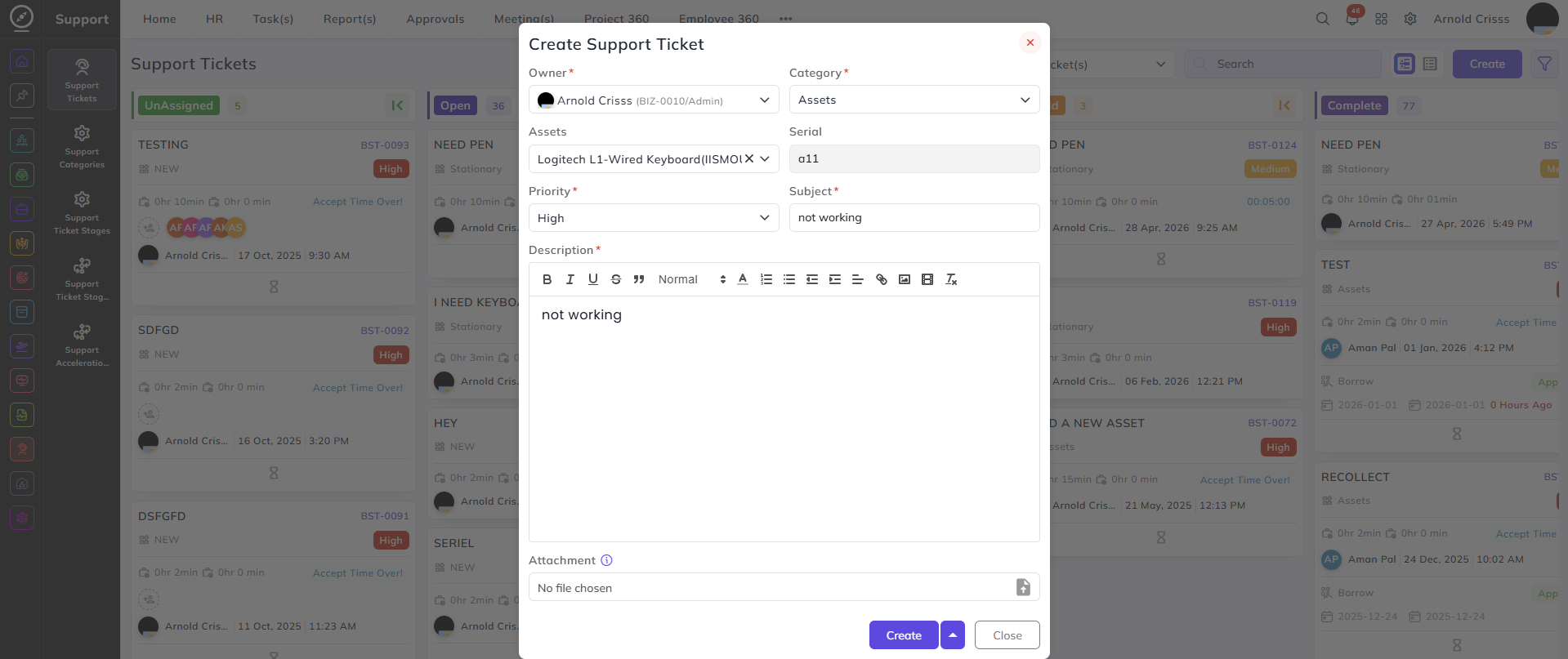
- Select the Priority (Low, Medium, High) for the support ticket.
- Enter the Subject and Description regarding your request.
- Optionally, add an Attachment.
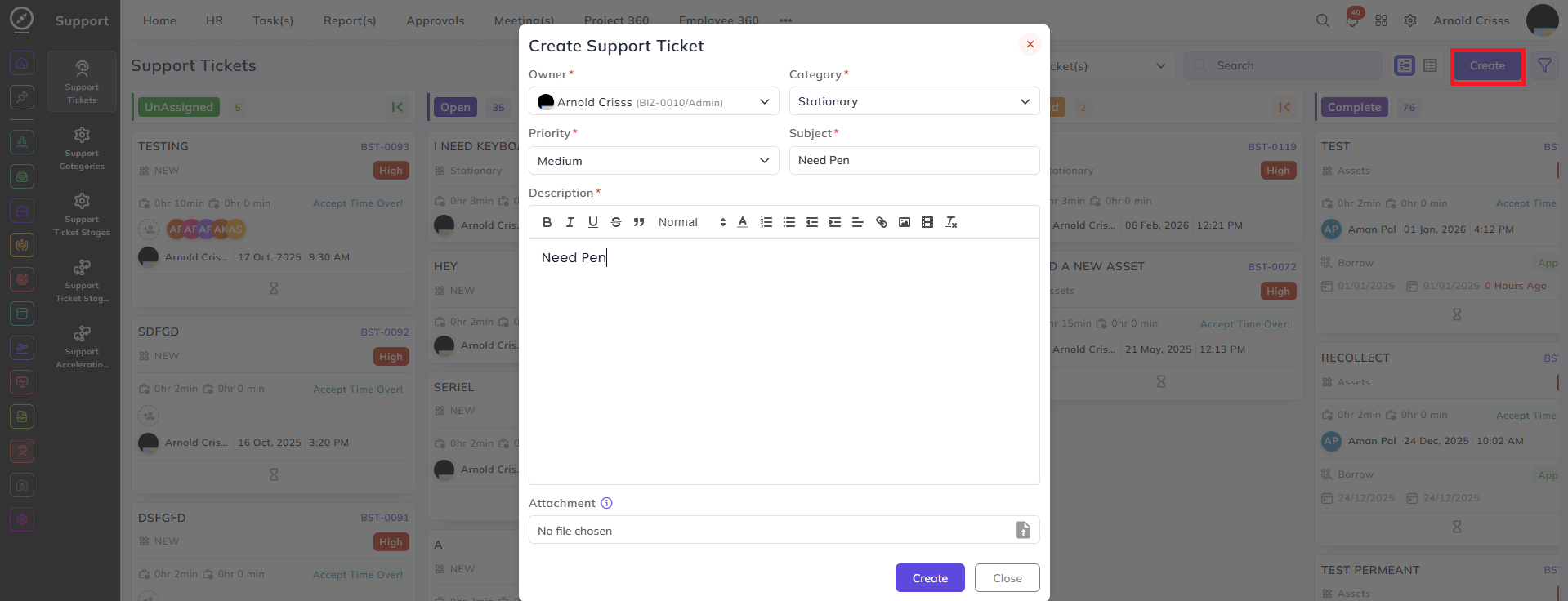
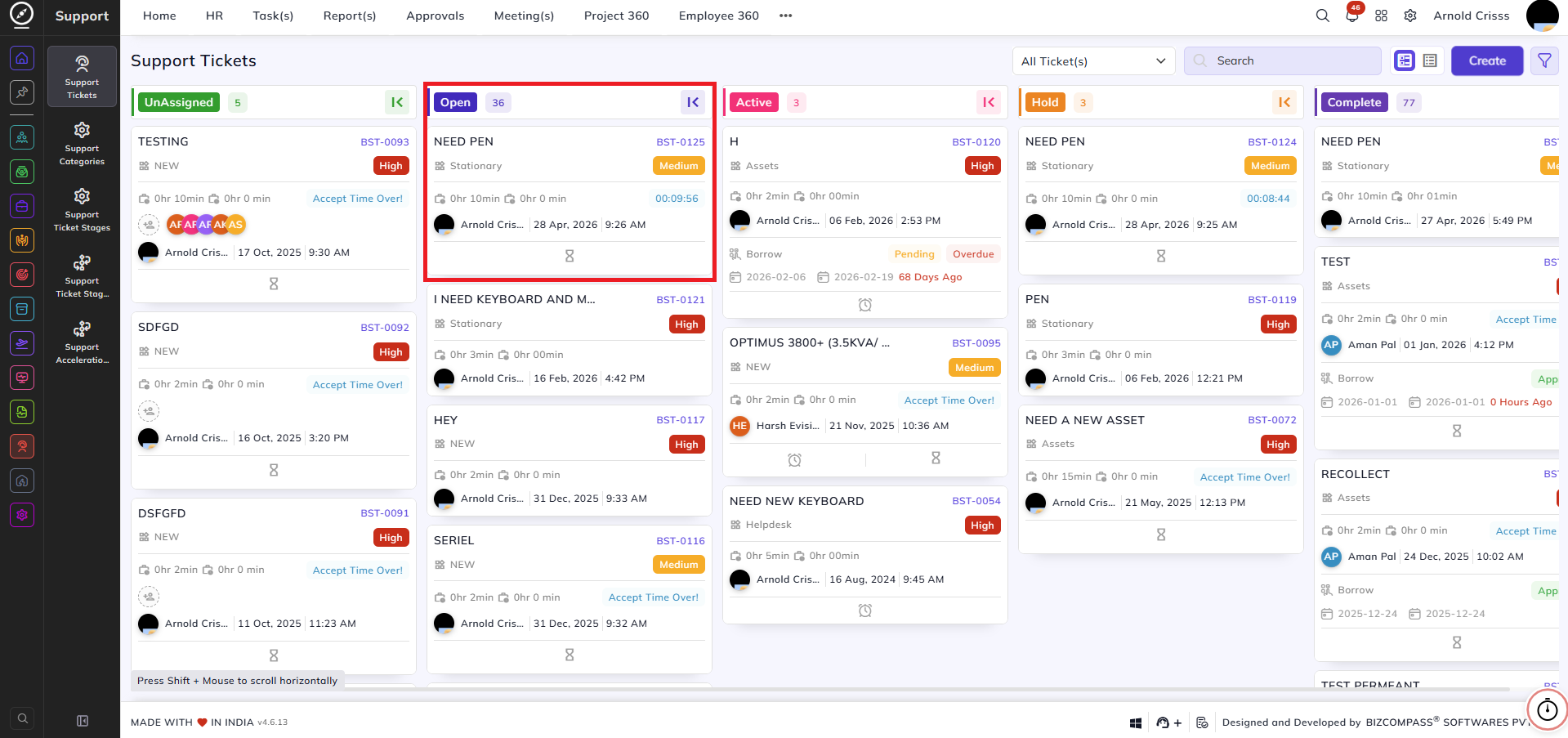
Initially the support ticket will be in the Open stage and you can see the time remaining (10 mins in this example) for it to get accepted by the first assignees(s) of it.
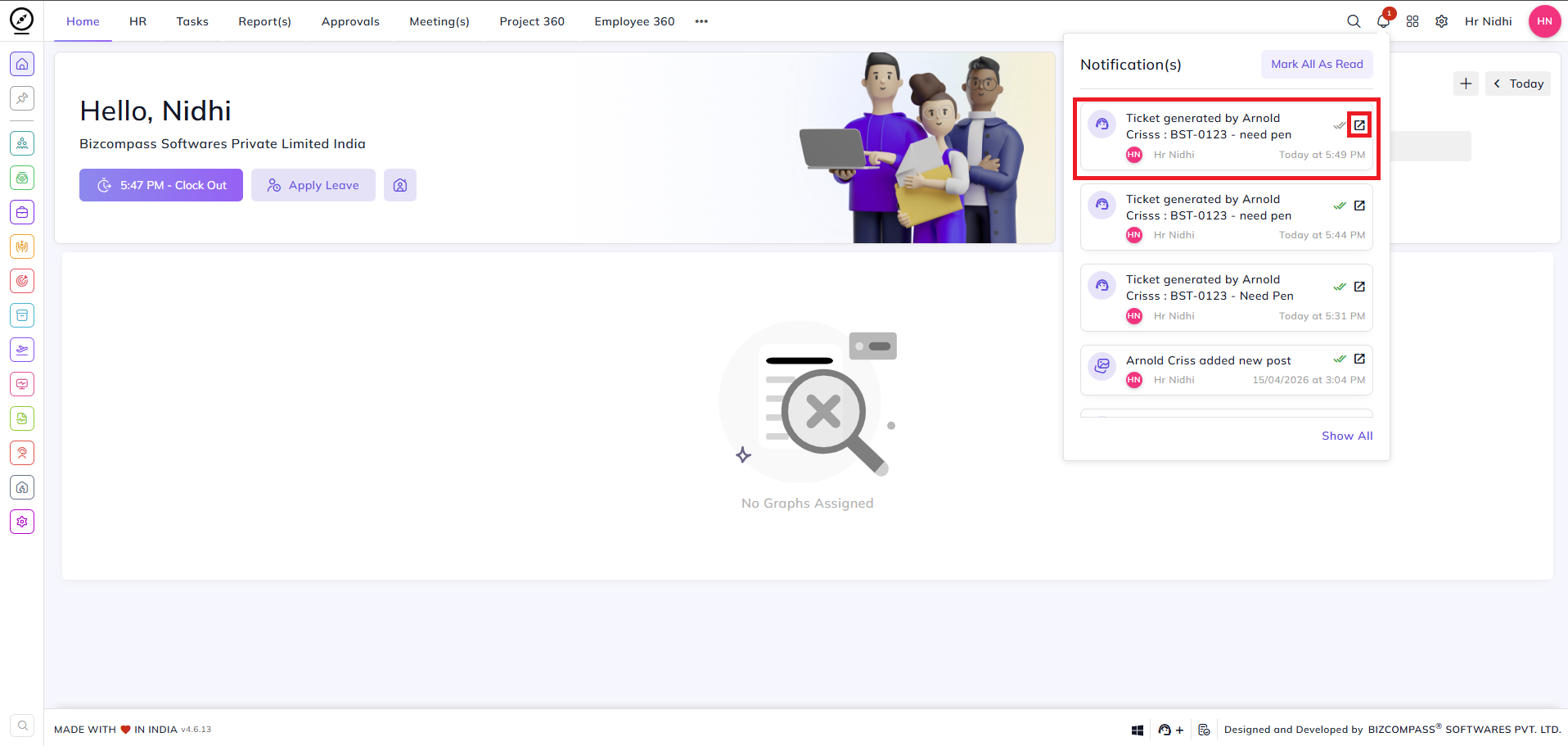
The first assignee(s) of the support ticket will receive the push notification for the support ticket. They'll also get notified in their mail and chat app. They need to click on the Redirect button to go to the support ticket.
Note: If the assignee does not accept the ticket, it will escalate to the next person causing alerts to n+1 escalation.
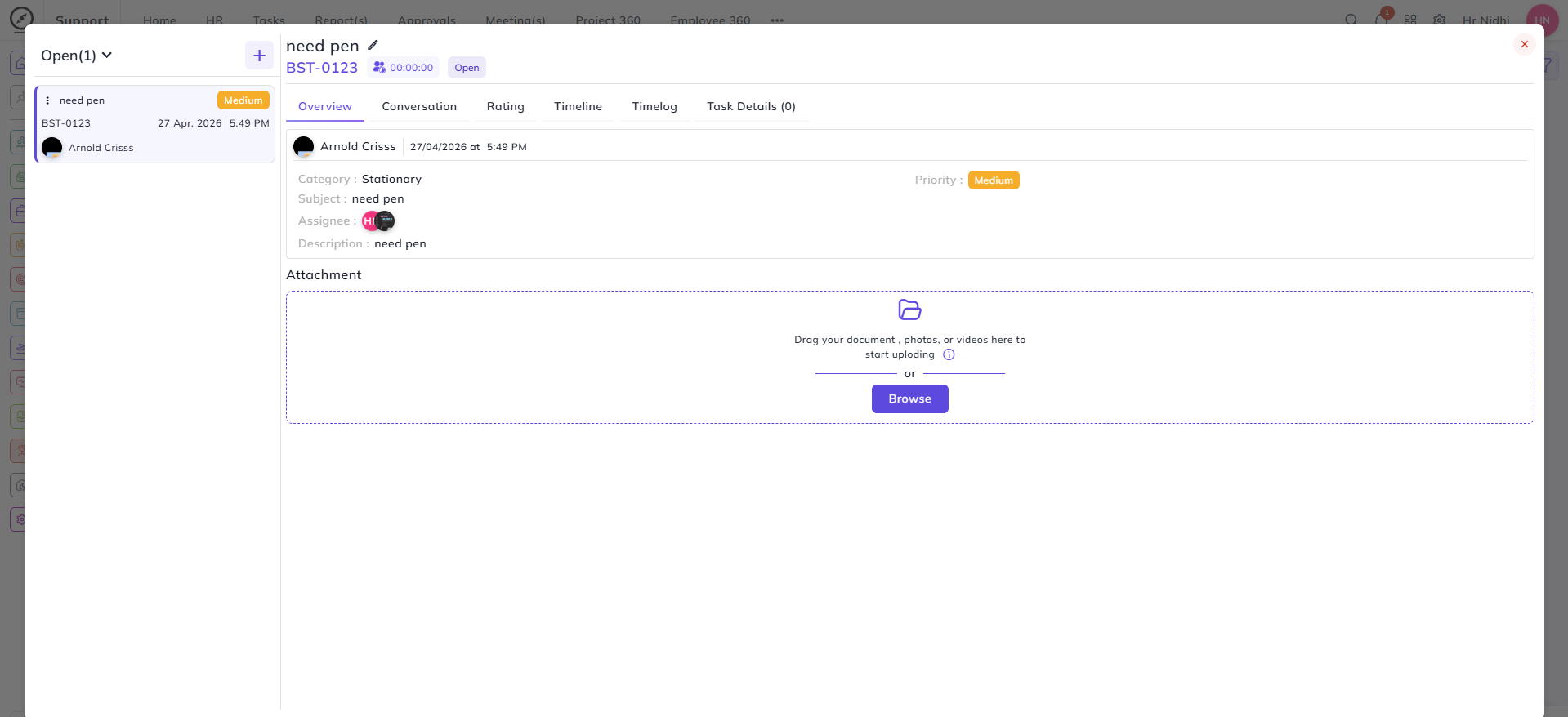
They'll get redirected to the detailed view of the support ticket. It has different sections like Overview, Conversation, Rating, Timeline, Timelog and Task Details. In the Overview section, all the details regarding the ticket like raised by who and when, its category, subject, assignees, description, and priority. You can add any attachment to it optionally.
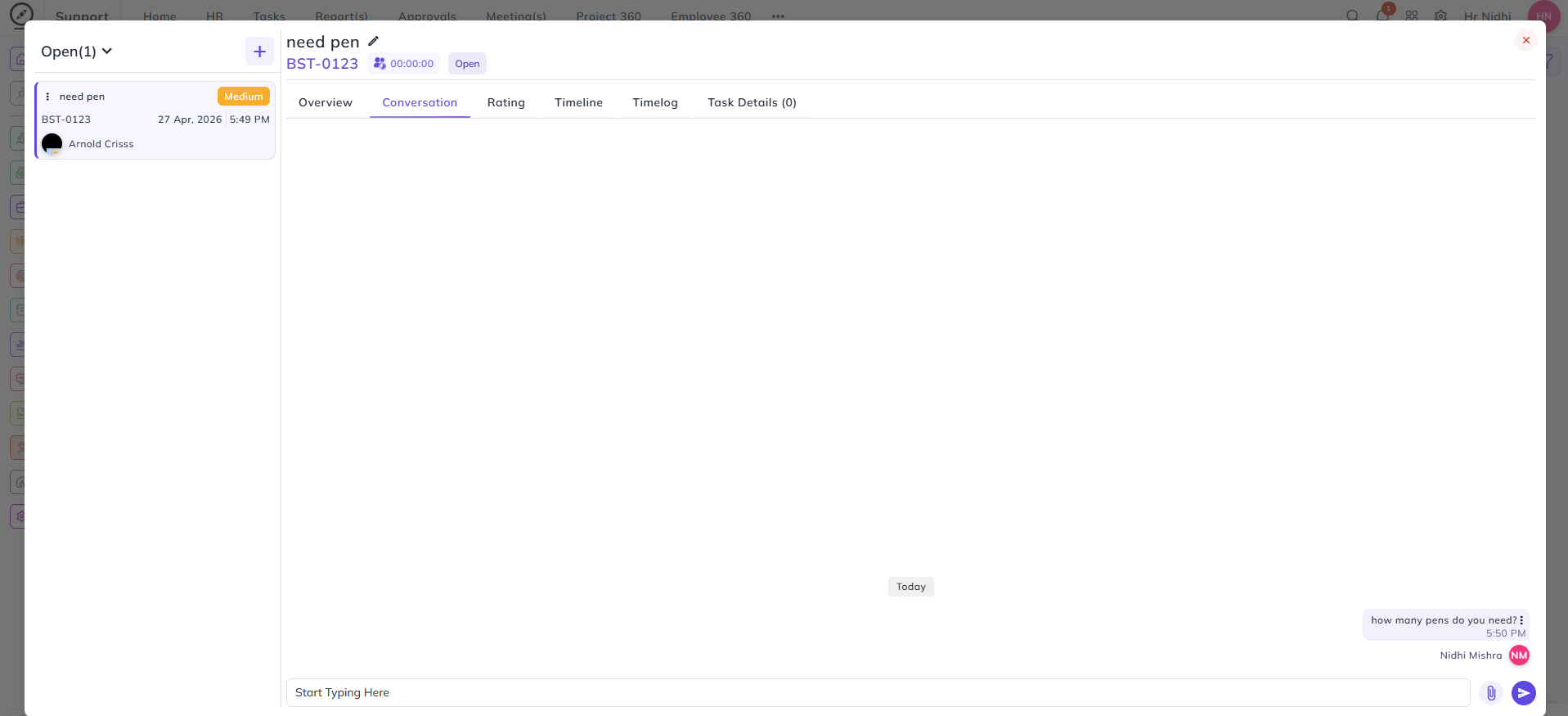
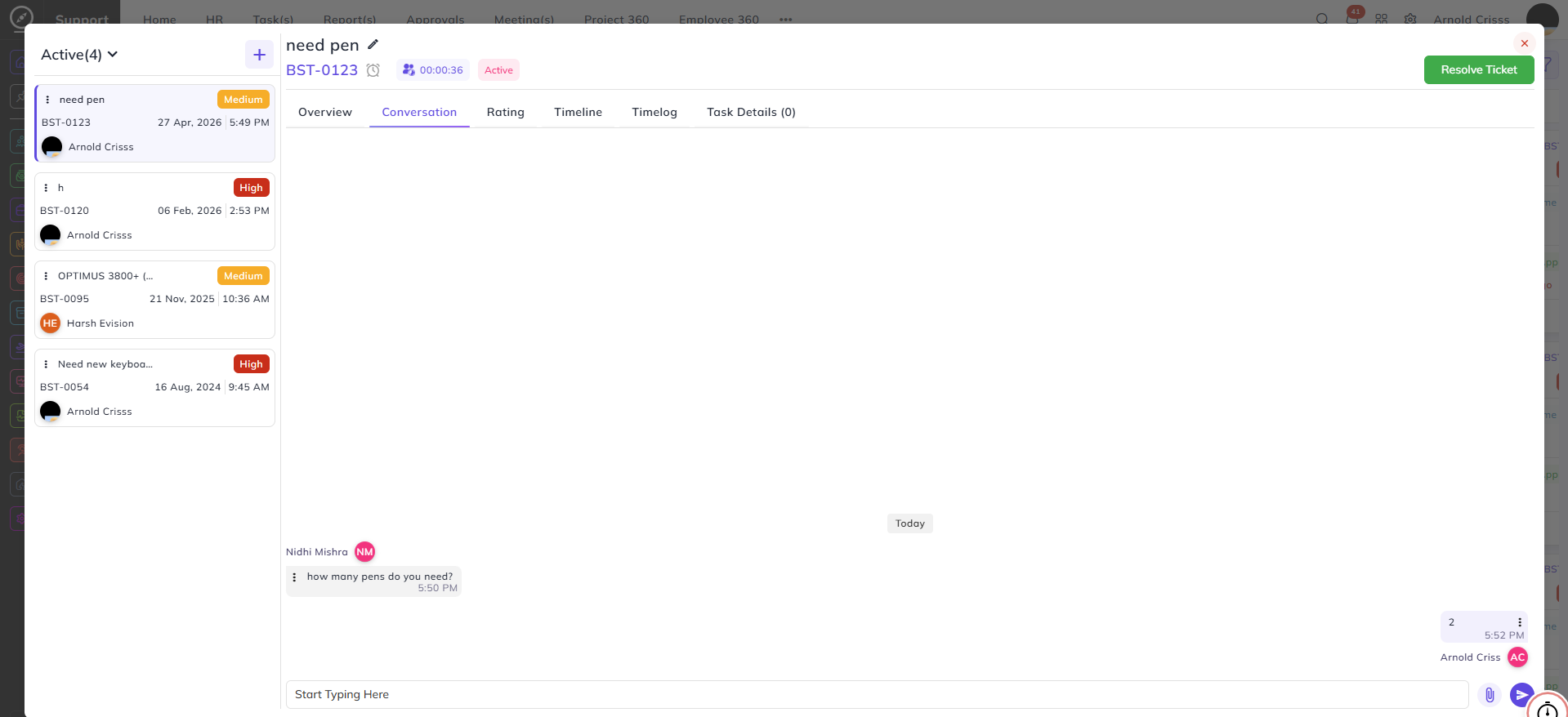
In the Conversation section, they can chat with the owner of the ticket. The owner of the ticket will see the chat when they open the detailed view of the ticket as well.
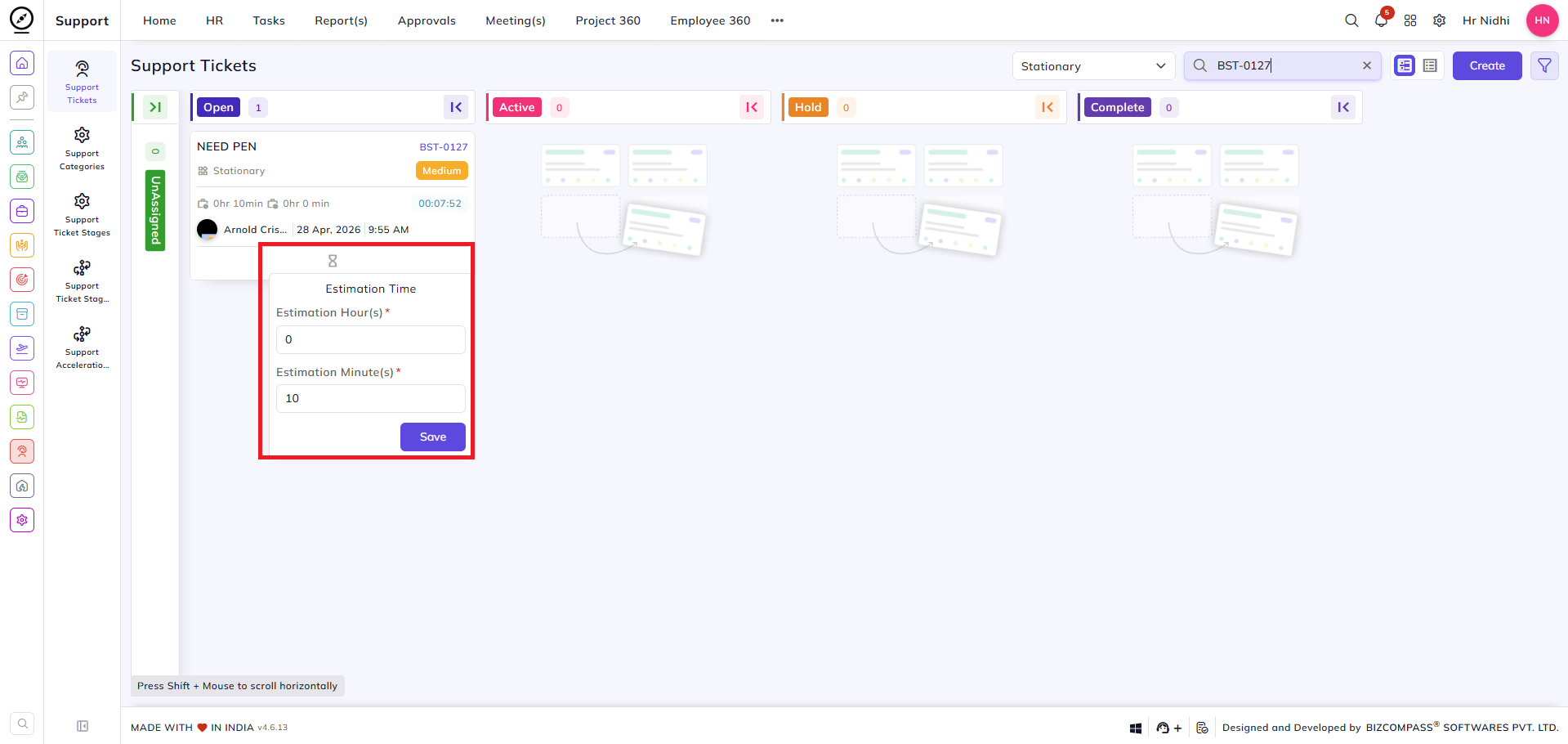
The ticket assignee can see the estimated time to resolve the support ticket.
Then, the assignee needs to drag the ticket from Open stage to Active stage and run the timer to resolve it.
Note: The assignee can only run the timer after he/ she has clocked in.
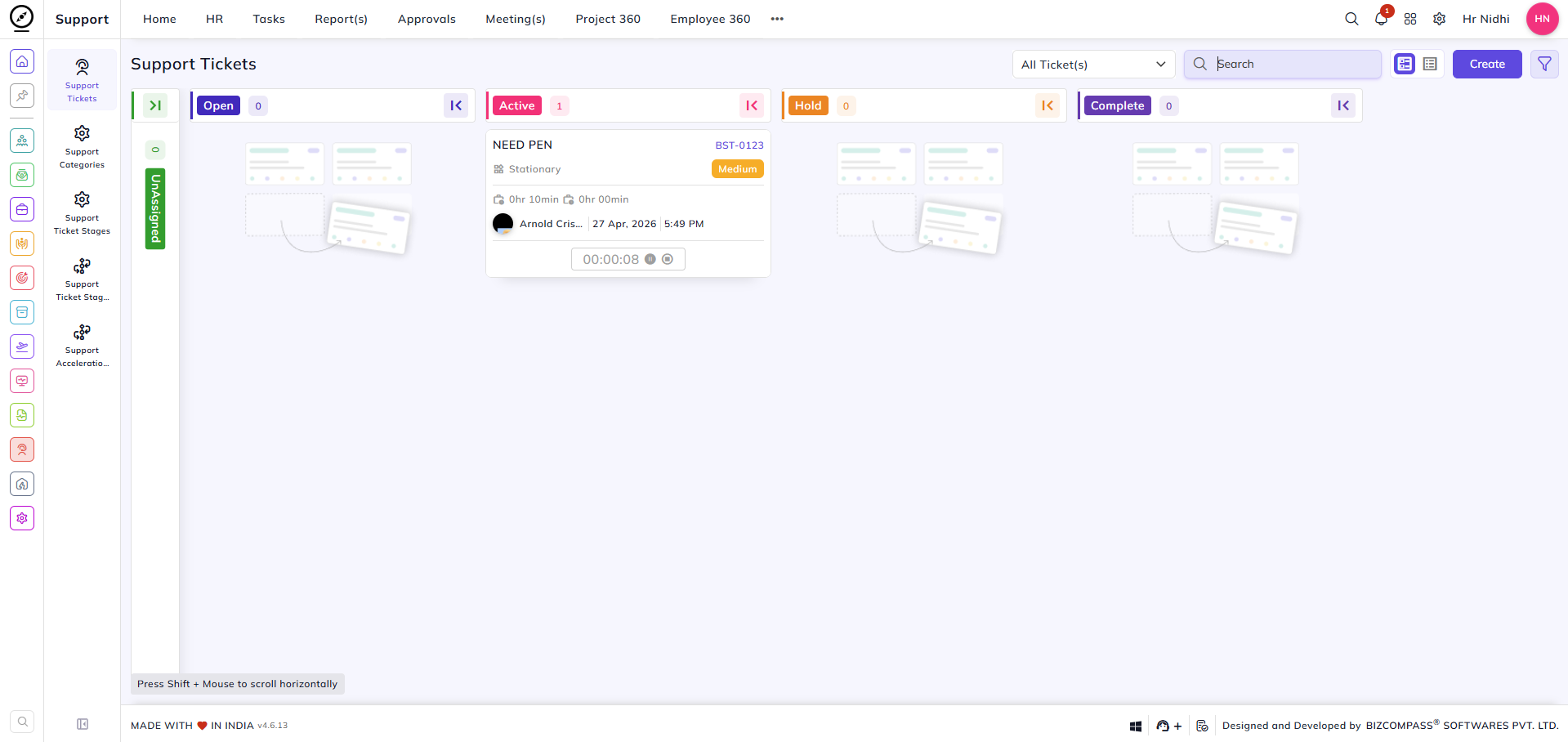
Once the ticket is solved, the assignee has to click on Resolve Ticket.
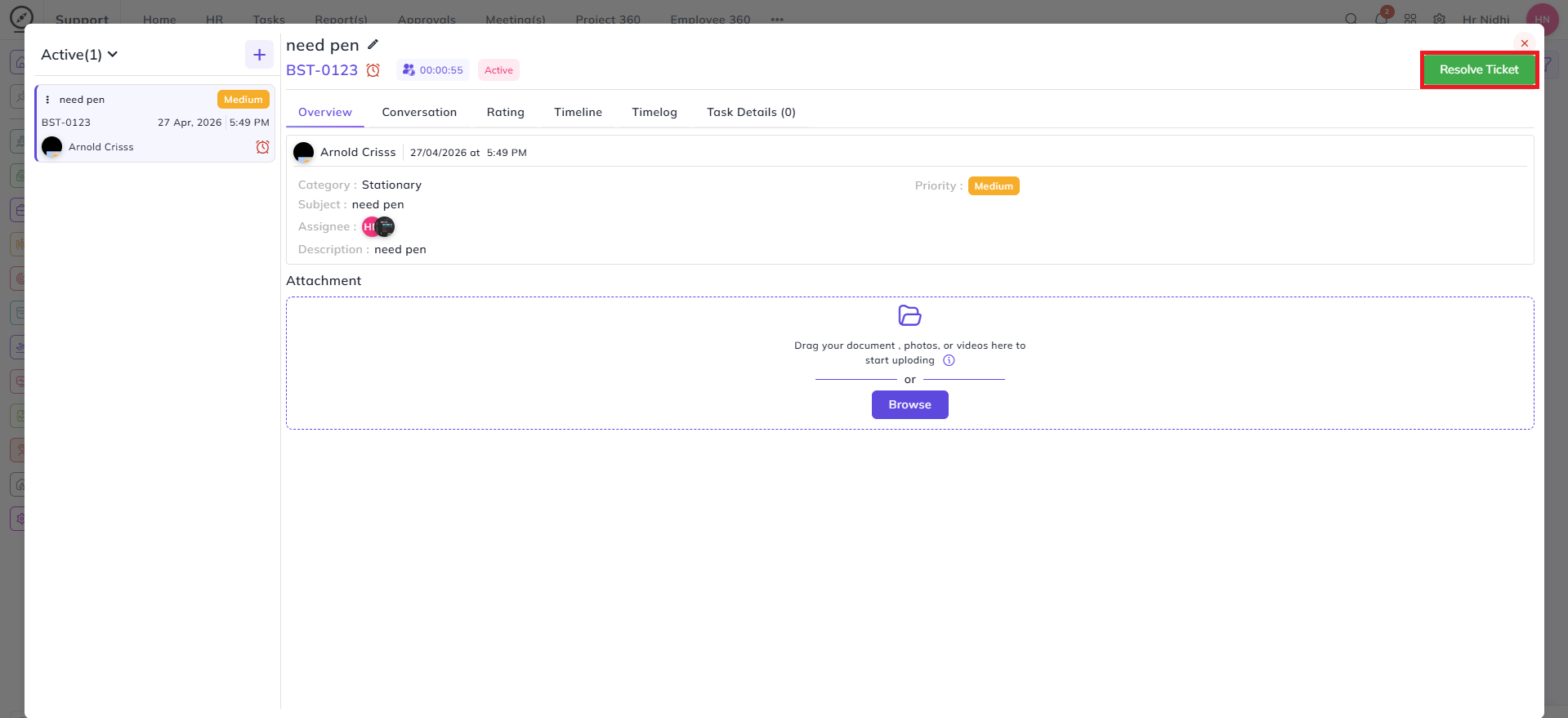
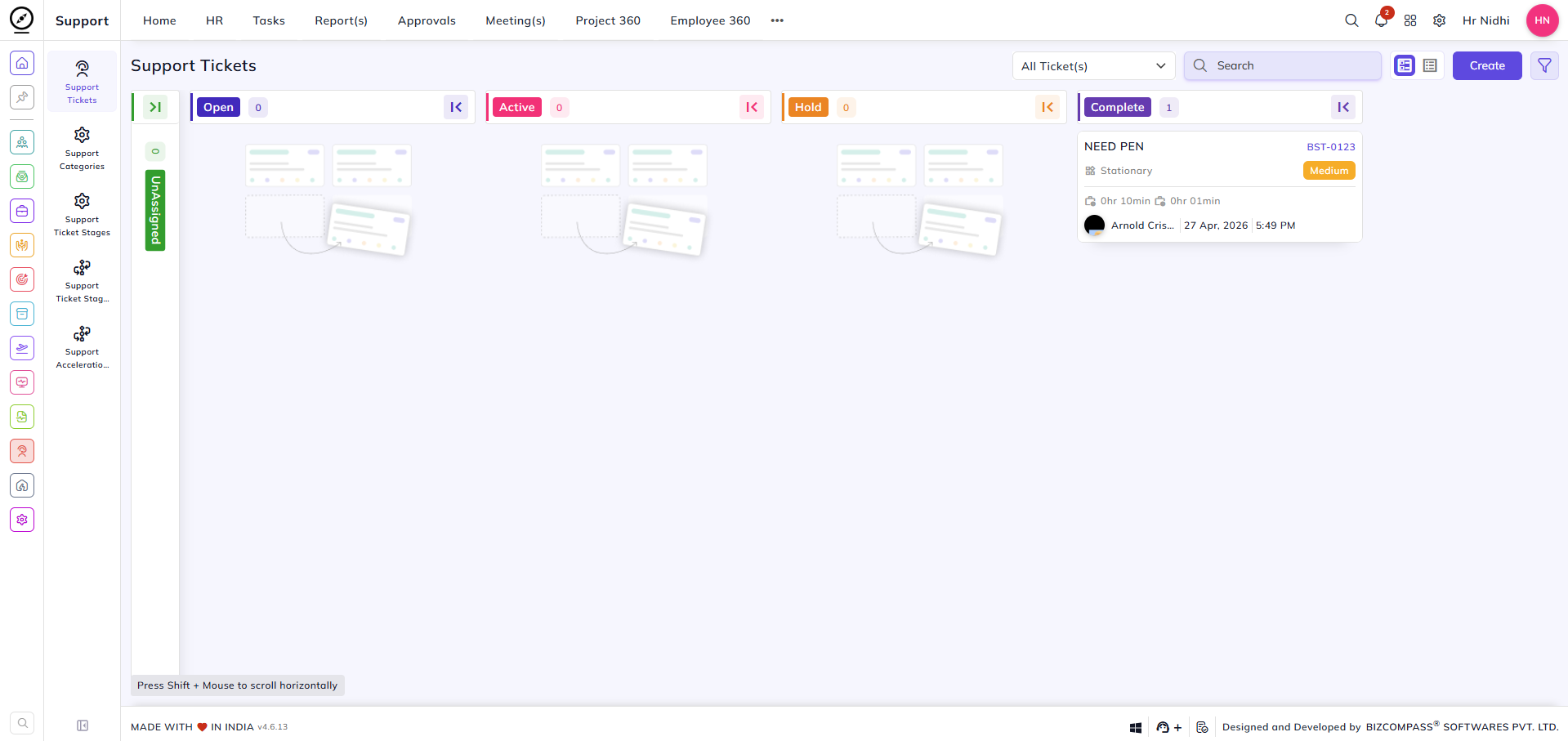
The ticket will automatically move to the Complete stage.
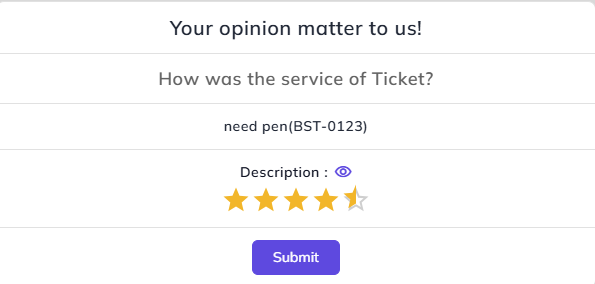
After your ticket has been resolved, you'll get a pop like below on your system. You can give rating for the service of the ticket.
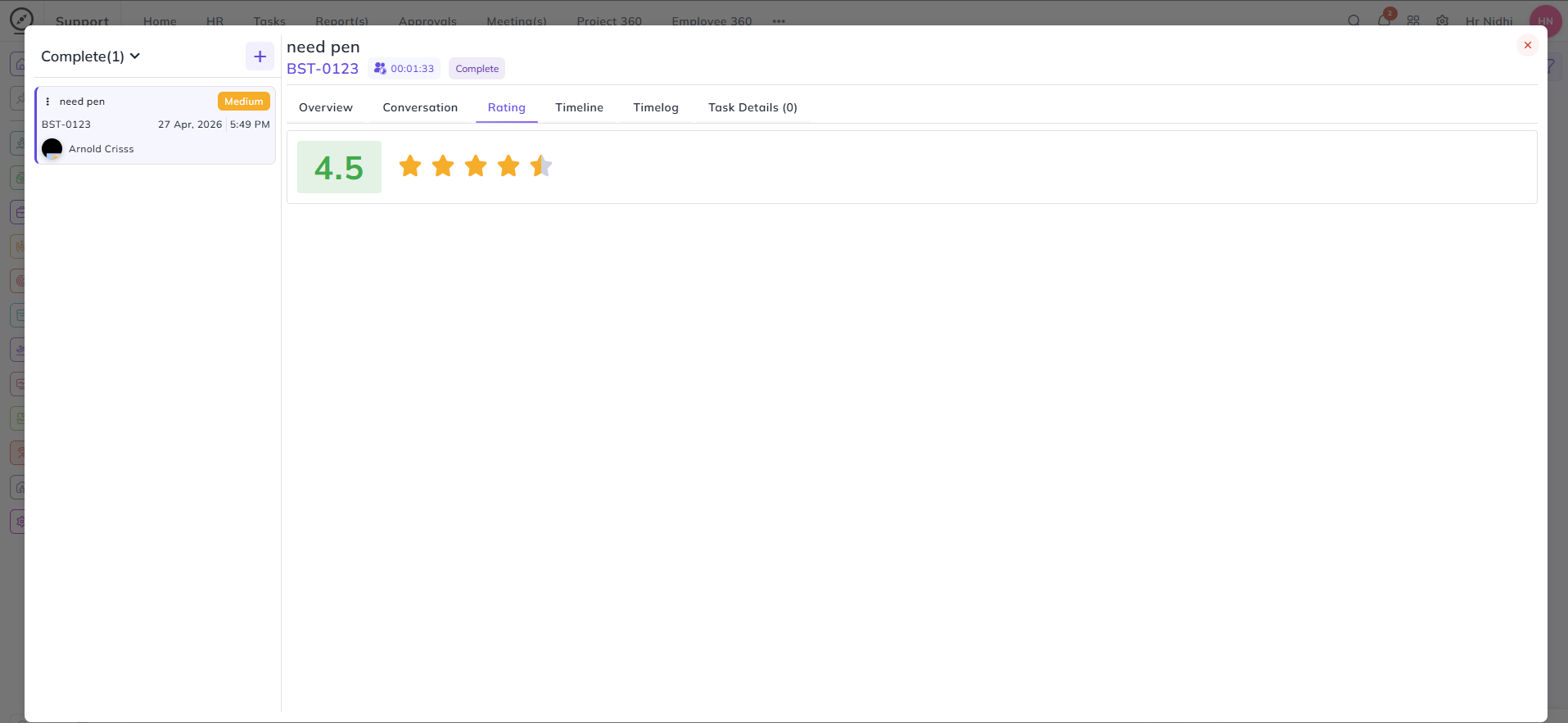
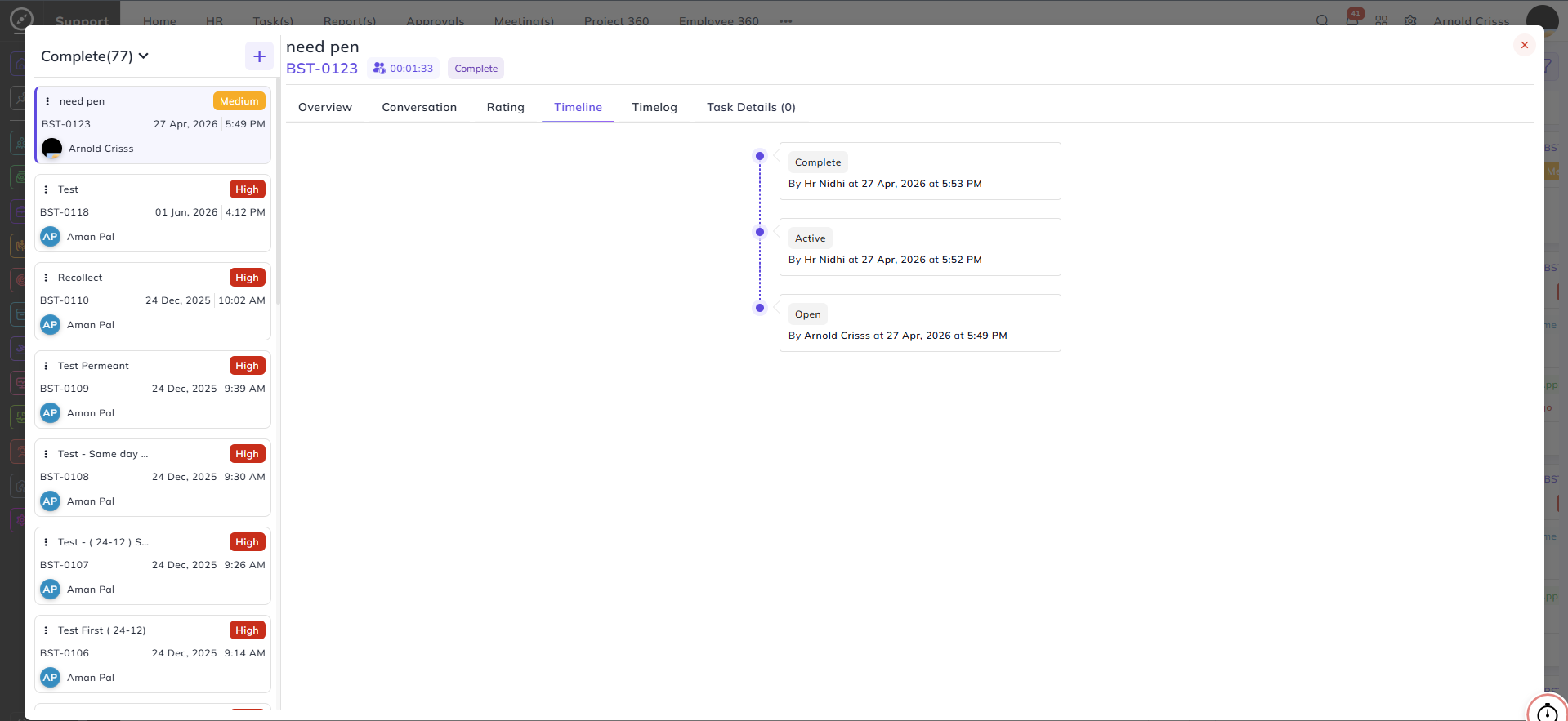
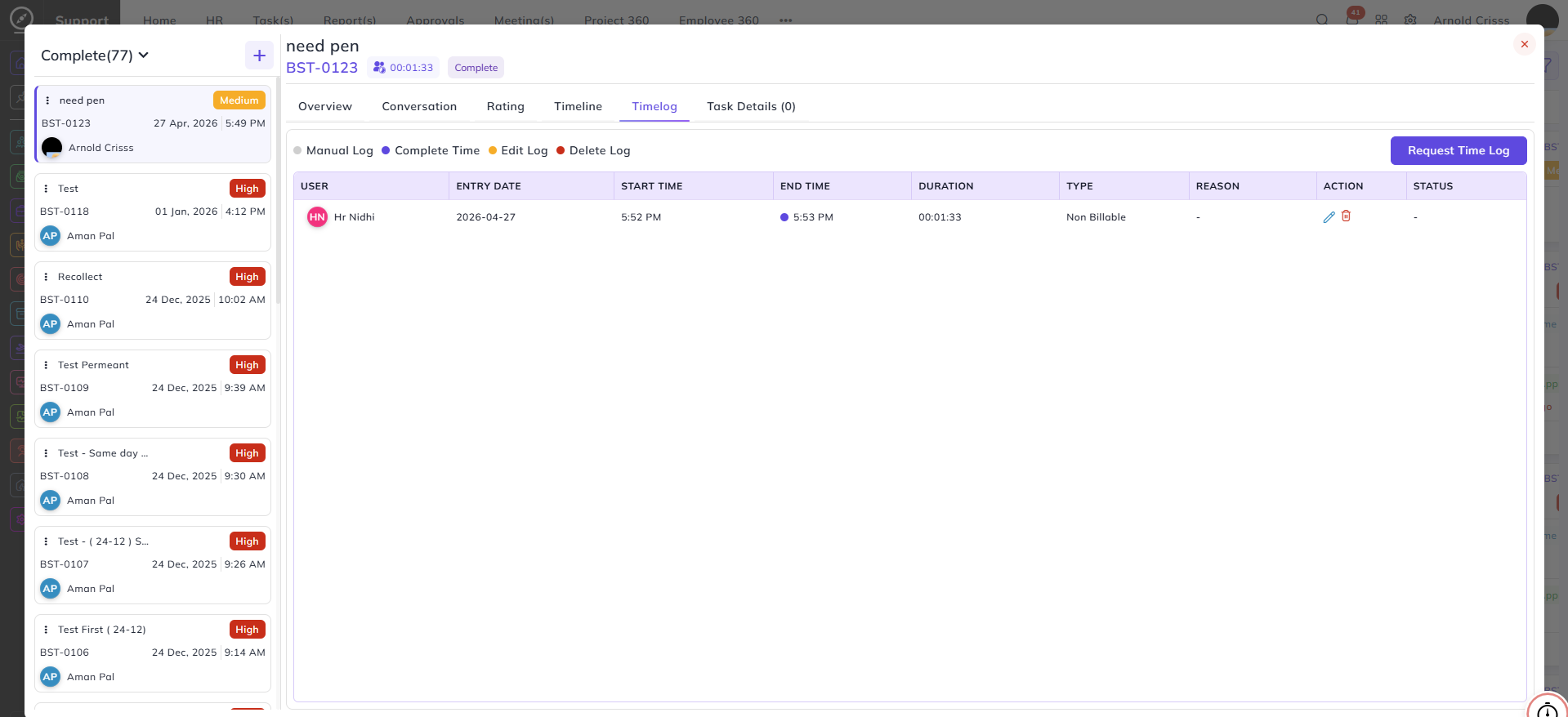
Then, the detailed view of the ticket will show the Rating, Timeline, and Timelog. Both the ticket owner and the assignee can see it.
The second assignee of the ticket will also receive the push notification, chat, and mail for the support ticket the same way. They will receive all these twice. For the first iteration, both assignees will receive these notifications. For the second iteration, only the second assignee will get notified after the Accept Time is over for the first assignee.