Manage Logs
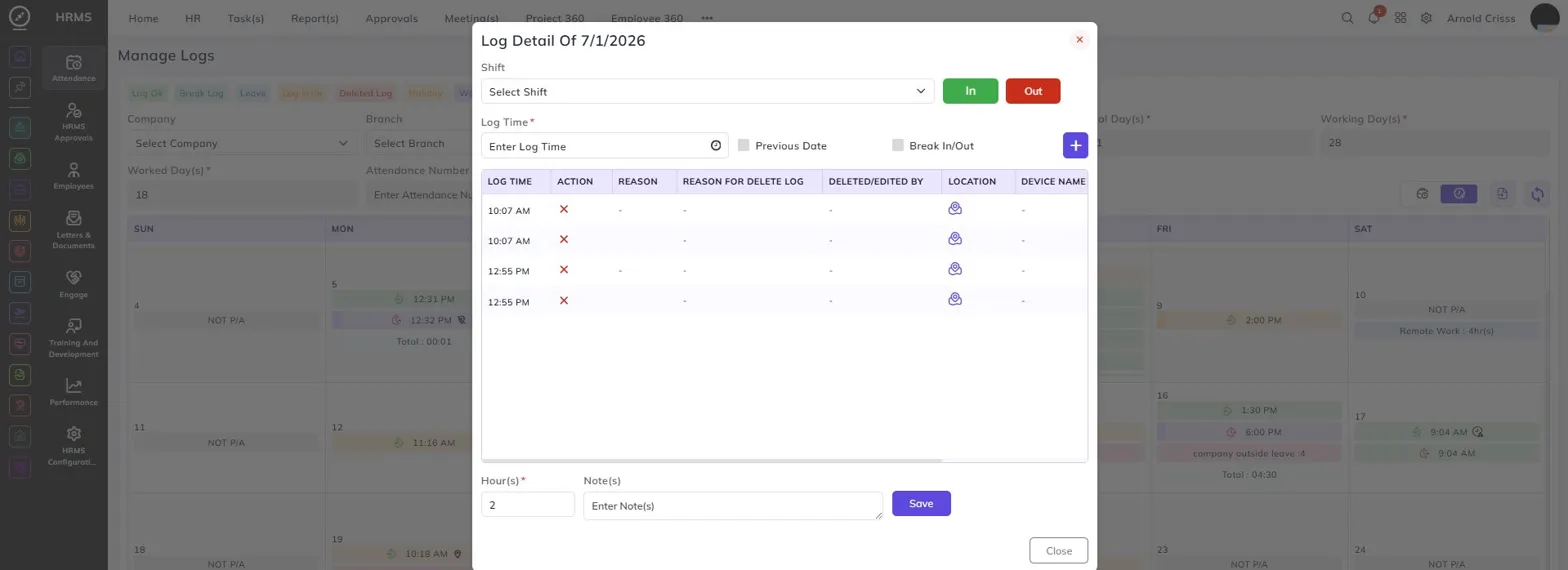
The Manage Logs page gives administrators a detailed calendar view of any employee's attendance logs for a selected month. To navigate here, go to HRMS->Attendance->Manage Logs.
Use the filters at the top to select the Company, Branch, Employee Name, and Date/Month to load that employee's attendance calendar. The page also displays a summary of key figures for the selected month — Total Days, Working Days, Worked Days, and Attendance Number.
The color-coded legend at the top works the same way as the employee attendance calendar, helping you identify each type of log entry at a glance — Log Ok, Break Log, Leave, Log Error, Deleted Log, Holiday, Week Off, NOT P/A, Changed Log, Company Outside Leave, Rejected Leave, Remote Work, Partial Day, and Log Request Pending.
Each day on the calendar shows the employee's clock-in and clock-out times along with location and IP indicators. Days marked with Company Outside Leave, Remote Work, or holidays are clearly highlighted with their respective labels.
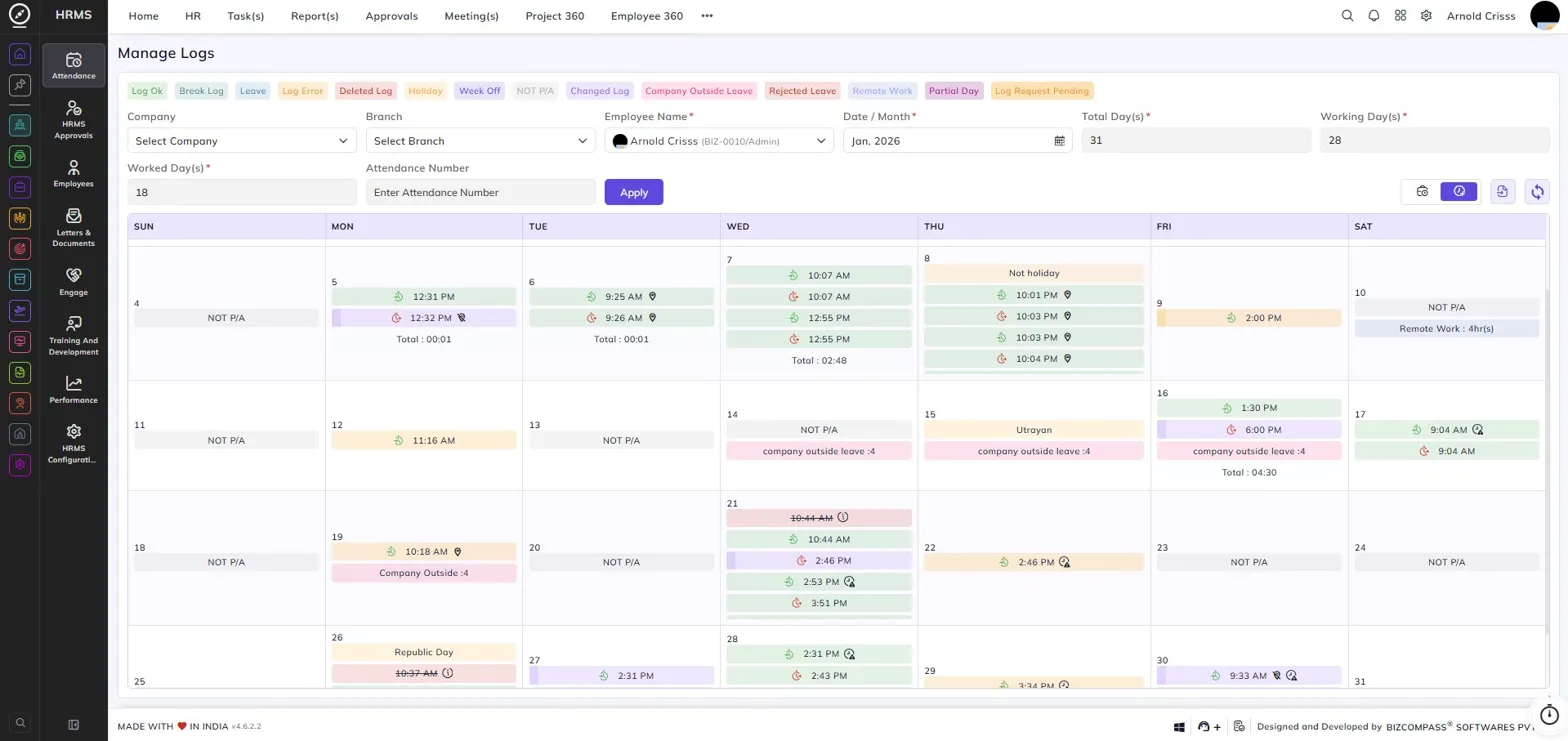
Total Hours Display Toggle
At the top right of the calendar, you can switch between two hour display modes using the toggle icons:
As per Policy — Shows the total hours as per the employee's shift policy for each day.
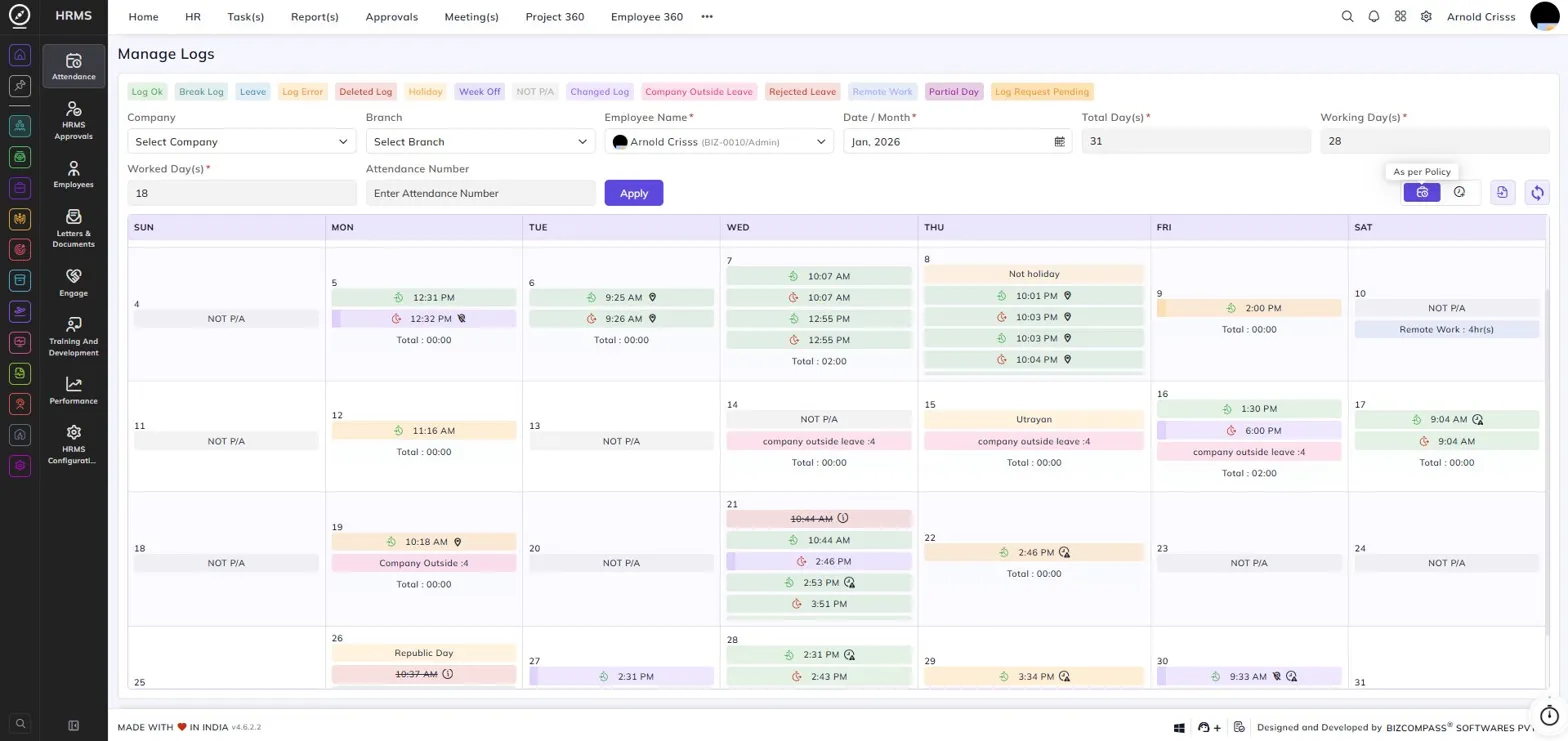
Total Worked Hour(s) — Shows the actual hours worked by the employee each day.
Import Logs
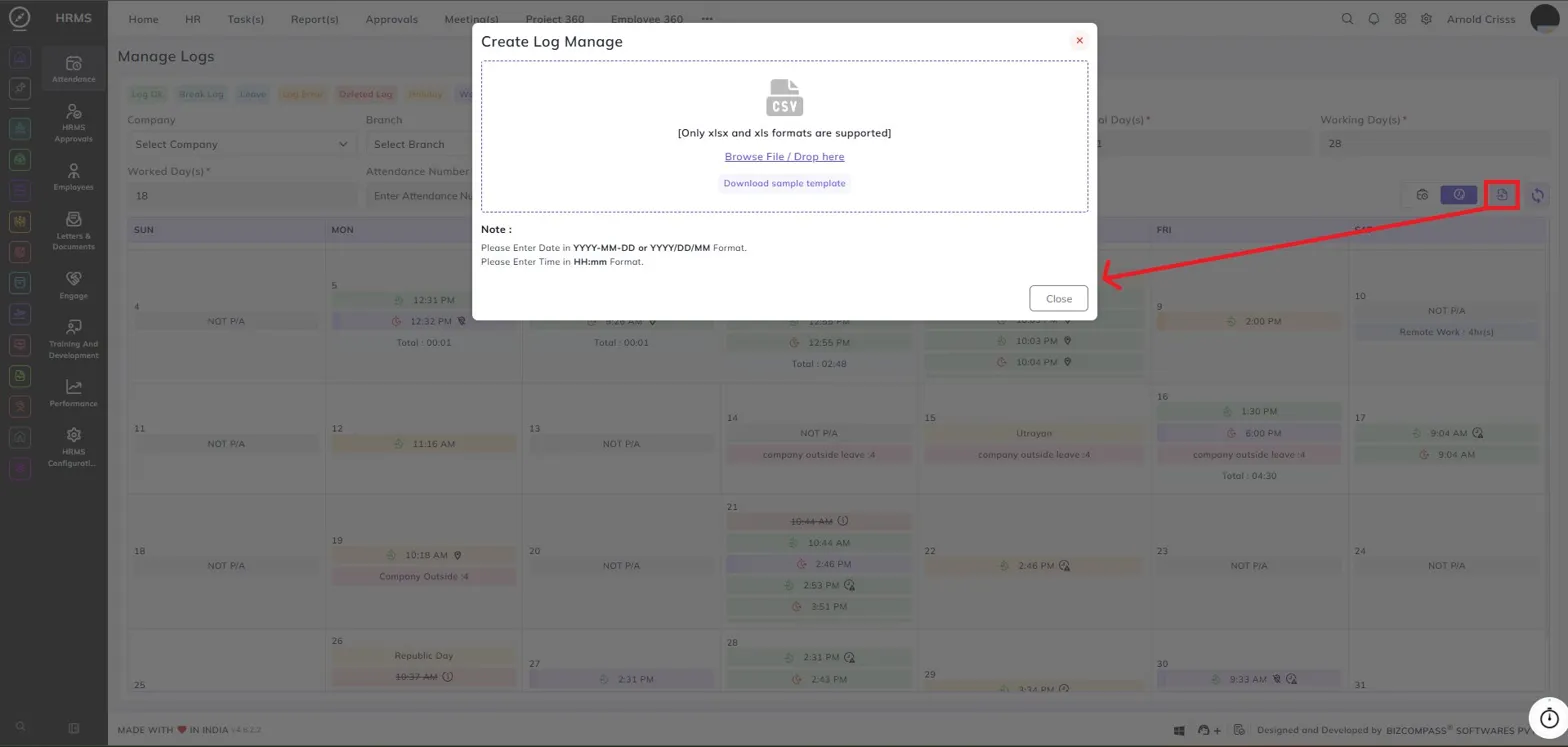
Click the import icon at the top right of the Manage Logs page to open the Create Log Manage dialog. This allows you to bulk import attendance logs for employees using a spreadsheet file. Only xlsx and xls formats are supported. You can drag and drop a file into the upload area or click Browse File / Drop here to select one. Click Download sample template to get a pre-formatted file showing the required columns.
Log Detail View
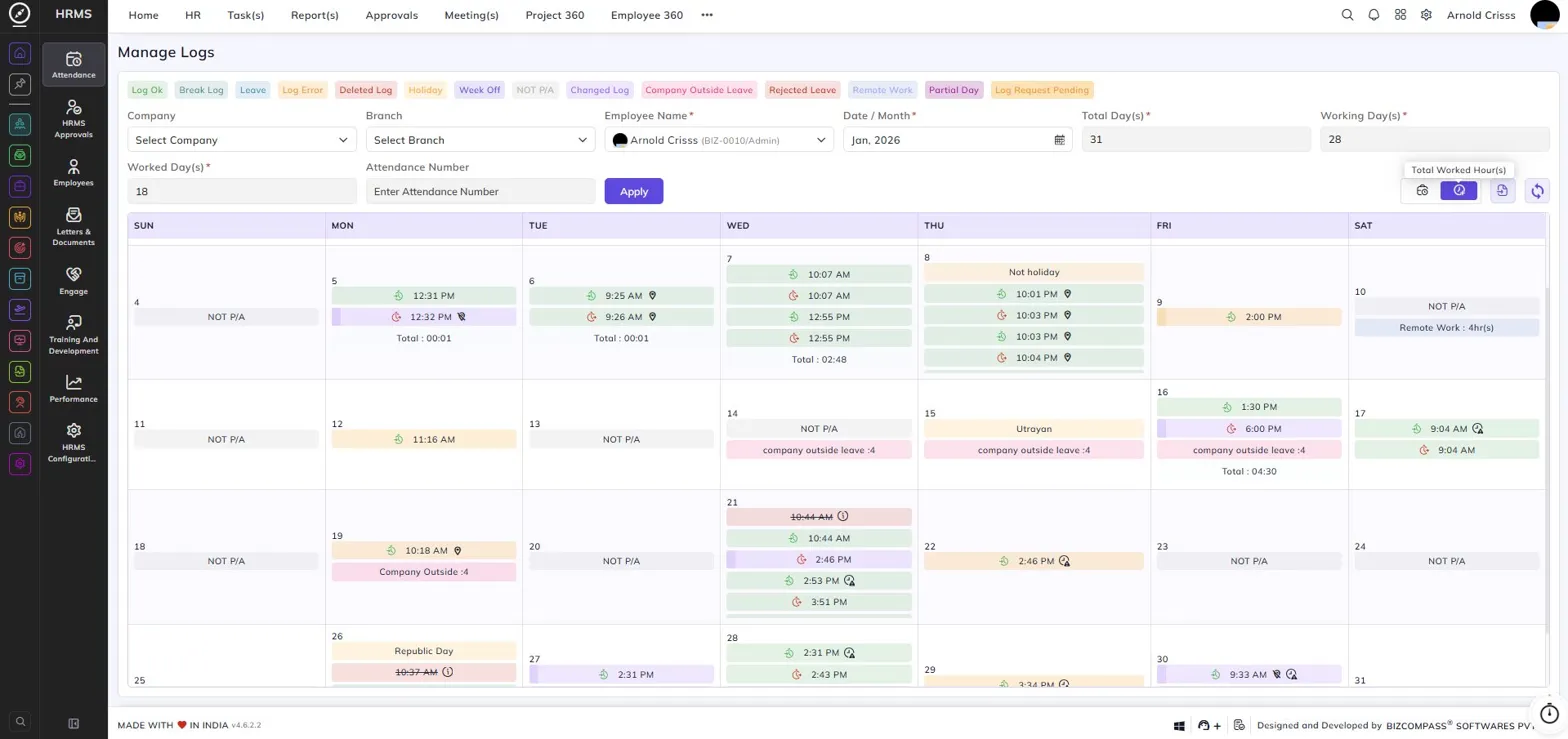
Clicking on any date in the Manage Logs calendar opens the Log Detail dialog for that day. This gives administrators a complete view of all log entries for that date along with the ability to add new ones.
The log table shows each entry's Log Time, Action, Reason, Reason for Delete Log, Deleted/Edited By, Location, and Device Name. Existing logs can be deleted directly using the delete icon on each row.
To add a new log entry for that day, fill in the following fields at the top:
Shift:
Select the employee's shift for that day.
In / Out:
Select whether this is a clock-in or clock-out entry.
Log Time:
Enter the time for the log entry.
Previous Date:
Enable this if the log belongs to the previous date.
Break In/Out:
Enable this if the entry is a break log.
Hour(s):
Enter the number of hours.
Note(s):
Add any additional notes if needed.