
Declaration
The Declaration page is the central location for creating, managing, and reviewing employee declarations. Users with the required permissions can create declarations on behalf of employees. Organizations can also import declarations in bulk, along with their respective statuses, using the Bulk Import option.
Note: The Create button is available only when the declaration window is Open/Active in the Year Configuration for the selected financial year.
Creating a Declaration
-
Select the Employee whose declaration needs to be created.
-
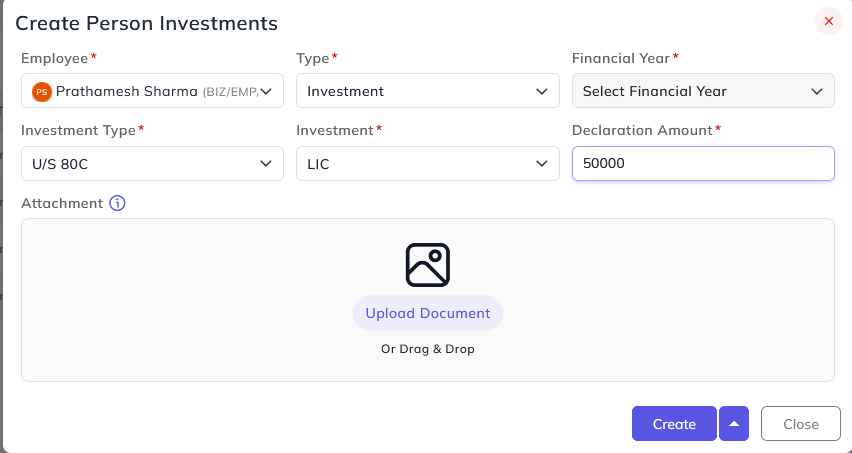
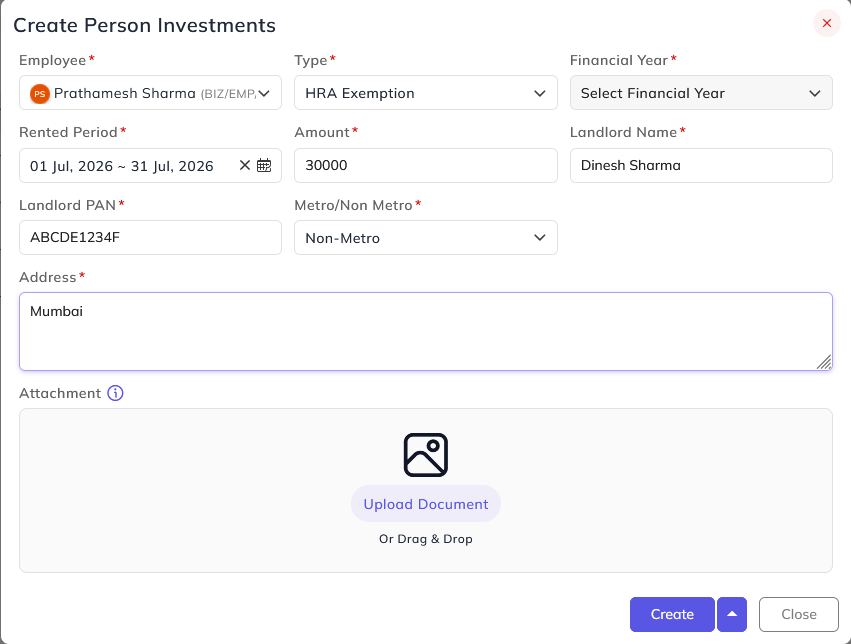
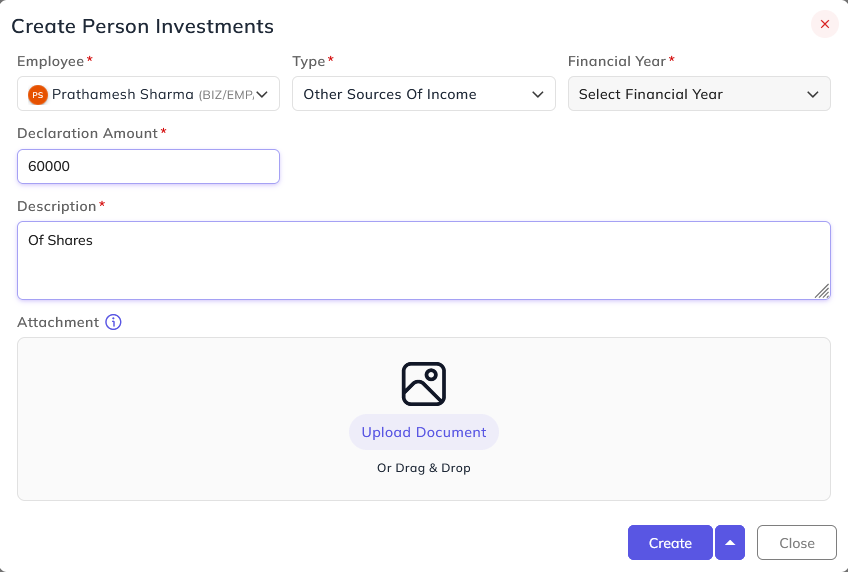
Select the Declaration Section, such as Investment, HRA Exemption, or Other Source of Income. Based on the selected section, the relevant fields will be displayed.
Investment
-
Select the Investment Type.
-
Select the Investment Name.
-
Enter the Declaration Amount.
-
Attach supporting documents (optional).
HRA Exemption
-
Select the Rented Period.
-
Enter the Amount.
-
Enter the Landlord Name.
-
Enter the Landlord PAN.
-
Select whether the property is in a Metro or Non-Metro city.
-
Enter the Property Address.
-
Attach supporting documents (optional).
Other Source of Income
-
Enter the Declaration Amount.
-
Provide a Description.
-
Attach supporting documents (optional).
After the declaration is submitted, it is sent for approval. If a Declaration Approval Hierarchy has been configured, the request follows that approval workflow. Otherwise, it follows the standard Reporting and Approval Hierarchy.
Once the declaration is created, the employee can also view it under My Profile → Declaration.
Adding Declaration in Bulk
Download sheet from by clicking on the import Declaration(s) button which looks like which is next to either the create button or next to the filter button which looks like this icon 