
Letters
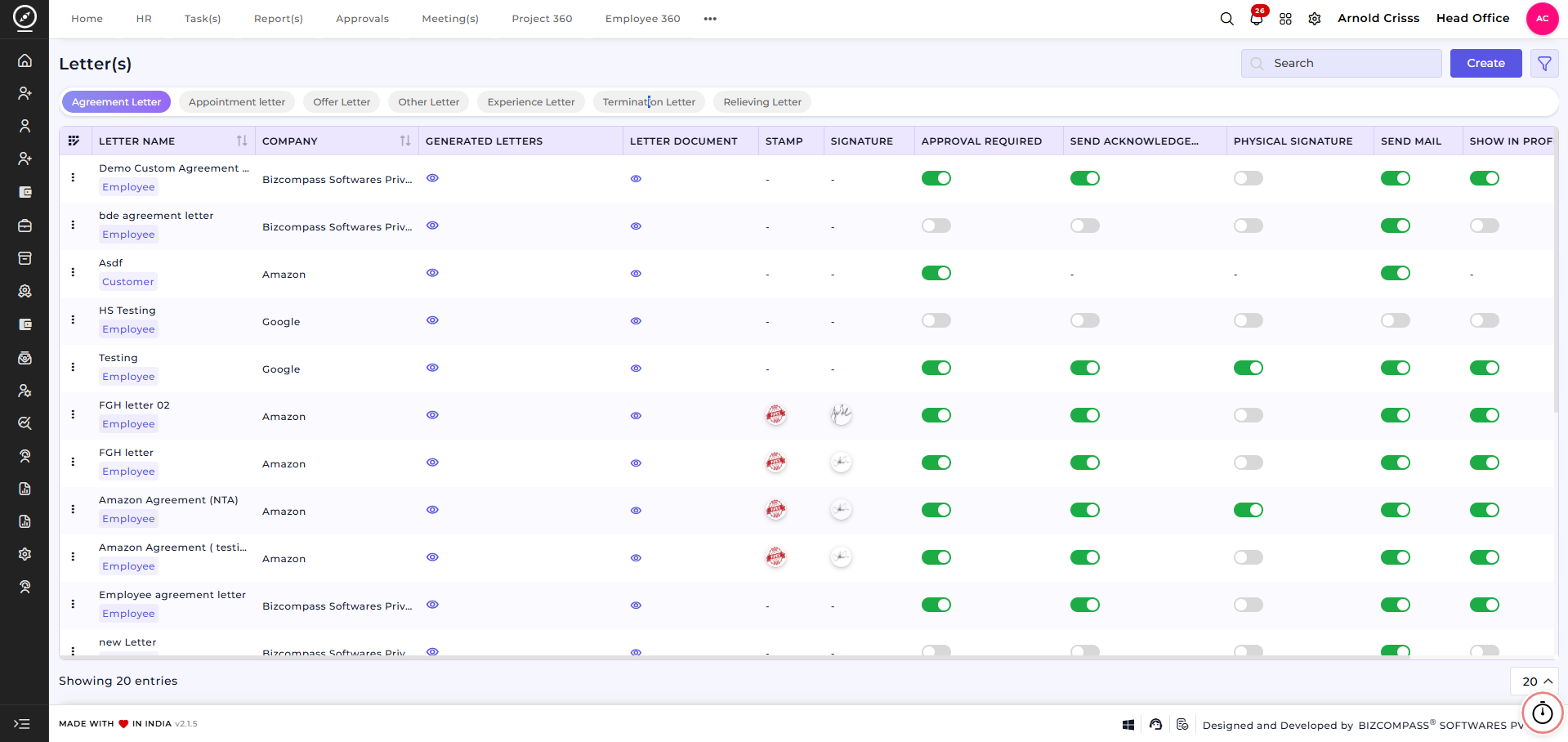
The Letters page is used to create, manage, and issue various types of official letters needed for recruitment like Agreement Letter, Appointment Letter and Offer Letter for employees. It centralizes all letter templates and generated documents, ensuring consistency, approval control, and easy distribution.
Letter Types:
The system supports multiple predefined letter categories, including:
Agreement LetterAppointment LetterOffer LetterExperience LetterTermination LetterRelieving LetterOther Custom Letters
Each letter type can be configured separately based on organizational requirements.This section provides a complete view of all configured letters and their settings.
View theLetter Nameand associatedCompanyIdentify whether the letter is for anEmployeeorCustomer(only for agreement Letters)Access previews ofGenerated LettersandLetter DocumentsEnable or disableApproval Required, Send Acknowledgement, Physical Signature, Send Mail,andShow in ProfileUse search, filters, and actions to manage letters efficiently
Create Letter:
After clicking Create Letter in any letter section, you can design and configure a new letter template with complete control over its content, format, and approval settings. For example, you're creating an Agreement Letter.
Letter Configuration:
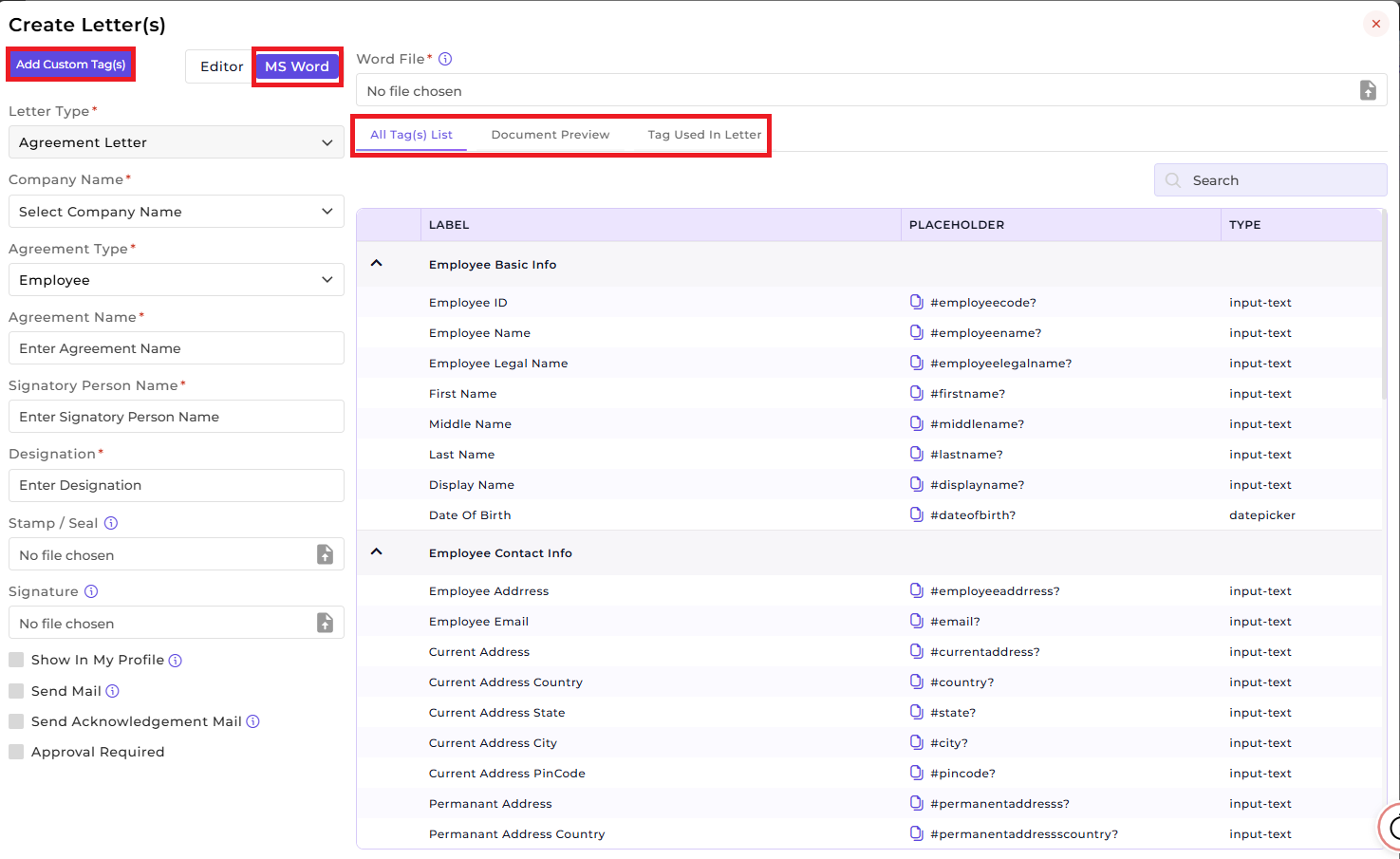
The Letter Type (Agreement Letter) will be displayed by default when you click on the Create button in the Agreement Letter section.
Choose the Company Name for which the letter is
createdcreated.Select the Agreement Type (
Vendor/ Customer/ Employee/ Employee Loan)Employee).Enter a unique Agreement / Letter Name.
Specify the Signatory Person Name and Designation.
Upload an official Stamp / Seal.
Upload the authorized Signature.
Enable or disable Physical Signature as
requiredrequired.Select the Page Type (e.g., A4).
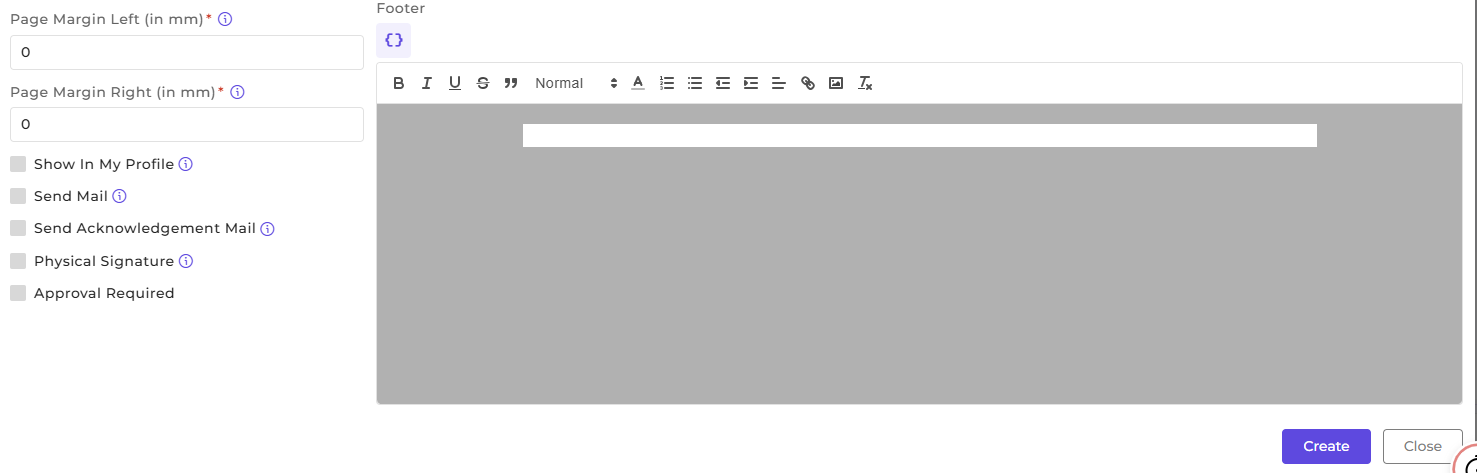
Configure Top, Bottom, Left, and Right Margins (in mm).
- Enable Approval Required and include space for Physical Signature if
neededneeded. - Control whether Email sending, Acknowledgment and Profile Visibility is
mandatorymandatory.
Letter Content Setup (MS Word):
Once you select Agreement Type, the Tag(s) List will be visible for the chosen Agreement Type.
- You need to upload your word file, then you'll see it in the Document Preview and the Tags Used in your letter file. You can select which tags you want to keep.
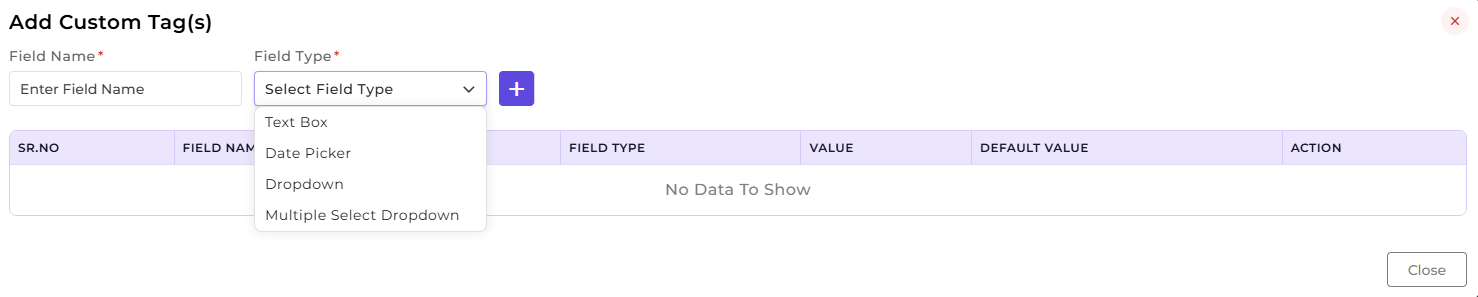
Use Custom Tags to dynamically populate employee or customer
detailsdetails.
Letter Content Setup (Editor):
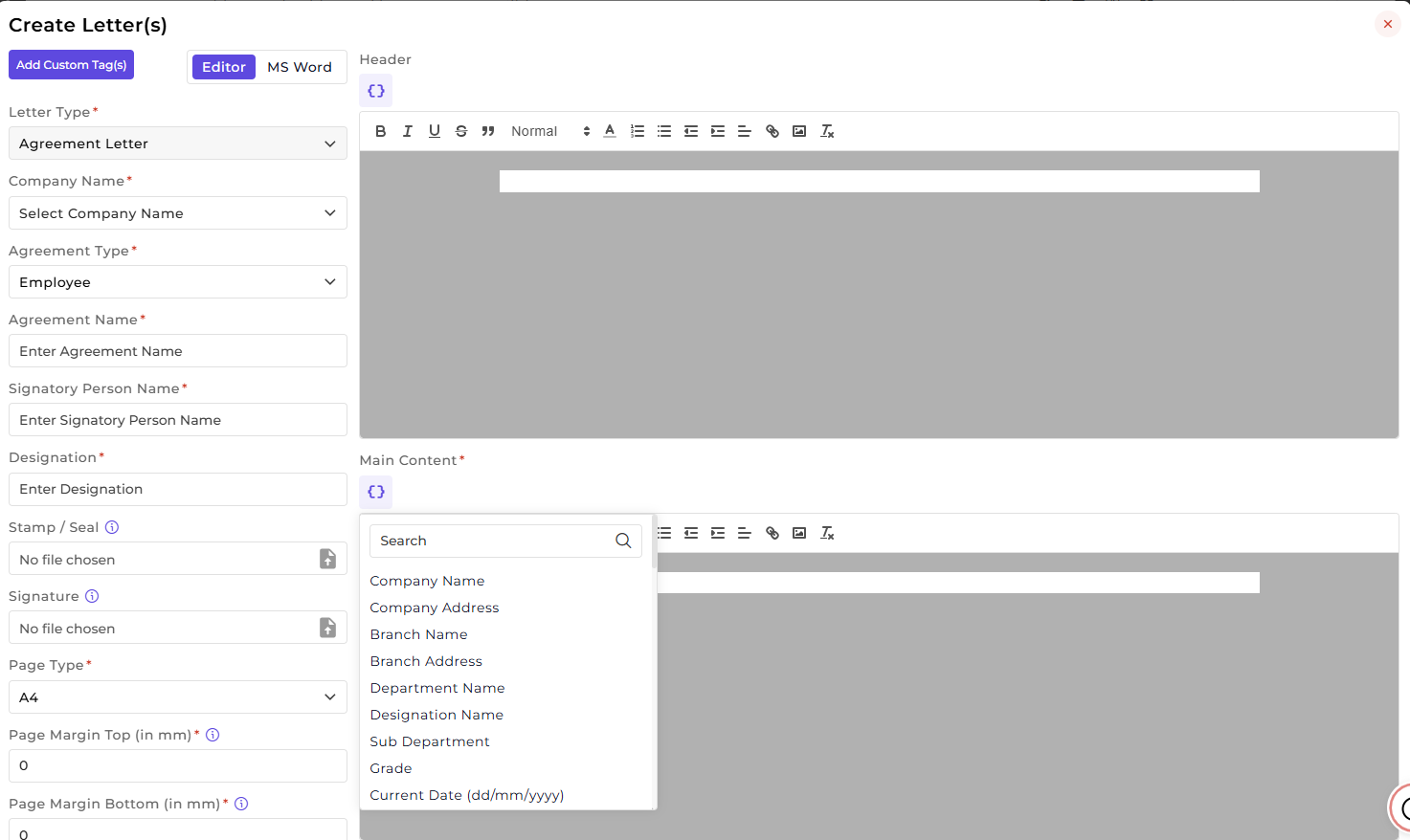
Design the Header, Main Content, and Footer using the built-in rich text
editoreditor.Use provided Tags (by clicking on the '{ }' icon) or Custom Tags to dynamically populate employee
or customer detailsdetails.Apply text formatting such as font styles, alignment, lists, and
linkslinks.
TheThis Letters page ensures standardized and compliant communication across the organization. Itfeature helps HR and Admin teams to automateautomate letter generation and approvals and reduce manual documentation errors.
Once a Letter is created, it can be used for:
Generating employee or customer documentsManaging approvals and acknowledgementsSending letters digitally or maintaining physical copiesStoring letters securely in employee profiles
This feature is optional; if your company manages letters offline, you don't have to configure it.