
Letters
The Letters page is used to create, manage, and issue various types of official letters needed for recruitment like Agreement Letter, Appointment Letter and Offer Letter for employees.
Each letter type can be configured separately based on organizational requirements.
Agreement Letter:
- An Agreement Letter is generated during the Agreement Stage of the onboarding procedure to send to the selected candidate.
- The candidate can review the agreement and provide an acknowledgement.
- If the agreement requires a signature, the candidate can upload their signature. The uploaded signature can then be merged with the generated agreement document, completing the agreement process.
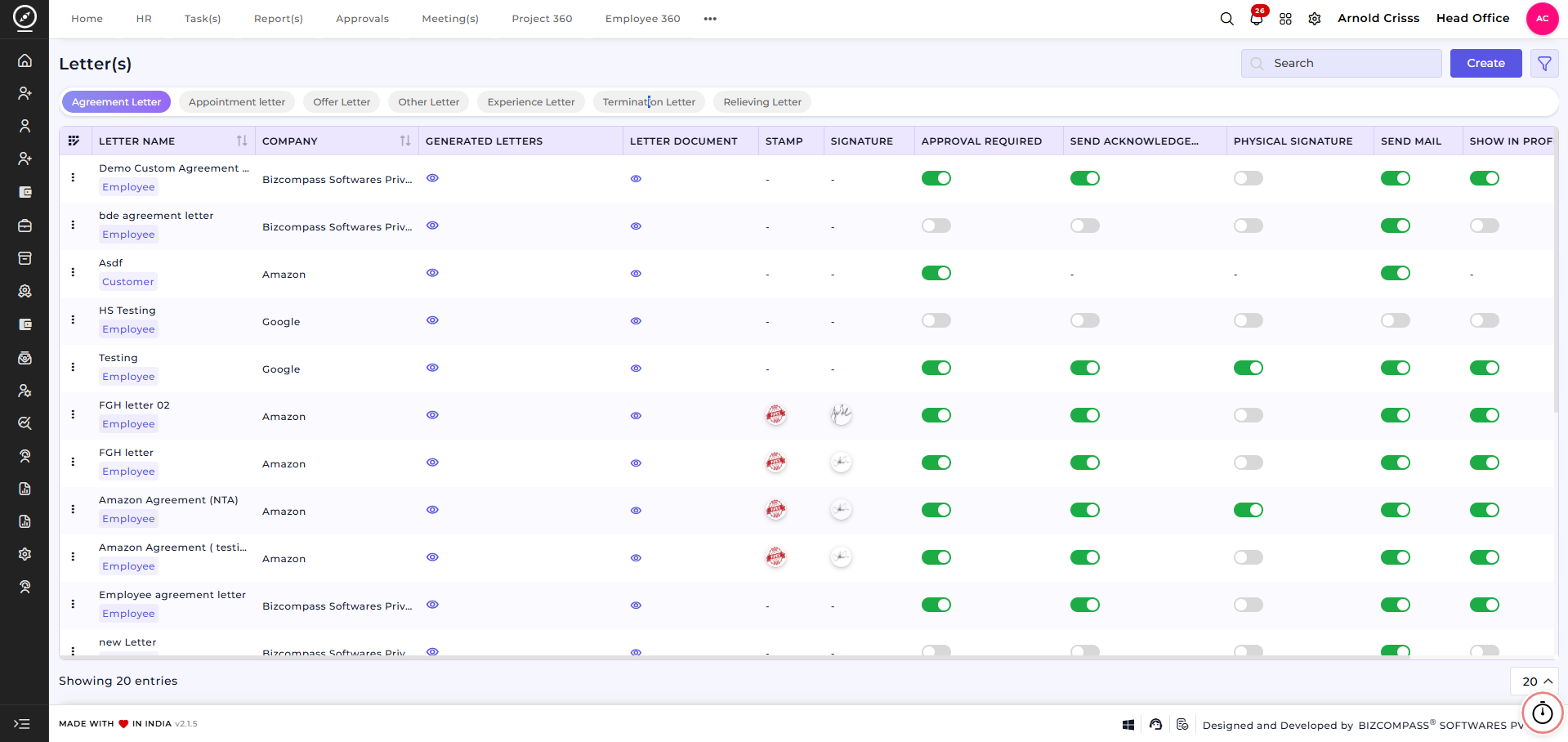
Create Letter:
Letter Configuration:
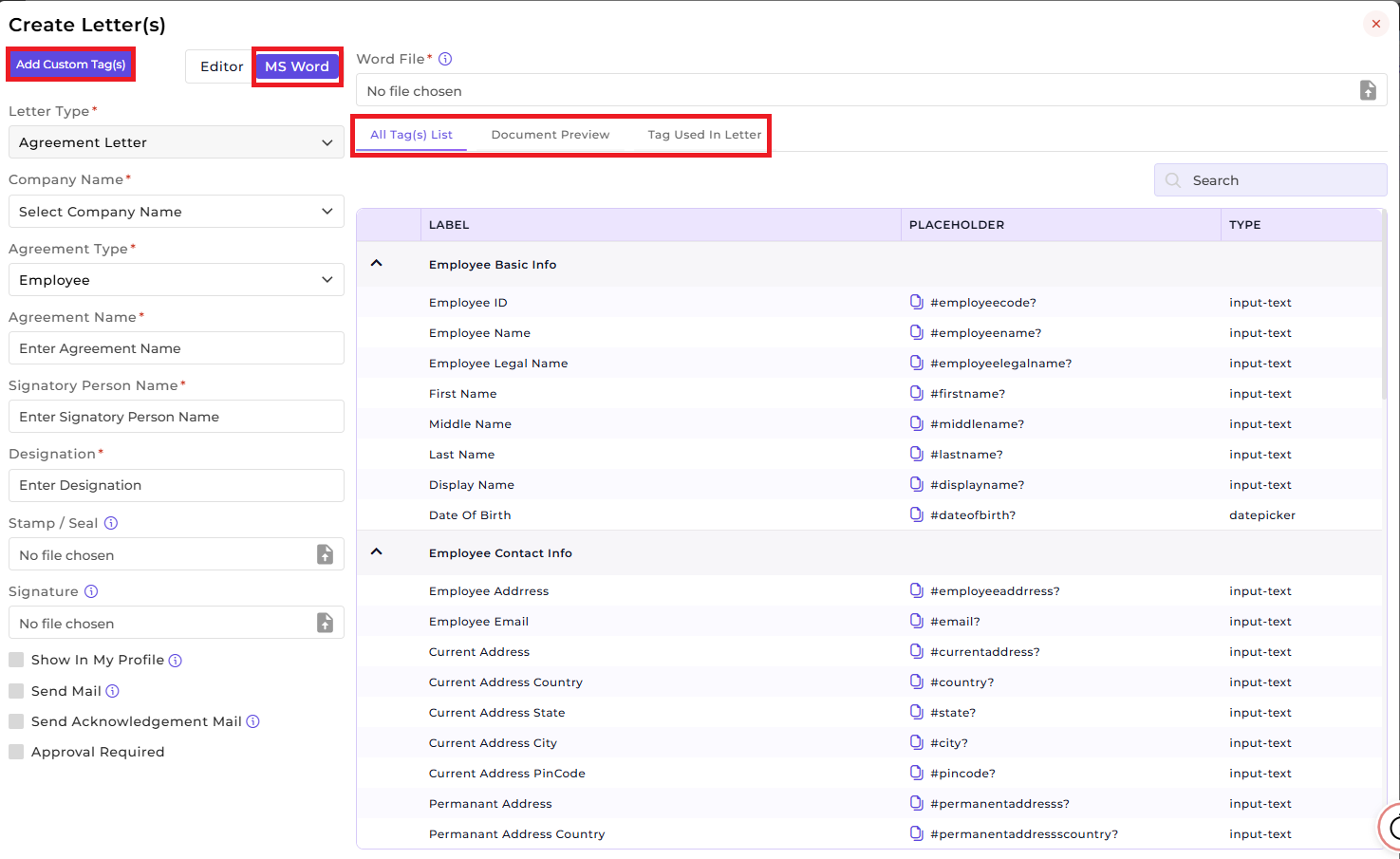
- The Letter Type (Agreement Letter) will be displayed by default when you click on the Create button in the Agreement Letter section.
- Choose the Company Name for which the letter is created.
- Select the Agreement Type (Employee).
- Enter a unique Agreement / Letter Name.
- Specify the Signatory Person Name and Designation.
- Upload an official Stamp / Seal.
- Upload the authorized Signature.
- Enable or disable Physical Signature as required.
- Select the Page Type (e.g., A4).
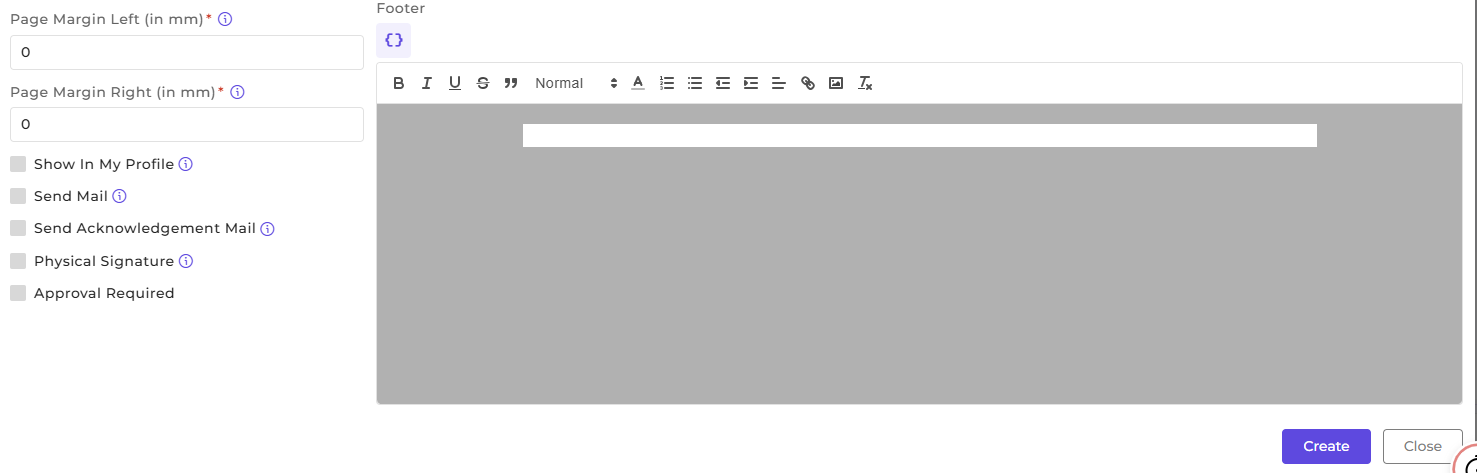
- Configure Top, Bottom, Left, and Right Margins (in mm).
- Enable Approval Required and include space for Physical Signature if needed.
- Control whether Email sending, Acknowledgment and Profile Visibility is mandatory.
Letter Content Setup (MS Word):
- Once you select Agreement Type, the Tag(s) List will be visible for the chosen Agreement Type.
- You need to upload your word file, then you'll see it in the Document Preview and the Tags Used in your letter file. You can select which tags you want to keep.
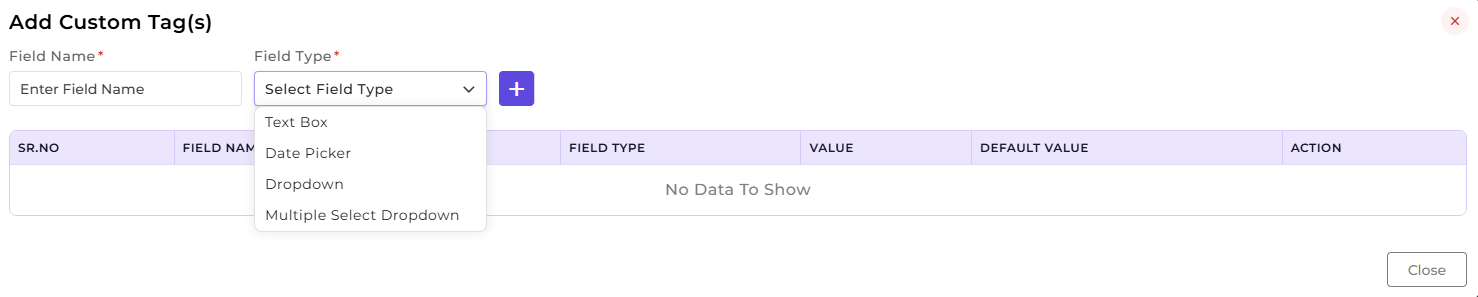
- Use Custom Tags to dynamically populate employee or customer details.
Letter Content Setup (Editor):
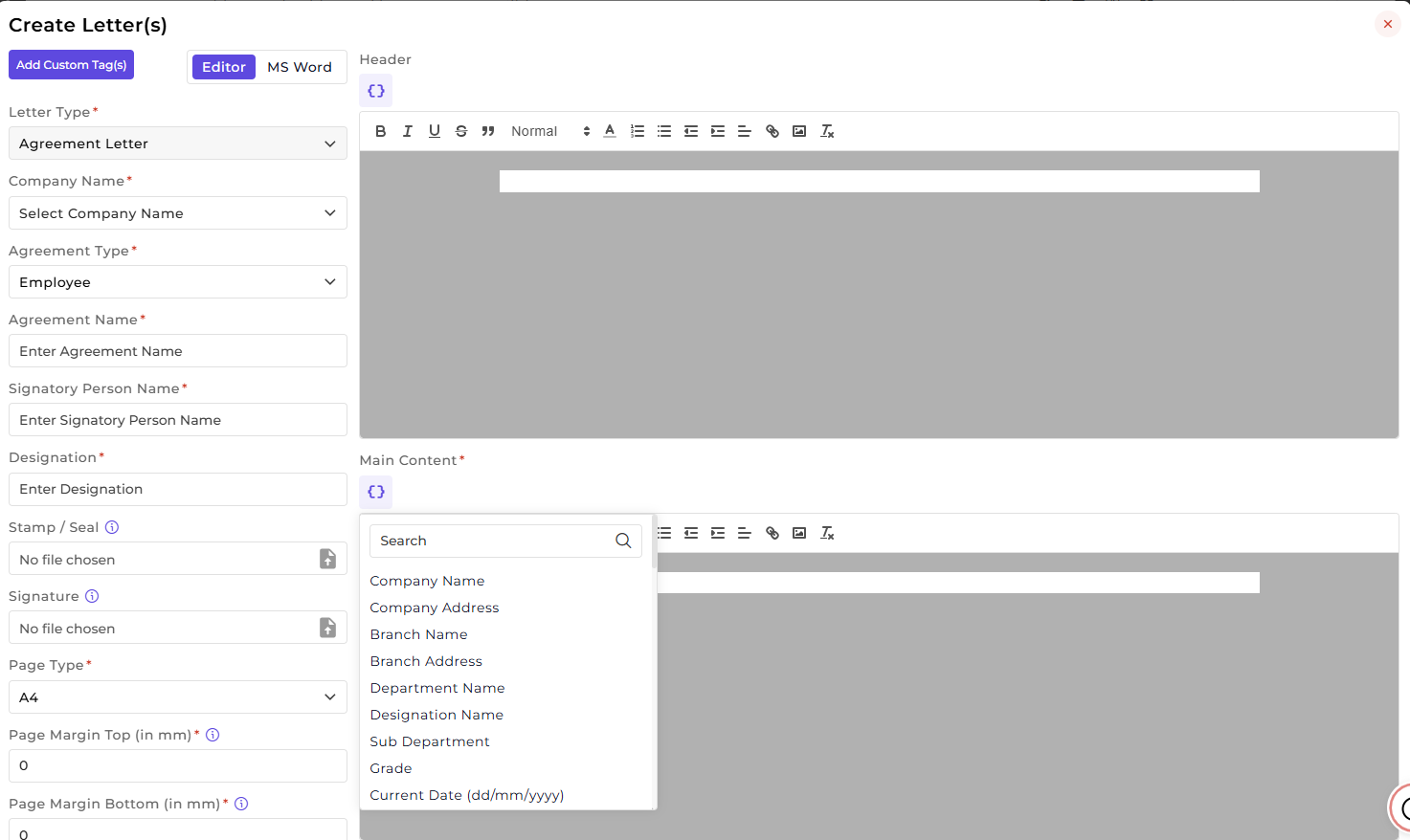
- Design the Header, Main Content, and Footer using the built-in rich text editor.
- Use provided Tags (by clicking on the '{ }' icon) or Custom Tags to dynamically populate employee details.
- Apply text formatting such as font styles, alignment, lists, and links.
This feature helps HR and Admin teams to automate letter generation and approvals and reduce manual documentation errors.
This feature is optional; if your company manages letters offline, you don't have to configure it.