
Letters
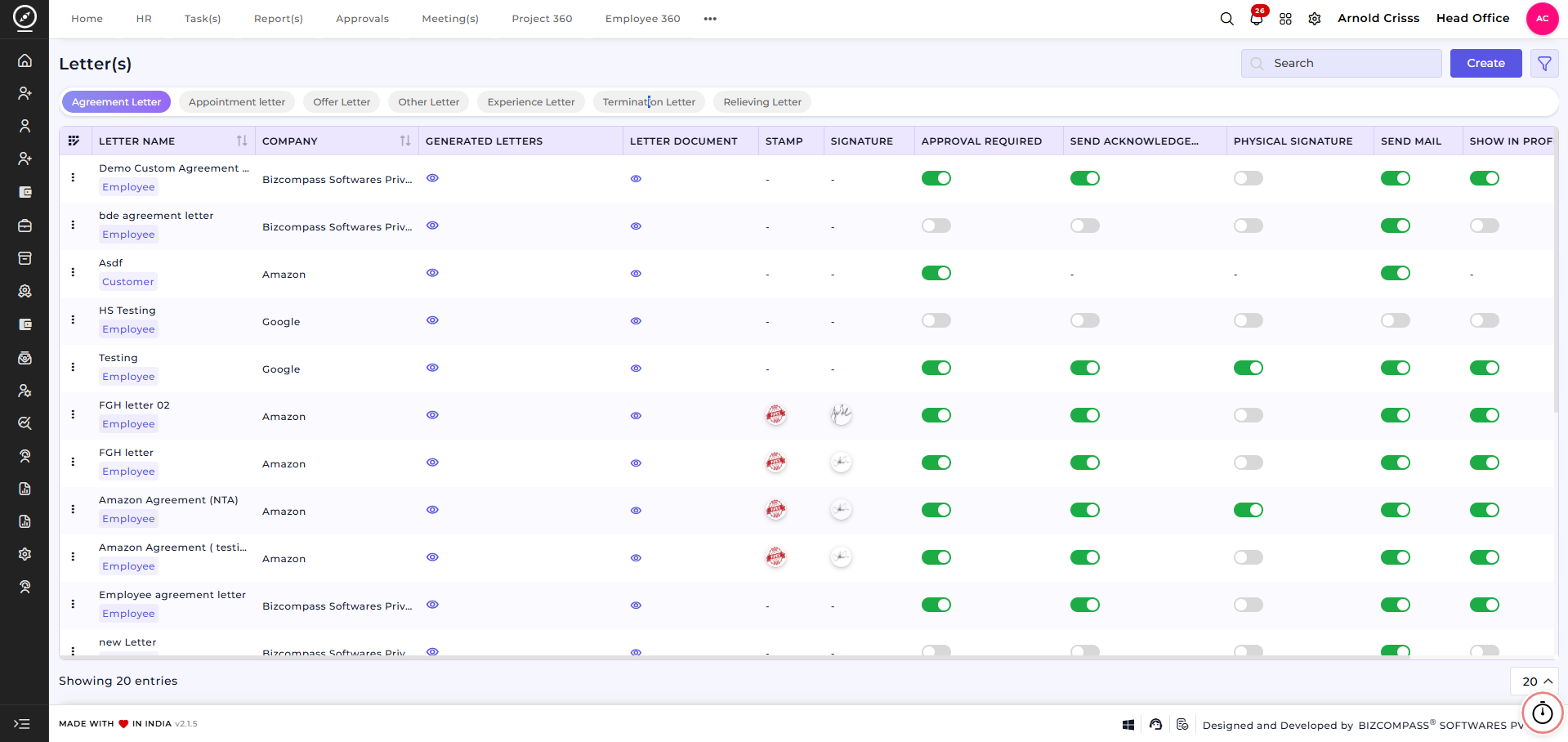
The Letters page is used to create, manage, and issue various types of official letters needed for recruitment like Agreement Letter, Appointment Letter and, Offer Letter and Other Letters for employees.
Each letter type can be configured separately based on organizational requirements.requirements Every type of letterand can be configured on approvalApproval basis. These approvals can be set from the Approval Hierarchy page under the Letters Approval(s) section.
Agreement Letter:
- An Agreement Letter is generated during the Agreement Stage of the onboarding procedure to send to the selected candidate.
- Once the agreement letter is generated, it can also be sent to the candidate through email directly from the system.
- The candidate can review the agreement and provide an acknowledgement.
- If the agreement requires a signature, the candidate can upload their signature. The uploaded signature can then be merged with the generated agreement document, completing the agreement process.
Appointment Letter:
- In the Appointment Letter stage, the appointment letter can be generated and sent to the candidate.
- Once the appointment letter is generated, it can also be sent to the candidate through email directly from the system.
- The candidate can review the appointment letter and provide an acknowledgement.
- If the appointment letter requires a signature, the candidate can upload their signature. The uploaded signature can then be merged with the generated appointment document, completing the appointment process.
Offer Letter:
- In the Offer Letter stage, HR can create and generate the offer letter for the selected candidate.
- Once the offer letter is generated, it can also be sent to the candidate through email directly from the system.
- The candidate can review the offer letter and provide an acknowledgement.
- If the offer letter requires a signature, the candidate can upload their signature. The uploaded signature can then be merged with the generated offer letter document.
Other Letter:
- Other Letter types include Increment Letter, Warning Letter, Transfer Letter, etc.
- Once a letter is generated, it can also be sent to the candidate through email directly from the system.
- The candidate can review the letter and provide an acknowledgement.
- If the letter requires a signature, the candidate can upload their signature. The uploaded signature can then be merged with the generated letter document.
Create Letter:
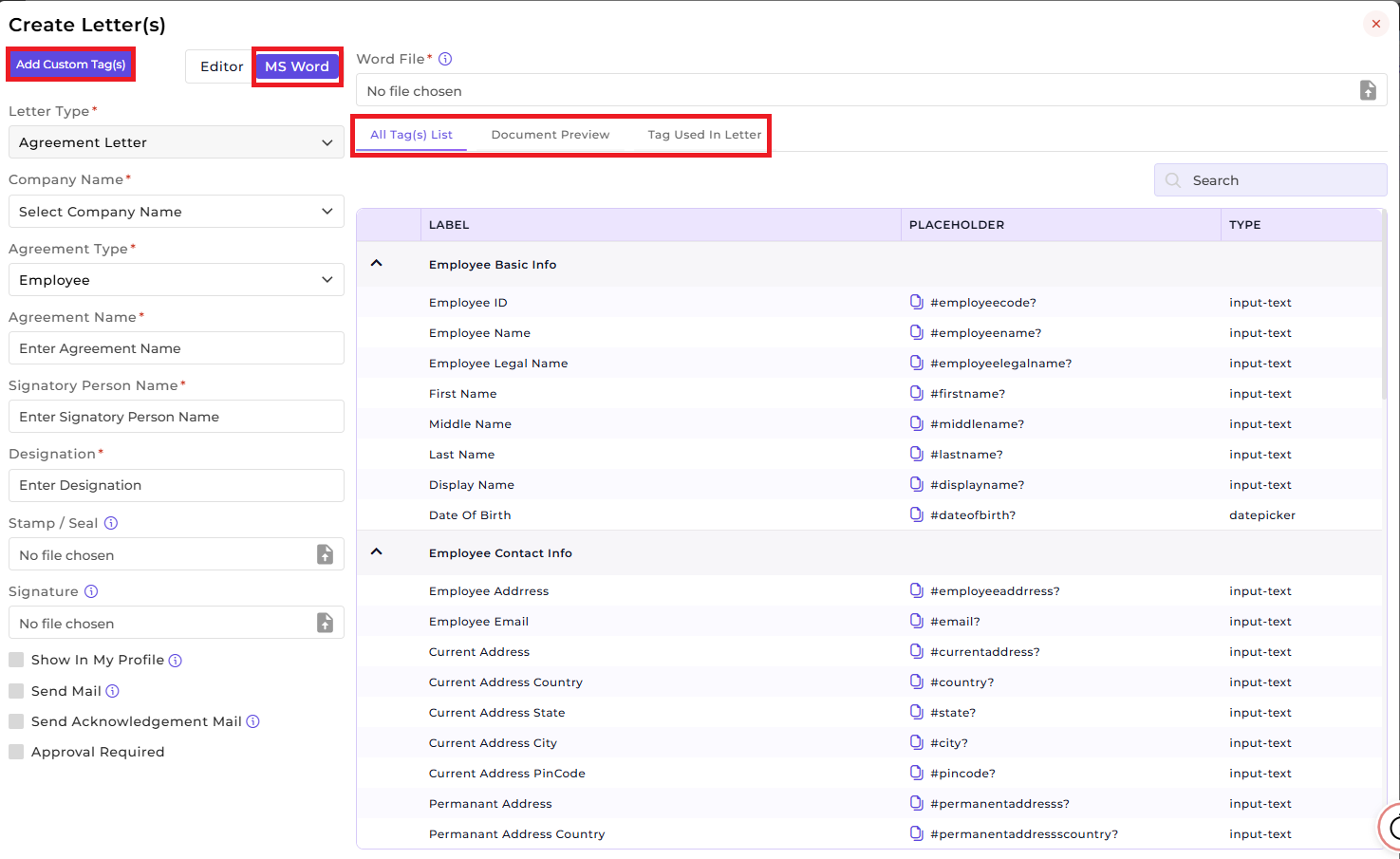
Letter Configuration:
- The Letter Type (Agreement Letter) will be displayed by default when you click on the Create button in the Agreement Letter section.
- Choose the Company Name for which the letter is created.
- Select the Agreement Type (Employee).
- Enter a unique Agreement / Letter Name.
- Specify the Signatory Person Name and Designation.
- Upload an official Stamp / Seal.
- Upload the authorized Signature.
Enable or disablePhysical Signatureas required.- Select the Page Type (e.g., A4).
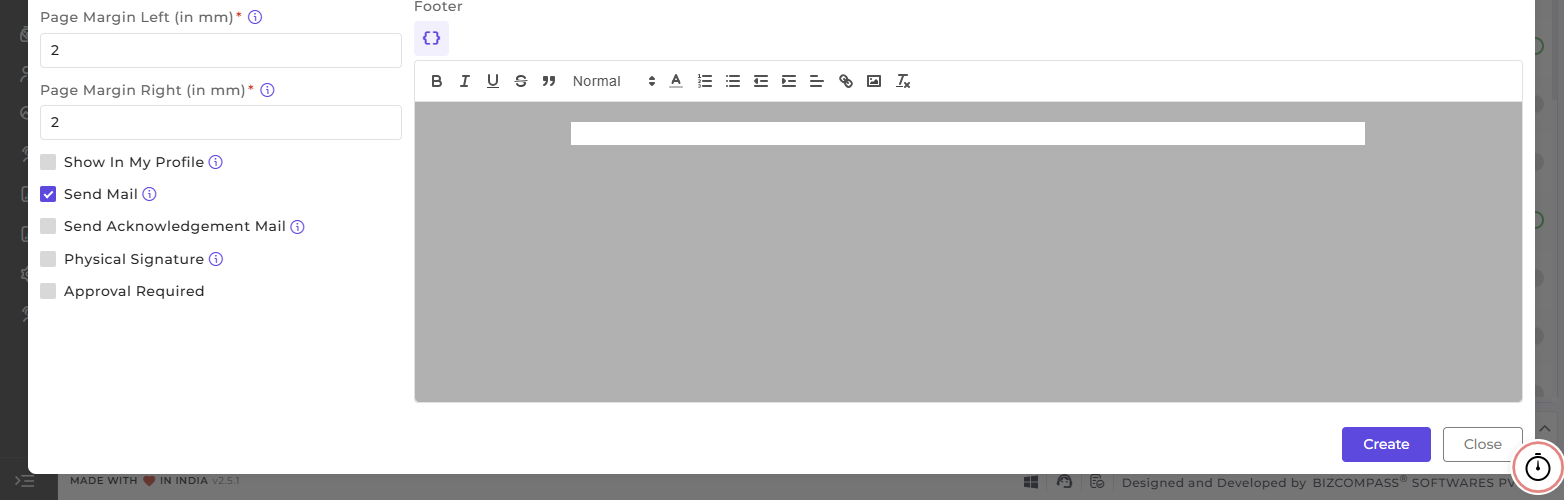
- Configure Top, Bottom, Left, and Right Margins (in mm).
- Enable the option Show In My Profile if you want that letter to be displayed in the employee's profile section if required.
- Enable the option Send Mail if this letter document should be sent via mail if required.
- Enable the option Send Acknowledgement Mail if you want the letter to be acknowledged by the employee.
- Enable the option Physical Signature is you want to include space for physical signature and stamp in the letter (which will always appear on the bottom right side of the letter).
- Enable the option Approval Required
and include space forPhysical Signatureneeded.you ControlwantwhethertheEmaillettersending,toAcknowledgmentbeandapprovedProfilebyVisibilitytheisrespectivemandatory.people of its approval hierarchy.
Note: These flag options differ for different types of Agreement Type. For example, for the Agreement Type - Vendor, only Send Mail and Approval Required options are available.
Letter Content Setup (MS Word):
- Once you select the Agreement Type, the pre-defined Tag(s) List will be
visibledisplayedforaccording to the chosenAgreementtype,Type.allowing you to quickly use relevant tags for dynamic content. - Upload your Word file containing the letter template; the system will parse it and show a Document Preview.
- You
needcanto upload your word file, then you'll see it in theDocument Previewand theview Tags Used in Letter, which highlights the tags already present in yourletteruploadedfile.document. - Select
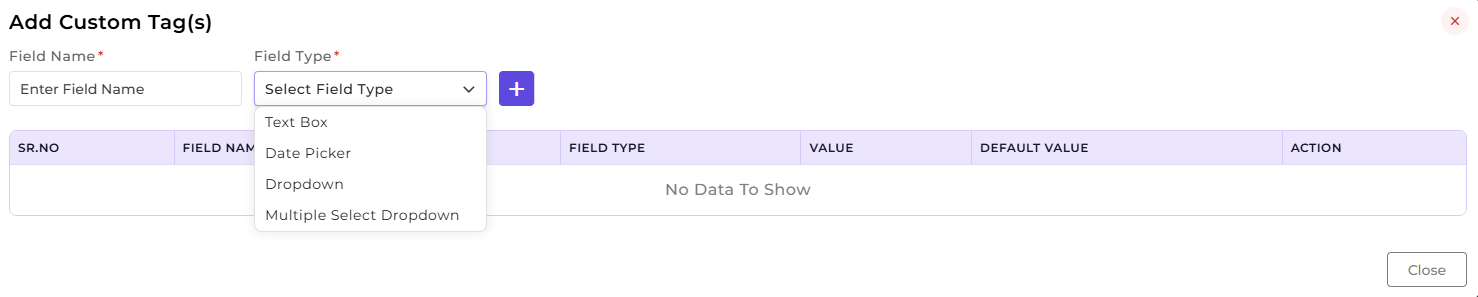
canorselect whichdeselect tagsyoutowantinclude only the ones relevant tokeep.this letter. - Use Custom Tags to
dynamicallyaddpopulateadditionalemployeeplaceholders for employee, customer, orcustomercompany-specificdetails.details that are not available in the pre-defined tag list.
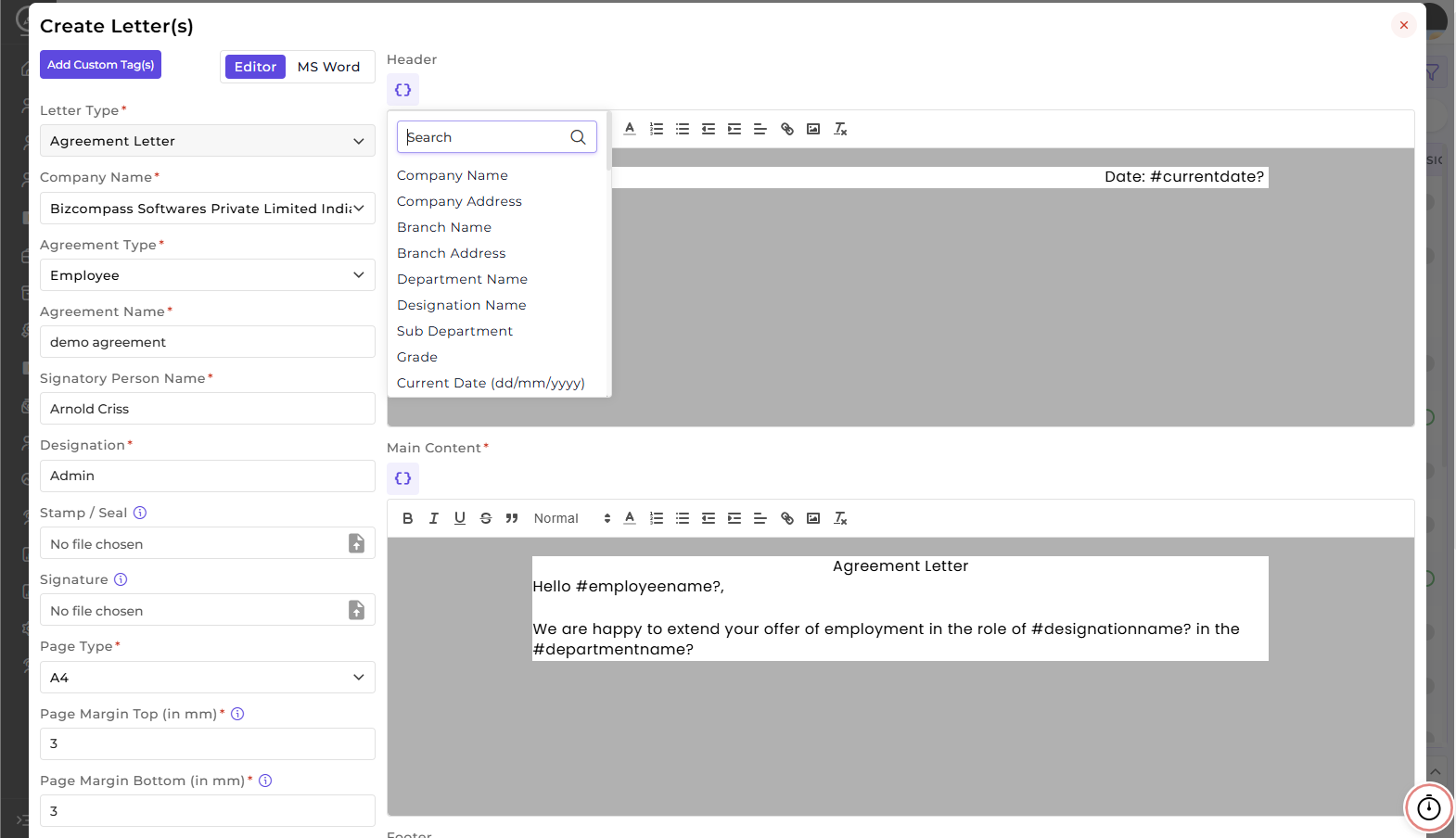
Letter Content Setup (Editor):
- Header, Main Content, Footer: Design all sections of the letter with full flexibility.
-
HeaderRich Text Formatting: Apply font styles,Mainsizes,Contentcolors, alignment, lists, links, and other formatting options. -
Custom Tags: Insert Dynamic Placeholders to automatically populate employee-specific details like Name, Designation, Department, Joining Date, and
FooterCompany Name. -
Built-in Tags:
usingClick thebuilt-in rich text editor. Use providedTags(by clicking on the '"{ }'"icon)icon to access standard tags for commonly used employee fields.
Editor Features:
Use of Tags:
Note: For different Agreement Types (Employee, Loan, Customer and
links.Employee), personalized pre-defined tags are available (except for Vendor type, which has no pre-defined tags), but you can still add custom tags in any agreement type.
This feature helps HR and Admin teams to automate letter generation and approvals and reduce manual documentation errors.
This feature is optional; if your company manages letters offline, you don't have to configure it.