
Letters
The Letters page is used to create, manage,create and issuemanage various types of official letters needed for the recruitment likeprocess, Agreementemployee Letterletter records, and theAppointment Letterexit process,. The organization can also Offerissue Letterletters andin Other Lettersbulk for employees.
Each letter type can be configured separately based on organizational requirements and can be configured on Approval basis.
Letters for Recruitment / Onboarding Process:
The following letters are commonly used during recruitment and onboarding:
-
Agreement Letter (Type: Employee)
-
Appointment Letter
-
Offer Letter
-
Other Letter
Agreement Letter:
- An Agreement Letter is
generatedsent during the AgreementStagestage of the onboarding procedure tosend tothe selectedcandidate.candidate Onceby checking theagreementAgreementletterSignisoptiongenerated,whileit can also besent toconfiguring thecandidateJoiningthroughProcedureemailFlowdirectly from the system..- The candidate can review the agreement and provide an acknowledgement.
- If the agreement requires a signature, the candidate can upload their signature. The uploaded signature can then be merged with the generated agreement document, completing the agreement process.
Agreement Letter Types:
-
Employee – Used for employee or candidate agreements (recruitment and exit process)
-
Employee Loan – Used for loan-related agreements
-
Customer – Used for agreements with customers
-
Vendor – Used for agreements with vendors
For Employee, Employee Loan, and Customer types, the system provides tags that are replaced with values during letter generation.
Appointment Letter:
InAn Appointment Letter is sent during the Appointment Letterstage,stage of theappointmentonboardinglettercan be generated and sentprocedure to thecandidate.selected Oncecandidate by checking theappointmentSendletterAppointmentisLettergenerated,optionitwhilecan also besent toconfiguring thecandidateJoiningthroughProcedureemailFlowdirectly from the system..- The candidate can review the appointment letter and provide an acknowledgement.
- If the appointment letter requires a signature, the candidate can upload their signature. The uploaded signature can then be merged with the generated appointment document, completing the appointment process.
Offer Letter:
InAn Offer Letter is sent during the Offer Letterstage,stageHR cancreate and generateof theofferonboardingletterprocedureforto the selectedcandidate.candidate Onceby checking theofferSendletterOfferisLettergenerated,optionitwhilecan also besent toconfiguring thecandidateJoiningthroughProcedureemailFlowdirectly from the system..- The candidate can review the offer letter and provide an acknowledgement.
- If the offer letter requires a signature, the candidate can upload their signature. The uploaded signature can then be merged with the generated offer letter document.
Other Letter:
- Other Letter types include Increment Letter, Warning Letter, Transfer Letter, etc.
Once a letter is generated, it can also besent to the candidate through emaildirectly from the system.- The candidate can review the letter and provide an acknowledgement.
- If the letter requires a signature, the candidate can upload their signature. The uploaded signature can then be merged with the generated letter document.
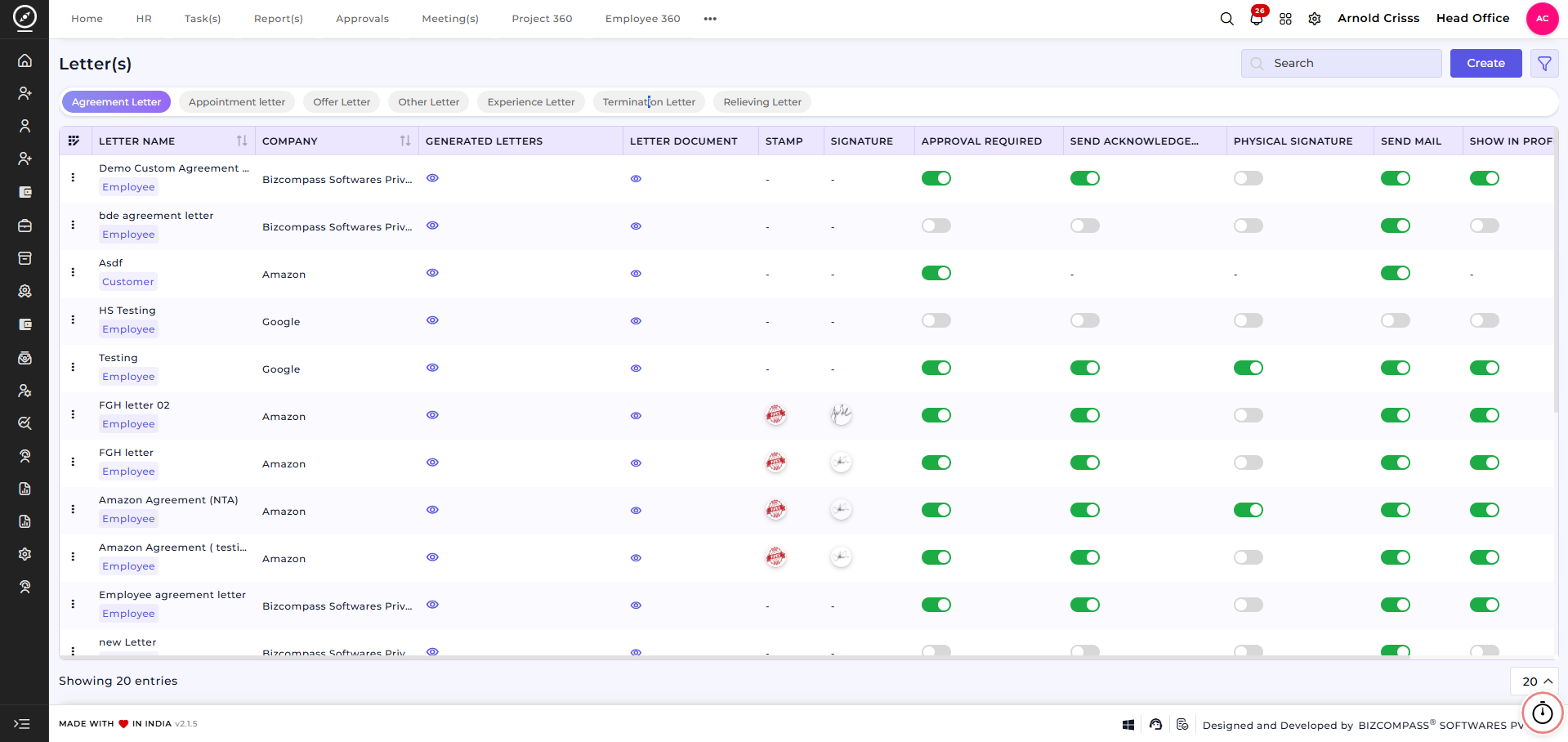
Create Letter:
Letter Configuration:
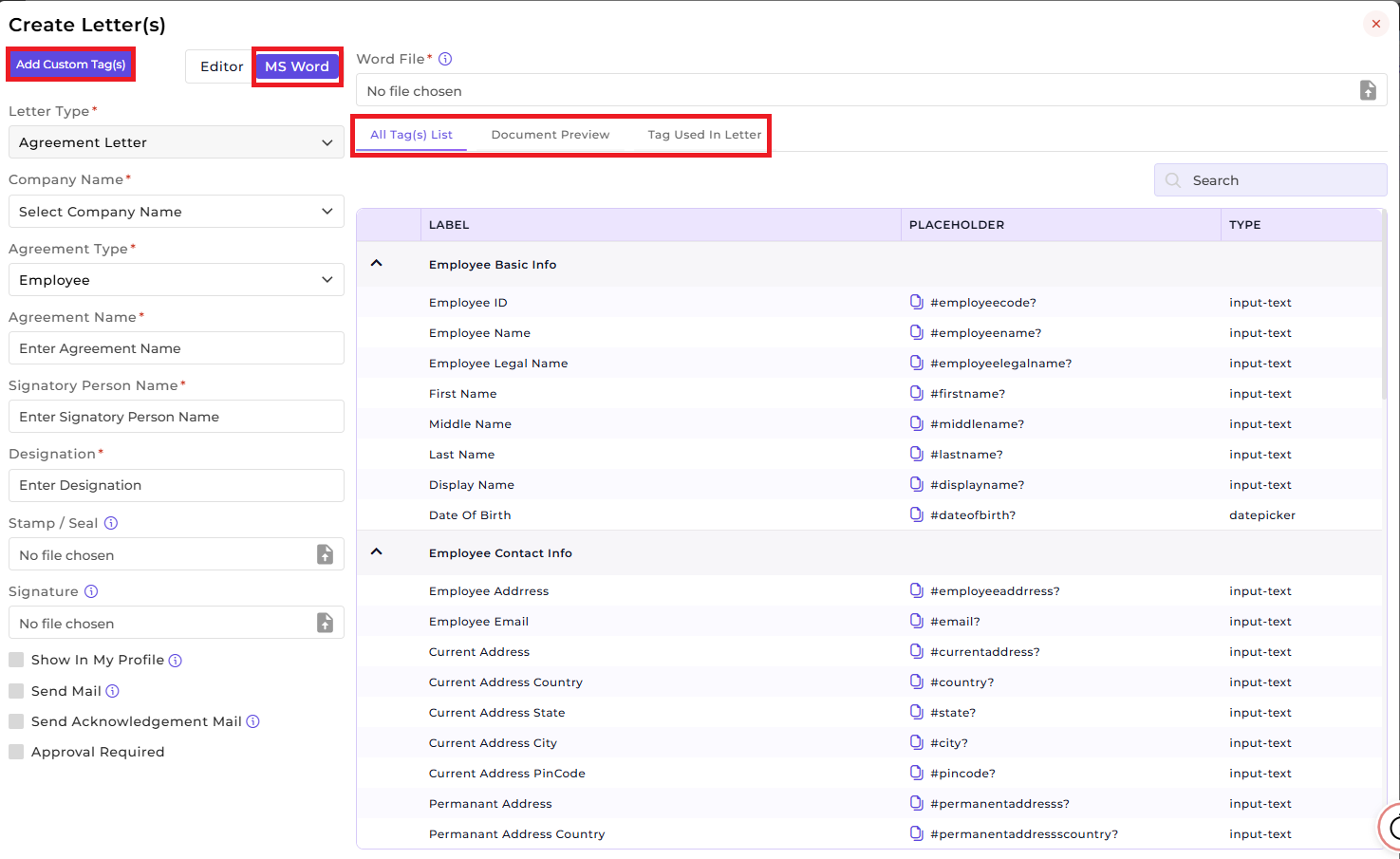
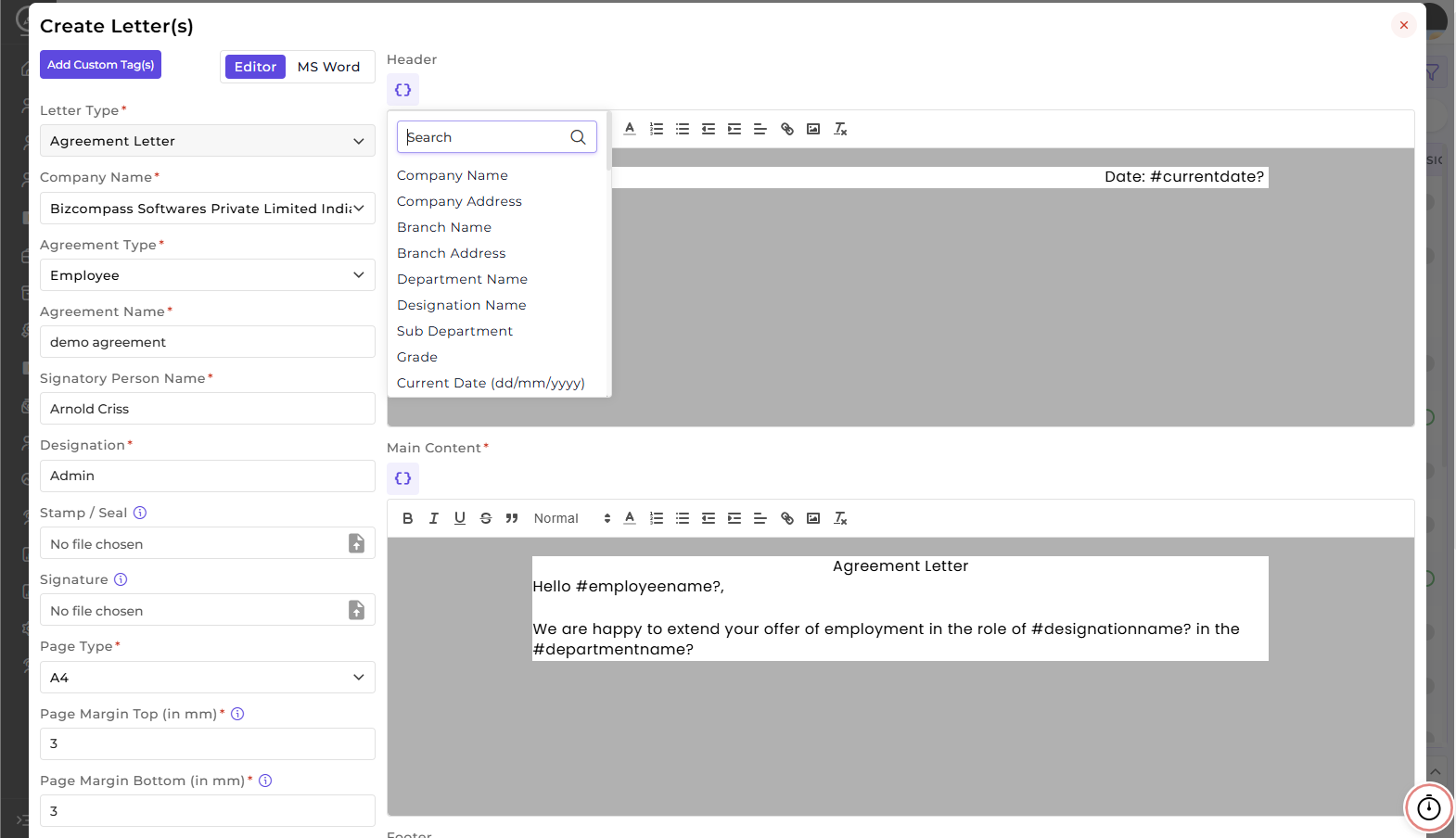
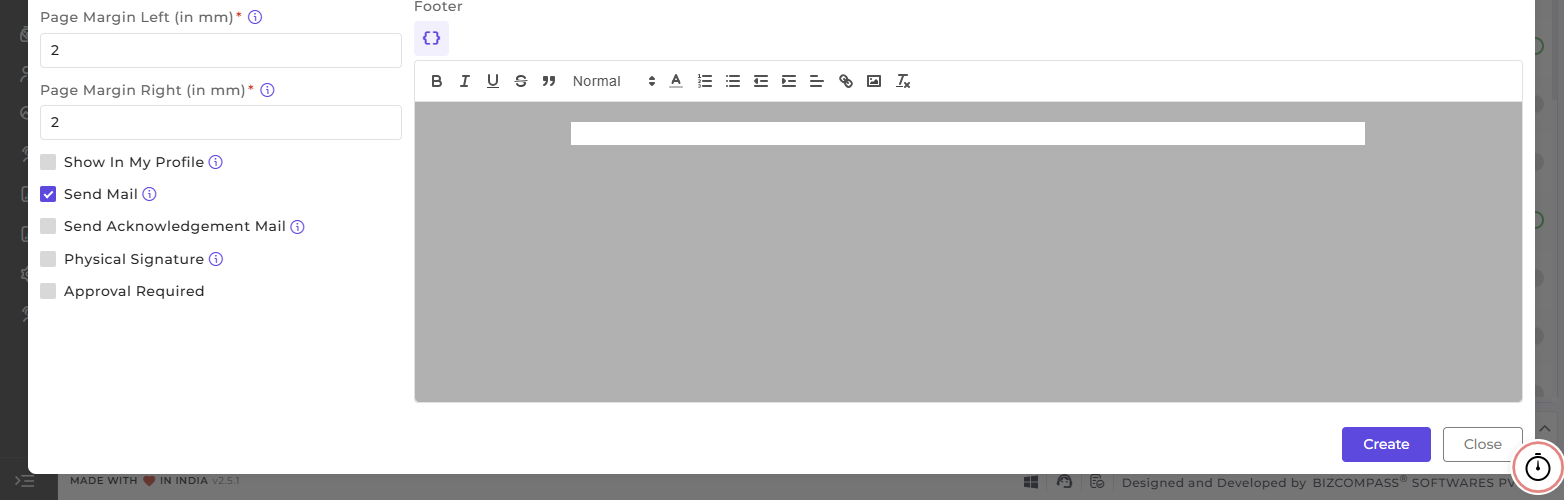
TheLetter Type(Agreement Letter) will be displayed by default when you click on theCreatebutton in the Agreement Letter section.Choose theCompany Namefor which the letter is created.Select theAgreement Type(Employee).Enter a uniqueAgreement / Letter Name.Specify theSignatory Person NameandDesignation.Upload an officialStamp / Seal.Upload the authorizedSignature.Select thePage Type(e.g., A4).ConfigureTop, Bottom, Left, and Right Margins(in mm).Enable the optionShow In My Profileif you want that letter to be displayed in the employee's profile section if required.Enable the optionSend Mailif this letter document should be sent via mail if required.Enable the optionSend Acknowledgement Mailif you want the letter to be acknowledged by the employee.Enable the optionPhysical Signatureis you want to include space for physical signature and stamp in the letter (which will always appear on the bottom right side of the letter).Enable the optionApproval Requiredif you want the letter to be approved by the respective people of its approval hierarchy.
Note: These flag options differ for different types ofAgreement Type.For example, for the Agreement Type -Vendor, onlySend MailandApproval Requiredoptions are available.
Letter Content Setup (MS Word):
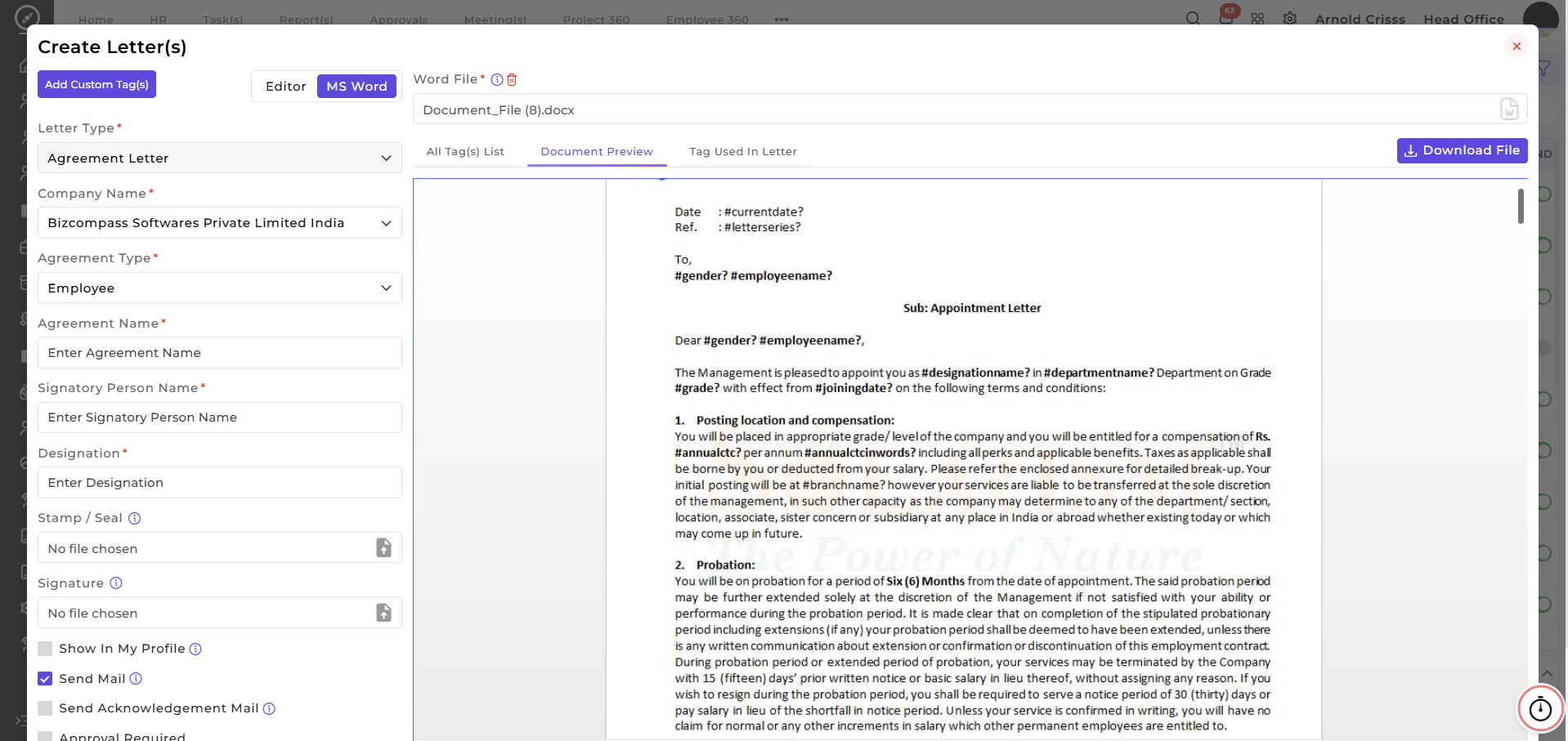
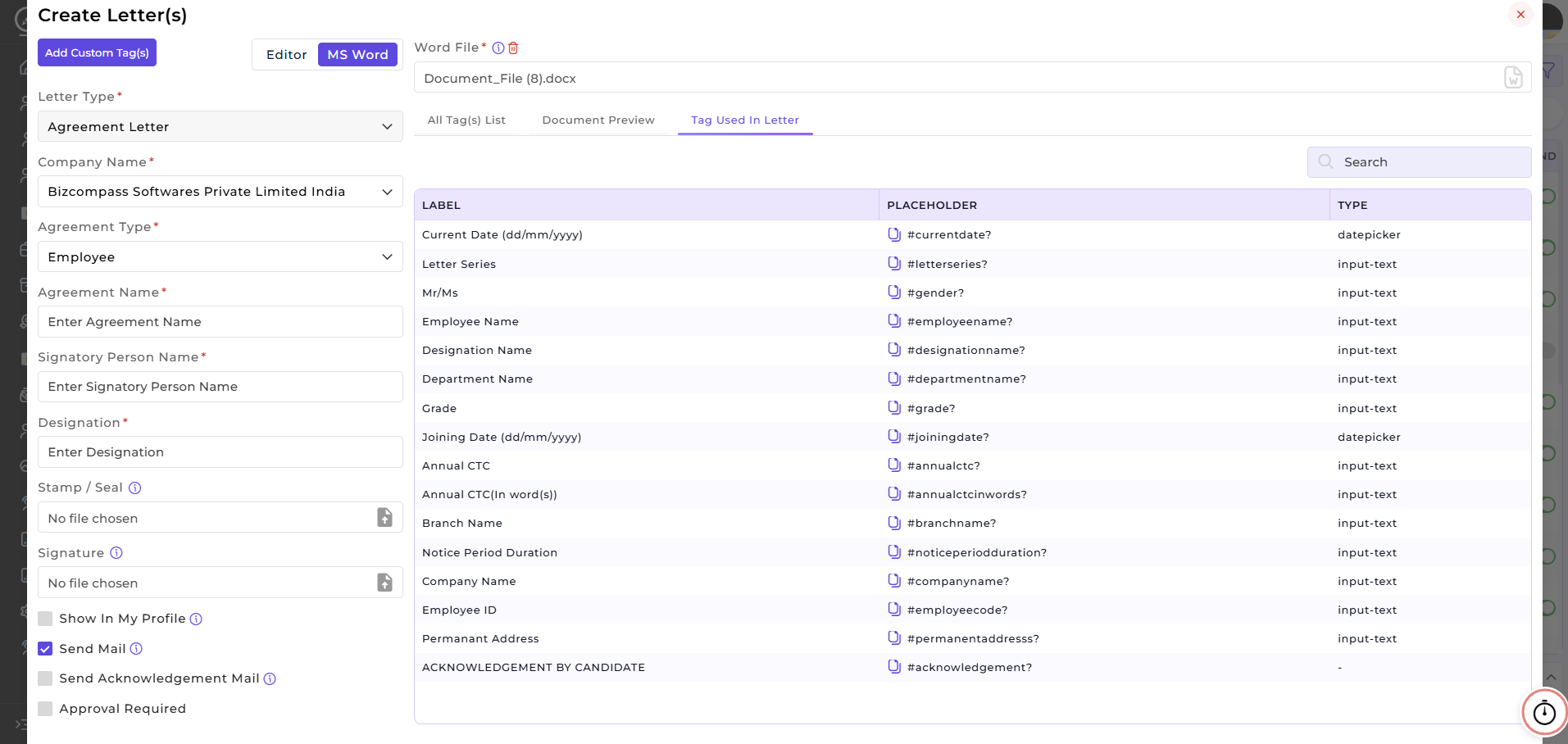
Once you select theAgreement Type, the pre-definedTag(s) Listwill be displayed according to the chosen type, allowing you to quickly use relevant tags for dynamic content.Upload yourWord filecontaining the letter template; the system will parse it and show aDocument Preview.You can viewTags Used in Letter, which highlights the tags already present in your uploaded document.Select or deselect tags to include only the ones relevant to this letter.UseCustom Tagsto add additional placeholders for employee, customer, or company-specific details that are not available in the pre-defined tag list.This setup allows you toautomate personalizationin your letters, ensuring each letter dynamically populates the correct information without manual editing.
Letter Content Setup (Editor):
Editor Features:
Header, Main Content, Footer:Design all sections of the letter with full flexibility.Rich Text Formatting:Applyfont styles,sizes,colors,alignment,lists,links, and other formatting options.Custom Tags:InsertDynamic Placeholdersto automatically populate employee-specific details likeName,Designation,Department,Joining Date, andCompany Name.Built-in Tags:Click the "{ }" icon to access standard tags for commonly used employee fields.
Use of Tags:
Note: For differentAgreement Types(Employee, Loan, Customer and Employee), personalized pre-defined tags are available (except forVendortype, which has no pre-defined tags), but you can still add custom tags in any agreement type.
This feature helps HR and Admin teams to automate letter generation and approvals and reduce manual documentation errors.
This feature is optional; if your company manages letters offline, you don't have to configure it.
=========================================
Letters
The Letters page is used to create and manage various types of official letters needed for the recruitment process, employee letter records, and the exit process. The organization can also issue letters in bulk for employees.
Letters are divided based on the letter type.
Letters for Recruitment / Onboarding Process
The following letters are commonly used during recruitment and onboarding:
Agreement Letter(Type: Employee)Appointment LetterOffer LetterOther Letter
Letters for Exit ProcedureProcedure:
The following letters are used during the employee exit process:
-
Experience Letter
-
Termination Letter
-
Relieving Letter
OtherExperience Letter:
- An Experience Letter is sent during the Send Experience Letter stage of the exit procedure to the selected employee by checking the Send Experience Letter option while configuring the Exit Procedure Flow.
Termination Letter:
- A Termination Letter is sent to an employee while initiating his/her exit procedure from the Employee Master page.
Relieving Letter:
- A Relieving Letter is sent during the Send Relieving Letter stage of the exit procedure to the selected employee by checking the Send Relieving Letter option while configuring the Exit Procedure Flow.
These letters can be used in both the recruitment flow and the exit procedure flow.flow.
Letter CreationCreation:
For recruitment letters, some additional options are available compared to exit letters.
Apart from these additional options, the overall functionality remains the same for all letter types.
Common ConfigurationConfiguration:
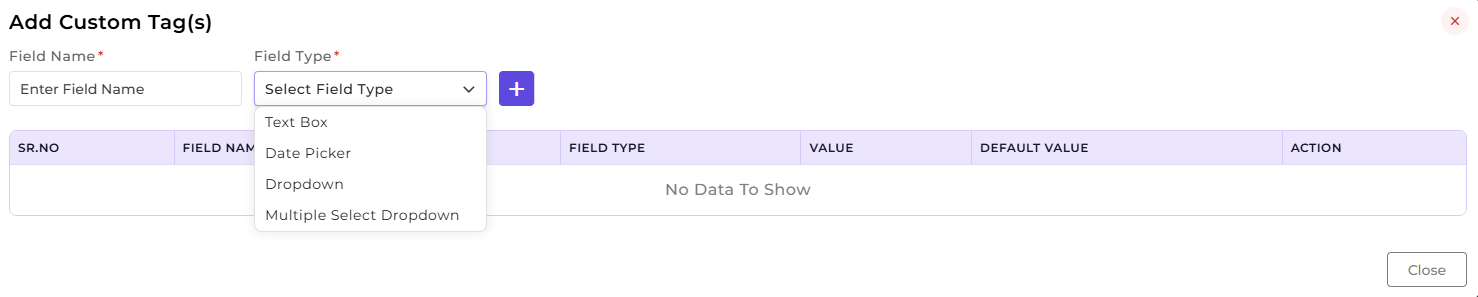
1. Add Custom Tag(s):
If the organization wants to use custom tags instead of the default Bizcompass tags, custom tags can be created.
While creating a custom tag, two fields must be defined:
-
Name of Tag
-
Field Type
The available field types are:
Text BoxBox:
-
The value can be entered during letter generation
-
A default value can also be defined while creating the tag
Date PickerPicker:
-
Works similar to the Text Box
-
A date can be selected during generation
-
A default date value can also be defined
DropdownDropdown:
-
Multiple values can be added using comma-separated entries
-
One value can be set as the default option
Multiple Select DropdownDropdown:
-
Similar to Dropdown
-
Multiple options can be selected
-
Multiple default values can also be defined
After creating the tag, it becomes visible in the Tag column in the table.
From there, the tag can be:
-
Copied and used while adding content in the header, body, or footer
-
Selected directly from the custom tag selection option
2. Left Side Options (Common Fields):
The following fields are available while creating a letter:
-
SelectCompany for which the letter is created -
Letter Type and Letter Name
-
Signatory Person Name
and
Signatory PersonDesignation-
Upload Company Stamp/Seal (used during letter generation)
-
Upload Signature (used during letter generation)
Visibility OptionsOptions:
-
Show
inIn MyProfileProfile:
Enables the letter to be visible in the employee's My Profile section -
Send
EmailMail:
Sends the generated letter via email
Acknowledgement OptionsOptions:
If the organization wants the candidate or employee to acknowledge the letter, select:
- Send Acknowledgement
MailMail:If this option is selected, the Acknowledgement By Candidate tag can be used to send the acknowledgement email.
The candidate or employee can acknowledge the letter by:
-
Uploading a signature, or
-
Signing manually using a device such
asas:- Mobile,
- PC,
LaptopMobileor PCLaptopTablet
- PC,
Physical SignatureSignature:
If the organization wants to provide blank space for physical signatures, select:
Physicalit. Signature
ThisIt creates empty space where the employee or candidate can physically sign the printed letter.
NoteNote:This option is available only in Editor Mode.
In MS Word Mode, blank space can be added manually in the document.
If Physical Signature is enabled:
Approval RequiredRequired:
If the letter requires approval before being finalized, enable:
Approvalit. Required
Once enabled, the generated letter will go through the approval process.
Approval works as follows:
-
If an approval hierarchy is defined, the system follows that hierarchy.
-
If no hierarchy exists, the system follows:
-
Reporting To approval
-
Then Approve To approval
-
Agreement Letter Types
Agreement Letters support four types:
EmployeeNote:–TheseUsedflag options differ foremployeedifferentortypescandidateofagreementsAgreement(recruitmentType. For example, for the Agreement Type - Vendor, only Send Mail andexitApprovalprocess)Required options are available.Employee Loan– Used for loan-related agreementsCustomer– Used for agreements with customersVendor– Used for agreements with vendors
For Employee, Employee Loan, and Customer types, the system provides tags that are replaced with values during letter generation.
Letter Creation ModesModes:
Letters can be created using two different modes:
-
Editor Mode
-
MS Word Mode
1. MS Word Mode:
In MS Word Mode, a prepared Word document template can be uploaded.
Steps:
-
Select MS Word Mode
-
Upload the prepared Word document
-
Use the tag selection list below the upload option
-
Copy the required tag and paste it into the Word document where the value should appear
During letter generation, the system automatically replaces the tag with the actual value.
Tag Usage Example:
Example: If the organization wants to display the candidate or employee name, place the corresponding tag at that position in the letter.
Hello #employeename?,During letter generation, the tag #employeename? will automatically be replaced with the actual employee name. Many tags are available depending on the letter type.
Specific Tags Based on Letter Type:
Document Tag:
- Available only for Agreement Letter (Employee).
Salary Structure Tags:
-
Salary Structure
-
Salary Structure Without Date
-
Salary Structure Without Deduction
-
Salary Structure Without Contribution
Salary and Financial Tags:
-
Salary Breakup
-
Salary Certificate
-
Increment Salary Month
-
Annual Gross
-
Annual Total Deductions
-
Annual Net Salary
-
Financial Year
Note: For different Agreement Types (Employee, Loan, Customer and Employee), personalized pre-defined tags are available (except for Vendor type, which has no pre-defined tags), but you can still add custom tags in any agreement type.
2. Editor Mode:
In Editor Mode, the letter format is created directly inside Bizcompass using three sections:
Page SettingsSettings:
The following page settings are available:
-
Set page margins (in mm)
-
Enable Physical Signature if blank space is required
-
Select Page Type
Available page types include:
-
A4
-
A3
-
A5
-
Legal
-
Letter
-
Ledger
Images can also be uploaded in:
If additional spacing is required, it can be created using Enter or Space in the header or footer sections.
Text Formatting OptionsOptions:
The editor includes several formatting tools:
-
B – Bold
-
I – Italic
-
U – Underline
-
S – Strikethrough
-
“ – Blockquote
Other formatting options include:
-
Text size selection
-
Font color selection
-
Numbering and bullet lists
-
Increase/decrease indentation
-
Text alignment
-
Hyperlink insertion (write the text first, then apply the link)
Images can be added using:
-
Image picker
-
Drag and drop
-
Copy and paste
A Remove All Formatting option is also available.
MS Word Mode
In MS Word Mode, a prepared Word document template can be uploaded.
Steps:
SelectThisMSfeatureWordisModeoptional; if your company manages letters offline, you don't have to configure it.Upload theprepared Word documentUse thetag selection listbelow the upload optionCopy the required tag and paste it into the Word document where the value should appear
During letter generation, the system automatically replaces the tag with the actual value.
Tag Usage Example
Example:
If the organization wants to display the candidate or employee name, place the corresponding tag at that position in the letter.
Example:
Hello #employeename?During letter generation, the tag #employeename? will automatically be replaced with the actual employee name.
Specific Tags Based on Letter Type
Document Tag
Available only for Agreement Letter (Employee).
Salary Structure Tags
Salary StructureSalary Structure Without DateSalary Structure Without DeductionSalary Structure Without Contribution
Salary and Financial Tags
Salary BreakupSalary CertificateIncrement Salary MonthAnnual GrossAnnual Total DeductionsAnnual Net SalaryFinancial Year