
Placement Drive
The Placement Drive page is used to create and manage recruitment drives conducted for specific institutes, campuses, or locations.locations It helps organizations share the application link to plan, execute, and track hiring drives efficiently by capturing all drive-related details infrom one place. page.
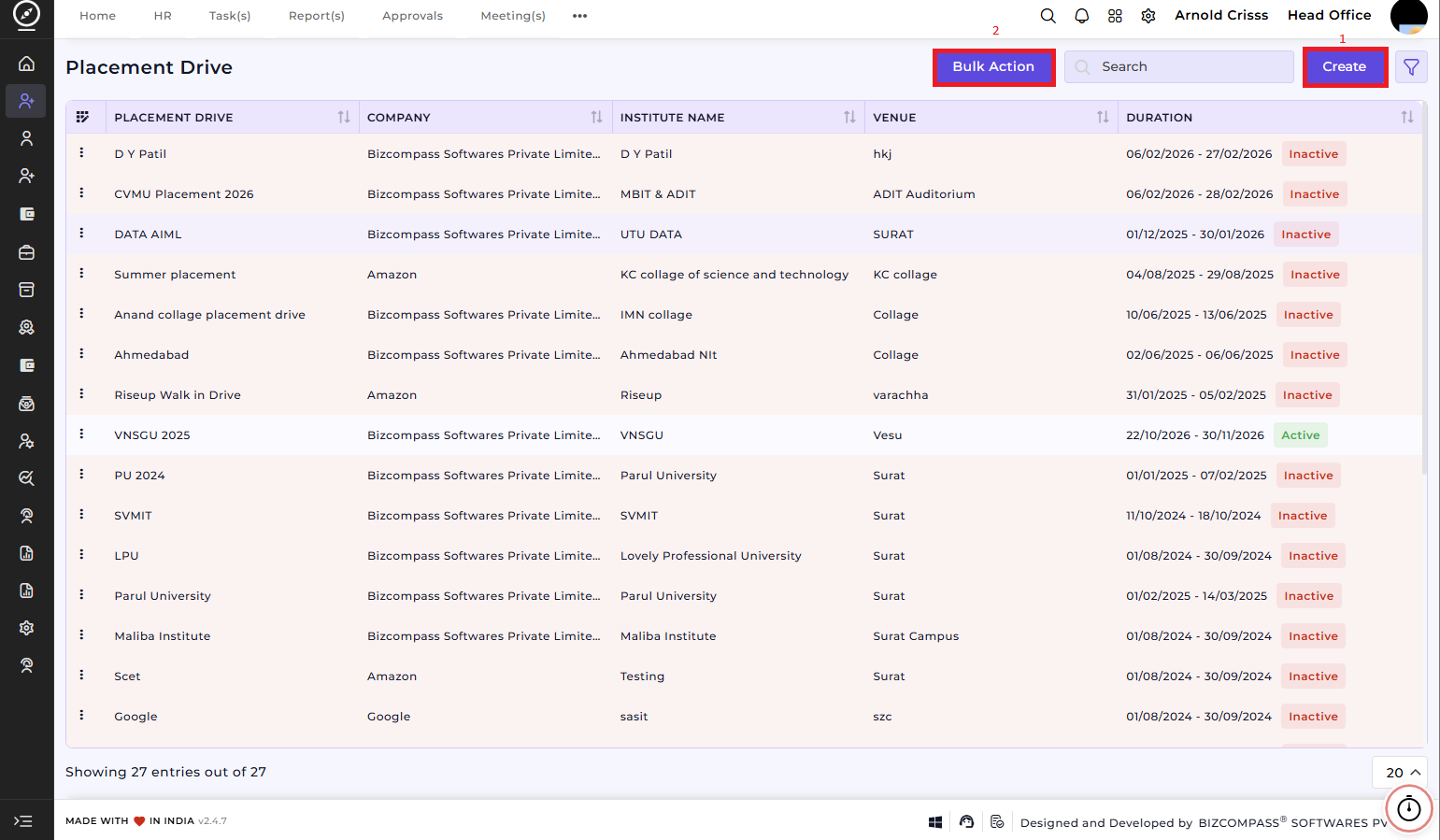
1) Create Placement Drive:
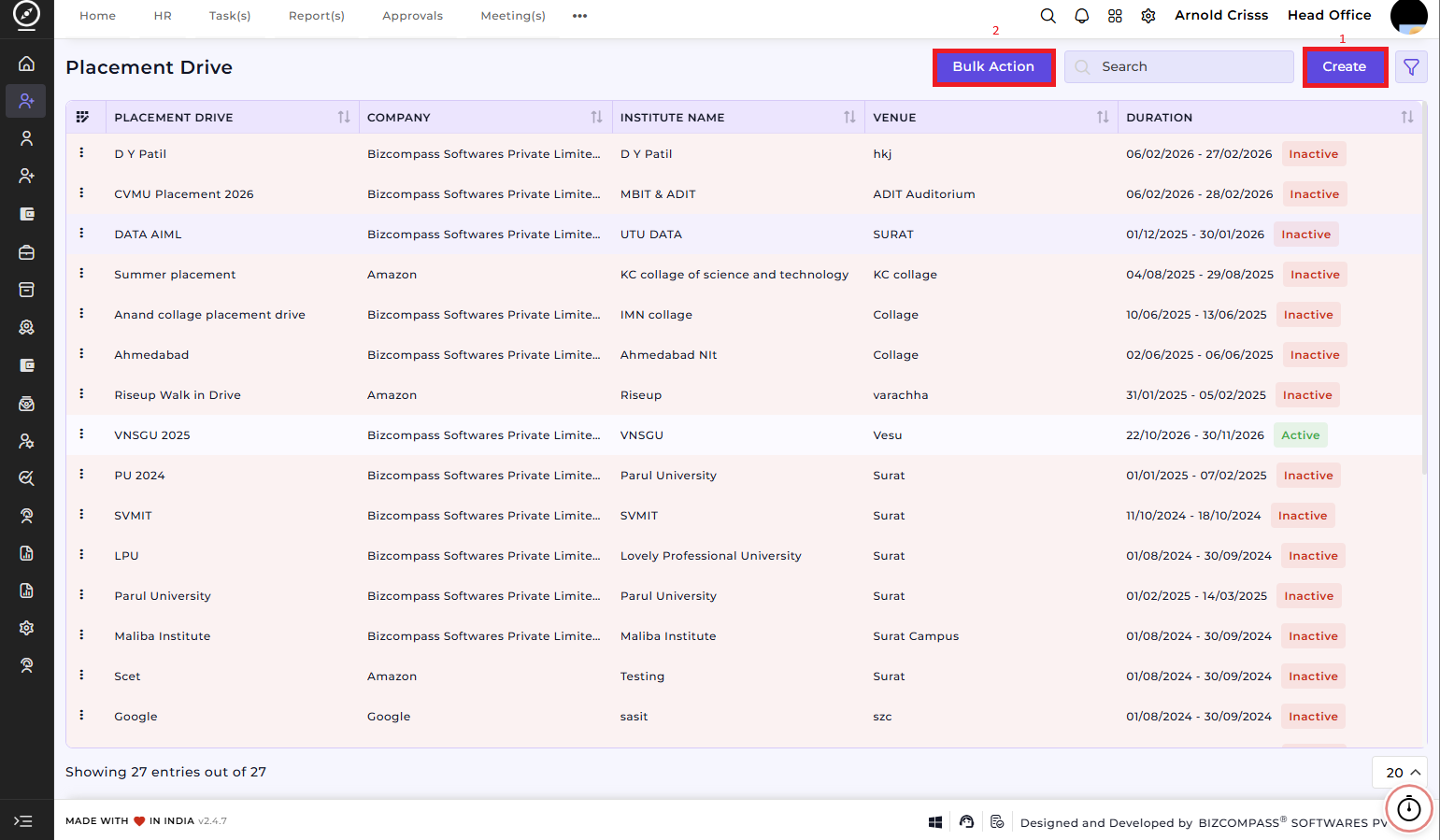
This section is used to capture the basic and logistical details of a placement drive.
- Enter the Placement Drive Name.
- Select the Company Name conducting the drive.
- Enter the Institute Name where the drive is conducted.
- Upload the Institute Logo (optional).
- Select the assigned Recruiter(s) responsible for the drive.
- Choose the Candidate Entry By method (Manual Entry, Embedded Form, Bulk Upload, etc.).
- Select the Country, State, and City of the drive location.
- Enter the Venue details.
- Define the Duration of the placement drive (start and end date).
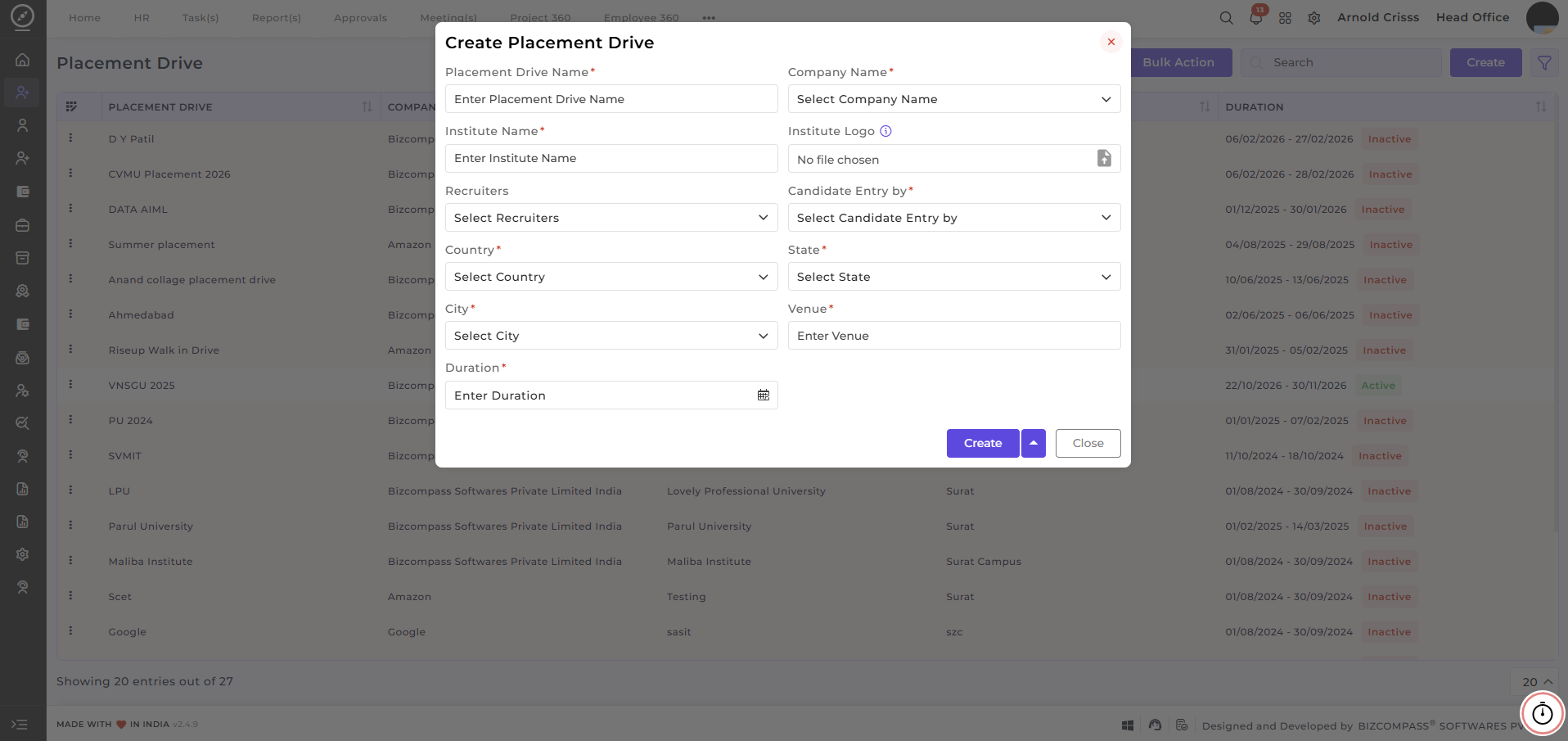
2) Bulk Action:
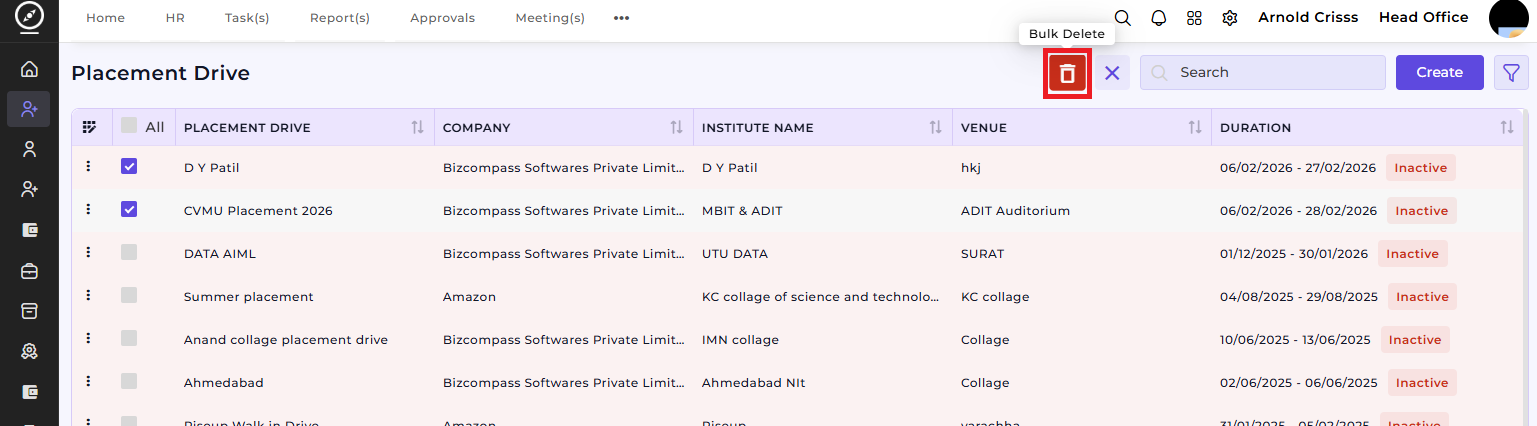
With the Bulk Action feature, you can delete multiple placement drives at once, streamlining the process of managing and maintaining the active placement drives.
Sharing the Placement Drive Link:
After creating a placement drive, HRs and Admins can share the Placement Drive Link with the relevant institutions by clicking on the three dot button beside the Placement Drive Name.
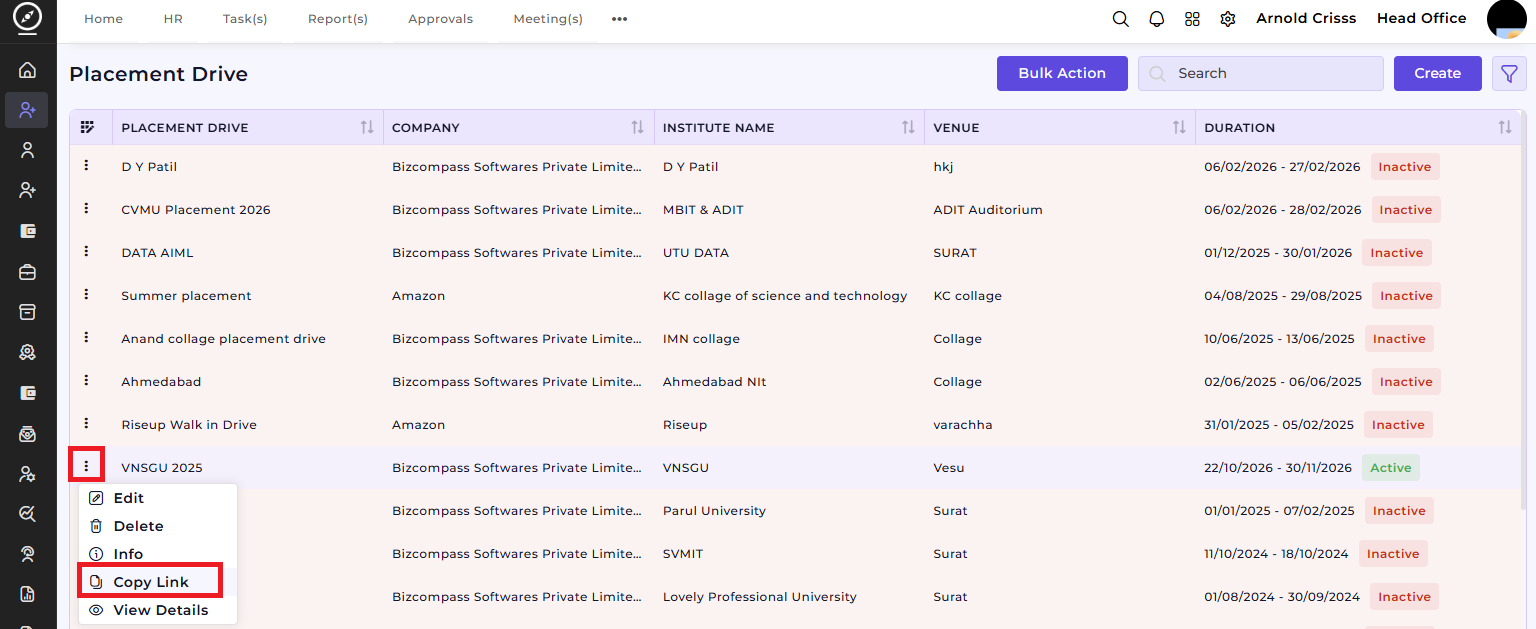
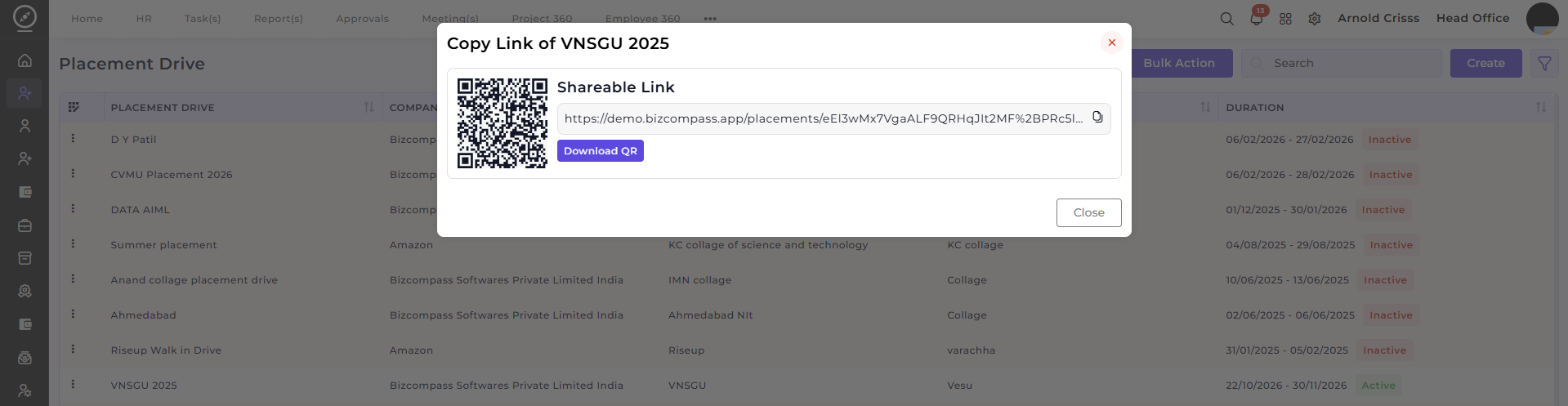
Here's what will be displayed after opening the link:
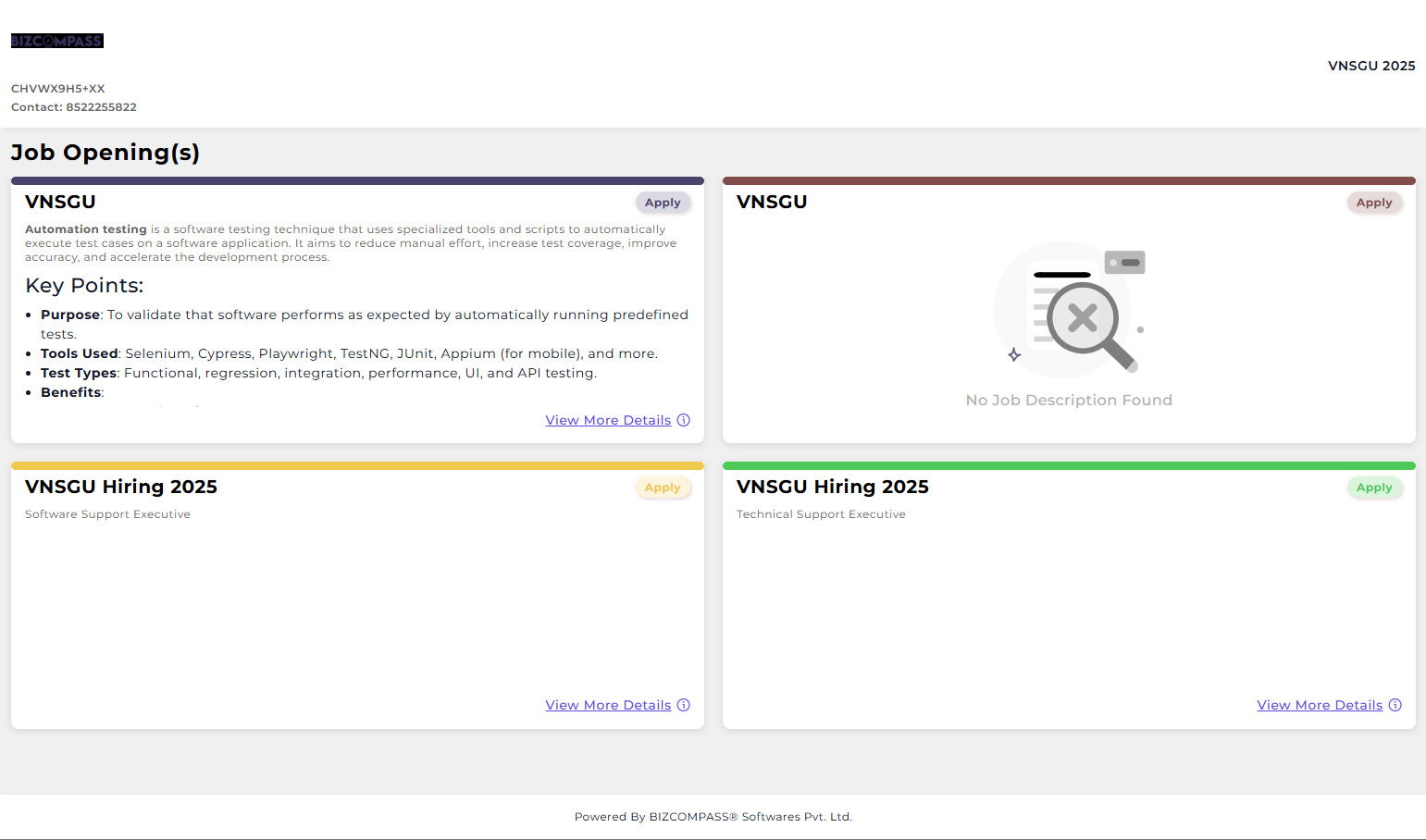
The Placement Drive feature ensures that all campus or bulk hiring drives are planned and managed in a structured and centralized manner. It helps Recruiters to organize and manage multiple placement drives efficiently and assign recruiters and define responsibilities clearly.
Once a Placement Drive is created, it can be used for:
-
Capturing candidate inquiries specific to the drive
-
Converting inquiries into full Candidate profiles.