
Placement
The Placement featurepage is used to manage job placements created under a specific placement drive.drive. It allows recruiters to define job-specific details, required skills, interview stages, salary structure, and assessment criteria for candidates.
Each placement acts as a link between a placement drive and job opening, whose link can be shared to relevant institutions by HRs or Admins, enabling structured candidate evaluation and selection.
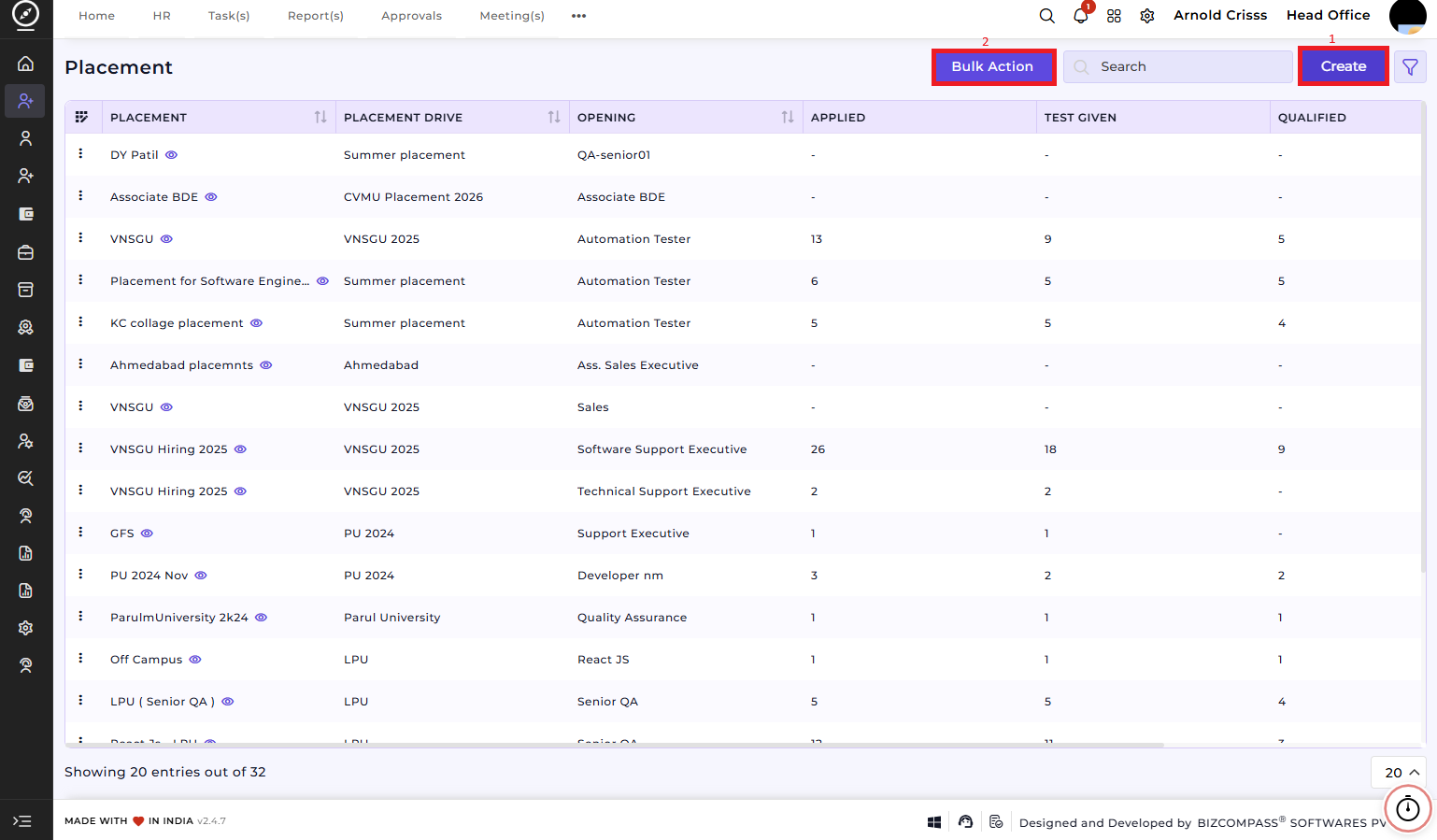
Overview:
On this page, you can create a New Placement by defining job details, interview configuration, salary information, and aptitude test settings.
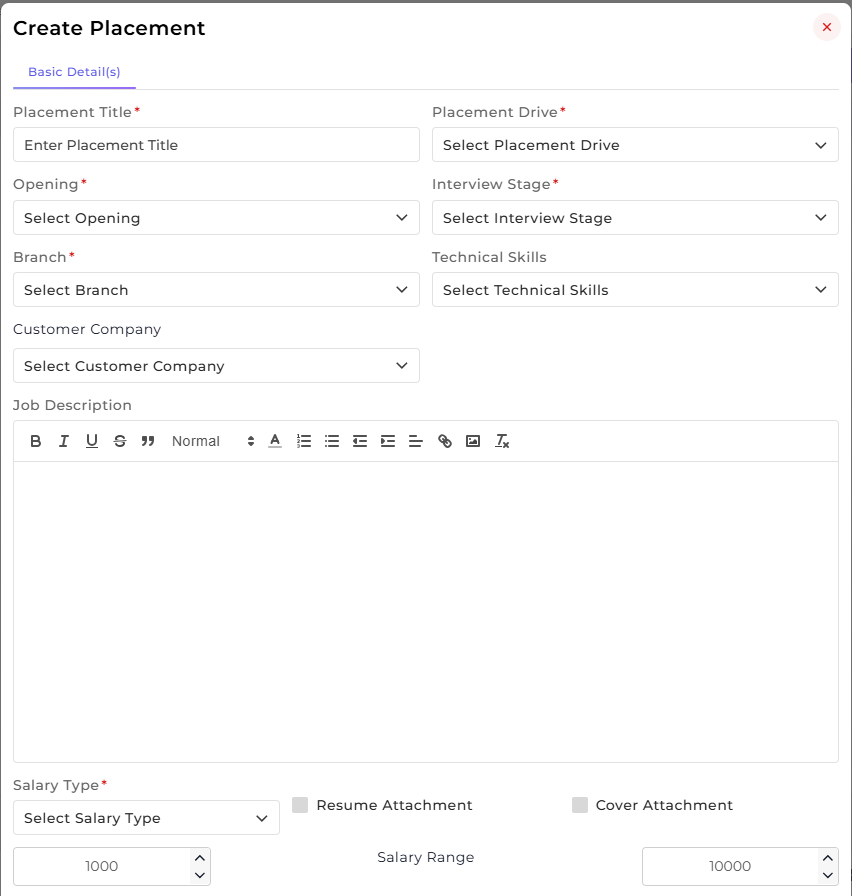
1) Create Placement:
This section is used to capture the placement’s basic job and evaluation-related details.
-
Enter the Placement Title.
-
Select the associated Placement Drive.
-
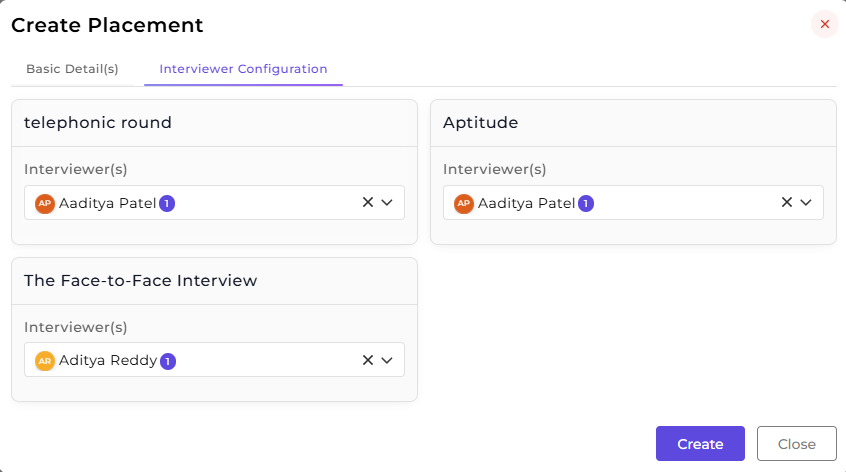
Once you choose the Opening, the Interview Stages, Technical Skills and Salary Range configured for that opening will be automatically fetched and can be edited. Also, a new section Interview Configuration will appear next to the Basic Details section. That section will show default interviewer(s) configuration or a pre-set configuration. You can edit that configuration from here as well as while designing the Interview Procedure Flow for that Opening.
-
Select the Branch where the placement applies.
-
Select the applicable Interview Stage.
-
Add or crate required Technical Skills.
-
Select the Customer Company (if applicable).
-
Enter the Job Description.
-
Define the Salary Type and Salary Range.
-
Enable Resume Attachment and Cover Attachment if required.
This section defines the core job requirements and links the placement to the appropriate drive and opening.
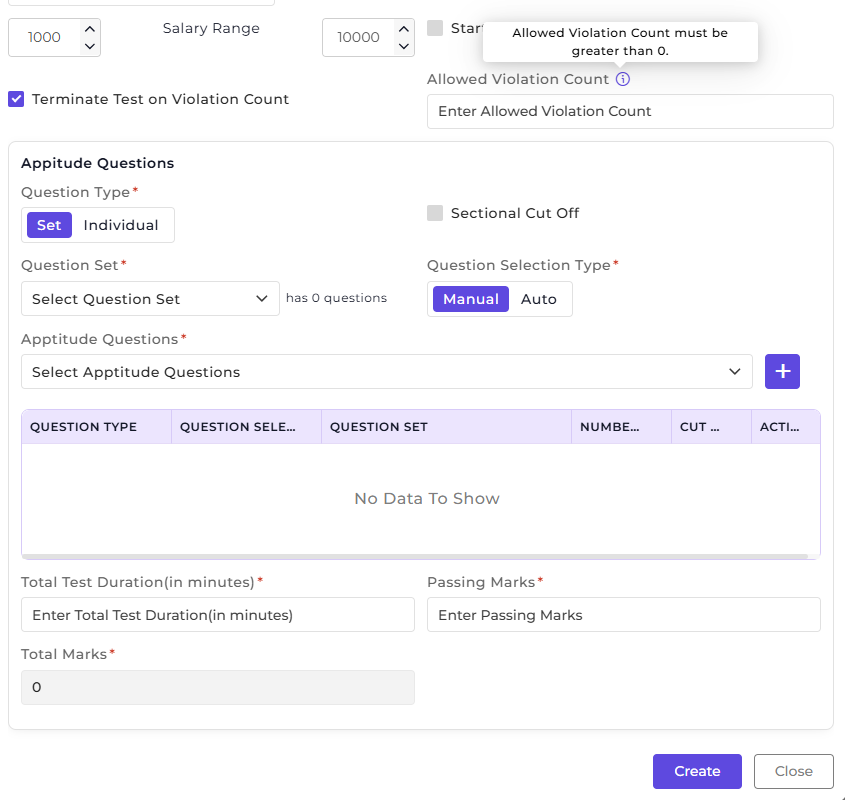
Aptitude Questions:
This section is used to configure aptitude or assessment tests associated with the placement.
-
Select the Question Type (Set or Individual).
-
Choose the Question Set or specific Aptitude Questions.
-
Select the Question Selection Type (Manual or Auto).
-
Enable Sectional Cut-Off if applicable.
-
Define Total Test Duration (in minutes).
-
Enter Total Marks and Passing Marks.
-
Enable options to Start Test or Terminate Test on Violation Count if required.
This helps standardize candidate evaluation during the placement process.
2) Bulk Action:
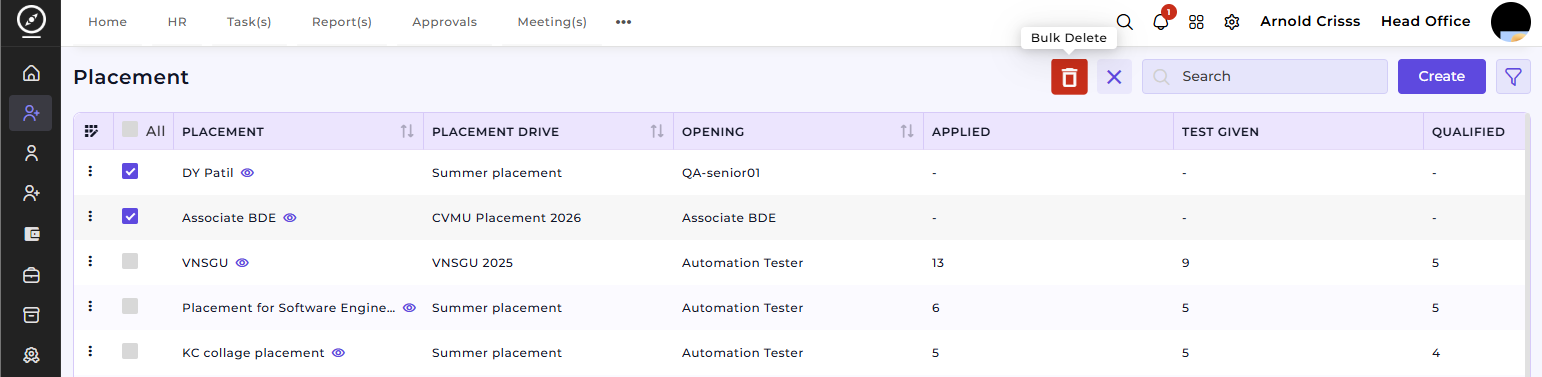
With the Bulk Action feature, you can delete multiple placements at once, streamlining the process of managing and maintaining the active placements.
Sharing the Placement Link:
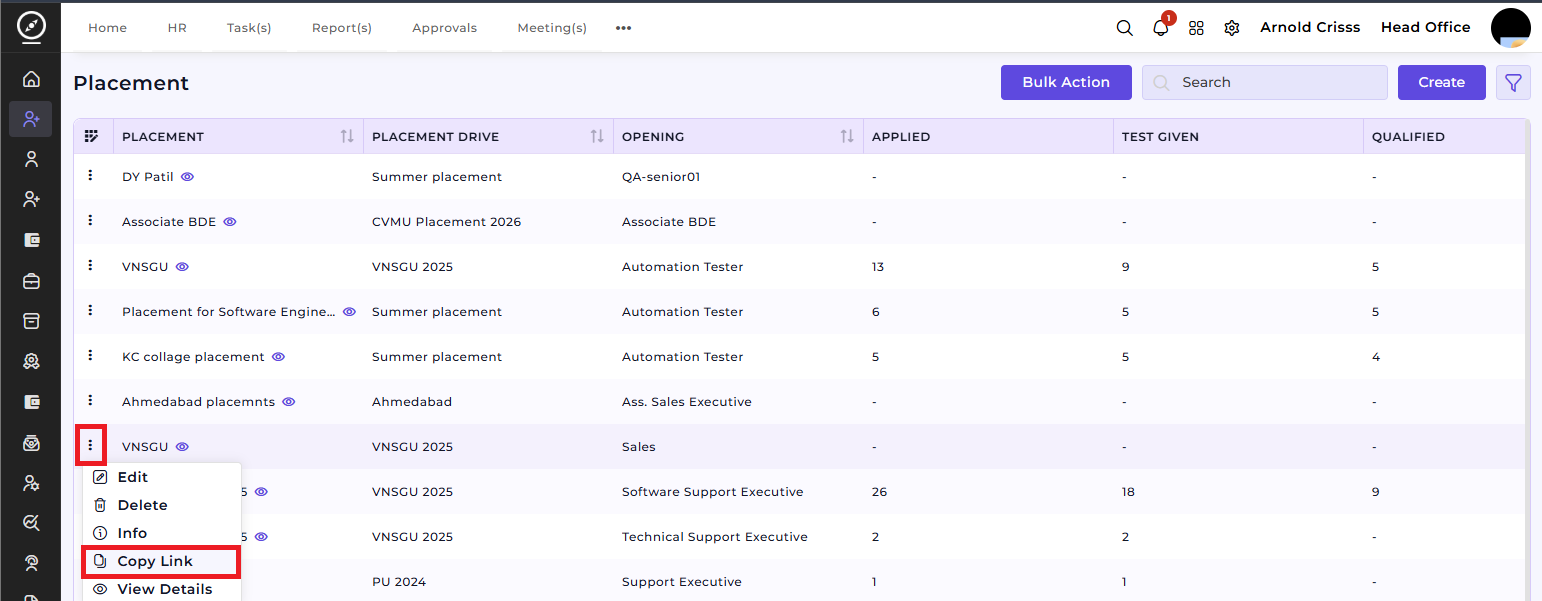
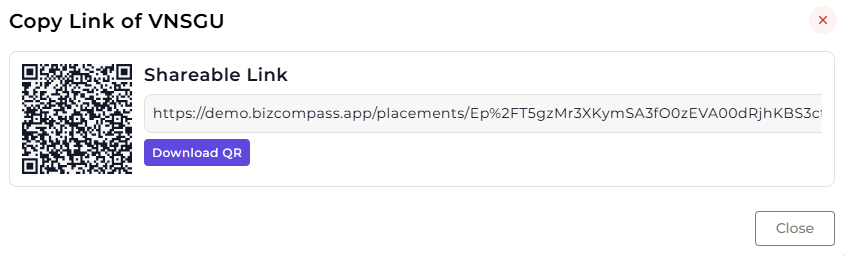
After creating a placement drive, HRs and Admins can share the Placement Link with the relevant institutions by clicking on the three dot button beside the Placement Name.
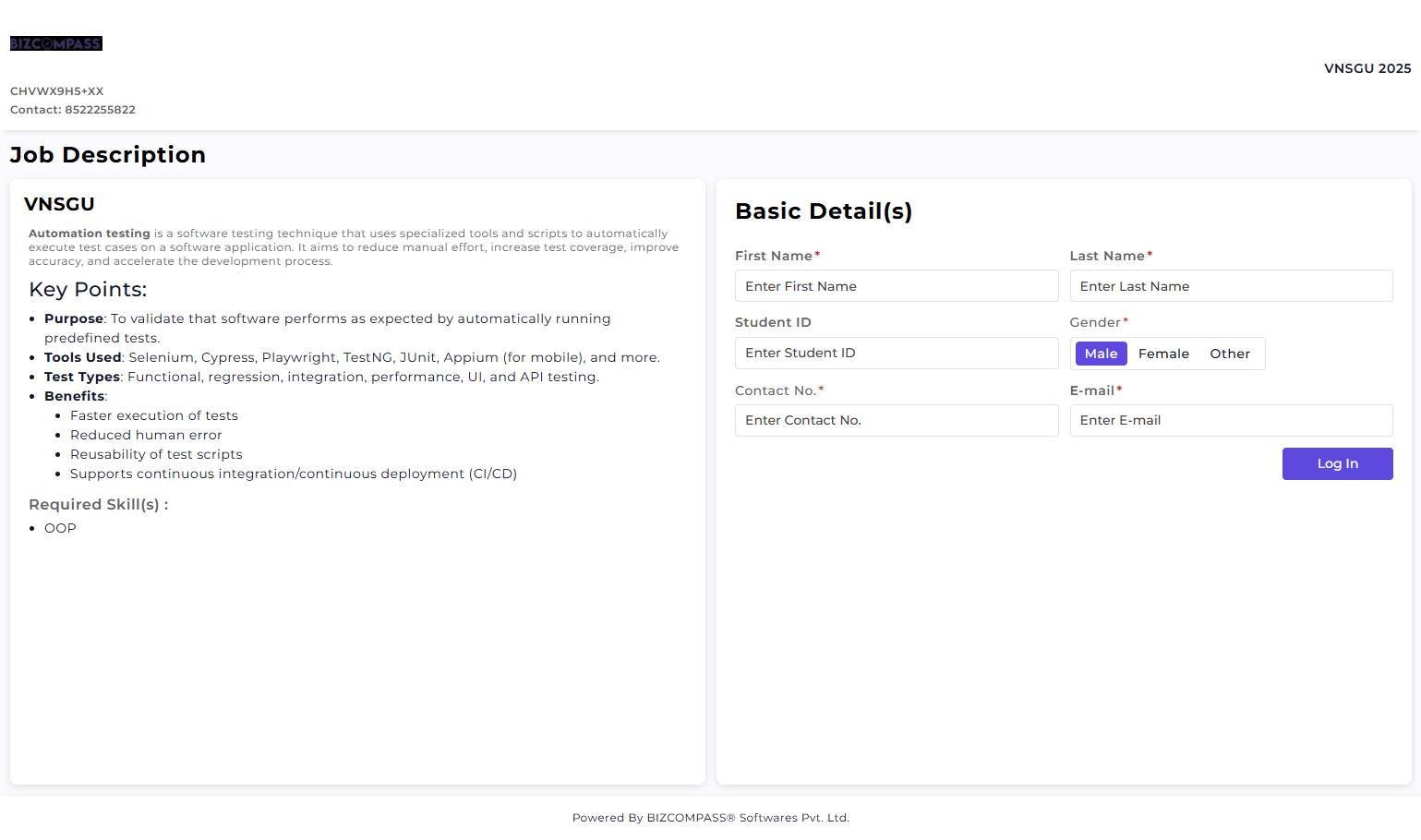
Here's what will be displayed after opening the link:
How this feature helps:
The Placement feature ensures that job roles within a placement drive are clearly defined and evaluated using consistent criteria.
It helps Recruiters to:
Createcreate structured job placements under specific placementdrivesdrives.Define job requirements, skills, and interview stages clearlyConfigure aptitude tests for objective candidate assessmentMaintain consistency in screening and evaluation processes
Once a Placement is created, it can be used for:
Assigning candidates to specific job rolesConducting skill-based and aptitude-based evaluationsTracking candidate progress across interview stagesSupporting placement-wise recruitment decisions
This ensures that placement activities are organized, measurable, and aligned with hiring requirements across the recruitment lifecycle.