Project Release
From this page, you can create and manage project releases. A release is used to document and track a versioned delivery of a project, capturing what was released, on which platform, and when.
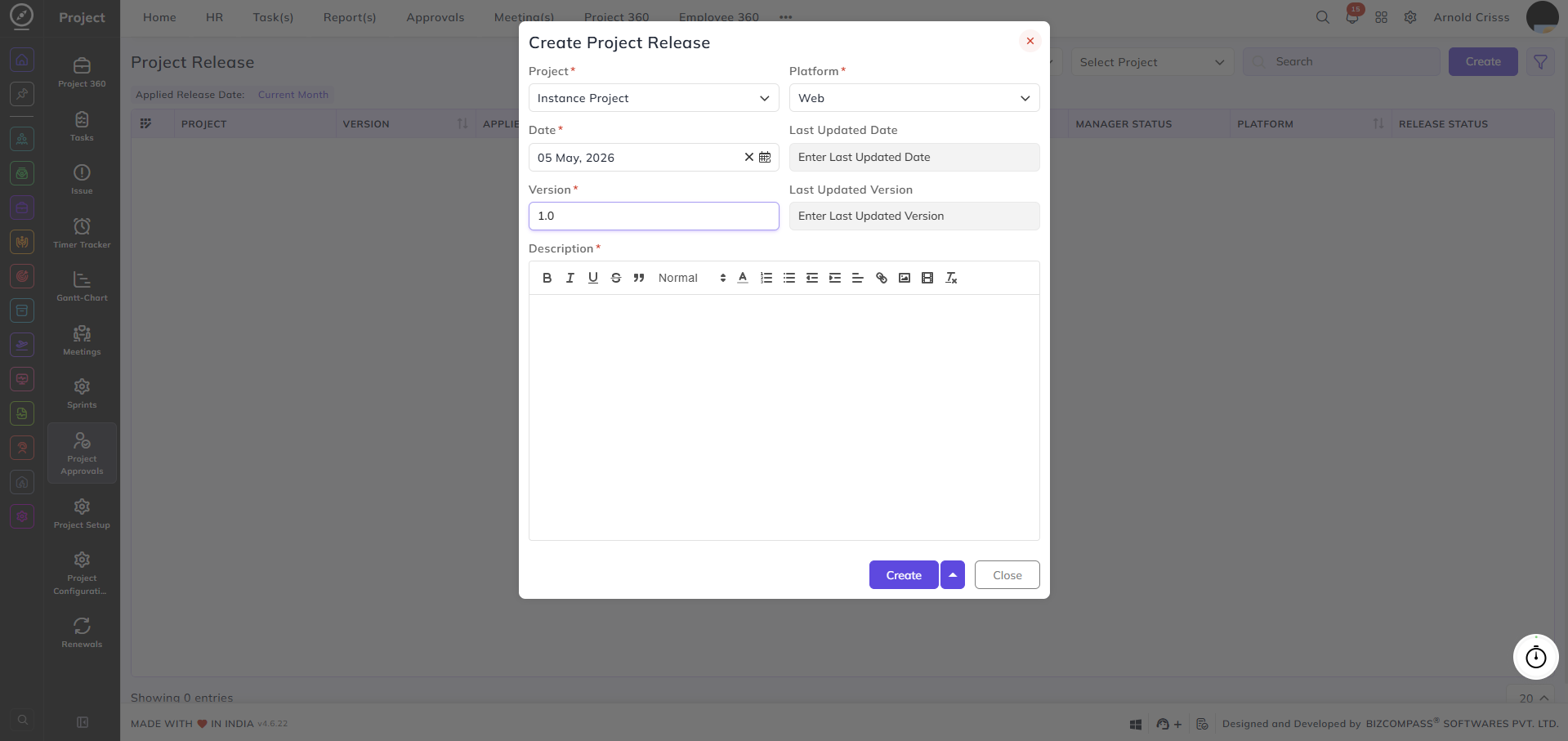
Project:
Select the project this release belongs to.
Platform:
Select the platform this project is associated with (e.g., Web).
Date:
Set the release date.
Version:
Enter the version number for this release (e.g., 1.0).
Last Updated Date:
Enter the date on which the release was last updated.
Last Updated Version:
Enter the version number from the last update.
Note: The Last Updated Date and Version fields are only applicable when updating an existing release and can be left empty when creating a release for the first time.
Description:
Add a detailed description of the release using the rich text editor.
Approving a Project Release:
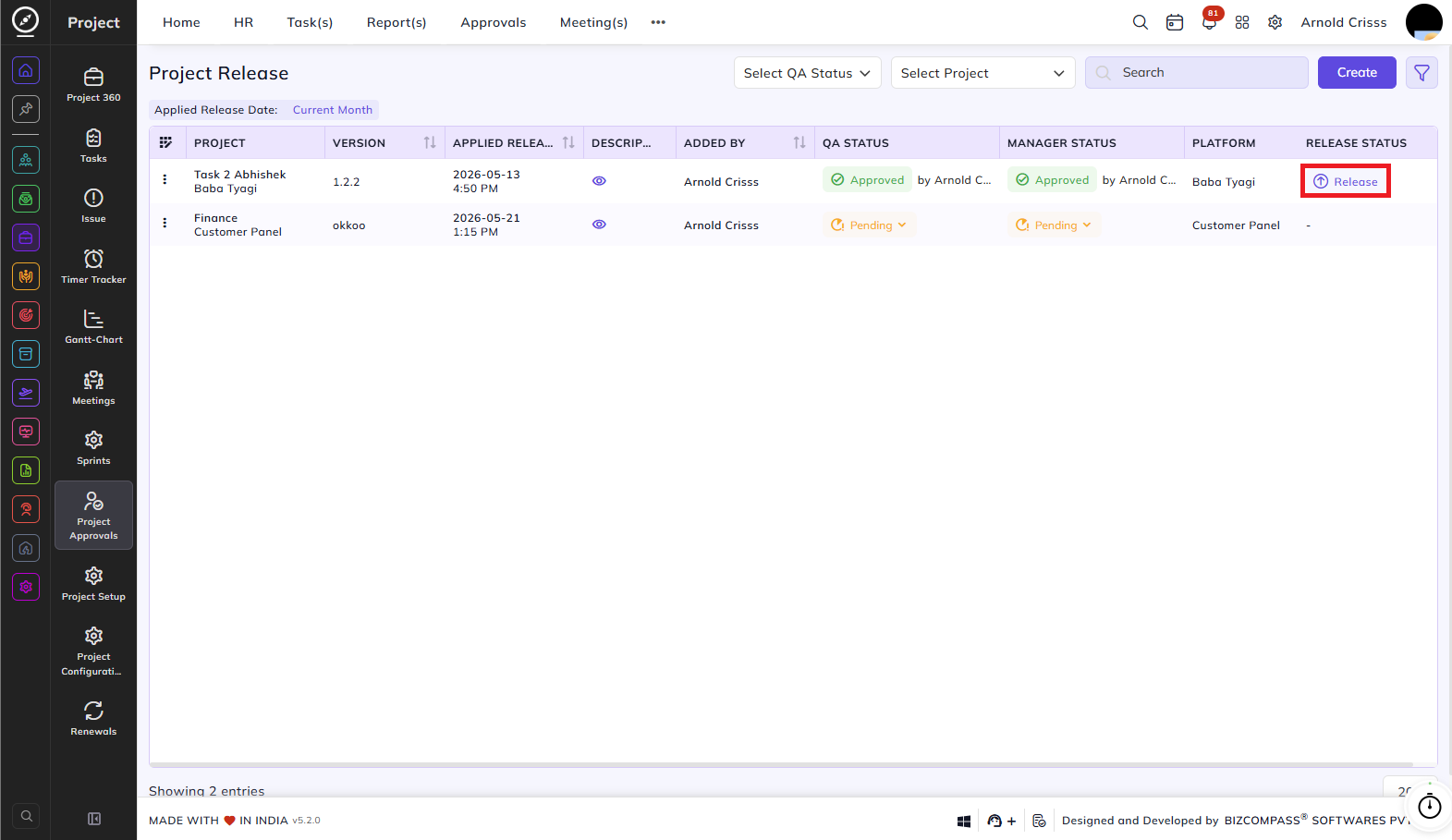
Use the QA Status and Project dropdowns to filter the list. Click the filter icon to access additional filters including Project, Version, QA Status, Manager Status, Platform, and Applied Release Date.
Table Columns:
Each release entry displays the following details:
- Project – The name of the project being released.
- Version – The version number of the release.
- Applied Release Date – The date and time the release was applied.
- Description – A view icon to read the release description.
- Added By – The person who submitted the release request.
- QA Status – The QA team's approval status — Approved (with the approver's name) or Pending (with a dropdown to update).
- Manager Status – The manager's approval status — Approved or Pending (with a dropdown to update).
- Platform – The platform the release is targeted for.
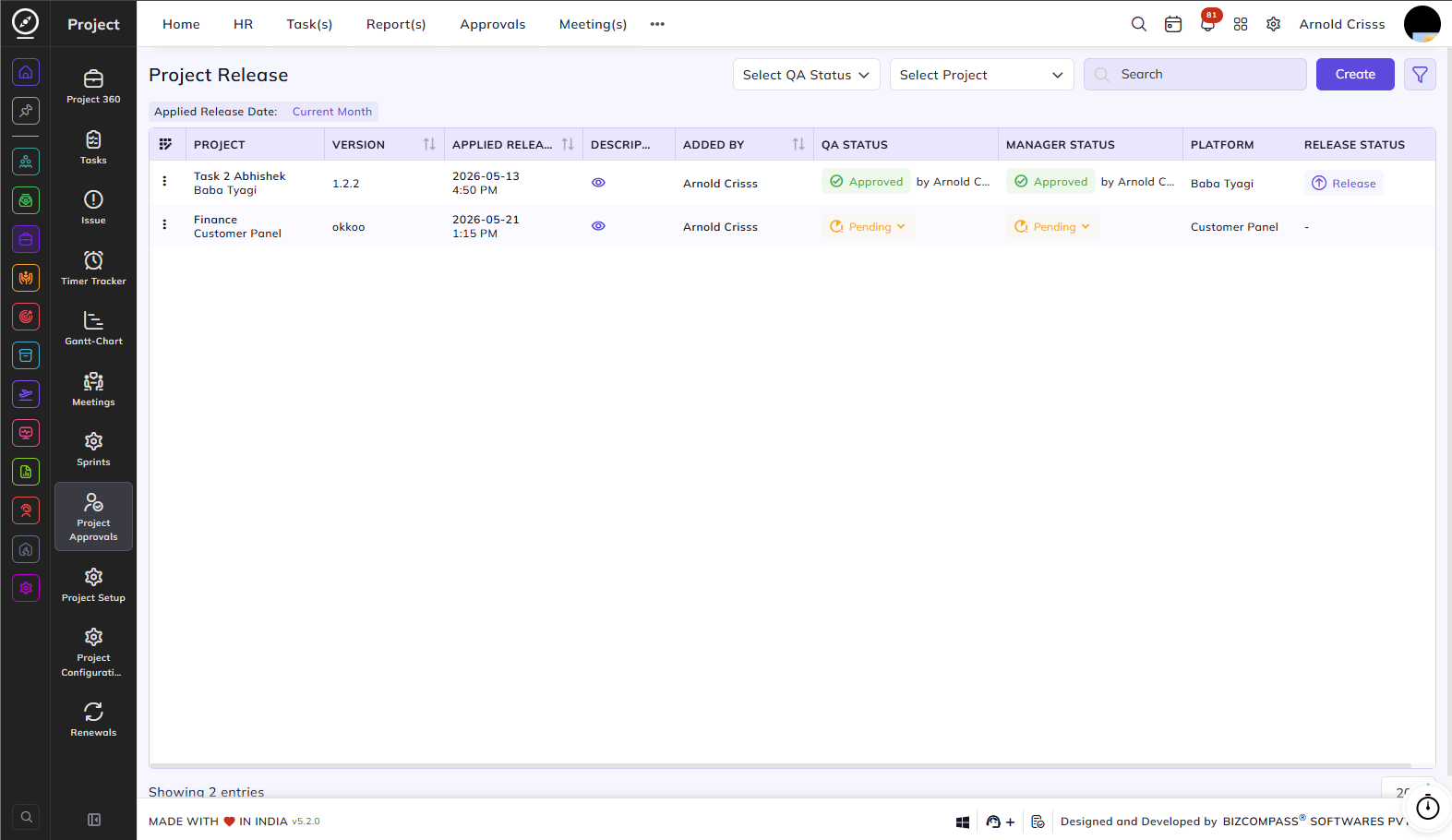
- Release Status – Once both QA and Manager statuses are approved, a Release button appears. Click it to officially release the project version.