Loans
From this page, you can view and manage all sanctioned loans across the organization. Once an employee accepts a loan offer and sanctions it, the loan record appears here with full details and repayment tracking.
Loans List:
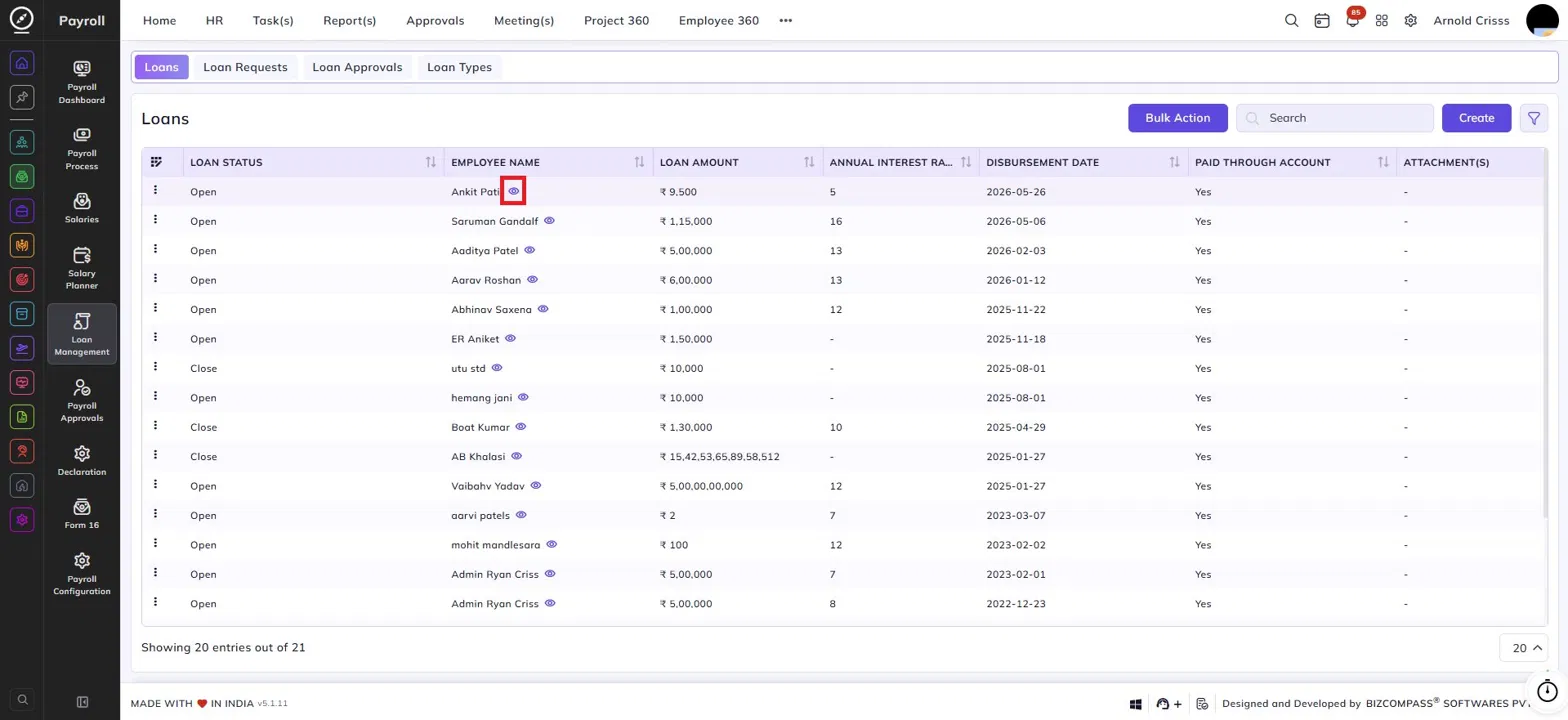
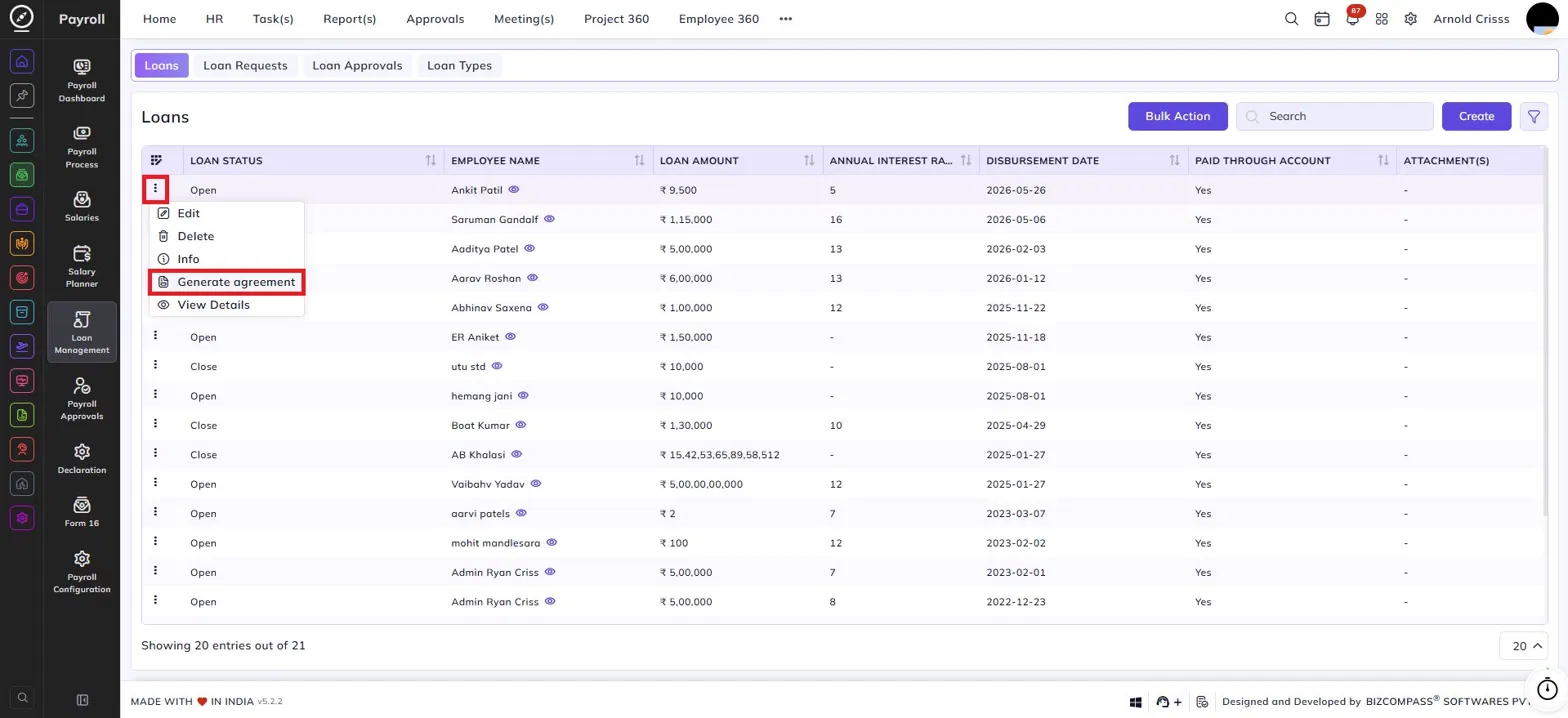
The Loans list displays all sanctioned loans with the following columns:
- Loan Status — Indicates whether the loan is currently Open (repayment in progress) or Close (fully repaid).
- Employee Name — The name of the employee. Click the eye icon next to the name to open the detailed loan view for that employee.
- Loan Amount — The sanctioned loan amount.
- Annual Interest Rate — The annual interest rate applied to the loan.
- Disbursement Date — The date on which the loan amount was disbursed to the employee.
- Paid Through Account — Indicates whether the loan was paid through the employee's account.
- Attachment(s) — Any documents attached to the loan record.
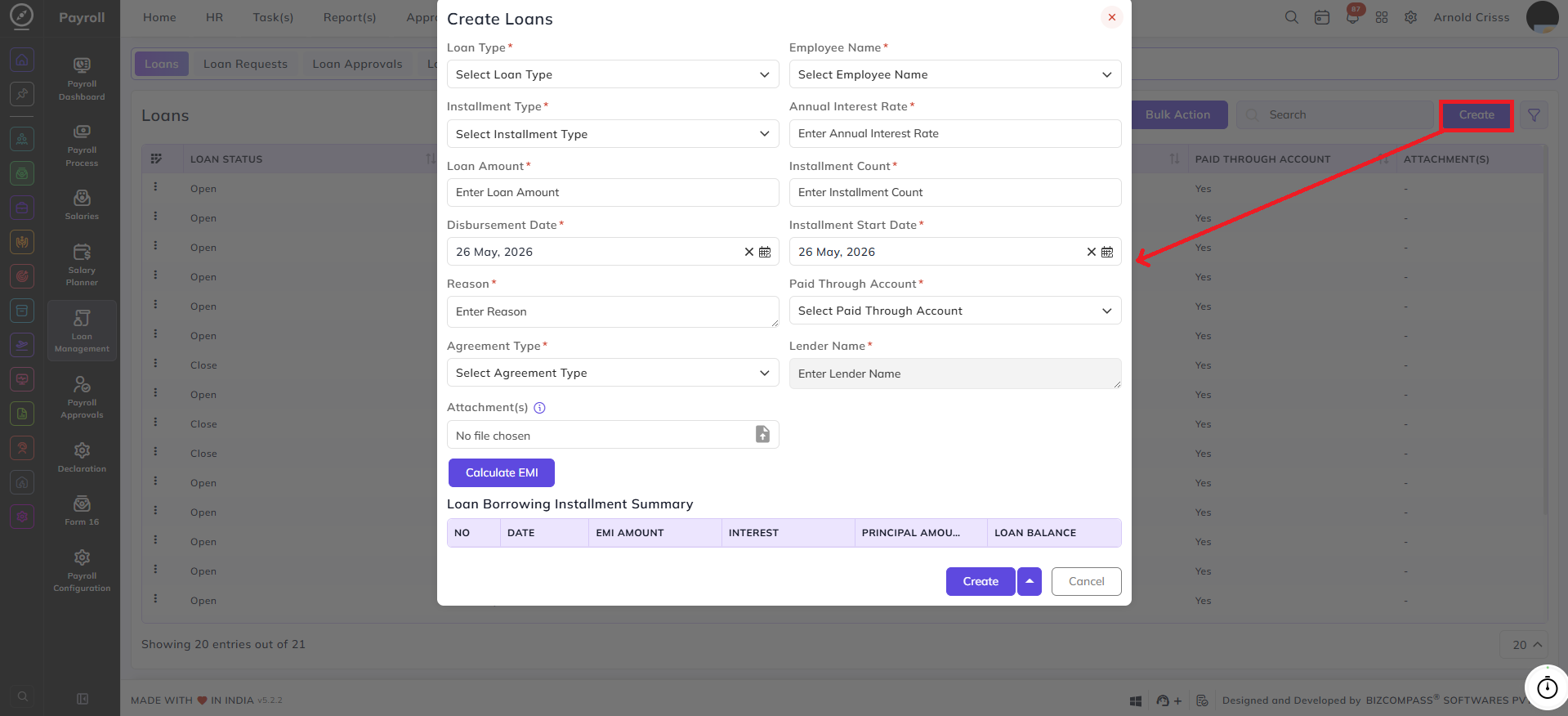
The Bulk Action button allows you to perform actions on multiple loan records at once. Managers or higher authorities can also manually create a loan directly from this page using the Create button, without going through the loan request and approval flow.
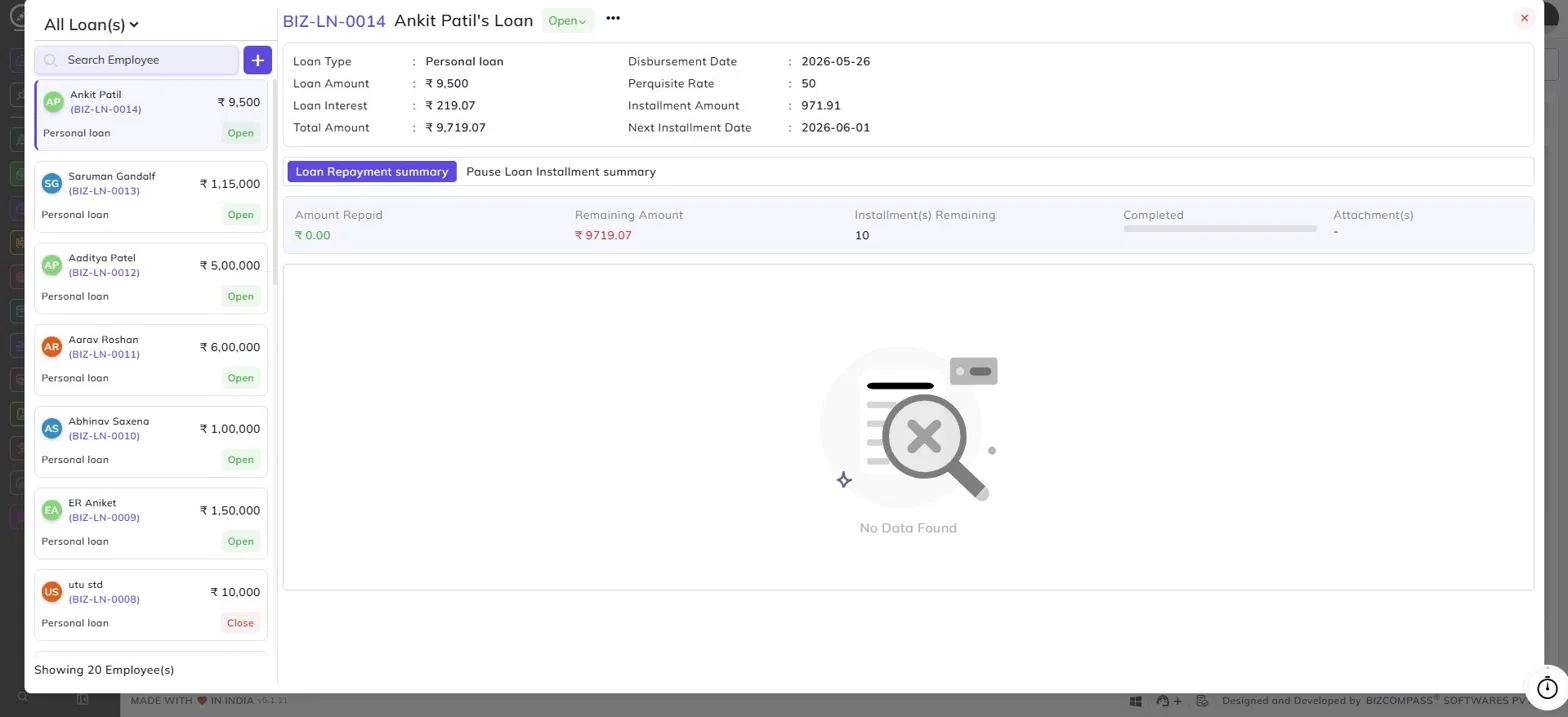
Loan Detail View:
Clicking the eye icon next to an employee's name opens the detailed loan panel. The left side lists all loans across employees, which can be filtered using the All Loan(s) dropdown or searched by employee name. Each entry shows the employee name, BIZ loan ID, loan amount, loan type, and current status.
The right side displays the selected loan's details:
- Loan Type — The category of the sanctioned loan.
- Loan Amount — The approved loan amount.
- Loan Interest — The total interest applicable on the loan.
- Total Amount — The combined total of the loan amount and interest.
- Disbursement Date — The date the loan was disbursed.
- Perquisite Rate — The perquisite rate associated with the loan.
- Installment Amount — The amount due per installment.
- Next Installment Date — The date of the upcoming installment.
Loan Repayment Summary:
The Loan Repayment Summary tab shows a quick overview of the repayment progress:
- Amount Repaid — The total amount repaid so far.
- Remaining Amount — The outstanding amount yet to be repaid.
- Installment(s) Remaining — The number of installments left.
- Completed — A progress indicator showing repayment completion.
- Attachment(s) — Any documents attached to the repayment record.
The Pause Loan Installment Summary tab shows a history of any paused installments for the loan.
Loan Actions Menu:
Clicking the three-dot menu (⋯) on the loan detail view reveals the following options:
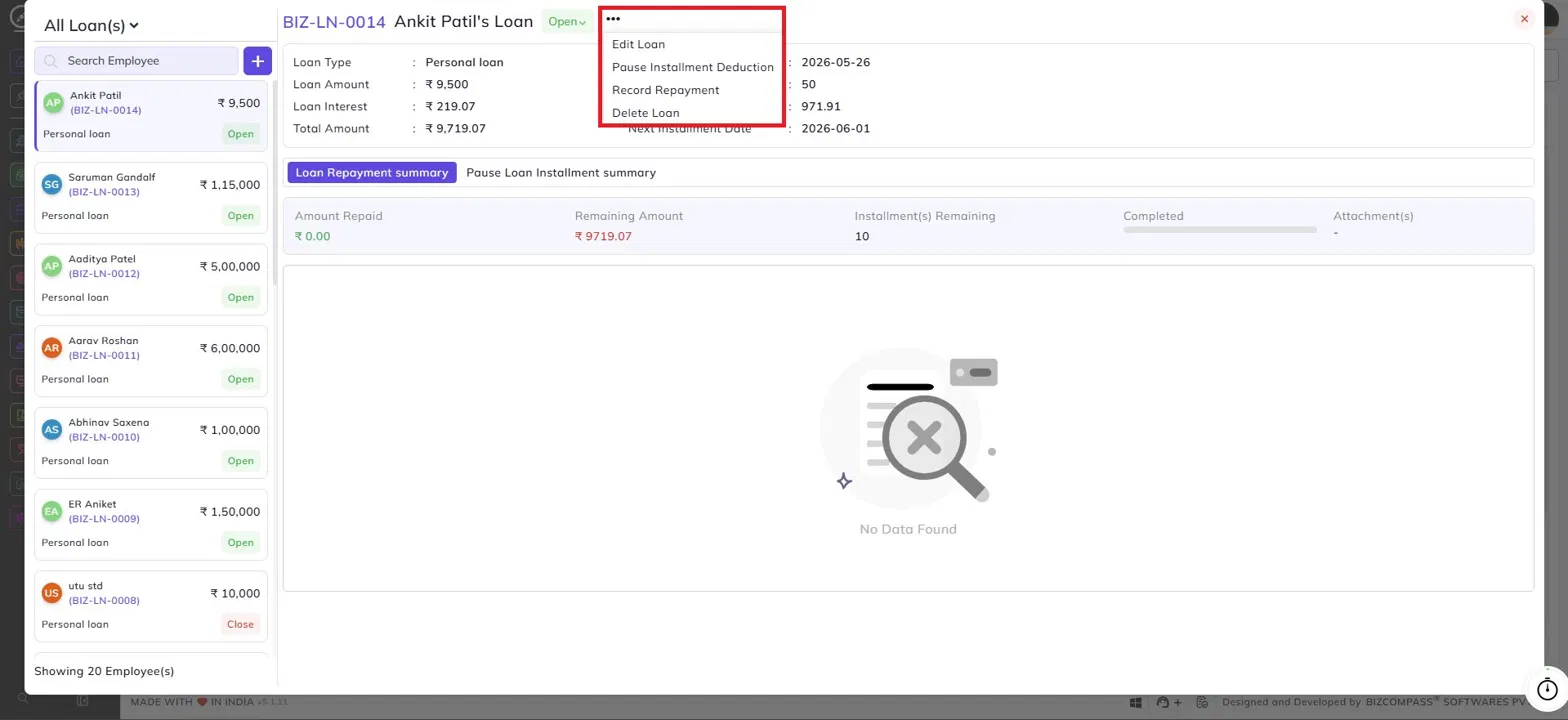
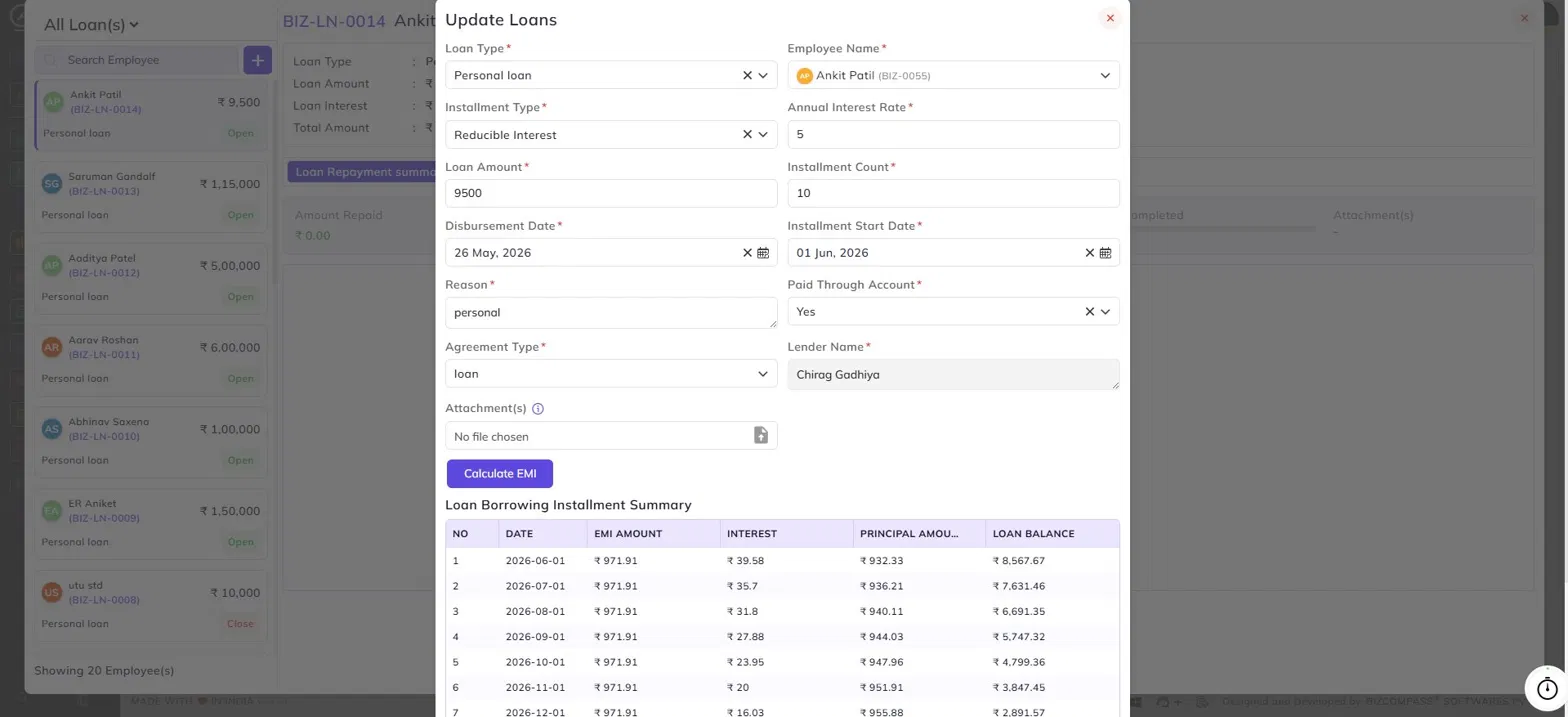
Edit Loan:
Opens the Update Loans form, allowing authorized users to modify the loan details such as loan type, installment type, loan amount, annual interest rate, installment count, disbursement date, installment start date, reason, paid through account, agreement type, lender name, and attachments. Clicking Calculate EMI regenerates the installment schedule based on the updated values, showing a full Loan Borrowing Installment Summary with each installment's date, EMI amount, interest, principal amount, and loan balance.
Pause Installment Deduction:
Opens the Pause Loan Installment form, which allows you to temporarily pause the loan deduction. Two options are available:
- Immediately — Pauses the installment deduction right away. Enter the Resume On date from which deductions should restart, and provide a Reason for the pause.

- On Scheduled Month — Pauses the deduction starting from a specific scheduled month. Enter the Scheduled Month, the Resume On date, and a Reason.

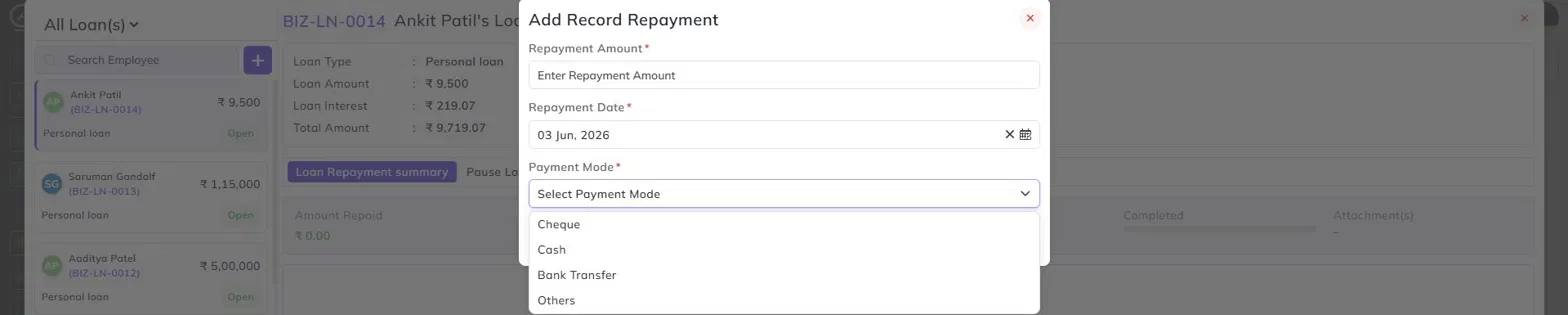
Record Repayment:
Opens the Add Record Repayment form to manually log a repayment made outside the regular payroll deduction cycle. Enter the following:
- Repayment Amount — The amount being repaid.
- Repayment Date — The date of repayment.
- Payment Mode — Select the mode of payment: Cheque, Cash, Bank Transfer, or Others.
Delete Loan:
Permanently deletes the loan record. Use this with caution as this action cannot be undone.

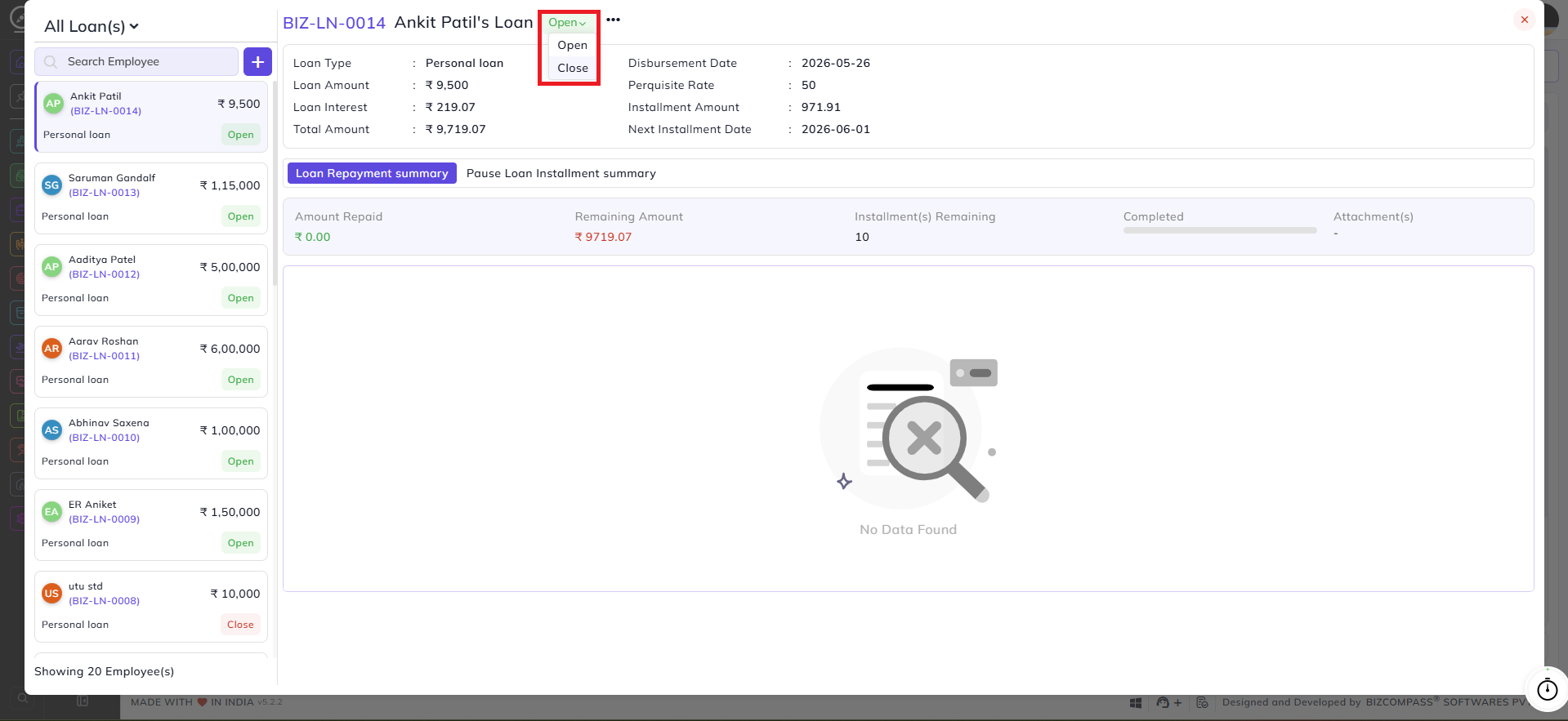
Closing a Loan:
A loan can be closed by clicking on the Close button from the dropdown at the top bar.
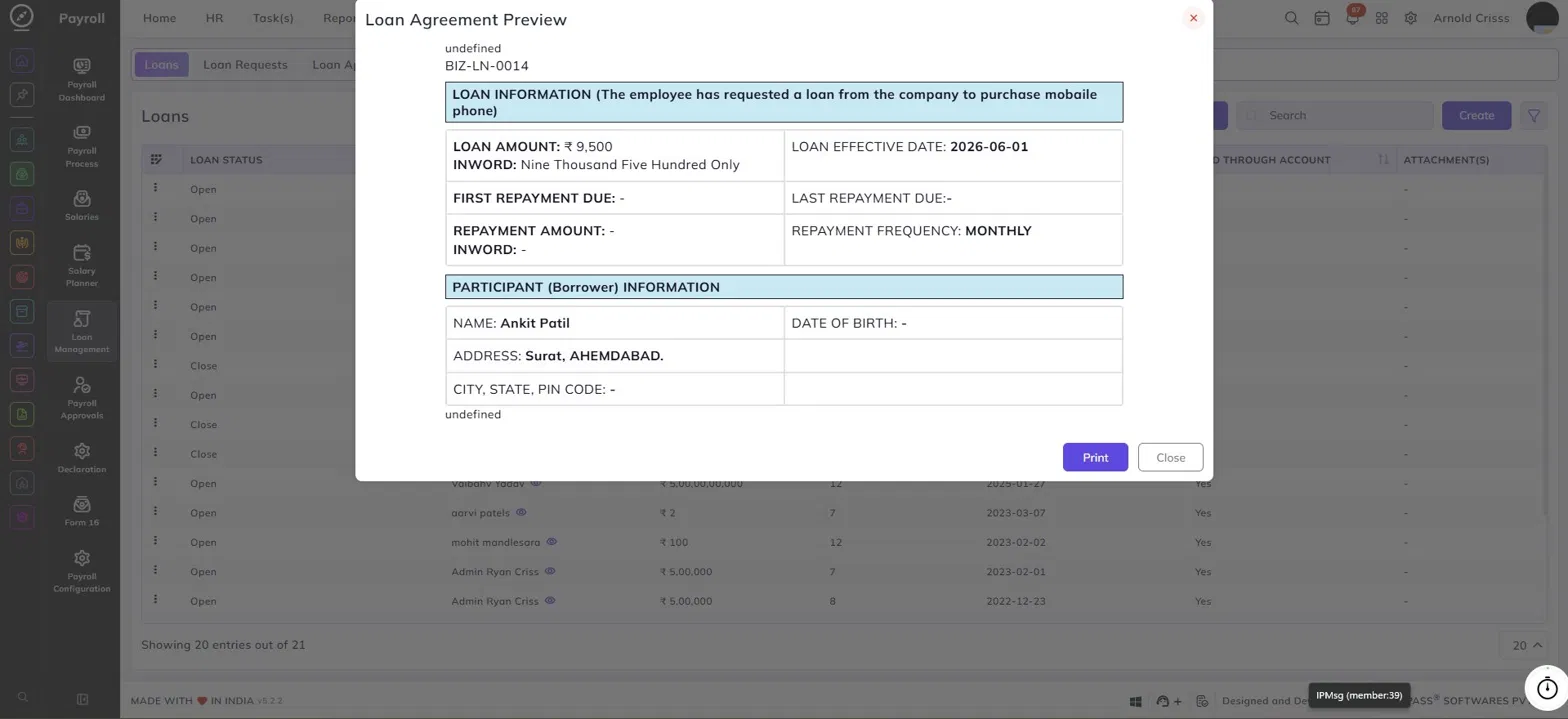
Generate Agreement:
By clicking on the three dots for any loan, you can generate agreement for that loan.
The agreement includes:
- The loan purpose or reason as stated during the request.
- The BIZ Loan ID for reference.
- Loan Information — Displays the loan amount (in figures and in words), loan effective date, first and last repayment due dates, repayment amount (in figures and in words), and repayment frequency (e.g., Monthly).
- Participant (Borrower) Information — Displays the employee's name, date of birth, address, city, state, and pin code.