Beginning Asset Stock
This page is used when you want to add the Asset to the same Item.
Creating a Beginning Asset Stock:
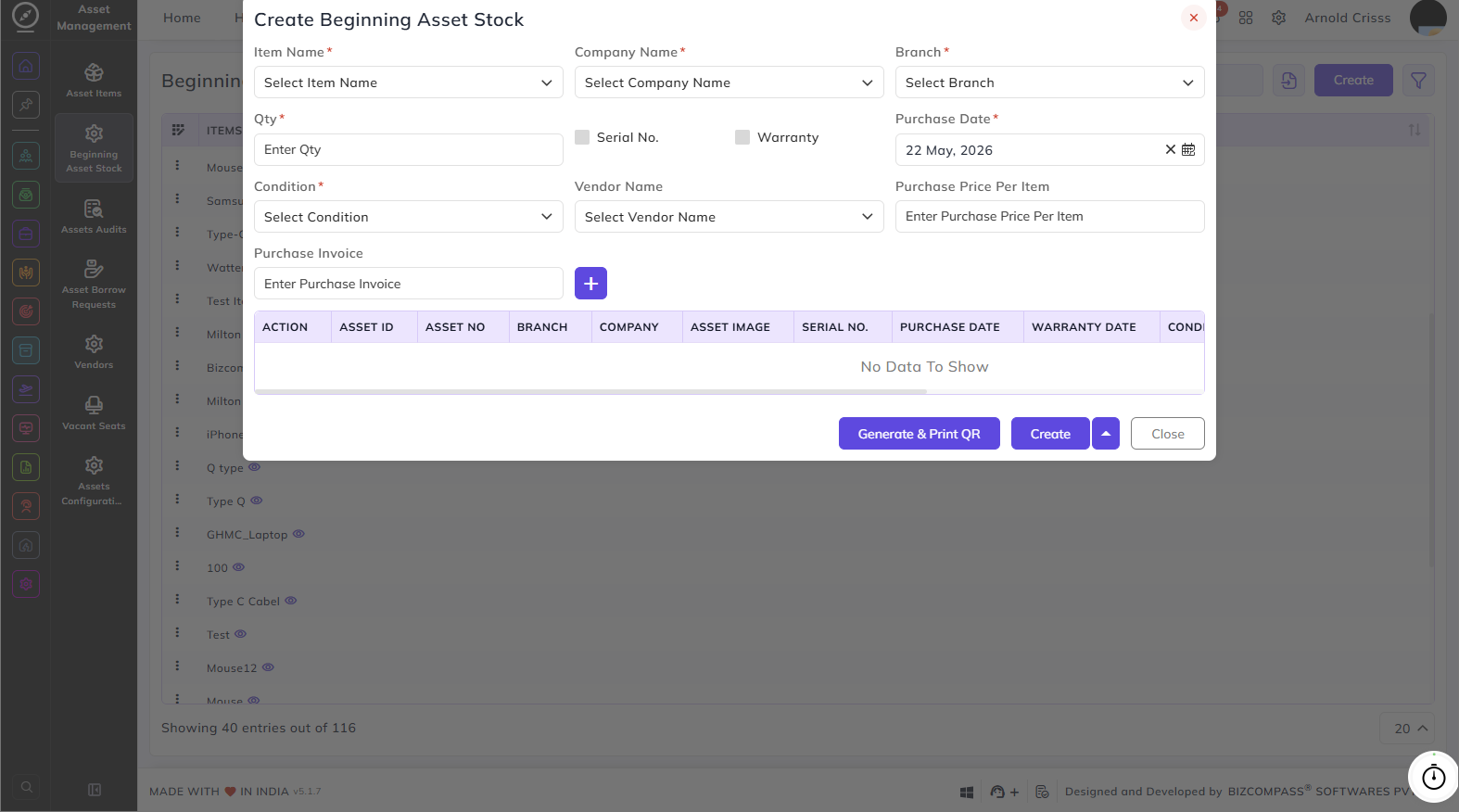
Click the Create button at the top right to open the Create Beginning Asset Stock dialog. Fill in the following fields:
- Item Name: Select the asset item from the dropdown.
- Company Name: Select the company the asset belongs to.
- Branch: Select the branch where the asset is located.
- Qty: Enter the quantity of the asset.
- Serial No.: Check this box if the asset has a serial number.
- Warranty: Check this box if the asset has a warranty.
- Purchase Date: Select the date the asset was purchased.
- Condition: Select the condition of the asset.
- Vendor Name: Select the vendor the asset was purchased from.
- Purchase Price Per Item: Enter the price per unit.
- Purchase Invoice: Enter the purchase invoice number, then click the + button to add it.
Once the details are filled in, the asset entries will appear in the table below showing Asset ID, Asset No., Branch, Company, Asset Image, Serial No., Purchase Date, Warranty Date, and Condition.
After adding the entries, you can either:
- Click Create to save the stock records.
- Click Generate & Print QR to generate and print QR codes for the assets.