Leave Approvals
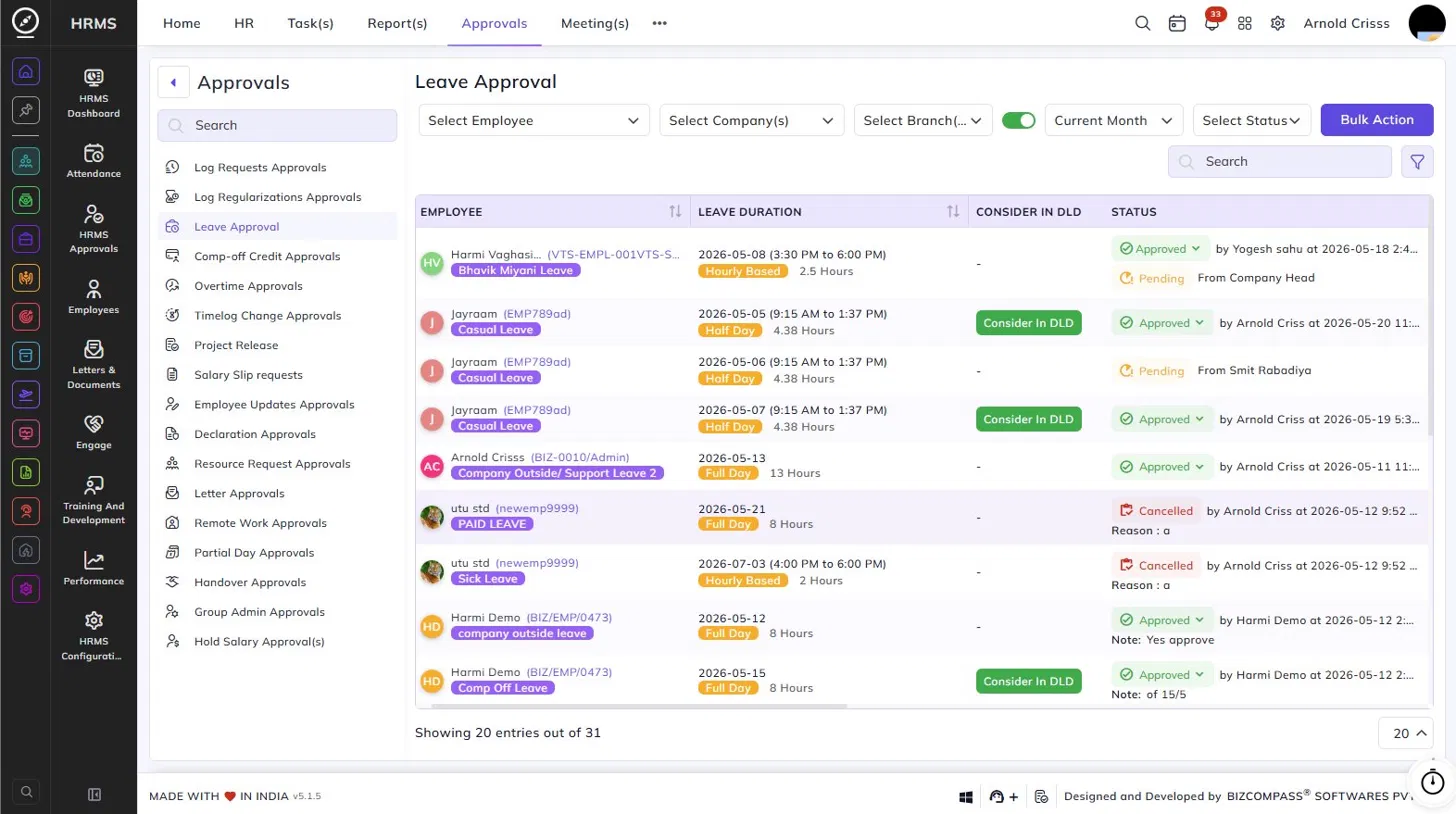
The Leave Approvals page lists all leave requests submitted by employees for review and action. To navigate here, go to:
Approvals->Leave Approval.
Use the Employee, Company, Branch, Date, and Select Status filters to narrow down the list. Click Bulk Action to approve or reject multiple requests at once.
Table Columns:
Each leave request entry displays the following details:
- Employee – The employee's name, employee code, and the leave type applied for, shown as a colored tag.
- Leave Duration – The date and time range of the leave, the duration type (Full Day, Half Day, or Hourly Based), and the total hours.
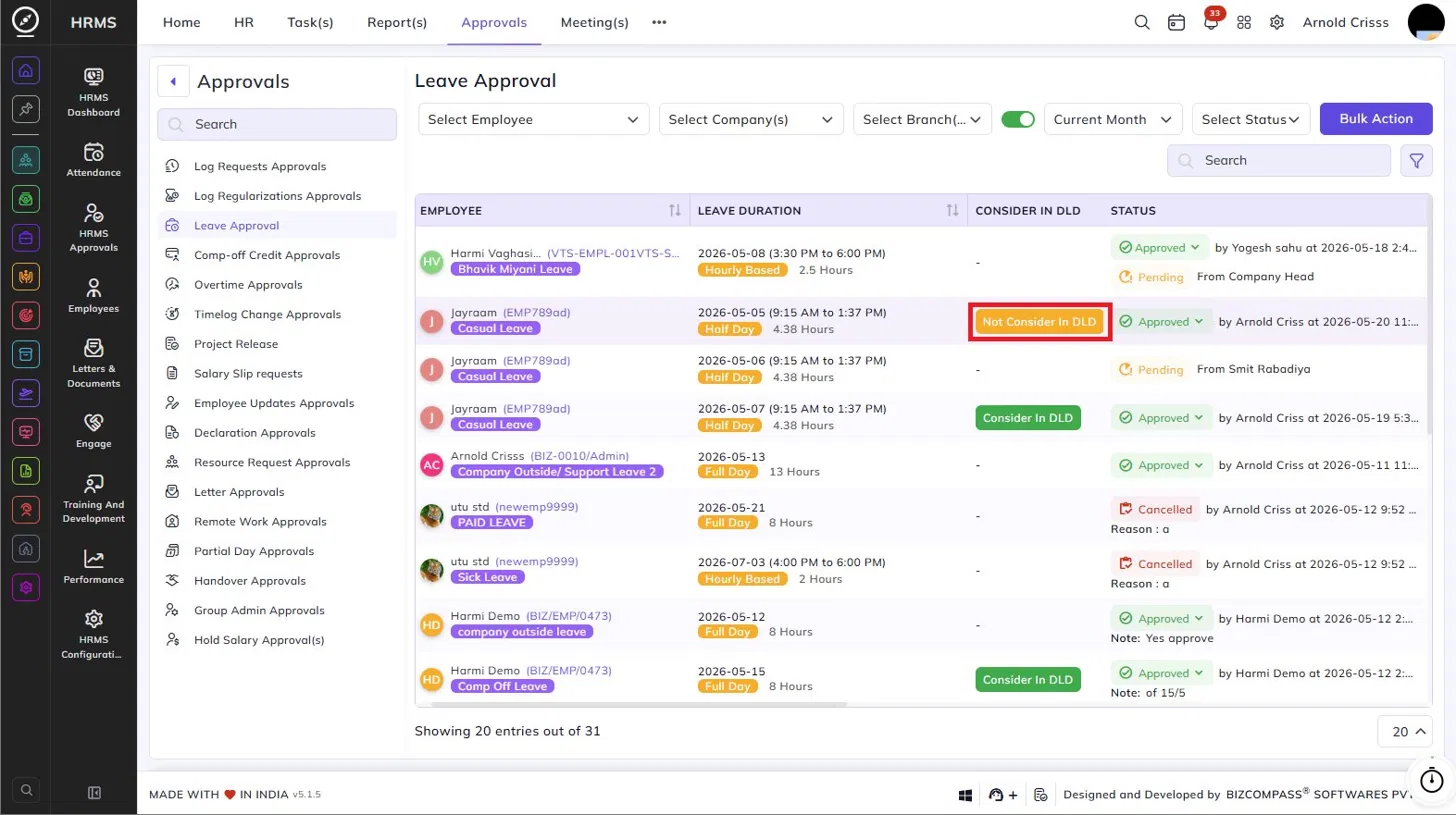
- Consider in DLD – This option can be used to modify the default DLD penalty. When the button displays "Not Consider in DLD", it indicates that the penalty status has been changed to None and will not be considered in DLD calculations.
When the button displays "Consider in DLD", it indicates that the DLD penalty is active and will be applied accordingly.
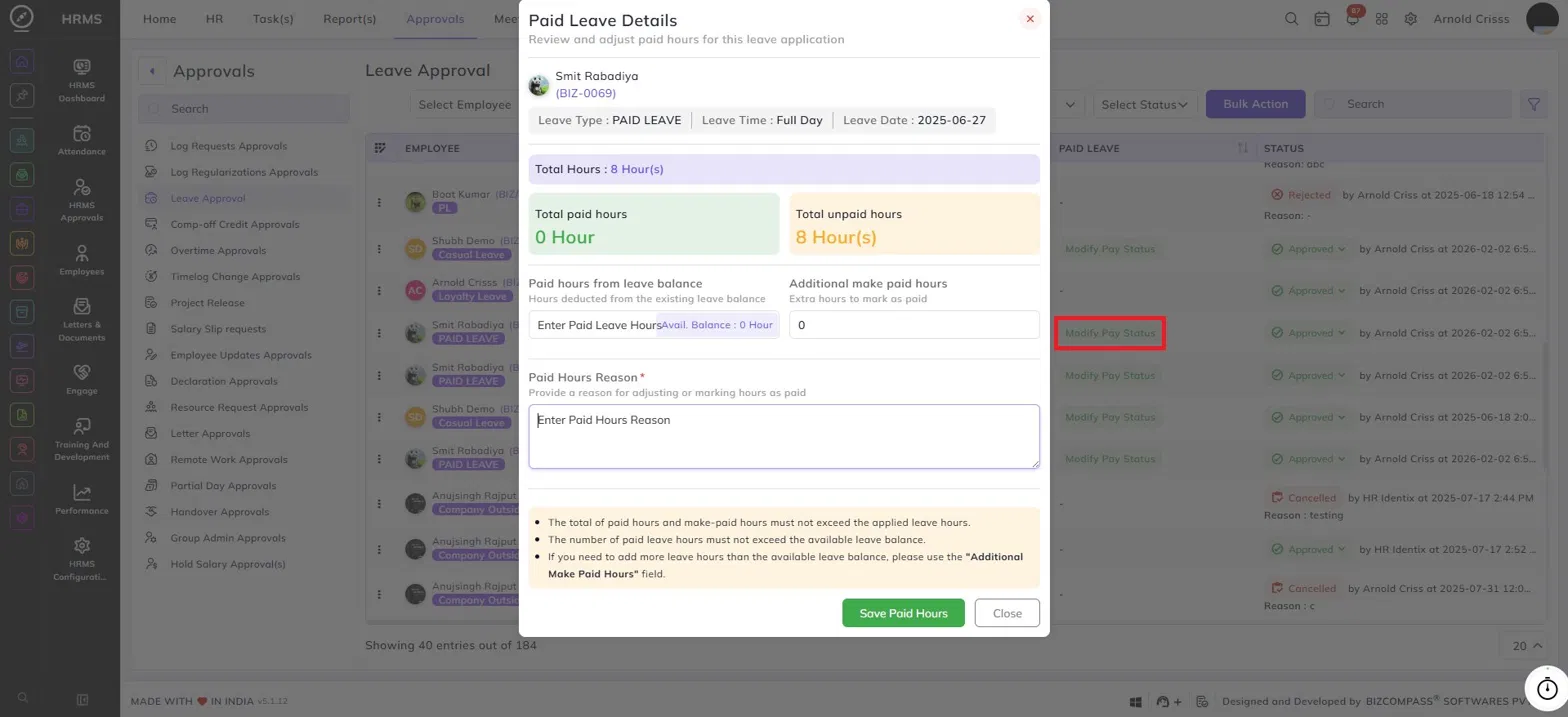
Modify Pay Status: The Modify Pay Status option allows the approver to review and adjust the paid hours for an approved leave application. This option is only available to the person who has approved the leave.
To use this, click the Modify Pay Status button on any approved leave record. This opens the Paid Leave Details popup.
The popup displays the employee's name, employee ID, leave type, leave time, and leave date at the top for reference. It also shows the total hours of the leave application, split into:
- Total Paid Hours – the hours currently marked as paid.
- Total Unpaid Hours – the hours currently marked as unpaid.
Fill in the following fields to adjust the pay status:
Paid Hours from Leave Balance: While adjusting leave for paid hours, use this option to deduct the corresponding number of hours from the employee's leave balance instead of granting additional paid leave. This will affect the employee's leave balance by deducting the corresponding hours from it.
Additional Make Paid Hours: If you do not want to affect the employee's yearly leave balance and instead want to grant paid leave in addition to the existing leave balance, use the Additional Make Paid Hours option.
Paid Hours Reason: Enter the reason for adjusting or marking the hours as paid. This field is mandatory.
Note the following rules while filling in the values:
- The total of paid hours and additional make paid hours must not exceed the applied leave hours.
- The number of paid leave hours must not exceed the available leave balance.
- If you need to mark more hours as paid than the available leave balance, use the Additional Make Paid Hours field.
- Tag – A tag icon that can be used to categorize or label the leave request.
- Reason – The reason provided by the employee for the leave, along with any attachments if submitted.
- History – Click the history icon to view the approval history and any compensatory leave details linked to the request, including the applied person and date.
- Compensatory Leave Against – If the leave is a comp-off, this column shows what it was earned against (e.g., Overtime).
- Applied Person / Date – The person who applied for the leave and the date and time of submission. A Self tag indicates the employee applied themselves.
- Status – The current status of the request — Approved (with the approver's name, timestamp, and any note), Pending (with the source), or Cancelled (with the reason).
Approving or Rejecting Requests:
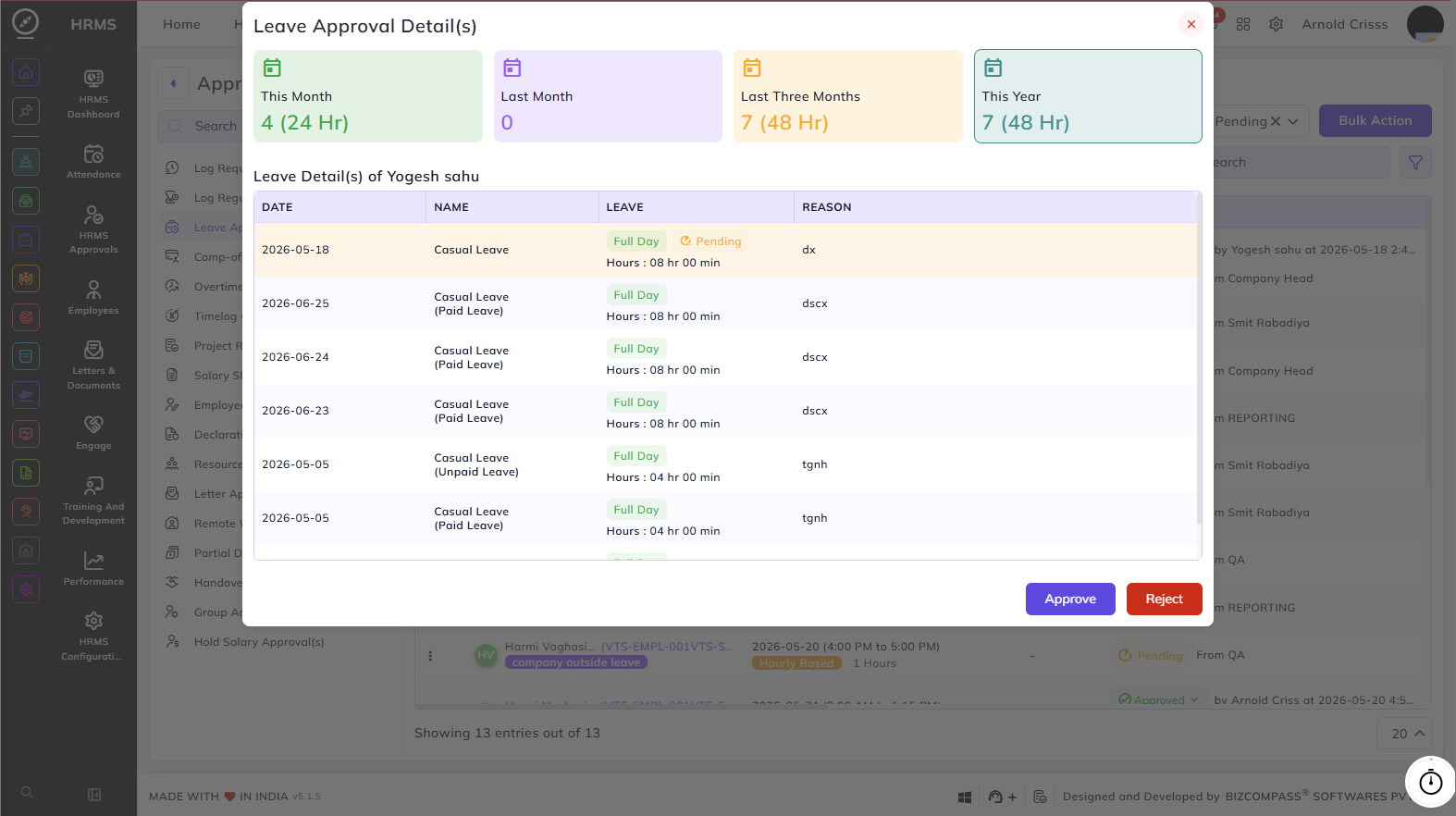
Clicking on a Pending status in the Leave Approval list opens the Leave Approval Detail(s) dialog, which gives the approver a fuller picture of the employee's leave history before making a decision.
The top of the dialog shows a summary of the employee's total leaves taken across four time periods:
- This Month – Total leaves taken in the current month with total hours.
- Last Month – Total leaves taken in the previous month.
- Last Three Months – Total leaves taken over the last three months with total hours.
- This Year – Total leaves taken in the current year with total hours.
Below the summary, the Leave Details table lists the employee's past and pending leave entries, showing the date, leave type, duration type (Full Day, Half Day, Hourly), total hours, and the reason provided for each leave.
Click Approve to approve the leave request or Reject to reject it directly from this dialog.