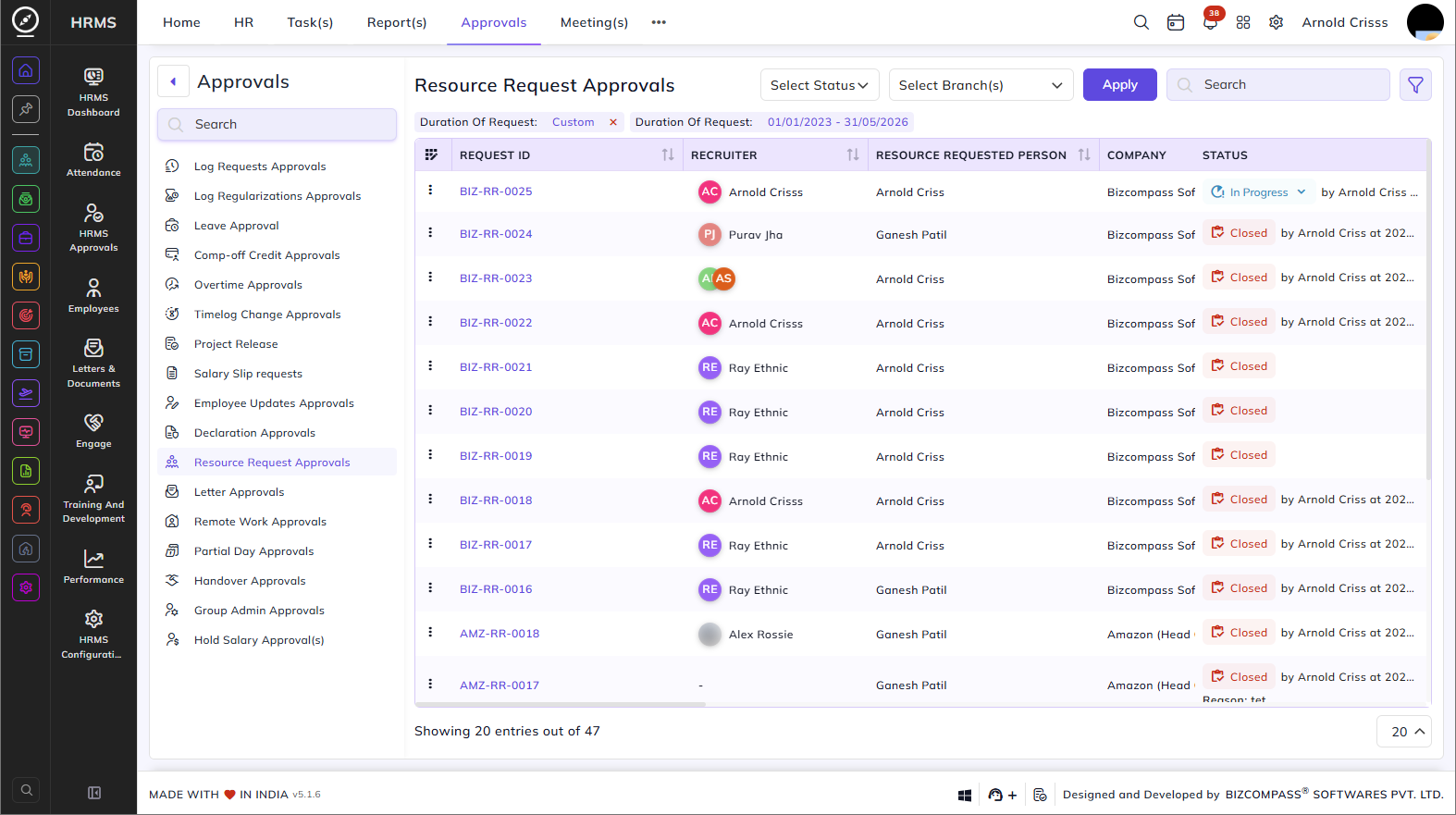
Resource Request Approvals
The Resource Request Approvals page lists all resource requests raised for hiring new positions. To navigate here, go to Approvals-> Resource Request Approvals.
Use the Status, Branch, and date filters at the top to narrow down the list. Click the filter icon to access additional filters including Company, Department, Position Name, Duration of Request, date range, No. of Positions Requested, Urgency Level, and Cost Center. Click Apply to load the filtered results.
Table Columns:
Each resource request displays the following details:
- Request ID – The unique ID of the resource request. Click it to open the full request details.
- Recruiter – The recruiter assigned to handle the request, shown as an avatar.
- Resource Requested Person – The person who raised the resource request.
- Company – The company the request is raised for.
- Department – The department for which the resource is being requested.
- Sub Department – The sub-department, if applicable.
- Position Name – The job position being requested.
- Duration of Request – The start date of the request duration.
- No. of Position Requested – The number of positions requested versus the number filled so far (e.g., 0/2, 1/3). An info icon appears when positions have been partially filled.
- Urgency Level – The priority level of the request, such as High Priority, Medium Priority, Immediate / Critical, or Future Requirement.
- Approval(s) – Click the history icon to view the approval history for that request.
- Additional Document(s) – Any additional documents attached to the request, if applicable.
- Replaced Employee(s) – The employee being replaced by this hire, if applicable.
- Custom Filed – Click the view icon to see any custom field data submitted with the request.
- Cost Center – The cost center the new hire will be mapped to, if specified.
- Status – The current status of the request — Pending, In Progress, Rejected, or Closed — along with the approver's name and timestamp where applicable. Click the Status dropdown to update the status directly from the list.