Dashboard User Rights
From this page, you can define and manage access rights for user roles or individual employees across dashboard widgets and analytics pages.
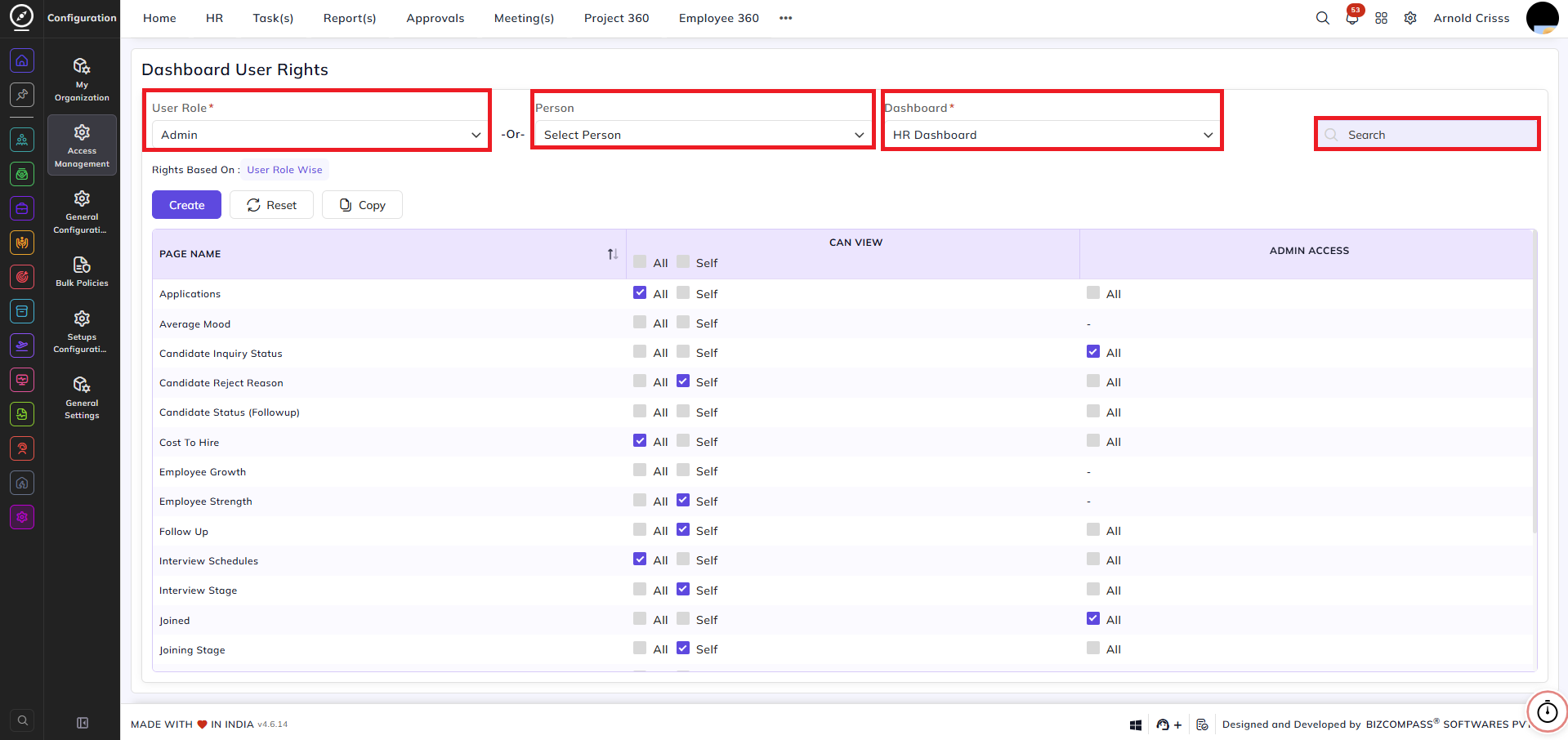
Filters:
User Role:
Select the user role for which dashboard rights are being configured. Rights defined here apply to all users assigned to this role.
-Or- Person:
Instead of configuring by role, select a specific employee to configure dashboard rights for that individual only. The Rights Based On label below the filters will update to show whether rights are currently set User Role Wise or Person Wise.
Dashboard:
Select the dashboard for which you want to configure widget-level access rights. Available dashboards are:
- HR Dashboard
- Home Dashboard
- Project Dashboard
- Client Dashboard
- Training Dashboard
- Payroll Analytics
- CRM Analytics
- Project 360
- Employee 360
- Activity Tracker
Search:
Search for a specific widget or page by name within the selected dashboard.
Access Rights Table:
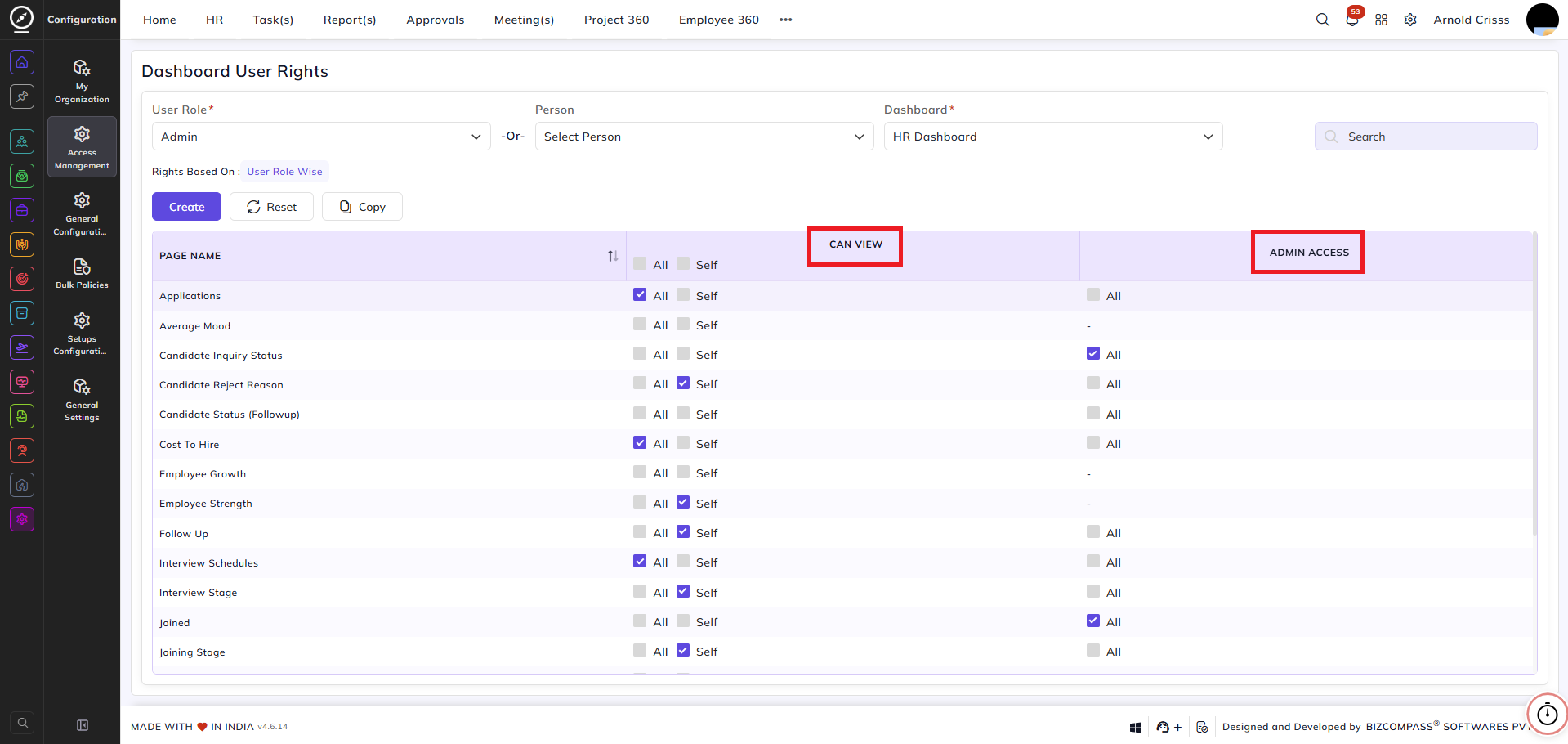
The table lists all widgets and pages within the selected dashboard. For each entry, the following permissions can be configured:
Can View:
- All — the user can view this widget for all entities coming under his/ her Reporting/Approval hierarchy
- Self — the user can only view this widget showing their own data
Admin Access:
- All — the user has can view this widget for any employee
Action Buttons:
Create:
Save the configured rights for the selected user role or person.
Reset:
Resets all rights for the selected user role or person to the default configuration.
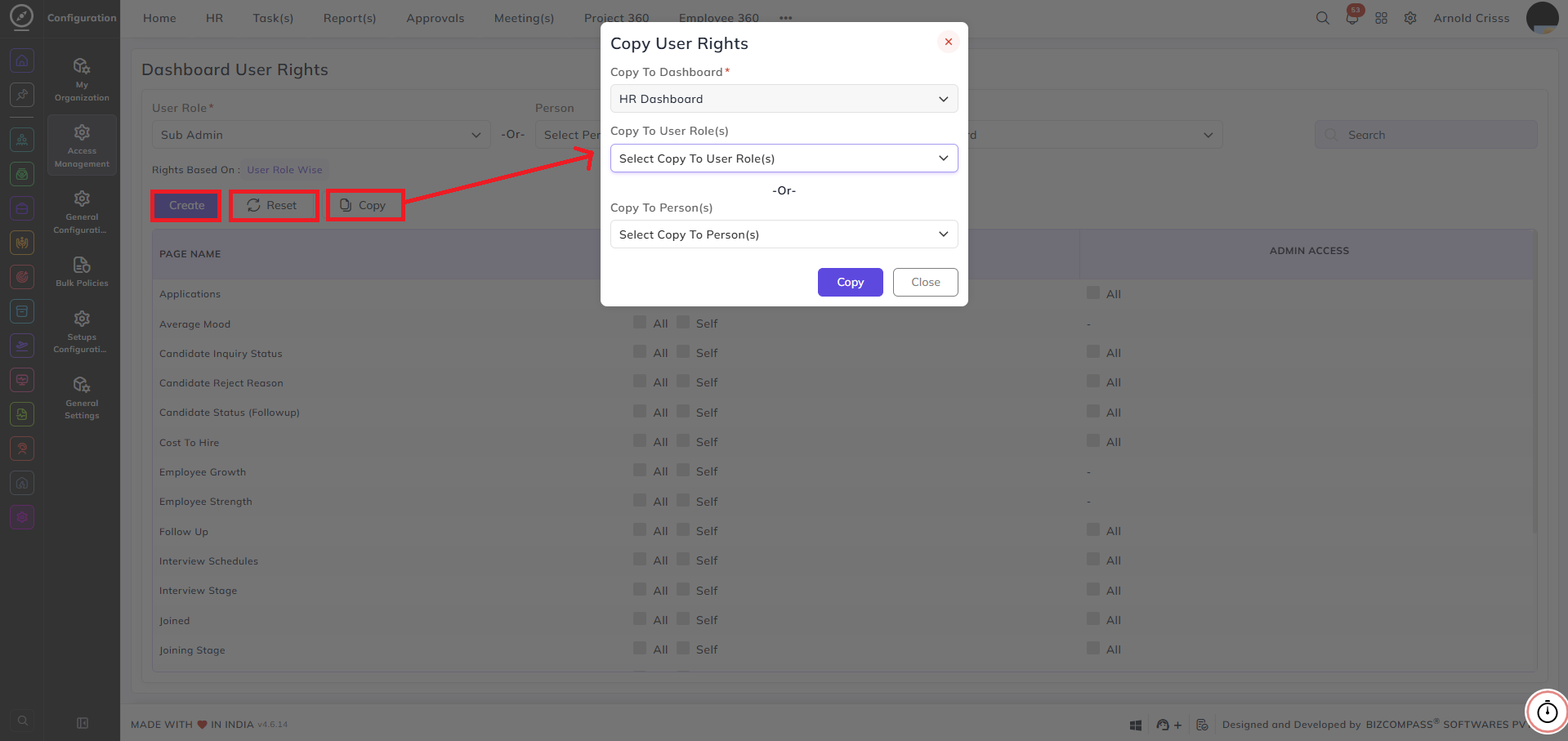
Copy:
Copies the rights configuration from the currently selected user role or person and applies it to another role or person.