Series
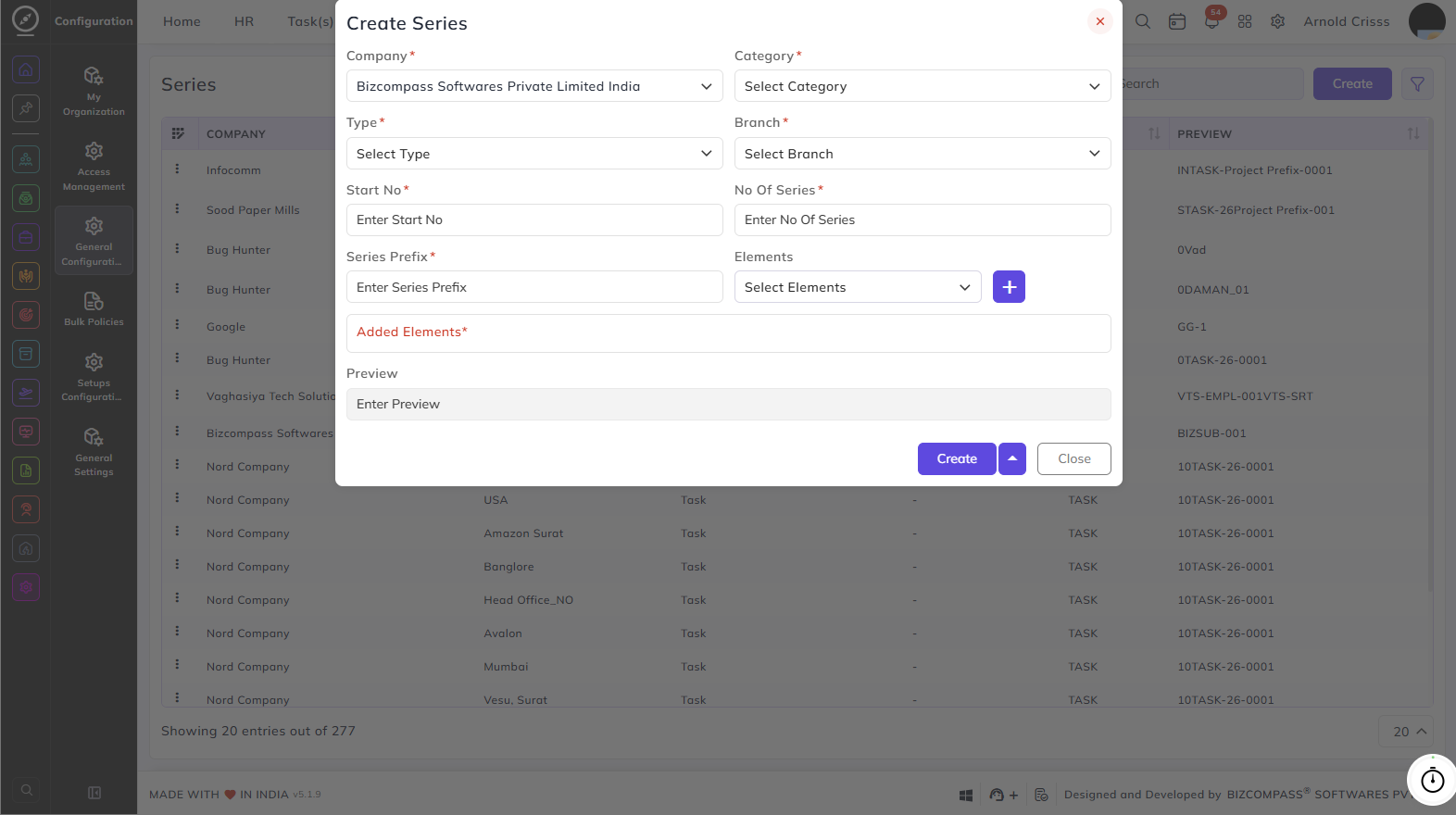
The Series page is used to create and manage unique numbering series for various record types across all modules in the system. Each series defines how records are identified and numbered, ensuring consistent and traceable IDs throughout the organization.
Creating a Series:
Company:
Select the company for which this series is being created.
Category:
Select the module category the series belongs to:
- Recruitment
- People
- Project Management
- Payroll
- Accounts
- Support Ticket
- CRM
- Todo
- Letter
- Asset Management
Type:
Select the specific record type based on the chosen category. The available types change based on the category selected:
- Recruitment – Application, Resource Request
- People – Employee, Intern, Consultant, Apprentice, Travel, Consultation Booking, Trainee
- Project Management – Task
- Payroll – Salary, Advance Salary, Loan
- Accounts – Payment, Purchase, Sale Invoice, Purchase Return Invoice, Sale Return Invoice
- Support Ticket – Support Ticket, BizCompass Support Ticket
- CRM – Lead Quotation, Lead
- Todo – Todo Task
- Letter – Experience Letter, Termination Letter, Relieving Letter, Other Letter, Offer Letter, Appointment Letter, Agreement Letter
- Asset Management – Asset, Item
Branch:
Select the branch this series applies to.
Reset:
Select how often the series number resets. (This field appears once a Type is selected)
Start No:
Enter the starting number for the series.
No Of Series:
Enter the total number of series entries to generate.
Series Prefix:
Enter the prefix that will appear at the beginning of each series identifier.
Elements:
Select the elements to include in the series identifier, then click the + button to add them:
- Company Prefix, Separator (-)
- Separator (/)
- Series Number
- Series Prefix
- Reset Count
- All Elements
You can also use the AI Series Generator (the icon next to the + button) for automatic generation based on your configuration.
Preview:
Shows a real-time preview of the series identifier based on the inputs provided.