
Letter Generation from Employee Profile
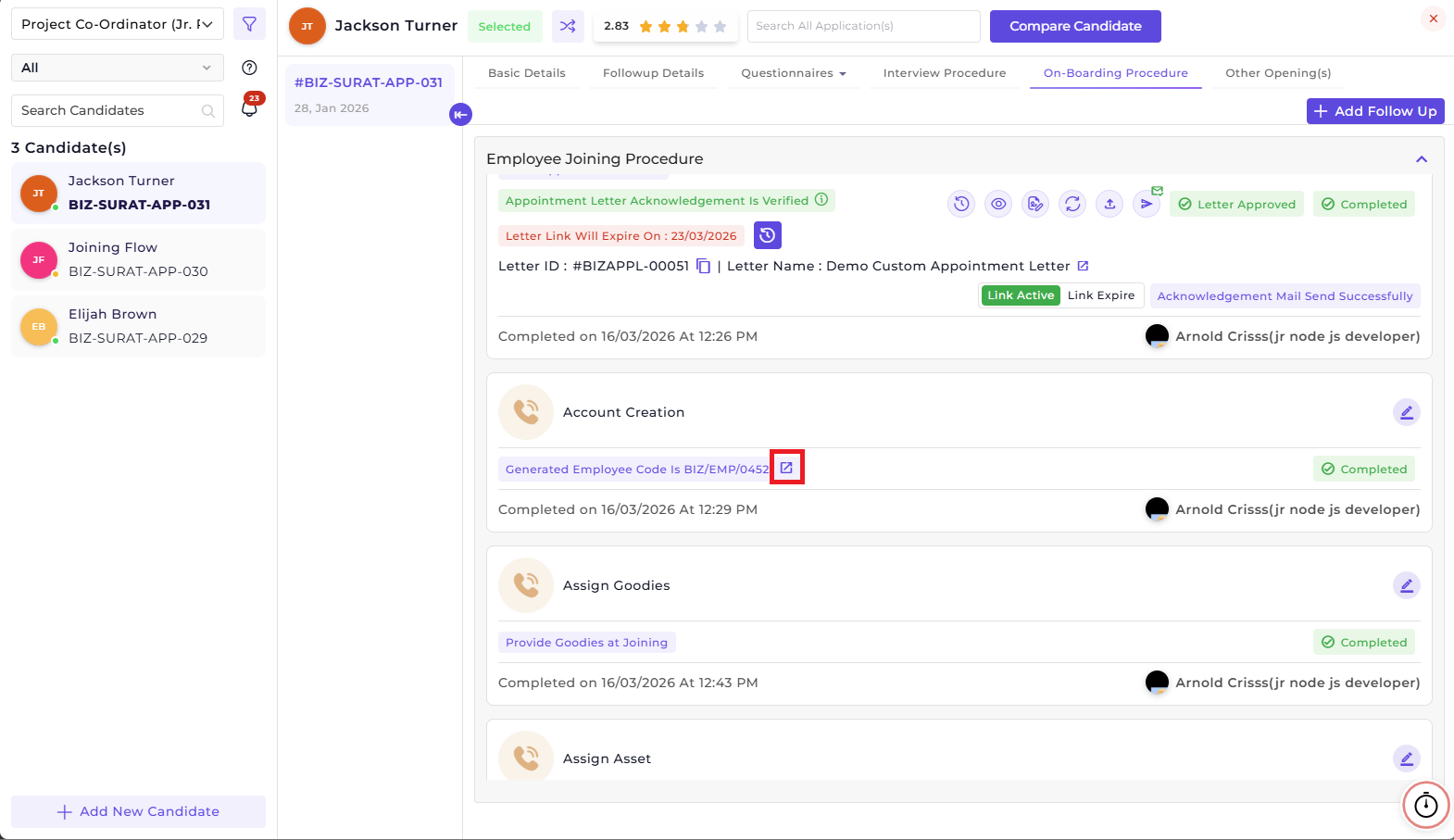
All the necessary letters can be sent during the onboarding stage. However, if you want to send some other letters after onboarding, you can do it by going to Employee 360 of that employee. You can navigate to Employee 360 of that employee by clicking on the redirect button of the Generated Employee Code of the employee during the onboarding procedure.
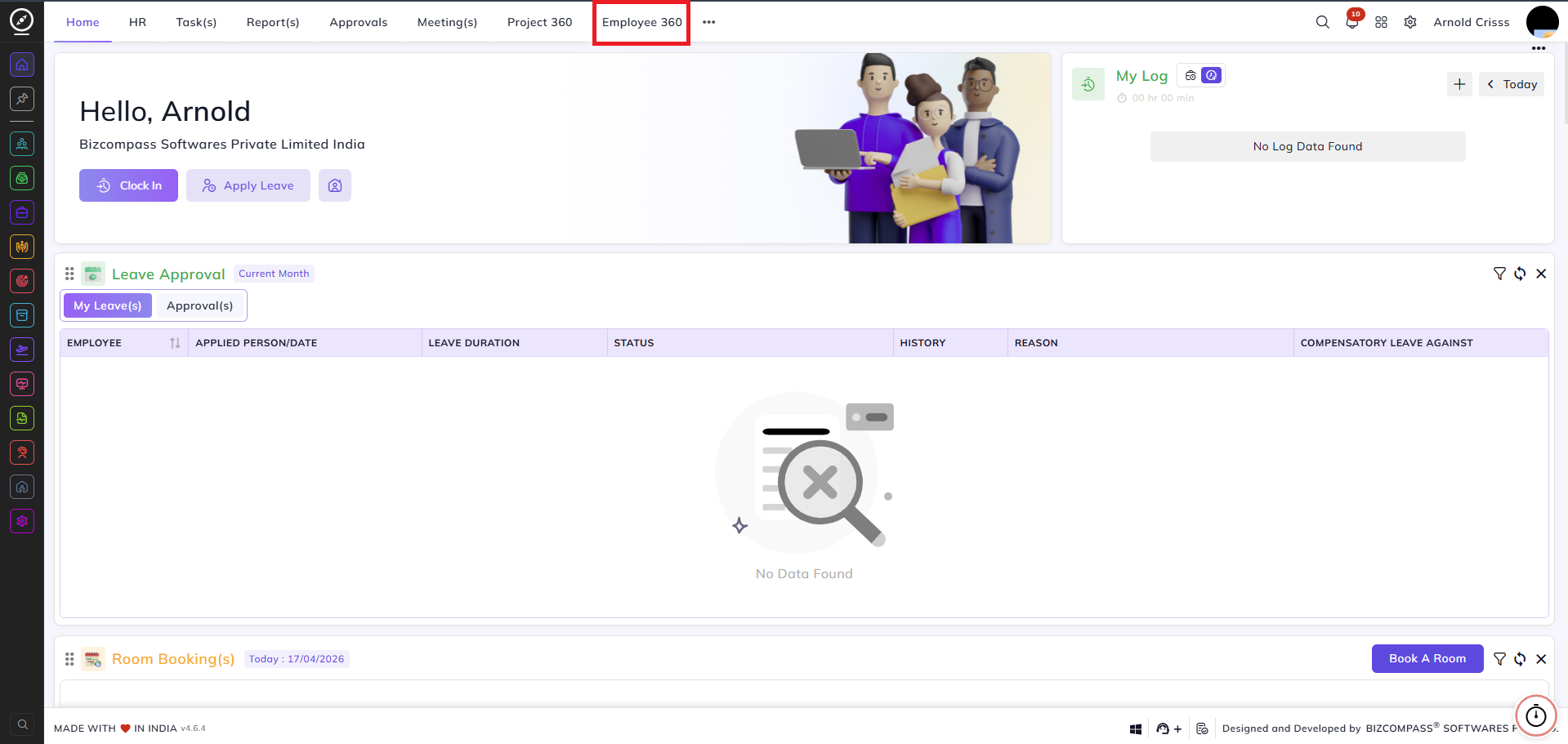
You can also click on the three dots on the top section of the Home page and find the Employee 360 page button there. Lastly, you can just go to the page by searching its name.
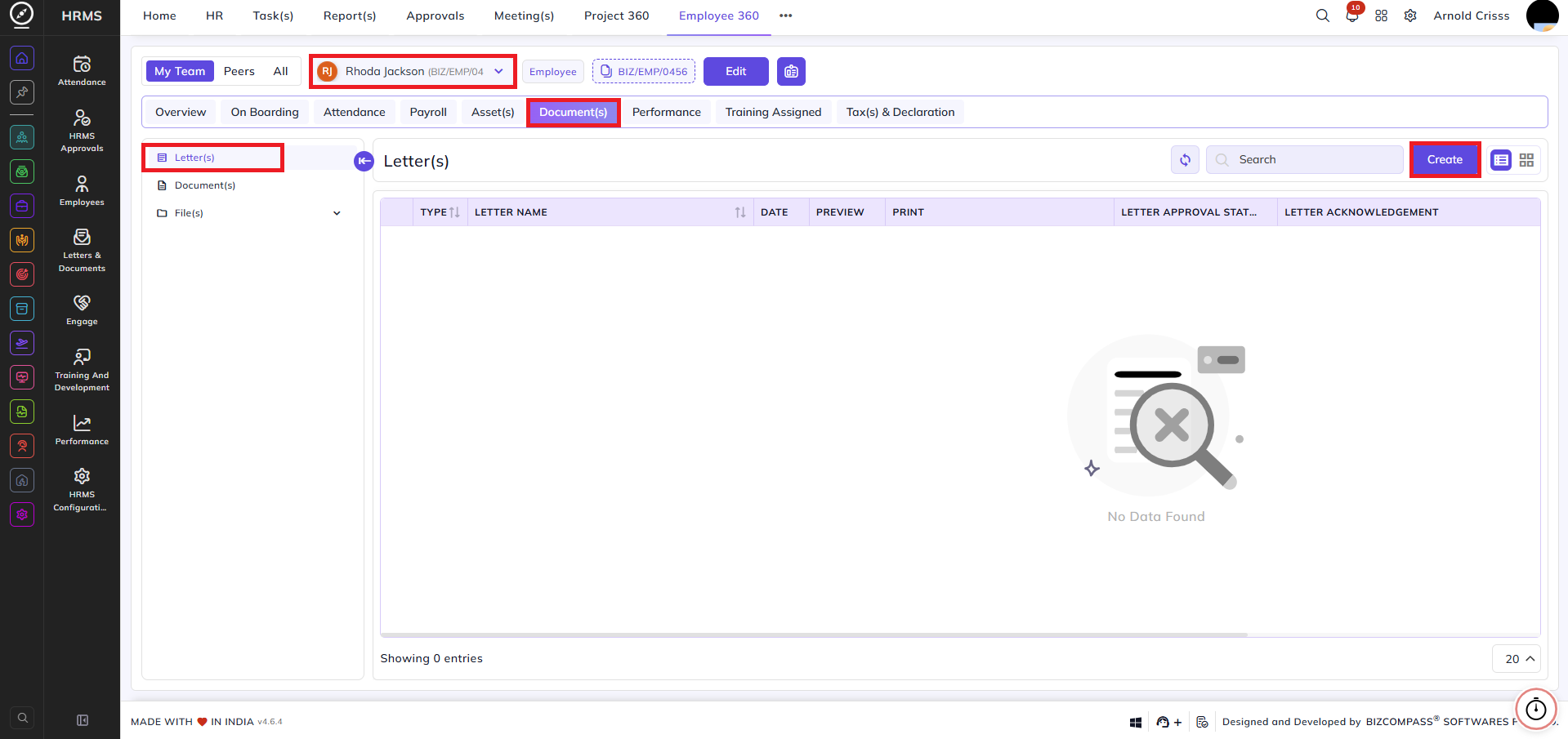
Generating and Sending Letters:
You can create a letter for a particular employee by going to the Letter(s) sub-section inside the Document(s) section.
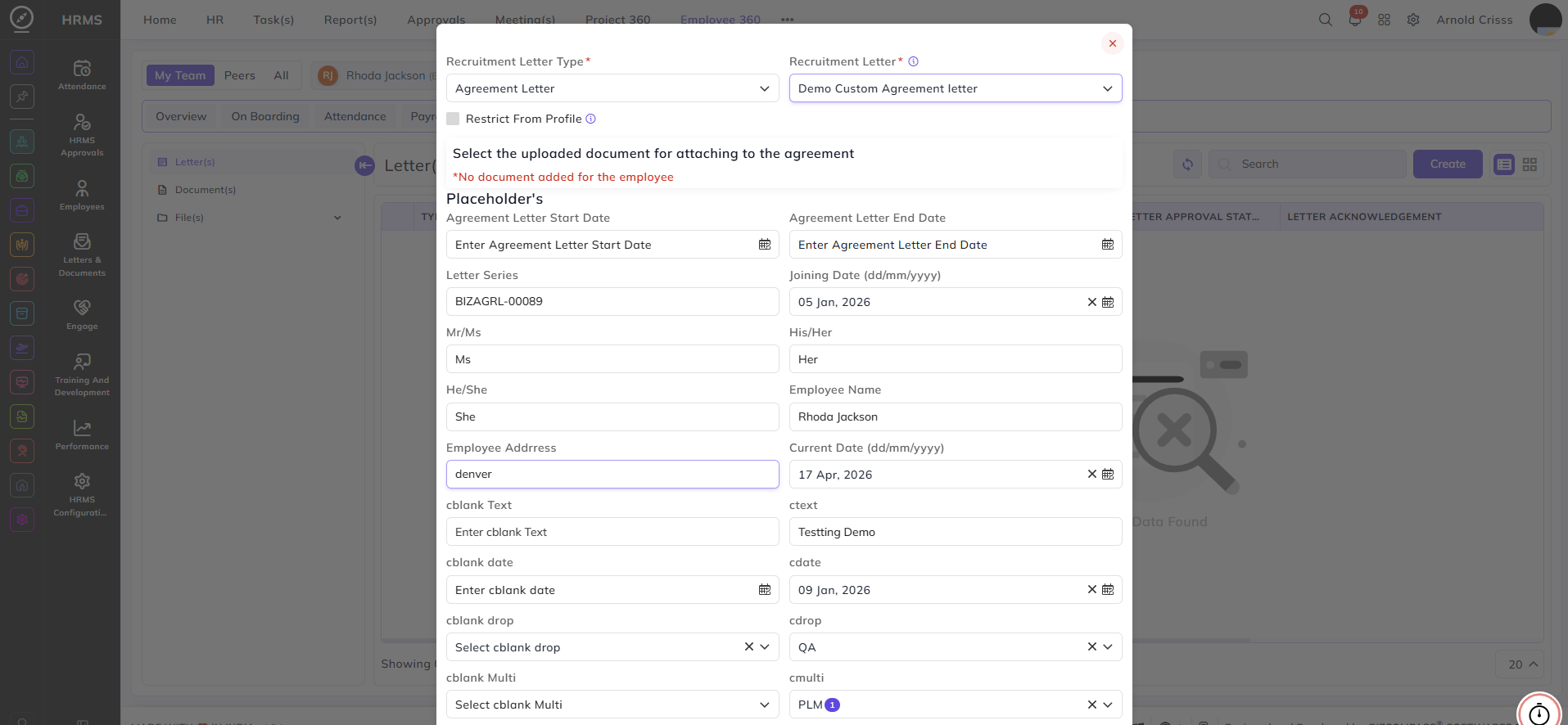
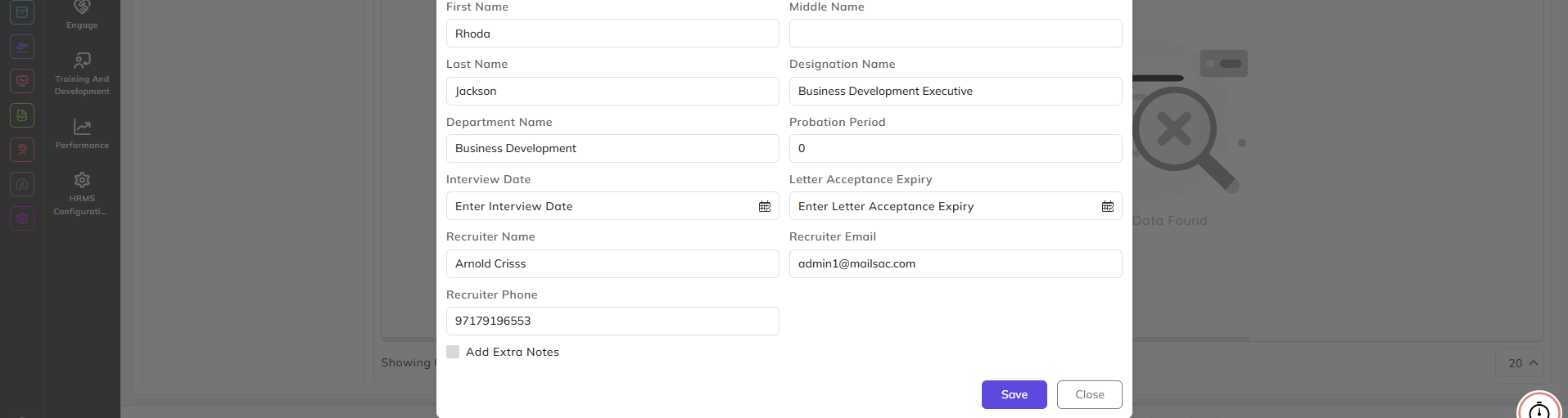
Once you select the Letter Type and Letter, all the placeholders (tags) defined for that letter will be fetched. You can edit these tags too.
Note: You have the option to attach any uploaded document to the Agreement Letter type only.
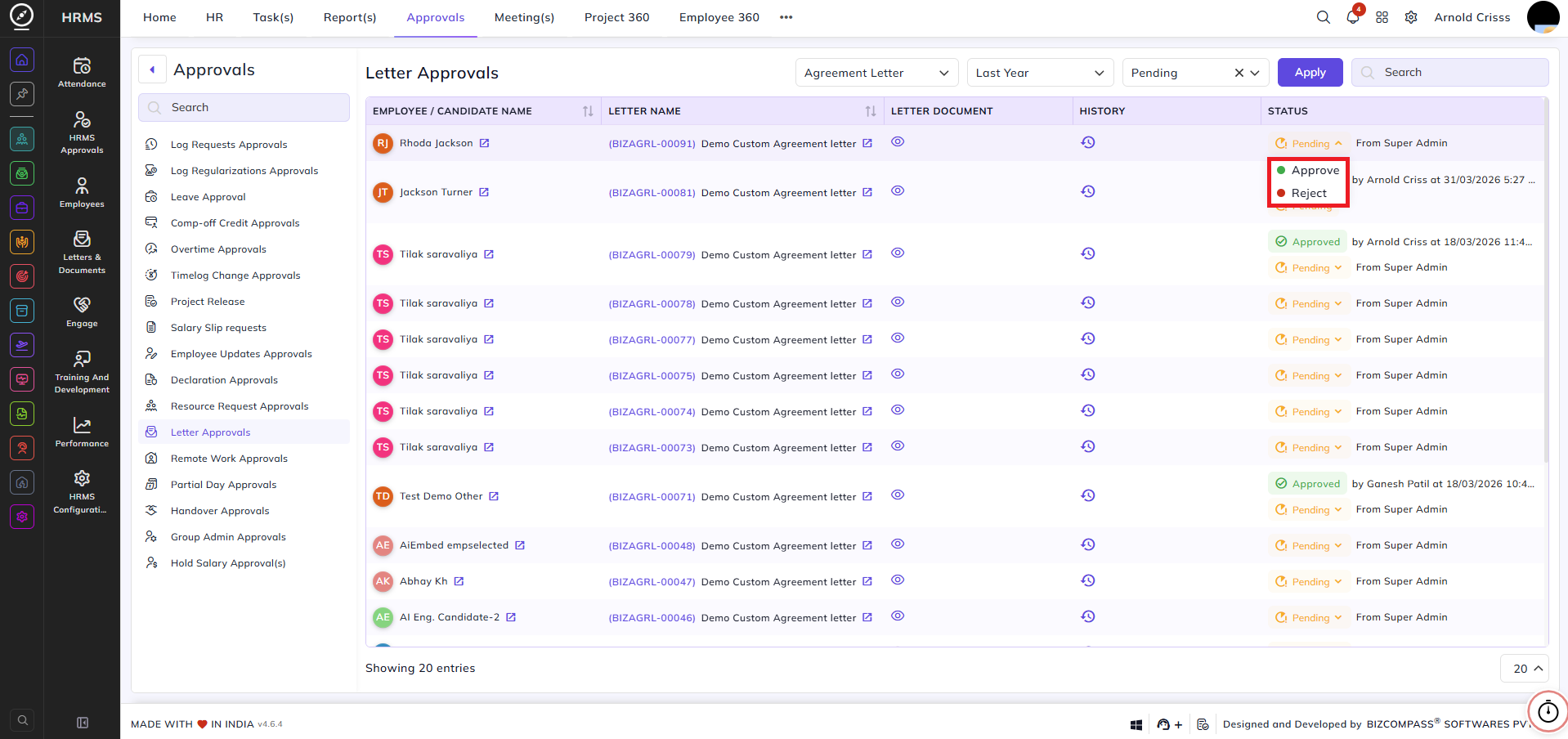
The letter is first approved by the respective person from the Approvals section.
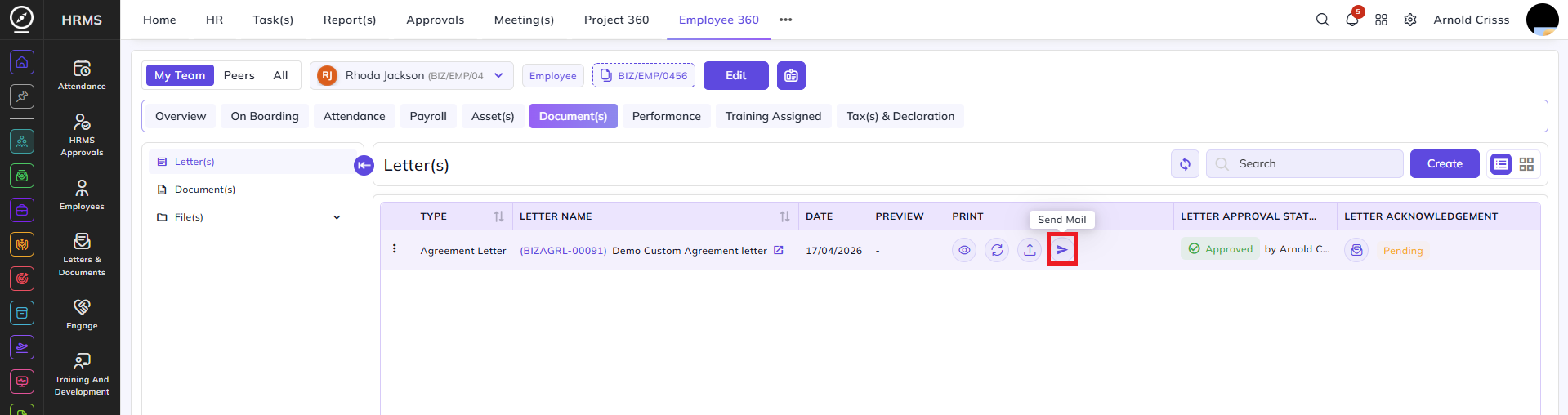
Now you can view the letter, download it, upload it, send it to the candidate, and send acknowledgement mail to the candidate as described in detail in the page- Starting the Joining Procedure Flow.
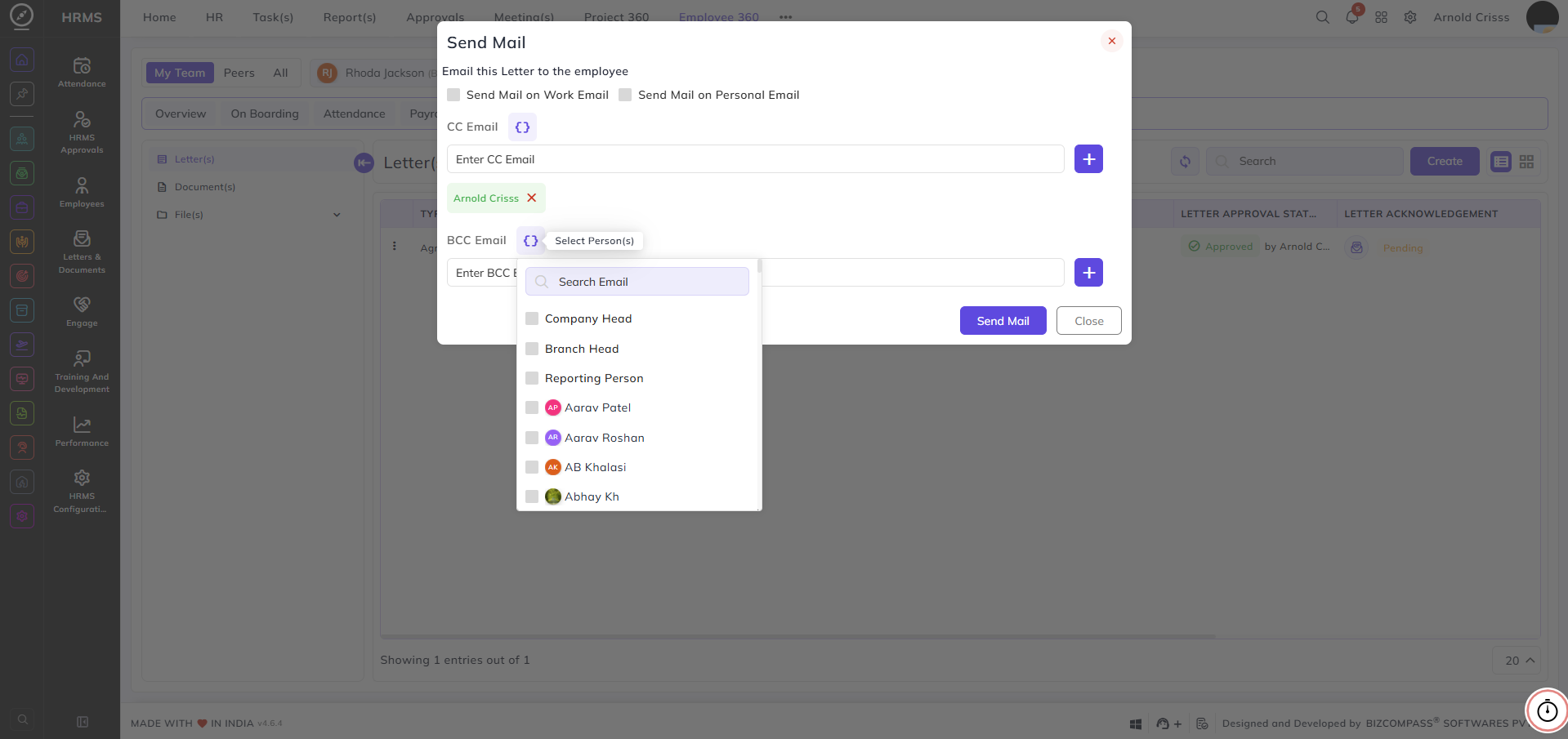
While sending the letter, you'll have the option of sending it the work mail or personal mail of that employee. You can also choose or add the people you want to CC or BCC the mail.
You can also send acknowledgement mail to the employee.
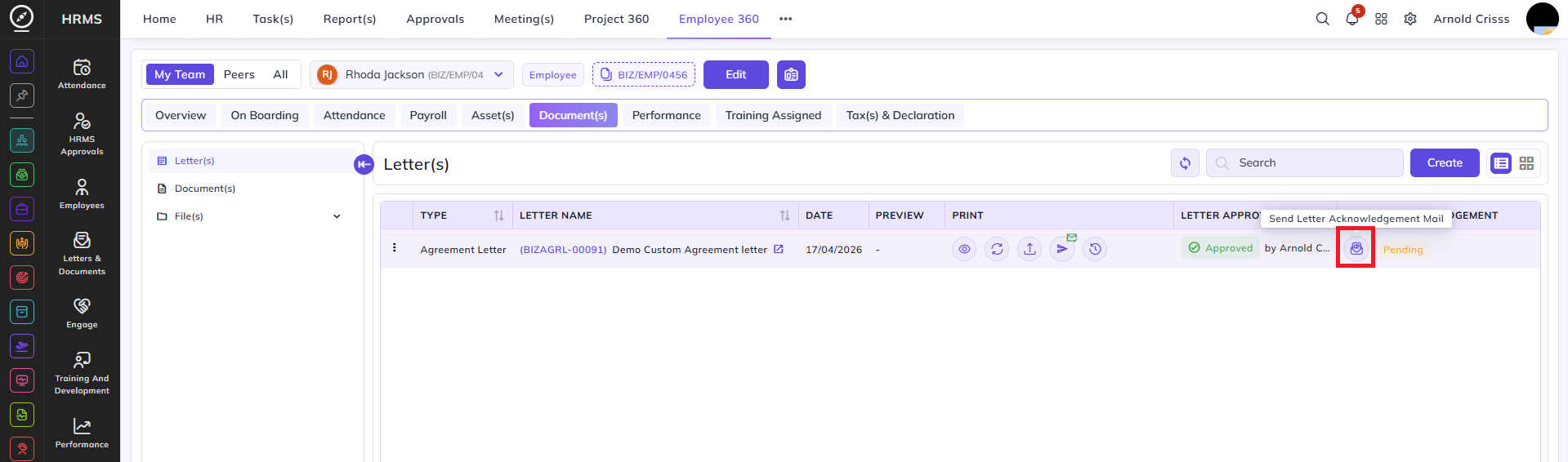
Note: For acknowledging the letter, the employee has to first log in to this profile and then sign the letter document.