
PMRS Targets
The PMRS Targets page is used to define and manage monthly performance targets for employees within a department.
Note:
- Only those departments whose Recruitment flag option is enabled will be shown in options while creating a PMRS Target. This can be configured from the Departments page.
- Only those employees whose Shift Configuration and Company Workday Type are defined will have their working days shown while creating a PMRS Target.
Create PMRS Targets:
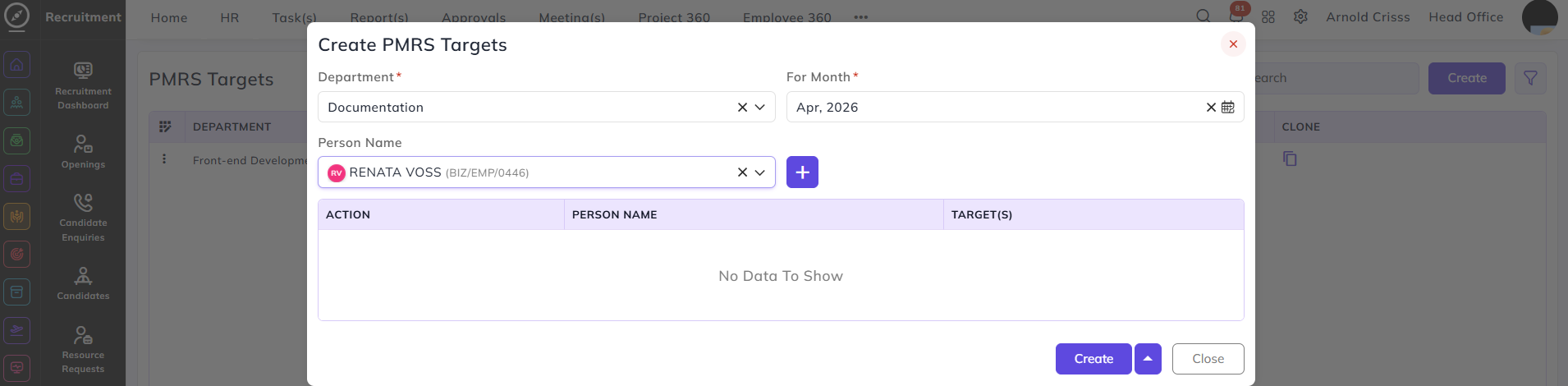
- Select the Department.
- Choose the applicable Month.
- Select the Person Name from the department.
- Add the person to the list using the Add (+) button.
- Define Target(s) for each selected person.
- Once you add the Target/Day, the Total Target will be automatically calculated based on the weightage.
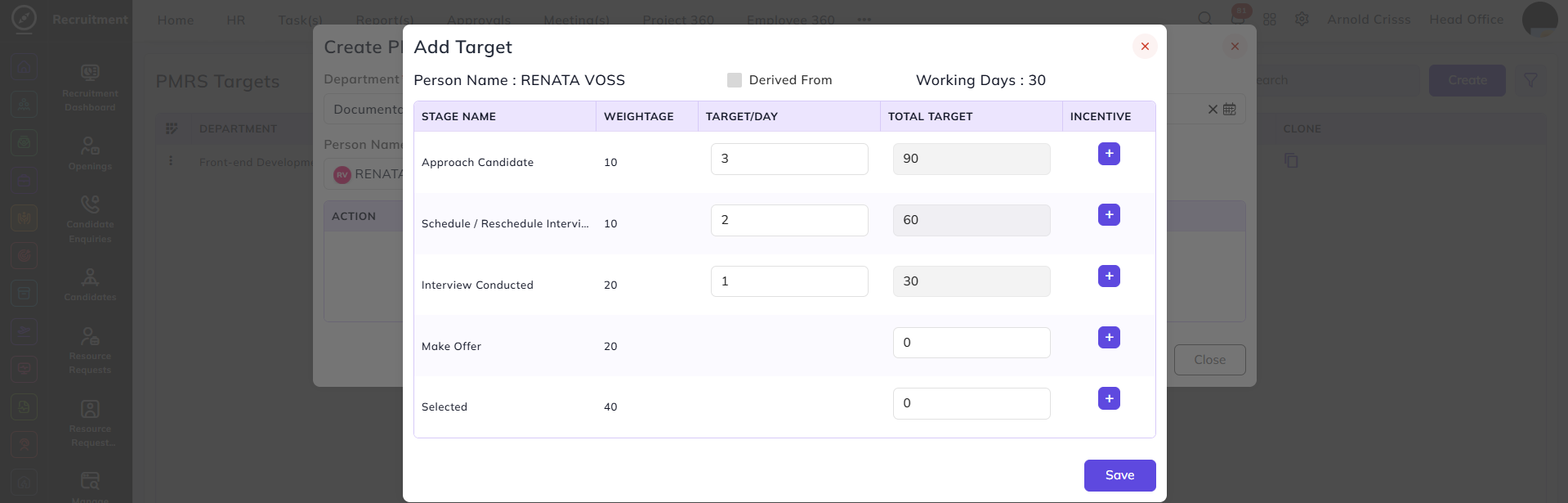
- After adding the Target/Day, click on the '+' button to add Incentives.
- Here, you can enter target range and its incentive.
Per Achieve option: If this option is off, then the employee will get the incentive amount as defined for the range after completing any target value in the range. If it is on, then the employee will receive incentives after each target achieved.
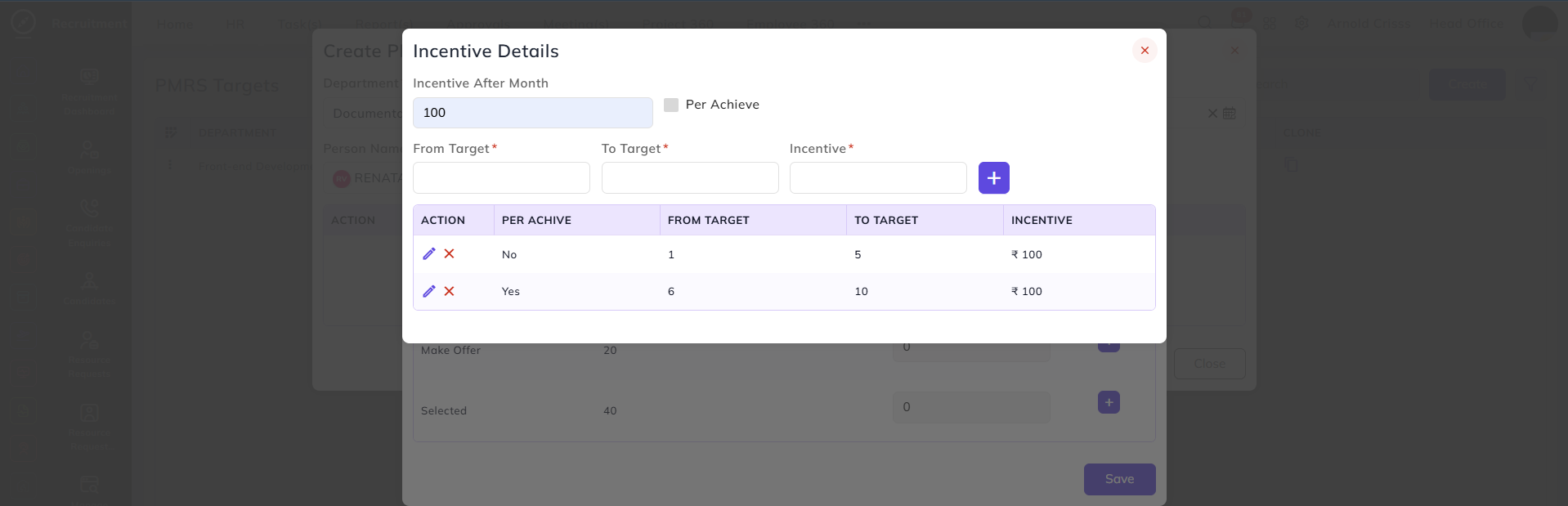
- Once done, go back to the Add Target section and click on Save. Then go back to PMRS Target section and click on Create.
The incentives will be automatically added to the salary of the employee upon targets achieved.
The Bulk Action button allows you to delete multiple PMRS Targets at once, streamlining the management process.